Our Short List of 3

- Best for: Mac-ready backup with no reformatting step.
- 2TB capacity, portable HDD
- USB 3.1 and USB 3.0 compatible, USB-C ready
- Formatted for Mac, Time Machine compatible
- Password protection with 256-bit AES hardware encryption

- Best for: Desktop capacity with extra USB ports for a home setup.
- 4TB capacity, desktop HDD
- USB 3.0 connection with two front USB ports
- Formatted for Mac, Time Machine compatible
- Desktop design with its own power supply
- Best for: Slim everyday carry with strong encryption and a long warranty.
- 2TB capacity, portable HDD
- USB-C ready, USB 3.1 Gen 1
- Formatted for Mac, Time Machine compatible
- Password protection with 256-bit AES hardware encryption
All 3 Picks at a Glance
| Product | Specs | Action |
|---|---|---|
| WD My Passport for Mac 2TB |
| Check price on Amazon |
| Seagate Backup Plus Hub for Mac 4TB |
| Check price on Amazon |
| WD My Passport Ultra for Mac 2TB |
| Check price on Amazon |
Key takeaways
- Our guide to the best hard drives for macbook pro compares four Mac-ready drives, with formatting, connections and capacity, plus how to choose the right one.
A MacBook Pro stores a lot: photo libraries, video projects, music, and the system itself. The internal drive fills faster than most owners expect, and the fix is rarely a new laptop. An external hard drive adds room through a single cable, holds a Time Machine backup, and carries projects between machines. The choice is mostly about formatting and connection, because a drive that needs an hour of setup before its first backup is a drive that gets used less. A drive that matches the Mac feels invisible.
This guide is for MacBook Pro owners who need a backup drive, photographers and editors working from external storage, and students carrying coursework between home and class. It also suits anyone whose laptop warns about storage every week. The four drives below were selected from the name and specifications shown on their Amazon pages. The four picks below cover portable and desktop shapes, so every MacBook Pro owner finds a fit.
Quick Picks
As an Amazon Associate we earn from qualifying purchases
| Product | Best for | Key spec from title |
|---|---|---|
| WD My Passport for Mac 2TB | Ready-to-use backup | 2TB, formatted for Mac, Time Machine |
| LaCie Rugged USB-C 2TB | Tough portable use | 2TB, USB-C, drop resistant |
| Seagate Backup Plus Hub for Mac 4TB | Desktop capacity | 4TB, USB 3.0 hub, Time Machine |
| WD My Passport Ultra for Mac 2TB | Slim everyday carry | 2TB, USB-C ready, 256-bit AES |
How to Choose
Mac formatting and Time Machine
A drive formatted for Mac works with Time Machine the moment it is plugged in, while a Windows-formatted drive needs reformatting first. That one step is easy, but it erases whatever the drive held, so buying a Mac-ready drive saves a chore and a risk. Check the listing for the words Time Machine compatible before ordering, and confirm whether the drive arrives formatted for macOS or for Windows. A Mac-ready drive also avoids the risk of erasing files during a reformat. A drive that is ready out of the box gets backed up the same evening it arrives.
Portability and size
Portable drives run from the USB cable alone, which makes them easy to carry and easy to lose, so size and weight matter. A slim drive slips into a laptop sleeve and adds almost no bulk, while a desktop drive needs its own power and a permanent spot on the desk. Think about where the drive will live: a sleeve pocket suits a portable drive, and a desk drawer suits a desktop one. The lighter the drive, the more likely it travels with the laptop. A slim drive also fits a laptop sleeve without a separate case.
Capacity and growth
Two terabytes covers a full MacBook Pro backup with room for a photo library, which is enough for most owners. Four terabytes suits video editors and owners with large media collections, because raw footage and project files grow fast. Add up the laptop drive plus the files already stored elsewhere, then leave a third of the new drive empty for growth. A drive that fills in the first year forces another purchase sooner than planned. Video editors should count raw footage separately, since it grows faster than documents.
Connection and speed
USB-C is the connection on current MacBook Pro models, so a drive with a USB-C cable plugs in directly without an adapter. Older USB-A drives still work through a hub, but the extra piece is one more thing to forget. A spinning hard drive moves large files steadily rather than quickly, so expect backups and big copies to take a while. Speed matters less for backups than for editing, where a faster drive keeps timelines smooth. A USB-C cable also removes the adapter from the bag, which is one less thing to forget.
The 4 Best Options
WD My Passport for Mac 2TB
- Best for: Mac-ready backup with no reformatting step.
- 2TB capacity, portable HDD
- USB 3.1 and USB 3.0 compatible, USB-C ready
- Formatted for Mac, Time Machine compatible
- Password protection with 256-bit AES hardware encryption
Mac-ready backup with no reformatting step.
A spinning hard drive, so large video files transfer slower than on an SSD for video work.
The WD My Passport for Mac 2TB is the most Mac-ready drive in this group, formatted for macOS and compatible with Time Machine straight out of the box. Its USB-C connection works with current MacBooks, and the included backup software with password protection adds 256-bit AES hardware encryption. At 4.2 ounces and 4.22 by 2.95 by 0.44 inches, it slips into a laptop sleeve without adding bulk. The drive suits owners who want a backup disk that works the moment it is plugged in, with no setup step in between. It is the easiest backup choice in this group.
LaCie Rugged USB-C 2TB
The LaCie Rugged USB-C 2TB is the portable drive for MacBook Pro owners who carry their files through rough days. Its orange bumper and rugged shell resist drops, rain, and crushing, which suits a drive that lives in a bag with books and chargers. The USB-C connection plugs straight into a current MacBook Pro, and the drive moves files at up to 130MB/s over USB 3.1 Gen 1. Two years of Rescue Data Recovery Services come with the drive, which adds a safety net for files that exist nowhere else. The orange bumper also makes the drive easy to spot in a bag.
Specs
- 2TB capacity, portable HDD
- USB-C connection, USB 3.1 Gen 1
- Up to 130MB/s transfer speed
- MIL-STD-810G drop resistance
- Rain, shock, and crush resistant design
- 2-year Rescue Data Recovery Services included
- Works with Mac and Windows
Best for: Tough portable storage for bags, travel, and field work.
Watch out for: The rugged shell adds bulk next to slimmer portable drives, so it takes more room in a sleeve.
ASIN: B01N7QFZLQ
Seagate Backup Plus Hub for Mac 4TB
- Best for: Desktop capacity with extra USB ports for a home setup.
- 4TB capacity, desktop HDD
- USB 3.0 connection with two front USB ports
- Formatted for Mac, Time Machine compatible
- Desktop design with its own power supply
Desktop capacity with extra USB ports for a home setup.
Needs mains power and a desk spot, so it does not travel or work from a laptop bag.
The Seagate Backup Plus Hub for Mac 4TB is a desktop drive for owners who want capacity and a place to plug things in. Its 4TB holds a full MacBook Pro backup with room for a large media library, and the two front USB 3.0 ports charge a phone or connect another device without reaching behind the desk. The drive arrives formatted for Mac and works with Time Machine, so the first backup starts the evening it is unpacked. A two-year limited warranty backs the drive, and the desktop design keeps it cool and steady. The front ports keep a phone charged without a separate hub.
WD My Passport Ultra for Mac 2TB
- Best for: Slim everyday carry with strong encryption and a long warranty.
- 2TB capacity, portable HDD
- USB-C ready, USB 3.1 Gen 1
- Formatted for Mac, Time Machine compatible
- Password protection with 256-bit AES hardware encryption
Slim everyday carry with strong encryption and a long warranty.
A spinning drive, so large transfers take longer than on flash storage, especially for video.
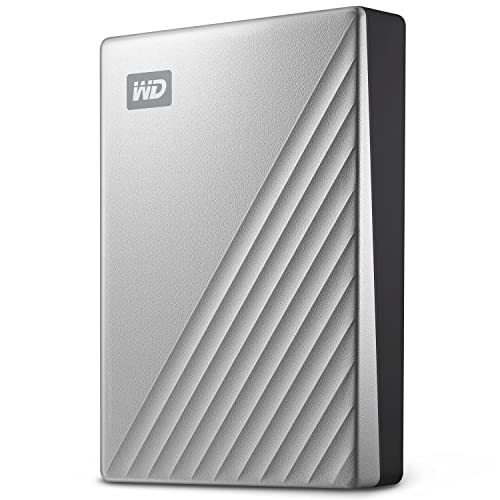
The WD My Passport Ultra for Mac 2TB is a slim portable drive for MacBook Pro owners who want backup and style in one small package. Its USB-C-ready connection works with current laptops, and the drive arrives formatted for Mac with Time Machine compatibility, so setup takes minutes. Password protection with 256-bit AES hardware encryption keeps files private when the drive leaves the desk, and the included backup software schedules copies without a reminder. A three-year limited warranty covers the drive longer than most portable models. The slim case adds almost no bulk to a laptop sleeve.
Which One Fits Your Situation
A first Time Machine backup
Choose the My Passport for Mac when the goal is a backup that starts tonight. It arrives formatted for Mac, plugs in over USB-C, and Time Machine recognizes it without a reformatting step. Run the first full backup overnight, then let regular copies happen on their own. The drive is small enough to store in a drawer between backups, which keeps the backup separate from the laptop it protects. Separation is the point.
Carrying projects between locations
The LaCie Rugged suits owners who carry video or photo projects between home, studio, and client sites. Its rugged shell survives a bag that gets dropped or rained on, and the USB-C cable plugs straight into a MacBook Pro. Keep the project files on the drive and the laptop stays light, and the Rescue services add a safety net if the drive ever fails. The extra bulk is the price of that protection.
A home desk with a growing library
Pick the Backup Plus Hub when the library lives on one desk and keeps growing. Four terabytes holds a full backup plus a large media collection, and the front USB ports keep a phone charged without a separate hub. Set the drive behind the monitor, run Time Machine on a schedule, and the backup becomes part of the desk rather than a chore. The drive stays put, so nothing gets forgotten.
A slim drive for daily carry
The My Passport Ultra fits owners who want the drive in the laptop sleeve every day. Its slim case and USB-C connection add almost no bulk, and the encryption keeps files private if the sleeve is ever lost. Use it for coursework, documents, and a rolling backup, and keep a second copy of anything irreplaceable elsewhere. A drive that travels with the laptop gets backed up more often than one left at home.
Common Mistakes
- Buying a Windows-formatted drive and discovering it needs reformatting before Time Machine will use it, and erases the drive.
- Choosing a desktop drive for a laptop that moves daily, then leaving the drive at home.
- Picking 2TB for a video library that will outgrow it within a year.
- Forgetting an adapter when the drive uses USB-A and the laptop only has USB-C.
- Treating the external drive as the only copy and skipping a second backup entirely. A single copy is not a backup.
Frequently Asked Questions
Does a Mac-ready drive need any setup?
A Mac-ready drive needs almost no setup: plug it in, let the Mac recognize it, and choose it in Time Machine. The first backup copies everything and takes a while, so run it overnight. After that, regular backups copy only new and changed files, and the drive stays ready whenever it is connected. Keep the laptop plugged in during the first backup.
Can I use the same drive with a Mac and a Windows PC?
Yes, but the formatting decides how smoothly it works. A drive formatted for Mac needs reformatting or extra software to work fully on Windows, and reformatting erases the drive. If both systems matter, choose a drive formatted for both or keep one drive per system to avoid surprises. One drive per system is the simplest setup.
Is 2TB enough for a MacBook Pro backup?
Yes, 2TB is enough for most MacBook Pro owners because it holds a full backup of the internal drive with room for a photo library. Owners with large video collections or several years of raw footage should consider 4TB instead. Add up the laptop drive and the files stored elsewhere before deciding. Leave a third of the drive empty for growth.
How long does a first Time Machine backup take?
A first backup takes as long as the files demand, often several hours for a full laptop, so overnight is the practical choice. Later backups are much faster because they copy only what changed. Keep the laptop plugged in and the drive connected until the first backup finishes, and do not unplug the drive mid-copy. Let it finish.
FAQ
Does a Mac-ready drive need any setup?
Can I use the same drive with a Mac and a Windows PC?
Is 2TB enough for a MacBook Pro backup?
How long does a first Time Machine backup take?
More from Amazon
Programs that pair well with the guide above. Offers and eligibility are set by Amazon and may change.
Free shipping on eligible items, Prime Video and more. Eligible new members can start with a free trial.
Start a Prime free trialAd-free music streaming. Eligible new subscribers can start with a free trial.
Try Music Unlimited freeA Prime membership for ages 18-24 with a trial period. Eligibility is set by Amazon.
See Prime for Young AdultsAudiobooks and podcasts to listen to on the go. Eligible new members can start with a free trial.
Try Audible freeAs an Amazon Associate we earn from qualifying purchases.