Key takeaways
- Looking for the best video card for 4 monitors? Compare three graphics cards with four display outputs, plus setup tips for a smooth multi-monitor rig.
Introduction
Finding the best video card for 4 monitors starts with one simple check: the card must have four physical display outputs, or a way to split its outputs without losing stability. Plenty of modern graphics cards can drive four screens at the same time, but not every card makes it easy. Some have only three ports, some share bandwidth between outputs, and some need adapters that add cost and clutter. This guide explains what to look for and compares three graphics cards that each offer four display connections on a single card, so you can build a clean four-monitor setup for work, trading, editing, or gaming.


A four-monitor setup changes how you work. One screen can hold your main task, a second can show email or chat, a third can run a browser full of reference material, and a fourth can display monitoring tools, a media player, or a game. Traders watch charts on several screens at once. Video editors keep a timeline, preview, bins, and effects panels visible without constant tab switching. Programmers keep code, documentation, a terminal, and a test build open side by side. The right video card makes all of that feel effortless, while the wrong one leaves you juggling adapters and fighting with display settings.
The good news is that you do not need a workstation card or a second graphics card to run four monitors. A single mainstream card with four outputs handles everyday productivity across four displays without breaking a sweat. Gaming across all four screens at once is a different story and demands far more power, but for most four-monitor users the workload is desktop apps, browsers, and media rather than a game stretched across every panel. The three picks below are all mainstream cards that balance output count, power draw, size, and everyday performance.
How to Choose a Video Card for 4 Monitors
Count the physical outputs first
The single most important specification is the number and type of display outputs on the card. Look for a card with four outputs in total, such as three DisplayPort connectors and one HDMI port, or two of each. If a card has only three ports, it cannot drive four monitors on its own, no matter how powerful its graphics chip is. Check the product listing or the manufacturer’s specification page for the exact output layout before buying, and match those outputs to the inputs on your monitors.
Match outputs to your monitors
DisplayPort and HDMI are not interchangeable without the right cable or adapter. If your monitors only have HDMI inputs and the card has three DisplayPort outputs, you will need adapters or new cables. Passive DisplayPort to HDMI adapters are cheap and work well for standard resolutions and refresh rates, while active adapters are needed for trickier combinations. Planning the cable layout in advance saves a return trip to the store and keeps the back of your desk tidy.
Check the maximum number of simultaneous displays
Having four ports does not always mean the card can use all four at once, although most modern cards can. NVIDIA’s mainstream GeForce cards generally support up to four simultaneous displays, and AMD’s mainstream Radeon cards do the same. Still, confirm the maximum display count in the specifications rather than assuming it. Older or entry-level cards sometimes cap out at three displays even when they appear to have enough ports.
Make sure your power supply can handle it
A card that drives four monitors for office work does not need a huge power supply, but it still needs the right connectors and enough wattage headroom. The cards in this guide draw around 115 watts under load and need a single 8-pin power connector, with a 550-watt power supply recommended by the manufacturers. Check your power supply’s wattage rating and available connectors before ordering, especially if you are upgrading an older prebuilt desktop that may have a modest power supply.
Think about resolution and refresh rate
Four 1080p monitors are easy work for a modern card. Four 1440p monitors are still comfortable for desktop use. Four 4K monitors demand more video memory bandwidth and can strain a card when you also want smooth video playback or light gaming. If your monitors are 4K, favor a card with DisplayPort 1.4 outputs, which handle high resolutions and refresh rates more comfortably than older connections. Also remember that mixed resolutions and refresh rates are fine: each monitor can run at its own native settings.
Consider size and cooling
Measure the space inside your case before buying. Dual-fan cards around 200 to 230 millimeters long fit most mid-tower cases, while longer triple-fan cards need more clearance. Also check that the card does not block other slots you need. For a quiet office, look for cards with a fan-stop mode that keeps the fans off during light desktop work, since four monitors at idle generate very little heat.
Do not rely on motherboard video outputs
Many desktops have video ports on the motherboard, but those are driven by the processor’s integrated graphics, and on many systems they switch off once a discrete graphics card is installed. Plan to connect all four monitors to the graphics card itself. If you want to use a motherboard port as a fourth output, check your BIOS settings first, because it does not work on every system and can cause driver confusion.
Know when a DisplayPort hub can help
If you already own a card with only three outputs, a DisplayPort MST hub can split one DisplayPort connection into two or three monitor feeds. This works, but the monitors share the bandwidth of a single port, so high resolutions and refresh rates may be limited. A hub is a useful workaround, but a card with four native outputs is the cleaner and more reliable solution for a permanent four-monitor desk.
Top Picks
1. MSI GeForce RTX 4060 Ventus 2X Black 8G OC
The MSI GeForce RTX 4060 Ventus 2X Black 8G OC is the most straightforward pick for a four-monitor setup. It carries three DisplayPort 1.4a outputs and one HDMI 2.1a port, giving you four native connections with no hub and no adapter juggling. The card is built around NVIDIA’s Ada Lovelace architecture with 8GB of GDDR6 memory, which is plenty for desktop work across four screens, photo editing, and 1080p gaming on your main monitor while the other three handle browsers and chat.
Its compact dual-fan design measures just under 200 millimeters long and takes up two slots, so it fits in smaller cases that cannot swallow a long triple-fan card. The 115-watt power draw means a single 8-pin connector and a modest power supply are enough, which makes it a friendly upgrade for prebuilt systems. The factory overclock gives a small boost over reference speeds, and support for DLSS 3 helps in games that support it. For a desk where three monitors use DisplayPort and one uses HDMI, this card connects everything directly with standard cables.
Key specs:
- GPU: NVIDIA GeForce RTX 4060
- Memory: 8GB GDDR6
- Outputs: 3x DisplayPort 1.4a, 1x HDMI 2.1a
- Max simultaneous displays: 4
- Power: 115 watts, single 8-pin connector
- Cooling: Dual-fan Ventus design, two slots
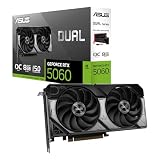
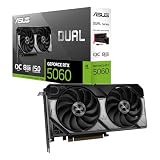
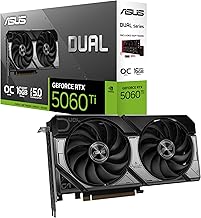
2. ASUS Dual GeForce RTX 4060 V2 OC Edition
The ASUS Dual GeForce RTX 4060 V2 OC Edition is another strong four-output option, with the same three DisplayPort and one HDMI layout as the MSI card but in a slightly different package. Its two Axial-tech fans use a smaller hub and longer blades to push more air, and the card includes a 0dB mode that stops the fans completely during light loads, which keeps a quiet office quiet. A protective backplate adds rigidity and a finished look, and the stainless steel mounting bracket resists bending over time.
With 8GB of GDDR6 memory and a boost clock of up to 2535 MHz in OC mode, this card handles four-monitor productivity with ease and plays modern games well on a single screen. The two-slot design and modest length make it compatible with a wide range of cases, and the single 8-pin power connector keeps installation simple. It also supports NVIDIA’s studio drivers, which some creators prefer for editing and design apps. If your priority is quiet operation and a compact card from a brand with a long track record, this is a solid choice for a four-display desk.
Key specs:
- GPU: NVIDIA GeForce RTX 4060
- Memory: 8GB GDDR6
- Outputs: 3x DisplayPort 1.4a, 1x HDMI 2.1a
- Max simultaneous displays: 4
- Boost clock: up to 2535 MHz in OC mode
- Power: 115 watts, single 8-pin connector
- Cooling: Dual Axial-tech fans with 0dB mode, two slots
3. Gigabyte GeForce RTX 4060 Eagle OC 8G
The Gigabyte GeForce RTX 4060 Eagle OC 8G takes a different approach to the same problem: instead of three DisplayPort outputs and one HDMI, it offers two DisplayPort 1.4 connectors and two HDMI 2.1 ports. That layout is ideal if your monitors are mostly HDMI, such as a desk full of TVs, HDMI-only budget monitors, or a mix where two screens already have HDMI cables run. With two of each connector type, you can wire up four monitors without buying a single adapter.
The triple-fan WINDFORCE cooling system spreads heat across three fans, which lets each fan spin more slowly and quietly under load. The card is longer than the two dual-fan picks above, so measure your case before ordering, but the extra cooling headroom suits desks where the card works hard, such as editing timelines on one screen while rendering previews on another. It uses the same RTX 4060 chip and 8GB of GDDR6 memory as the other picks, so everyday performance across four displays is equally smooth, and it needs the same single 8-pin power connector.
Key specs:
- GPU: NVIDIA GeForce RTX 4060
- Memory: 8GB GDDR6
- Outputs: 2x DisplayPort 1.4, 2x HDMI 2.1
- Max simultaneous displays: 4
- Power: 115 watts, single 8-pin connector
- Cooling: Triple-fan WINDFORCE design
Comparison Table
| Card | GPU | Memory | Display Outputs | Max Displays | Power Draw | Cooling |
|---|---|---|---|---|---|---|
| MSI RTX 4060 Ventus 2X Black 8G OC | RTX 4060 | 8GB GDDR6 | 3x DisplayPort, 1x HDMI | 4 | 115 watts | Dual fan, 2 slots |
| ASUS Dual RTX 4060 V2 OC | RTX 4060 | 8GB GDDR6 | 3x DisplayPort, 1x HDMI | 4 | 115 watts | Dual fan, 0dB mode, 2 slots |
| Gigabyte RTX 4060 Eagle OC 8G | RTX 4060 | 8GB GDDR6 | 2x DisplayPort, 2x HDMI | 4 | 115 watts | Triple fan |
Setting Up Four Monitors
Once the card is installed, the setup itself is straightforward. Connect each monitor to a different output on the card, then open your display settings and arrange the screens to match their physical positions on your desk. Windows lets you drag the monitor icons into place, set one as the primary display, and choose whether each screen extends your desktop or mirrors another. On Windows, the keyboard shortcut Windows key plus P opens the projection menu for quick changes, and the full display settings page gives you control over resolution, refresh rate, scaling, and orientation for each panel.
Keep a few practical points in mind. First, set each monitor to its native resolution so text stays sharp. Second, if you use monitors of different sizes, Windows display scaling can make text look uneven, so try matching scaling percentages across screens or grouping same-size monitors together. Third, update your graphics driver from NVIDIA’s website after installing the card, because the driver that ships in the box may be months old and newer drivers fix multi-monitor bugs. Finally, label your cables or note which monitor plugs into which port, because troubleshooting is much easier when you know the layout.
If you want a game or app to span multiple screens, NVIDIA Surround can combine displays into one wide surface, but it works best with identical monitors and is generally more trouble than it is worth for mixed monitors. For most people, extended desktop mode with a game running on the primary monitor and tools on the other screens is the better arrangement. You get the immersion of a big main screen without the bezels cutting through the middle of the action.
Frequently Asked Questions
Can any graphics card run 4 monitors?
No. A card needs either four physical outputs or support for DisplayPort daisy chaining or an MST hub. Many modern mainstream cards have four outputs and support four simultaneous displays, but entry-level and older cards often stop at two or three. Always check the output count and the maximum display specification before buying.
Do I need a powerful card for four monitors?
For office work, browsing, trading, and media playback across four screens, no. A mainstream card with 8GB of memory handles that easily. You only need a high-end card if you plan to game across all four screens at once, render 3D scenes, or edit high-resolution video while driving four 4K displays.
Is DisplayPort or HDMI better for a multi-monitor setup?
DisplayPort is usually the better choice for a multi-monitor desk because it supports higher refresh rates at high resolutions and enables daisy chaining on monitors that support it. HDMI is fine for standard 1080p and 4K at 60 Hz, and it is the only option on many TVs and budget monitors. The best card for your desk is the one whose outputs match the inputs your monitors already have.
Can I mix monitor sizes and resolutions?
Yes. Each monitor runs at its own resolution and refresh rate, and Windows lets you arrange them in any layout. Mixing sizes can feel awkward if the screens are very different heights, so try to keep the primary monitor and its neighbors at similar sizes when possible. Using identical monitors for the side screens gives the cleanest look.
Will four monitors slow down my computer?
Four monitors add a small load to the graphics card, but for desktop apps the effect is negligible on a modern card. What slows a system down is running demanding apps on all four screens at once, such as playing a game on one screen while editing 4K video on another. For normal multitasking, you will not notice a difference between two monitors and four.
Conclusion
The best video card for 4 monitors is one with four native outputs, enough memory for your workload, and a size and power draw that fit your existing PC. The MSI RTX 4060 Ventus 2X Black 8G OC is the most compact and straightforward choice, the ASUS Dual RTX 4060 V2 OC adds quieter cooling and a sturdy build, and the Gigabyte RTX 4060 Eagle OC 8G is the best fit for desks full of HDMI monitors thanks to its two DisplayPort and two HDMI layout. Any of the three will drive four displays at once without a hub, and all three leave you room to game or create on your main screen. Count your monitor inputs, measure your case, check your power supply, and pick the card whose outputs match your desk.
Disclosure: As an Amazon Associate, we earn from qualifying purchases.
FAQ
Can any graphics card run 4 monitors?
Do I need a powerful card for four monitors?
Is DisplayPort or HDMI better for a multi-monitor setup?
Can I mix monitor sizes and resolutions?
Will four monitors slow down my computer?
More from Amazon
Programs that pair well with the guide above. Offers and eligibility are set by Amazon and may change.
Free shipping on eligible items, Prime Video and more. Eligible new members can start with a free trial.
Start a Prime free trialAd-free music streaming. Eligible new subscribers can start with a free trial.
Try Music Unlimited freeA Prime membership for ages 18-24 with a trial period. Eligibility is set by Amazon.
See Prime for Young AdultsAudiobooks and podcasts to listen to on the go. Eligible new members can start with a free trial.
Try Audible freeAs an Amazon Associate we earn from qualifying purchases.