Key takeaways
- Switch off the PC and the power supply switch, and unplug the power cable and all other cables.
- Press the case power button once while unplugged to release residual charge, a step often suggested in build guides.
- Do not open the power supply unit. Its internals can be dangerous even when unplugged, and cleaning inside it is for a technician.
- Work in a ventilated area, ideally outdoors or near an open window, so dust does not settle back.
- Touch bare metal on the case frame before handling parts to reduce static risk, and avoid synthetic clothing and carpet.
- Do not use a standard household vacuum on components. It can generate static, and the nozzle can knock off small parts.
To clean inside a gaming PC safely, shut it down, unplug it, move it to a ventilated spot, open the side panel, hold each fan still, and blow dust out in short bursts of compressed air with the can upright, finishing with a soft brush for stubborn spots. Never open the power supply, and do not use a household vacuum on the components. The full routine takes under an hour for most builds.
Why Internal Dust Matters
Dust collects on heatsink fins, fan blades and filters, where it restricts airflow and insulates parts. Reviewers and cooler makers commonly point to clogged fins and filters as a reason for rising temperatures and louder fans over time. Cleaning does not boost performance beyond stock, but it can help a PC that has become hot or loud return to normal behavior.
Tools Checklist
| Tool | Purpose | Notes |
|---|---|---|
| Compressed air or manual blower | Remove dust from fins, fans, filters | Short bursts, can upright |
| Soft brush | Loosen dust from corners and fan frames | Anti-static if possible |
| Microfiber cloth | Wipe panels and flat surfaces | Lint-free |
| Cotton swabs | Tight gaps and fan hubs | Dry or barely damp |
| Screwdriver | Open panels, remove filters | Usually a Phillips head |
| Isopropyl alcohol, high strength | Spot cleaning only | Let it fully evaporate before powering on |
| Mask and eye protection | Personal protection | Dust can irritate |
Safety First
- Switch off the PC and the power supply switch, and unplug the power cable and all other cables.
- Press the case power button once while unplugged to release residual charge, a step often suggested in build guides.
- Do not open the power supply unit. Its internals can be dangerous even when unplugged, and cleaning inside it is for a technician.
- Work in a ventilated area, ideally outdoors or near an open window, so dust does not settle back.
- Touch bare metal on the case frame before handling parts to reduce static risk, and avoid synthetic clothing and carpet.
- Do not use a standard household vacuum on components. It can generate static, and the nozzle can knock off small parts.
Step-by-Step Method
1. Prepare the workspace
Place the case on a table, side panel facing up. Take a photo of the cable layout before you start. This helps when reconnecting anything you move.
2. Remove panels and filters
Take off the side panels. Remove dust filters at the front, top and bottom; the case manual explains how each releases. Clean them outside the case by brushing or tapping, and wash with water if the maker allows. Dry filters fully before refitting.
3. Clean fans without spinning them freely
Hold each fan blade still with a finger, a plastic stick or a cotton swab while you blow compressed air across it. Forcing a fan to spin quickly can strain the bearing and, in some designs, generate a small voltage. Wipe the blades with a barely damp swab if dust is caked on, and dry the blades.
4. Clean the CPU cooler
Blow across the heatsink fins from the direction air normally flows, or from the side if the fins are open, in short bursts. Brush gently. Do not remove the cooler to clean it unless you plan to reapply thermal paste, because reseating a cooler requires new paste and care.
5. Clean the graphics card
Blow dust out of the heatsink and fan area. Keep fans still as above. If you plan to unplug the power connector, follow the card maker’s guidance. For the 12V-2×6 or 12VHPWR connector, make sure it is fully seated afterward, and stop using the card and contact the maker if you notice melted plastic, discoloration or a burnt smell. Leave the GPU in its slot unless you are comfortable removing it.
6. Clean the motherboard, RAM and drives
Use a soft brush for dust between RAM slots and around the CPU socket area, then short air bursts. Avoid touching exposed contacts. Skip liquid on the board unless you are spot cleaning residue, and in that case use high-strength isopropyl alcohol on a swab and let it dry fully.
7. Clear dust from the power supply exterior
Blow dust from the intake and exhaust grille from outside. Do not poke tools into it. If it has a removable filter, clean that as you would other filters.
8. Clean case fans and radiators
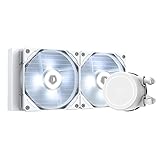
If you have a liquid cooler, blow dust from the radiator fins gently, holding the fans still. Never bend the fins.
9. Wipe, reassemble and reconnect
Wipe the interior floor and panels with a dry microfiber cloth. Refit the filters and panels, plug everything in, and boot the PC. Listen for abnormal fan noise and check temperatures in monitoring software.
Compressed Air Do and Do Not
| Do | Do not |
|---|---|
| Use short bursts | Hold the trigger down continuously, which can chill and produce liquid |
| Keep the can upright | Tilt or shake it while spraying |
| Hold fans still | Let a fan overspin |
| Keep a few inches away | Put the nozzle against components |
| Work outdoors or ventilated | Blow dust in a closed room |
A hand-pumped blower or an electric duster designed for electronics avoids cans and works well for regular maintenance.
When to Clean What
| Symptom | Likely dust-related cause | What to clean |
|---|---|---|
| Louder fans than usual | Clogged filters or fan blades | Filters, fans |
| Higher CPU temperature | Dust between heatsink fins | CPU cooler |
| GPU fans loud, throttling | Dust in GPU shroud | GPU heatsink and fans |
| Dust visible on front mesh | Restricted intake | Front filter |
| PC restarts when hot | Could be several causes | Clean first; if it continues, see a technician |
Dust is only one possible cause. If problems persist after cleaning, a failing fan, dried thermal paste or a software issue could be responsible, and the component maker’s support is the next step.
Common Mistakes
- Cleaning with the PC still plugged in.
- Spinning fans with high-pressure air.
- Opening the power supply.
- Using a household vacuum on parts.
- Using wet cloths or sprays inside the case.
- Removing the CPU cooler without a plan for thermal paste.
- Putting damp filters back.
- Pulling cables loose and forgetting where they go.
How Often
Many builders look at filters monthly and do a full interior clean every six to twelve months. Pets, carpets or smoking in the room shorten the interval. These are common practice rather than maker requirements, so let visible dust guide you.
Frequently Asked Questions
Can I use a vacuum to clean inside my PC?
A standard household vacuum is not recommended because of static and the risk of hitting small components. Use compressed air, a manual blower or a brush instead. An electronics-safe vacuum is a different tool and should still be used carefully.
Should I take the graphics card out to clean it?
It is not necessary for routine cleaning. You can clean the fans and heatsink in the slot with short bursts of air. Remove it only if you are confident, and follow the card maker’s instructions.
Do I need to reapply thermal paste after cleaning?
Only if you remove the CPU cooler. Simply cleaning the fins and fans does not disturb the paste.
Is it safe to use isopropyl alcohol inside a PC?
High-strength isopropyl alcohol is commonly used for spot cleaning residue. Use a small amount, keep it away from fan bearings, and let it evaporate fully before powering on.
How do I know if the PC needs cleaning?
Louder fans, rising temperatures and visible dust on filters and heatsinks are common signs. Checking temperatures in monitoring software before and after can show whether it helped.
Is it safe to clean the power supply?
Blowing dust off the outside grille is fine. Do not open the unit or reach inside it. Contact the maker or a technician for any internal issue.
FAQ
Can I use a vacuum to clean inside my PC?
Should I take the graphics card out to clean it?
Do I need to reapply thermal paste after cleaning?
Is it safe to use isopropyl alcohol inside a PC?
How do I know if the PC needs cleaning?
Is it safe to clean the power supply?
More from Amazon
Programs that pair well with the guide above. Offers and eligibility are set by Amazon and may change.
Free shipping on eligible items, Prime Video and more. Eligible new members can start with a free trial.
Start a Prime free trialAd-free music streaming. Eligible new subscribers can start with a free trial.
Try Music Unlimited freeA Prime membership for ages 18-24 with a trial period. Eligibility is set by Amazon.
See Prime for Young AdultsAudiobooks and podcasts to listen to on the go. Eligible new members can start with a free trial.
Try Audible freeAs an Amazon Associate we earn from qualifying purchases.