Key takeaways
- The best gaming keyboard and mouse for ps5, November 2026 guide: wired vs wireless, compact vs full-size, DPI, and the game support rules to check first.
As an Amazon Associate we earn from qualifying purchases.
A keyboard and mouse can sharpen your aim on PS5, yet the real decision comes before you compare switches or sensors. Sony lets the console accept USB and wireless keyboards and mice, but every game decides for itself whether keyboard and mouse input works, so a set that feels perfect on PC can sit useless in the game you bought it for. Your first job is matching the combo to the games you actually play, then to the space you play in.
Competitive shooter players, couch players, small-desk players, and people who split time between PS5 and PC all need different layouts, and the combos in this guide are judged from the names and specifications shown on their Amazon product pages. Live Amazon stock checks were blocked while this guide was written, so instead of naming verified in-stock picks it shows you exactly how to judge any combo before you buy.
How to Choose
Check Which of Your Games Actually Support Keyboard and Mouse
PS5 accepts keyboards and mice at the system level, yet support changes from one title to the next. Shooters such as Fortnite and Call of Duty accept keyboard and mouse input, while many story-driven and sports titles ignore it completely and leave you reaching for the DualSense. Before spending anything, open the settings or control options inside each game you play most and look for a keyboard and mouse section. Community lists can help, though a patch can add or remove support, so the menu inside your own copy of the game is the only answer worth trusting. A combo bought for one supported shooter still earns its keep if you rotate through several supported titles.
Choose Between Wired Plug-and-Play and Wireless Freedom
Wired sets connect through USB and start working the moment you plug them into the front or rear port of the console. No batteries run flat mid-match, no receiver pairing interrupts a session, and the cable itself keeps latency out of the conversation. Wireless sets trade that simplicity for a clear desk, running both keyboard and mouse from one shared 2.4G receiver that occupies a single USB port. That freedom comes with chores: rechargeable batteries need topping up, sleep modes can leave a first keypress unregistered, and a lost receiver can sideline both devices at once. Couch players usually accept those chores gladly, while desk players chasing the most direct connection tend to stay wired.
Pick a Layout That Fits Your Desk and Your Hands
A 60 percent layout squeezes the keyboard down to around 61 keys, dropping the number pad, the function row, and the dedicated arrow keys onto a function layer. That small footprint leaves generous room for wide, low-sensitivity mouse sweeps, which is why competitive shooter players love it, though typing and menu navigation take some relearning. Tenkeyless boards keep 87 keys, arrows included, and suit players who want a compact board without losing familiar keys. Full-size sets add the number pad and often a row of macro keys plus a wrist rest, making them comfortable for mixed gaming and everyday use, provided your desk has the width to hold them.
Weigh the Mouse Sensor, DPI Steps, and Key Feel
The mouse decides how faithfully your hand movements turn into aim. Look for an optical sensor with several DPI steps you can switch mid-game, such as 800 for careful aiming and 3200 or 7200 for fast turns across the map, plus a polling rate the listing states plainly. A light honeycomb shell helps during long flick-heavy sessions, while a heavier ergonomic body suits a palm grip. On the keyboard side, membrane keys feel soft and quiet, mechanical-feel keys add a crisper snap, and anti-ghosting with multi-key rollover keeps simultaneous presses registering in busy fights. Backlighting looks good in a dark room, though it never improves a sensor, so treat glow as a bonus rather than a buying reason.
Which One Fits Your Situation
You Play Competitive Shooters at a Desk
A compact wired 60 percent set suits this setup best. The small board leaves room for broad mouse sweeps, the cable removes charging and pairing from your routine, and a light honeycomb mouse with high DPI steps tracks fast flicks cleanly. Sets in this style, such as the RedThunder K62 combo, pair a 61-key RGB keyboard with a 7200 DPI mouse and name PS5 among their supported platforms.
You Play From the Couch
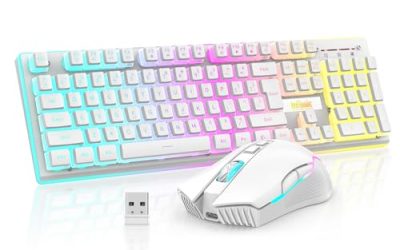
A wireless set with one shared receiver fits couch play. You keep a single USB port occupied, no cables cross the living room, and rechargeable batteries in both devices remove disposable battery runs. A full-size or tenkeyless board works here, since mouse space matters less than comfortable typing from a sofa. Combos in this style, such as the CHONCHOW wireless sets, run keyboard and mouse from one 2.4G adapter and list PS5, PS4, and PC among their compatible devices.
Your Desk Is Small or Shared
A 60 percent wired set earns its place on a desk. The board takes up little width, the mouse gains the freed space, and the wired connection means nothing needs charging between sessions. You give up the number pad and a few keys, though the function layer covers them when you need them. Sets in this style, such as the Guiheng 60 percent combo, pair a 61-key RGB keyboard with a 3200 DPI mouse and name PS5 in their listing.
You Split Time Between PS5 and PC
Pick a set that lists both platforms and works through USB plug-and-play, so moving it between console and computer takes seconds. Software for macros and lighting runs on PC only, so any feature that needs an app will not follow you to PS5; judge the set by what it does with no software. A full-size combo with macro keys and a wrist rest suits this routine, since the keys serve PC work while the same board covers console play.
Setting Up a Keyboard and Mouse on PS5
Start with the console on the home screen, then plug the keyboard into a free USB port on the front or rear of the PS5. If the set is wired, connect the mouse to a second USB port or to the pass-through port on the keyboard when the maker provides one. If the set is wireless, plug the shared 2.4G receiver into a USB port instead and switch both devices on, waiting a few seconds for the console to recognise them. No setup prompt should appear for a standard keyboard and mouse, and the devices should respond as soon as they are recognised. Keep the receiver close to the devices and away from metal objects or a crowded USB hub, since a blocked signal can cause missed key presses during a match.
Open Settings from the home screen, then choose Accessories and look for the keyboard and mouse options the console provides. Set the key repeat delay and repeat rate to values that feel comfortable when you type or move through menus, and check the pointer speed so the mouse does not feel too slow or too twitchy before you enter a game. If the keyboard layout looks wrong, confirm that the language setting matches the layout printed on the keys, because a mismatch can move symbols and punctuation to unexpected places. These system settings change how the devices behave in menus, though most games apply their own sensitivity and key bindings on top, so treat the system menu as a starting point rather than the final setup.
Before you join a match, open the game you plan to play and look for its keyboard and mouse controls. Many supported shooters list keyboard and mouse bindings in a dedicated controls menu, where you can see which keys move, reload, crouch, and open the map, and whether the game lets you remap them. Spend a few minutes in a practice mode to test the layout, checking that movement, aiming, and interaction all respond as expected and that the mouse sensitivity feels steady rather than jumpy. If a game ignores the keyboard and mouse entirely, return to the DualSense for that title, since no setting on the console can add support the game never included.
Finish by arranging the space around the console for the way you actually play. Place the keyboard where your wrists stay straight and the mouse has a clear run of pad in every direction, with the cable routed behind the desk so it cannot snag during a wide sweep. Charge wireless devices after each session rather than waiting for a low-battery warning mid-game, and keep a spare USB port free in case the receiver needs moving to a clearer spot. If a key or button stops responding, unplug the device, plug it back in, and test it in a menu before blaming the game, since a loose connection causes more faults than a broken sensor.
Common Mistakes
- Buying before checking game support: a combo cannot add keyboard and mouse input to a game that never accepts it, so confirm support inside each title first.
- Assuming Bluetooth works like a wired connection: many PS5 games and menus respond poorly to Bluetooth peripherals, while a USB cable or a 2.4G receiver connects far more reliably.
- Choosing a full-size board for a tiny desk: the number pad crowds the mouse, forcing a cramped high-sensitivity grip that hurts aim in shooters.
- Judging a mouse by its highest DPI number alone: a huge maximum means little without usable middle steps, a steady sensor, and a shape that fits your grip.
- Counting on PC software features on PS5: macro recording, custom lighting profiles, and DPI software run on a computer, not on the console, so the set must satisfy you without them.
Frequently Asked Questions
Do all PS5 games support a keyboard and mouse?
No. PS5 accepts keyboards and mice at the system level, but each game decides whether to use them. Supported shooters include Fortnite and Call of Duty, while many other genres ignore keyboard and mouse input entirely. Check the control options inside the game you want to play before buying a combo for it.
Do I need an adapter to use a keyboard and mouse on PS5?
No adapter is needed for most combos. Plug a wired set into a USB port on the console, or plug a wireless set’s 2.4G receiver into the same port, and the PS5 recognises both devices. Bluetooth keyboards and mice can pair through the system settings, though compatibility varies by game, so USB or 2.4G remains the safer route.
Is a wired or wireless keyboard and mouse better for PS5?
Wired suits a desk setup, since the cable removes batteries, pairing, and charging from the routine and keeps the connection direct. Wireless suits couch play, where a single shared receiver keeps cables out of the living room and lets you sit back from the screen. Choose by where you sit rather than by which connection sounds more advanced.
Can I use macro keys and RGB software on PS5?
Macro recording and lighting software run on PC, not on PS5. A combo’s programmable keys and custom lighting profiles need the maker’s Windows or Mac app, which the console cannot run. On PS5, macro keys either do nothing or repeat a basic function, while the backlight keeps its default pattern. Buy for the hardware itself, not for software features you cannot reach from the console.
FAQ
Do all PS5 games support a keyboard and mouse?
Do I need an adapter to use a keyboard and mouse on PS5?
Is a wired or wireless keyboard and mouse better for PS5?
Can I use macro keys and RGB software on PS5?
More from Amazon
Programs that pair well with the guide above. Offers and eligibility are set by Amazon and may change.
Free shipping on eligible items, Prime Video and more. Eligible new members can start with a free trial.
Start a Prime free trialAd-free music streaming. Eligible new subscribers can start with a free trial.
Try Music Unlimited freeA Prime membership for ages 18-24 with a trial period. Eligibility is set by Amazon.
See Prime for Young AdultsAudiobooks and podcasts to listen to on the go. Eligible new members can start with a free trial.
Try Audible freeAs an Amazon Associate we earn from qualifying purchases.