Key takeaways
- Looking for the best 60fps webcams under 50? Compare smooth-motion picks for streaming, gaming, and calls, with autofocus, clear mics, and privacy covers.
Finding the best 60fps webcams under 50 is mostly a matter of knowing where budget cameras cut corners, because a webcam that advertises a high frame rate does not always deliver it at the resolution you expect. Many affordable cameras reach 60 frames per second only at 720p, while others need strong lighting or a direct USB connection to hold a smooth frame rate at 1080p. The picks in this guide all come from listings that state 60fps video capture, and each one is built for a slightly different job: compact streaming, a feature-packed all-rounder, or a software-tunable camera for a desk setup. If you stream games, host long calls, or record clips for a channel, a 60fps webcam makes hand gestures, head movement, and on-screen motion look noticeably smoother than a standard 30fps camera. The difference is easy to see in fast movement, and it is one of the cheapest upgrades you can make to how you look on camera. This guide explains what to check before you buy, then walks through three cameras that fit the budget tier, with honest notes on what each one gives up to stay affordable.
How to Choose
1. Confirm the resolution at 60fps
The single most important check is the resolution at which the camera actually records 60 frames per second. A listing that says 1080p and 60fps in the same sentence may mean 1080p at 30fps and 720p at 60fps, which are two different modes. The Razer Kiyo X in this guide, for example, is a 720p camera at 60fps and a 1080p camera at 30fps. That is still a genuine 60fps webcam, but you should know which resolution you are getting before you buy. Look for a spec line that pairs the two numbers together, such as 1080p at 60fps, rather than a headline that mentions them separately. If you mainly stream gameplay or record fast-moving content, 1080p at 60fps is the mode to aim for. If you mostly sit still on calls, 720p at 60fps can look smoother than 1080p at 30fps.
2. Autofocus versus fixed focus
Autofocus keeps your face sharp when you lean in, lean back, or hold an object up to the camera, and it matters more than most buyers expect. A fixed-focus camera is set to one distance, so moving closer to show a controller or a sketch can turn the image soft. Two of the three picks below include autofocus, and they suit streamers who move around or show items on camera. A fixed-focus camera can still work well for a simple desk setup where you sit in one place, and it has fewer moving parts to go wrong. Check whether the listing states autofocus or fixed focus, and match that to how much you move during a session.
3. Low-light performance
Budget webcams struggle in dim rooms, and a camera that looks crisp in daylight can turn grainy and slow under a single desk lamp. A 60fps mode needs even more light than a 30fps mode, because each frame gets less exposure time, so a dark room can force the camera to drop frames or raise sensor noise. Look for a wide aperture lens, automatic low-light correction, or a built-in light. A ring light model solves the problem directly by lighting your face, while a camera with good light correction adapts on its own. If your room is dark, add a lamp behind your monitor before blaming the camera, since even a modest light source makes a visible difference to a budget sensor.
4. Microphones and audio
Most people buy a webcam for video and forget about audio until their teammates complain they sound distant. Dual microphones with noise reduction pick up your voice more clearly than a single tiny mic, and they cut down on keyboard clicks and fan hum. None of the cameras in this guide replaces a dedicated USB microphone for serious recording, but the dual-mic models here are good enough for calls, classes, and casual streams. If you already own a headset or a desk microphone, the built-in mics matter less, and you can put more weight on image quality and frame rate instead.
5. Mounting and field of view
A webcam needs to sit at eye level and stay put, so check the mount before anything else. A clip mount grips a monitor, a tripod thread lets you place the camera on a small tripod or an arm, and a wide field of view fits two people or a whole desk into the frame. A narrow field of view suits a single person on a call, while a wider one suits a shared room or a setup where you show your hands and your workspace. The picks below include clip mounts, and two of them add a tripod thread or an included tripod, which gives you more placement options.
6. Software control and privacy
Software control lets you adjust exposure, white balance, zoom, and focus from your computer instead of accepting whatever the camera decides, and it is useful when your room lighting changes through the day. Two of the cameras below ship with companion software, while the third keeps things simple with plug-and-play operation and no extra app to install. A physical privacy cover is the other feature worth checking: a sliding cover or a rotary shutter blocks the lens when you are done, which is simpler and more reliable than unplugging the camera or covering it with tape. All three picks in this guide include a privacy cover of some kind.
Top Picks
Razer Kiyo X

The Razer Kiyo X is the most compact camera in this guide, and it is the pick for streamers who want a small, simple webcam from a gaming brand they already know. It records 1080p video at 30fps or switches to 720p at 60fps for smoother motion, so you choose between sharper stills and smoother movement depending on what you are doing. The camera uses autofocus to keep your face sharp as you move, and its settings are adjustable through Razer Synapse software, which lets you tune brightness, contrast, and other image controls without touching the camera itself.
The Kiyo X has a wide-angle lens and a flexible mount that clips to a monitor or sits on a tripod thread, and it works with Zoom, Teams, Skype, OBS, and other common apps. Its built-in microphone handles calls and casual streams, and the whole unit is small enough to carry in a laptop bag. The design is plain black plastic with no ring light, which keeps the size down but means you will need decent room lighting for the best image.
Who it is for: streamers and gamers who want a compact 60fps camera at 720p, already use Razer gear, and value a small footprint over extra features. It suits a tidy desk where the camera sits on a monitor and rarely moves.
Caveats: the 60fps mode tops out at 720p, so if you need 1080p at 60fps this is not your camera. There is no built-in ring light, and the microphone is a single unit rather than a dual-mic array, so a headset or a separate mic helps for longer sessions. The camera also relies on Razer Synapse for its deeper settings, which is one more app to install.
DEPSTECH DW49

The DEPSTECH DW49 is the most feature-packed camera in this guide, and it is the pick for buyers who want the highest headline specs in the budget tier. It records 4K video at 30fps and drops to 1080p for its 60fps mode, using an 8-megapixel Sony sensor with autofocus. Dual noise-canceling microphones sit on either side of the lens, and the camera ships with a privacy cover and a small tripod in the box, so it is ready to use on a desk or on top of a monitor straight away.
The DW49 uses a wide 80-degree field of view, which fits a single person comfortably and leaves room for a second person or a desk setup at the edges of the frame. Automatic white balance and auto-exposure help the image adapt when your room lighting changes, and the plug-and-play USB connection works with Windows, Mac, and common calling and streaming apps without extra drivers. The autofocus tracks your face as you move, which helps when you lean in to show something or shift in your chair during a long call.
Who it is for: streamers, teachers, and remote workers who want 1080p at 60fps plus a 4K mode for stills and recordings, with dual mics and a tripod included. It suits a home office or a streaming corner where the camera stays in one place and gets used every day.
Caveats: the 4K mode runs at 30fps, so the 60fps mode is limited to 1080p, and the camera needs good lighting to hold a clean image at 60fps. It is a larger unit than the Kiyo X, and the autofocus can hunt briefly in very dim rooms. The DW49 Pro is a separate, higher-spec model with a remote control, so check the listing title carefully and make sure you are looking at the standard DW49.
Spedal 1080p 60fps Webcam
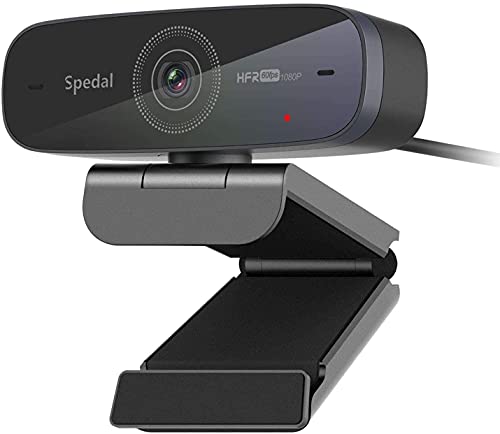
The Spedal 1080p 60fps Webcam, model SZT-926, is the software-tunable pick in this guide, and it is the one for buyers who like to adjust their image rather than accept the defaults. It records 1080p video at 60fps with autofocus and dual microphones, and it ships with companion software that lets you change focus, resolution, saturation, contrast, and white balance from your computer. That level of control is unusual in this tier, and it suits a streamer who wants to dial in a specific look for a channel or a regular broadcast.
The camera rotates 360 degrees horizontally and tilts up and down, so you can aim it at a second person, a whiteboard, or a desk surface without moving the mount. Automatic low-light correction helps in dim rooms, and the dual microphones pick up voice clearly for calls and streams. The mount clips to a monitor, and the USB connection is plug-and-play with Windows, Mac, and Linux, so it works with the usual calling and streaming apps.
Who it is for: streamers and creators who want full 1080p at 60fps with software control, and who plan to adjust their image settings for different lighting or different kinds of content. It suits a desk setup where the camera gets repositioned often.
Caveats: Spedal is a smaller brand than Razer or Logitech, so its software and support are less polished, and the camera depends on that software for its best results. The 60fps mode needs strong lighting to stay smooth, and the autofocus can be slower than the other two picks in a dark room. Check the listing for the SZT-926 model number, since Spedal sells several similar-looking webcams with different frame rates.
Comparison Table
| Feature | Razer Kiyo X | DEPSTECH DW49 | Spedal SZT-926 |
|---|---|---|---|
| Max resolution at 60fps | 720p | 1080p | 1080p |
| Highest resolution mode | 1080p at 30fps | 4K at 30fps | 1080p at 60fps |
| Focus | Autofocus | Autofocus | Autofocus |
| Microphones | Single built-in mic | Dual noise-canceling mics | Dual microphones |
| Field of view | Wide angle | 80 degrees | Standard with 360-degree rotation |
| Privacy cover | Yes | Yes | Yes |
| Software control | Razer Synapse | None, plug and play | Spedal software included |
| Mount | Clip mount, tripod thread | Clip mount, tripod included | Clip mount |
| Ring light | No | No | No |
| Best for | Compact streaming | Feature-packed all-rounder | Software tuning and repositioning |
Which One Is Right for You?
If you want the smallest camera and you already use Razer software, the Kiyo X is the easy pick, and its 720p at 60fps mode is smooth enough for game streams and calls where motion matters more than fine detail. If you want the most complete package in one box, the DEPSTECH DW49 gives you 1080p at 60fps, a 4K mode for recordings, dual mics, and a tripod, which makes it the best all-rounder of the three. If you like to fine-tune your image and move the camera around a lot, the Spedal SZT-926 is the pick, since its software controls and rotating mount give you more ways to shape the shot.
Think about your lighting before you decide, because every camera here performs better with a lamp or a window in front of you, and a 60fps mode in a dark room will look worse than a 30fps mode in a bright one. Think about your apps too: the Kiyo X and the Spedal both benefit from their companion software, while the DW49 works well with no extra app at all. If you already own a good microphone, the mic differences matter less, and you can choose on image quality alone. If you do not, the dual-mic models have a real edge for calls. Finally, remember that a webcam is only one part of how you look on camera: a clean background, a light source in front of you, and the camera at eye level do as much for your image as any sensor upgrade.
Frequently Asked Questions
Is 720p at 60fps better than 1080p at 30fps?
It depends on what you do on camera. For fast movement, such as game streams, hand gestures, or showing objects to the camera, 720p at 60fps looks smoother and more natural. For sitting still on a call or recording a talking-head clip, 1080p at 30fps looks sharper and shows more detail. If you can get 1080p at 60fps, as two of the picks in this guide do, you get both benefits at once, as long as your lighting and your USB connection can keep up.
Do I need a USB 3.0 port for a 60fps webcam?
Most budget 60fps webcams use USB 2.0 and work on a standard USB-A port, but a USB 3.0 port can help with bandwidth when you run the camera at its highest resolution and frame rate together. A USB hub shared with other devices can also limit the frame rate, so plug the camera directly into your computer when you can. If your camera drops frames, try a different port before anything else, and close other apps that use the camera or the USB bus.
Why does my 60fps webcam look grainy in a dim room?
A 60fps mode captures each frame in half the time of a 30fps mode, so the sensor gets less light per frame, and the camera compensates by raising sensitivity, which adds grain. The fix is more light on your face, not a different camera: a desk lamp or a window in front of you makes a bigger difference than any setting. Automatic low-light correction helps, but it cannot replace a real light source, so aim a lamp at yourself from behind the monitor.
Can I use a 60fps webcam with OBS and Zoom?
Yes, all three cameras in this guide work with OBS, Zoom, Teams, Skype, and other common apps, and they appear as standard USB video devices with no special drivers needed on Windows or Mac. In OBS you can set the frame rate to 60fps in the video settings, and in Zoom the camera runs at whatever the app and your connection allow. If an app limits you to 30fps, the camera still works, and you will see the 60fps benefit in apps and recordings that support it.
Disclosure: As an Amazon Associate, we may earn from qualifying purchases.
FAQ
Which One Is Right for You?
Is 720p at 60fps better than 1080p at 30fps?
Do I need a USB 3.0 port for a 60fps webcam?
Why does my 60fps webcam look grainy in a dim room?
Can I use a 60fps webcam with OBS and Zoom?
More from Amazon
Programs that pair well with the guide above. Offers and eligibility are set by Amazon and may change.
Free shipping on eligible items, Prime Video and more. Eligible new members can start with a free trial.
Start a Prime free trialAd-free music streaming. Eligible new subscribers can start with a free trial.
Try Music Unlimited freeA Prime membership for ages 18-24 with a trial period. Eligibility is set by Amazon.
See Prime for Young AdultsAudiobooks and podcasts to listen to on the go. Eligible new members can start with a free trial.
Try Audible freeAs an Amazon Associate we earn from qualifying purchases.