Our Short List of 3
All 5 Picks at a Glance
| Product | Specs | Action |
|---|---|---|
 TP-Link Archer A7 | Check price on Amazon | |
 TP-Link Archer C7 | Check price on Amazon | |
 TP-Link Archer AX10 | Check price on Amazon | |
 TP-Link Archer AX21 | Check price on Amazon | |
 ASUS RT-AX1800S | Check price on Amazon |
Our Top Picks
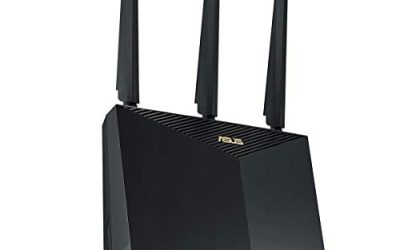
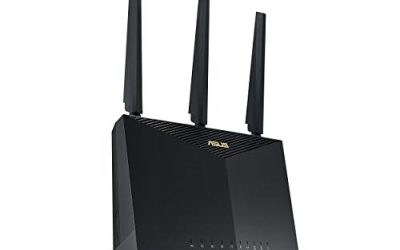
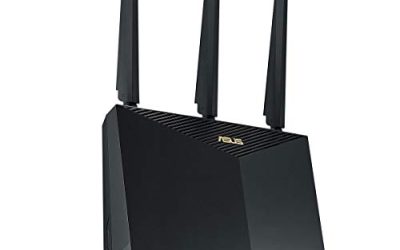
- ASUS RT-AX1800S Dual Band WiFi 6 Extendable RouterRouter9.06 x 5.28 x 2.2 inches0.82 poundsCheck on Amazon
The best gaming routers under 50 prove that a tight spending limit does not have to mean a laggy connection. The routers in this guide are the models that keep their focus on the basics that matter for play: a stable wired connection, traffic controls that favour games over background downloads, and wireless that stays steady when the house is busy. None of them tries to be a flagship, and that is the point, because every feature here earns its place by helping a match run smoothly.
Shopping in this bracket takes a different mindset from shopping at the top end. Instead of chasing the fastest wireless numbers, you want a router with gigabit wired ports, a QoS setting you can actually switch on, and a brand that still ships firmware updates. A router that does those three things well will beat a flashier model that skimps on them, and the picks below were chosen with exactly that trade-off in mind.
Every pick below is a full router with its own Amazon listing, and each one is a different answer to the same question: how much gaming performance can you get without spending beyond this bracket. Read the buying criteria first, then match the router to your room, your console, and the number of devices sharing the connection.
How to Choose
Insist on gigabit wired ports
A wired connection is the single biggest upgrade a tight-budget setup can make, and it costs nothing beyond a cable. Look for a router with gigabit LAN ports, not older fast Ethernet ports, because a gigabit port keeps the wired link from becoming the bottleneck. Even one gigabit port is enough to wire your main console, and four ports let you wire a console, a PC, and a streaming box without adding extra hardware.
Check the port count on the listing before you buy, because some low-cost routers mix gigabit and slower ports. The WAN port that connects to your modem should be gigabit too, so the full speed of your internet plan can reach the router in the first place.
Look for QoS you can switch on
Quality of service is the feature that stops a game update or a video stream from wrecking your match, and it matters even more on a tight budget, where the router has less spare capacity. Look for a router with a QoS or device-priority setting in its app or web interface, and switch it on for your console once you have set the router up. A router without any traffic control will treat a game packet and a download packet as equals, and the download usually wins.
Keep the setup simple. Pick the console as the priority device, leave the rest alone, and let the router do the work. If the router includes a gaming preset, use it rather than building custom rules you will never revisit.
Choose Wi-Fi 6 when you can
Wi-Fi 6 routers handle several devices at once better than older wireless standards, and that matters in a house where phones, laptops, and a console all share the airwaves. OFDMA and MU-MIMO let the router serve more than one device in the same transmission, which keeps latency steadier when the network is busy. In this bracket, a Wi-Fi 6 model is worth choosing over an older model when the rest of the specs are close.
Do not chase headline wireless numbers, though. The numbers describe lab-perfect conditions that a real house never matches, and a router with solid QoS and gigabit ports will serve a console better than a router with a bigger number on the box and no traffic controls.
Count the devices in your home
A router in this bracket is built for a modest household, so count the devices before you buy. A console, a couple of phones, a laptop, and a TV are a comfortable load, but a house full of smart plugs, cameras, and tablets can push a small router hard. If your device count is high, favour the pick with the strongest processor and the most memory, and keep as many devices wired as you can.
Wiring a console or a PC takes that device off the wireless entirely, which frees the airwaves for everything else. It is the cheapest capacity upgrade there is, and it works on any router.
Check the app and the interface
A good companion app turns router setup from a chore into a ten-minute job, and it lets you pause a device, check what is using bandwidth, or cycle the wireless without touching the router. Look for a router whose app is actively maintained and well regarded, because a clumsy app means the QoS and parental controls will never get switched on.
The web interface matters too, especially for QoS and firmware updates. A router with a clear interface is a router you will actually keep current, and current firmware is what keeps a low-cost router secure and compatible with new devices.
Mind coverage and placement
A small router in a closed cabinet at the far end of a house will struggle no matter how good its specs are. Place the router centrally, out in the open, and as high as practical, and keep it away from thick walls and metal shelving. If your console sits far from the router, a wired run is worth more than any antenna claim, and a mesh-ready model leaves you a path to add coverage later.
Keep firmware updates coming
A router that still receives firmware updates stays secure and keeps working well with new devices, while a router abandoned by its maker slowly falls behind. Before you buy, check that the model is current and still supported, and switch on automatic updates once it is installed. This matters most in this bracket, where older models linger on listings long after support has ended.
Top Picks
TP-Link Archer A7
The TP-Link Archer A7 is a dual-band router with four gigabit LAN ports, three external antennas, and QoS controls managed through the Tether app or the web interface. Its wireless covers the 2.4 GHz and 5 GHz bands, and its wired ports let you connect a console and a PC without extra hardware, which is exactly the combination a tight-budget gaming setup needs most.
Who it is for: players setting up a first gaming network in a small to medium home, where one wired console and a handful of wireless devices are the whole load. The A7 is simple to set up, its app is straightforward, and its QoS keeps game traffic ahead of downloads once you switch it on.
Caveats: the A7 uses older Wi-Fi 5 wireless rather than Wi-Fi 6, so a house full of newer devices will not get the multi-device handling of the newer picks below. It is also a compact router, so very large homes may need a better placement or a mesh-ready alternative.
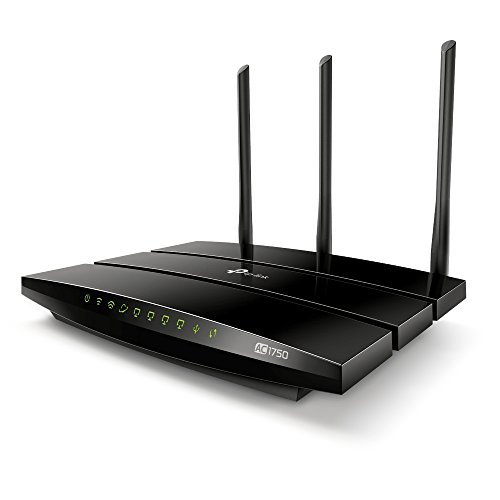
TP-Link Archer C7
The TP-Link Archer C7 is a long-running dual-band router with four gigabit LAN ports, a USB port for shared storage, and a well-proven design that has served budget setups for years. Its three external antennas and dual-band wireless cover a typical home, and its QoS settings let you favour gaming traffic over background downloads.
Who it is for: players who want a proven, no-surprises router for a single console and a modest number of devices. The C7 is easy to find, easy to set up, and its long history means setup guides and troubleshooting help are easy to come by.
Caveats: like the A7, the C7 is a Wi-Fi 5 router, so it lacks the multi-device efficiency of Wi-Fi 6, and its age means you should confirm the listing is a new unit from a current seller. Its wireless range suits small to medium homes rather than large ones.
TP-Link Archer AX10
The TP-Link Archer AX10 is a dual-band Wi-Fi 6 router with an entry-level Wi-Fi 6 wireless class, four gigabit LAN ports, and OFDMA and MU-MIMO for steadier multi-device performance. It brings Wi-Fi 6 into this bracket, which means it handles a console, phones, and a laptop at once with less delay than the older models above, and its Tether app covers setup, QoS, and parental controls.
Who it is for: players who want Wi-Fi 6 on a tight limit and a house where several devices share the connection. The AX10 is the pick for a modern household that cannot stretch to a mid-range router but still wants the multi-device handling that Wi-Fi 6 brings.
Caveats: the AX10 has a modest wireless class compared with the stronger picks in this guide, so it suits small to medium homes rather than large ones, and its four antennas need a clear, central spot to do their best work. Confirm the exact model on the listing before you buy.
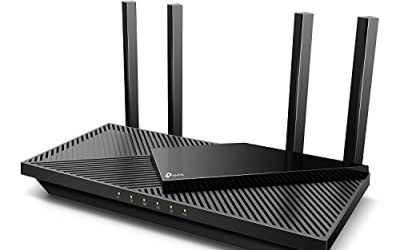
TP-Link Archer AX21
The TP-Link Archer AX21 is a dual-band Wi-Fi 6 router with an AX1800 wireless class, four gigabit LAN ports, four high-gain antennas, and support for EasyMesh, VPN servers, and Alexa voice control. Its OFDMA and MU-MIMO keep several devices moving at once, and its QoS and parental controls are managed through the Tether app, which makes the setup quick even for a first-time router buyer.
Who it is for: players who want the strongest all-round pick in this bracket. The AX21 pairs Wi-Fi 6 with a solid antenna design and mesh-ready expansion, so it suits a console, a PC, and a full shelf of phones and tablets sharing one connection.
Caveats: the AX21 is a popular model with several hardware versions, so check the listing matches the version you expect, and keep its firmware current, because its feature set has grown through updates. It is a single unit, so a very large home may still need a mesh node later.
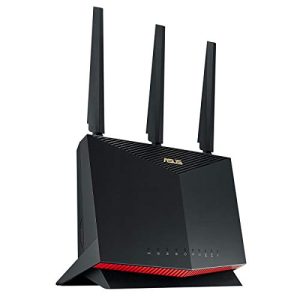
ASUS RT-AX1800S
The ASUS RT-AX1800S is a dual-band Wi-Fi 6 router with an AX1800 wireless class, AiMesh support, lifetime network security, parental controls, and a built-in VPN. Its four antennas and dual-band wireless cover a typical home, and its ASUS Router app handles setup, QoS, and device management from a phone, which keeps the gaming controls within easy reach.
Who it is for: players who want ASUS software and security features in this bracket, and households that may add an AiMesh node later. The RT-AX1800S suits a console plus a spread of phones, laptops, and smart home gear, and its security suite adds protection without a subscription.
Caveats: the RT-AX1800S has a compact design that suits small to medium homes, so a large floor plan may need an AiMesh node for full coverage. Its gaming controls are part of the general QoS settings rather than a dedicated gaming mode, so set the console as the priority device by hand.
Comparison Table
| Router | Wi-Fi Standard | Bands | Key Strength |
|---|---|---|---|
| TP-Link Archer A7 | Wi-Fi 5 | Dual-band | Four gigabit ports, Tether app |
| TP-Link Archer C7 | Wi-Fi 5 | Dual-band | Proven design, USB port |
| TP-Link Archer AX10 | Wi-Fi 6 | Dual-band | Wi-Fi 6, OFDMA, MU-MIMO |
| TP-Link Archer AX21 | Wi-Fi 6 | Dual-band | EasyMesh, VPN server |
| ASUS RT-AX1800S | Wi-Fi 6 | Dual-band | AiMesh, lifetime security |
Which One Is Right for You?
If you want the strongest all-round router in this bracket, start with the TP-Link Archer AX21. Its Wi-Fi 6 wireless, four gigabit ports, and mesh-ready design cover the most ground, and its app makes QoS easy to switch on. If you prefer ASUS software and the option to add an AiMesh node later, the RT-AX1800S is the closest alternative, with security features included for the life of the device.
If your household is small and your console is the only demanding device, the Archer AX10 gives you Wi-Fi 6 for the least outlay among the newer picks, while the Archer A7 and Archer C7 are the simplest choices of all for a single wired console and a handful of wireless devices. Whichever pick you choose, wire the console, switch on QoS, place the router centrally, and keep the firmware current, because those four habits deliver more gaming performance than any feature on the box.
Frequently Asked Questions
Can a low-cost router handle online gaming well?
Yes, if it has gigabit wired ports and QoS. Wire the console, set it as the priority device, and keep large downloads away from play sessions. A router that does those things well will keep matches smooth even without flagship hardware.
Is Wi-Fi 6 worth it in this bracket?
It is worth choosing when the rest of the specs are close, because Wi-Fi 6 handles several devices at once with less delay. In a house with a console, phones, and a laptop sharing the connection, that steadier multi-device handling shows up as fewer lag spikes.
Should I wire my console or use wireless?
Wire it whenever you can. A cable removes wireless interference from the equation entirely and gives the console the steadiest connection the router can provide. Wireless is fine for a second device or a casual session, but wired is the better choice for competitive play.
What should I check before buying a low-cost router?
Check that the LAN and WAN ports are gigabit, that the model is still supported with firmware updates, and that the listing names the exact model you expect. Then confirm the router has a QoS or priority setting you can switch on for your console.
Disclosure: As an Amazon Associate, we may earn from qualifying purchases.
FAQ
Which One Is Right for You?
Can a low-cost router handle online gaming well?
Is Wi-Fi 6 worth it in this bracket?
Should I wire my console or use wireless?
What should I check before buying a low-cost router?
More from Amazon
Programs that pair well with the guide above. Offers and eligibility are set by Amazon and may change.
Free shipping on eligible items, Prime Video and more. Eligible new members can start with a free trial.
Start a Prime free trialAd-free music streaming. Eligible new subscribers can start with a free trial.
Try Music Unlimited freeA Prime membership for ages 18-24 with a trial period. Eligibility is set by Amazon.
See Prime for Young AdultsAudiobooks and podcasts to listen to on the go. Eligible new members can start with a free trial.
Try Audible freeAs an Amazon Associate we earn from qualifying purchases.