Our Short List of 3
All 5 Picks at a Glance
| Product | Specs | Action |
|---|---|---|
 ASUS RT-AX86U Pro | Check price on Amazon | |
 TP-Link Archer AX55 | Check price on Amazon | |
 Amazon eero Pro 6E, 1-pack | Check price on Amazon | |
 NETGEAR Nighthawk RAX50 | Check price on Amazon | |
 TP-Link Archer AX21 | Check price on Amazon |
Our Top Picks
The best gaming routers with app control put the whole network in your pocket, so setup, QoS, and device management happen from your phone instead of a desktop browser. That matters for gaming, because the controls you actually use are the ones within easy reach: pausing a download that is wrecking a match, checking which device is hogging bandwidth, or switching on a gaming mode before a session starts. A good app turns those jobs into a few taps, and the routers below all pair strong gaming hardware with an app worth opening.
Not every router app is equal, and the differences show up in daily use rather than on a spec sheet. The best apps walk you through setup in minutes, show live bandwidth per device, let you prioritise a console with one tap, and send a notification when a new device joins. The weakest apps bury those controls three menus deep or stop getting updates, and a router with a weak app is a router whose gaming features will never get switched on.
Every pick below is a full router with a companion app for phones, and each one links to its Amazon listing so you can confirm the exact model. Read the buying criteria first if you want to know what separates a genuinely useful app from a decorative one, then match the router to your household.
How to Choose
Judge the app before the hardware
The app is the point of this guide, so judge it first. A good router app sets the router up in minutes with clear steps, shows every connected device by name, and puts bandwidth, QoS, and parental controls on the main screens rather than burying them. Look for an app that is actively updated and well regarded by its users, because an abandoned app is a warning sign about the router behind it.
Try to picture the jobs you will actually do from the phone: pausing a device, prioritising a console, checking the connection, and cycling the wireless. If the app makes those jobs quick, it will get used. If it makes them awkward, the gaming features might as well not exist.
Look for one-tap gaming prioritisation
Gaming traffic needs to jump the queue, and the app is where that should happen. Look for a router whose app includes a gaming mode, a QoS toggle, or a device-priority control that you can switch on for your console in a tap or two. The best apps let you set the priority once and leave it, while weaker ones ask you to rebuild rules every time the network gets busy.
Some apps also show live latency or a game acceleration mode that trims the path to the game server. Those extras are welcome, but the core test is simple: can you make the console the priority device from your phone in under a minute.
Check live device and bandwidth views
A useful app shows what each device is doing right now, not just a list of names. Live bandwidth per device tells you at a glance whether a match is lagging because of the connection or because a housemate started a large download, and a per-device pause button lets you fix it without unplugging anything. Look for an app with a clear device list, live usage figures, and a pause control.
Notifications matter too. An app that alerts you when a new device joins, when firmware is available, or when the connection drops is an app that helps you stay ahead of problems instead of discovering them mid-match.
Make sure setup is phone-first
Phone-first setup means unboxing, plugging in, and playing within minutes, with the app guiding each step and checking the connection as it goes. Look for a router whose app handles the whole setup, including the internet connection check and the wireless network naming, without asking you to open a browser. A router that still needs a desktop for basic setup is not really a phone-first router.
Setup should also cover the gaming features. The best apps ask about your console or your gaming habits during setup and switch on sensible defaults, so the router is ready to play from the first evening rather than after a weekend of tuning.
Check firmware updates in the app
Firmware updates fix bugs, close security gaps, and sometimes improve gaming performance, so they should be visible in the app, not hidden in a web page you never open. Look for an app that shows the current firmware version, notifies you when an update is ready, and lets you install it with a tap. Automatic updates are better still, because they keep the router current without you having to remember.
A router whose app never mentions firmware is a router you will forget to update, and an out-of-date router is a router that slowly falls behind on security and compatibility.
Look for parental and guest controls
Gaming homes are often shared homes, and the app is the natural place to manage who can do what. Look for parental controls that set play windows and filter content per device, and a guest network toggle that gives visitors internet access without handing them the keys to your main network. These controls are not gaming features as such, but they keep the network calm, and a calm network is a fast network.
Keep the wired ports in mind
An app cannot fix a missing Ethernet port, so check the hardware too. Four gigabit LAN ports let you wire a console and a PC while the app manages everything else, and a gaming port that always gets priority is a bonus worth having. The app manages the network, but the cable still carries the match, so buy a router that does both well.
Top Picks
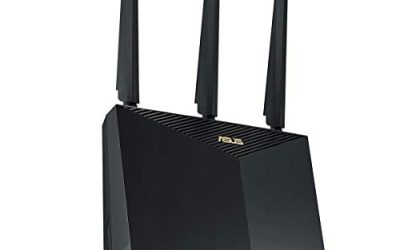
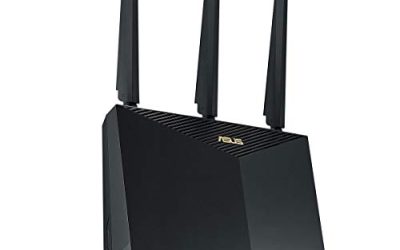
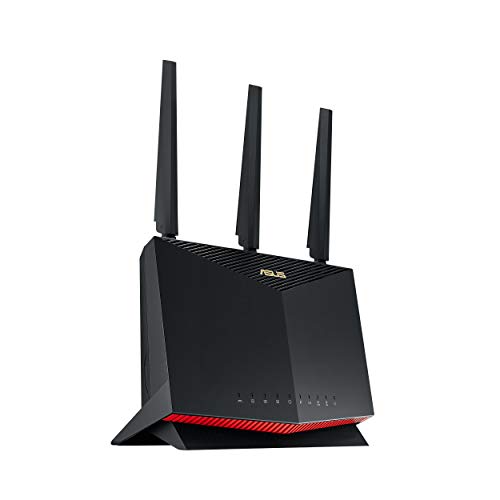
ASUS RT-AX86U Pro
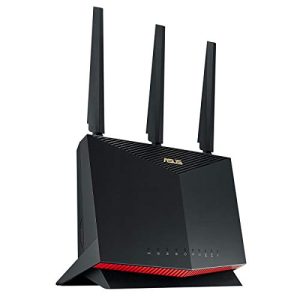
The ASUS RT-AX86U Pro pairs a dual-band Wi-Fi 6 gaming router with the ASUS Router app, one of the most complete phone companions in this guide. The app handles setup, adaptive QoS, AiProtection security, parental controls, and AiMesh management, and the router itself brings a dedicated gaming port, a mobile game mode, a 2.5 GbE port, and four gigabit LAN ports for wired consoles and PCs.
Who it is for: players who want the deepest app control alongside serious gaming hardware. The ASUS Router app lets you prioritise a console, check live traffic, and manage a mesh network from one place, and the Pro hardware has the processing power to keep those controls smooth when the network is loaded.
Caveats: the app is deep, and its many menus can feel busy on a first visit, so give yourself time to learn where the gaming controls live. The Pro model also costs more than the standard version, so confirm the listing shows the Pro before you buy.
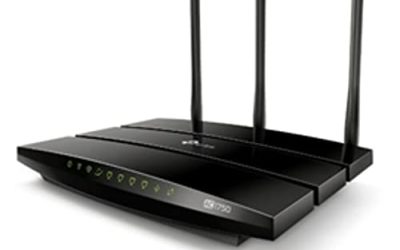
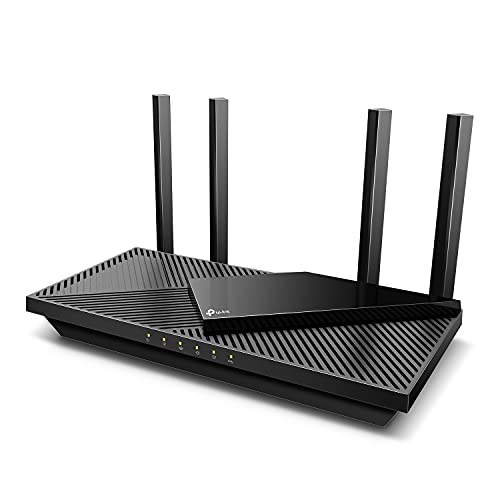
TP-Link Archer AX55
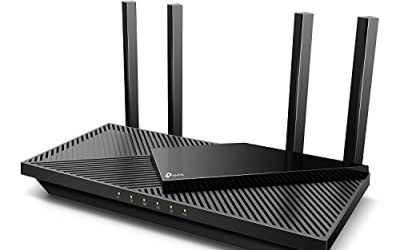
The TP-Link Archer AX55 is a dual-band Wi-Fi 6 router with an AX3000 wireless class, four gigabit LAN ports, a USB port, and the Tether app for phone-first management. The Tether app covers setup, QoS, parental controls, and device management, and the router supports OneMesh, so you can extend coverage with a compatible extender later without rebuilding the network.
Who it is for: households that want a clean, friendly app and solid Wi-Fi 6 performance without a steep learning curve. The Tether app is straightforward, the QoS controls are easy to find, and the AX55 handles a console, a PC, and a shelf of phones at once.
Caveats: the Tether app is simpler than the ASUS app, so power users who want deep traffic graphs or advanced rules may find it light. The router is a single unit, so very large homes may need a mesh add-on for the far rooms.
Amazon eero Pro 6E, 1-pack
The Amazon eero Pro 6E is a tri-band Wi-Fi 6E mesh router with a 6 GHz band, a 2.5 GbE port, and the eero app, which is the simplest companion app in this guide. Setup is guided step by step, the app shows every device and its usage, and it handles updates automatically in the background, so the network largely looks after itself once it is installed.
Who it is for: households that want the network to disappear into the background. The eero app is the easiest here for non-technical housemates, the mesh design covers larger homes when you add nodes, and the 6 GHz band gives newer devices a clear lane of their own.
Caveats: the eero system leans on its app and its cloud service, so some advanced controls live behind a subscription, and practical users who like to tune every setting may find it restrictive. The single pack covers a typical home, but larger homes need extra nodes.
NETGEAR Nighthawk RAX50
The NETGEAR Nighthawk RAX50 is a dual-band Wi-Fi 6 router with an AX5400 wireless class, four gigabit LAN ports, and the Nighthawk app for setup, monitoring, and control. The app shows connected devices and live usage, manages Dynamic QoS, and lets you pause devices or run a speed check from your phone, which makes it easy to spot what is slowing a match.
Who it is for: players who want strong gaming performance with an app that stays out of the way. Dynamic QoS works automatically, the app makes the network visible at a glance, and the four wired ports cover consoles and PCs without extra hardware.
Caveats: some advanced security features sit behind a subscription after the included trial, so read what is included before you rely on them. The app is capable rather than lavish, so users who want deep traffic graphs may prefer the ASUS app.
TP-Link Archer AX21
The TP-Link Archer AX21 is a dual-band Wi-Fi 6 router with an AX1800 wireless class, four gigabit LAN ports, four high-gain antennas, and the Tether app for phone-first setup and management. The app handles QoS, parental controls, and device lists, and the router supports EasyMesh, VPN servers, and voice control, which gives a small router a surprisingly wide feature set.
Who it is for: players who want a friendly app and Wi-Fi 6 in a compact, keenly positioned router. The Tether app makes setup quick, the QoS controls keep game traffic first in line, and the mesh-ready design leaves room to grow if the house needs more coverage later.
Caveats: the AX21 has several hardware versions, so check the listing matches the version you expect, and its wireless class is lower than the stronger picks above, so it suits small to medium homes best. Keep its firmware current to get the most from its feature set.
Comparison Table
| Router | Wi-Fi Standard | Bands | Key Strength |
|---|---|---|---|
| ASUS RT-AX86U Pro | Wi-Fi 6 | Dual-band | ASUS Router app, gaming port |
| TP-Link Archer AX55 | Wi-Fi 6 | Dual-band | Tether app, OneMesh |
| Amazon eero Pro 6E | Wi-Fi 6E | Tri-band | eero app, automatic updates |
| NETGEAR Nighthawk RAX50 | Wi-Fi 6 | Dual-band | Nighthawk app, Dynamic QoS |
| TP-Link Archer AX21 | Wi-Fi 6 | Dual-band | Tether app, EasyMesh |
Which One Is Right for You?
If you want the deepest app control and the strongest gaming hardware in one box, the ASUS RT-AX86U Pro is the pick. Its app covers QoS, security, parental controls, and mesh management, and its gaming port and faster processor keep the network smooth when the house is busy. If you would rather have the simplest experience possible, the Amazon eero Pro 6E is the opposite answer: the app guides setup, updates happen automatically, and the network mostly looks after itself.
For the middle ground, the TP-Link Archer AX55 and the Archer AX21 both pair the friendly Tether app with solid Wi-Fi 6 hardware, with the AX55 carrying the stronger wireless of the two. The NETGEAR Nighthawk RAX50 sits alongside them for players who want Dynamic QoS that works without tuning. Whichever app you choose, install it, set the console as the priority device, and switch on automatic updates, because a router app only helps if it is actually used.
Frequently Asked Questions
Do I still need a computer to set up a router with an app?
No, the routers in this guide are designed for phone-first setup. The app walks you through plugging in the router, connecting to the internet, and naming your wireless network, and most people finish in minutes without opening a browser.
Can a router app really improve gaming?
Yes, because it makes the controls you need easy to reach. Prioritising a console, pausing a download, or checking live bandwidth takes seconds in a good app, and those small actions are what keep a match smooth when the house is busy.
What should a good router app show me?
A good app shows every connected device by name, live bandwidth per device, and a clear QoS or priority control. Notifications for new devices and firmware updates are a bonus, and a one-tap pause button is the feature you will reach for most often.
Are router apps safe to use?
Yes, when they come from the router maker and you keep them updated. Use a strong password for the router and the app, switch on automatic firmware updates, and only download the app from your phone’s official store.
Disclosure: As an Amazon Associate, we may earn from qualifying purchases.
FAQ
Which One Is Right for You?
Do I still need a computer to set up a router with an app?
Can a router app really improve gaming?
What should a good router app show me?
Are router apps safe to use?
More from Amazon
Programs that pair well with the guide above. Offers and eligibility are set by Amazon and may change.
Free shipping on eligible items, Prime Video and more. Eligible new members can start with a free trial.
Start a Prime free trialAd-free music streaming. Eligible new subscribers can start with a free trial.
Try Music Unlimited freeA Prime membership for ages 18-24 with a trial period. Eligibility is set by Amazon.
See Prime for Young AdultsAudiobooks and podcasts to listen to on the go. Eligible new members can start with a free trial.
Try Audible freeAs an Amazon Associate we earn from qualifying purchases.