Our Short List of 3
All 3 Picks at a Glance
| Product | Specs | Action |
|---|---|---|
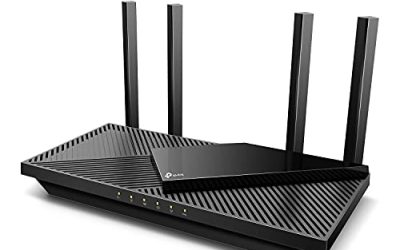
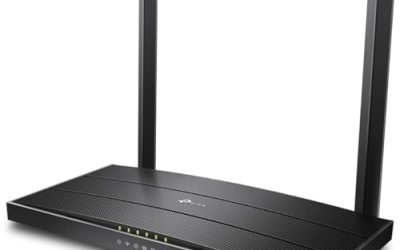
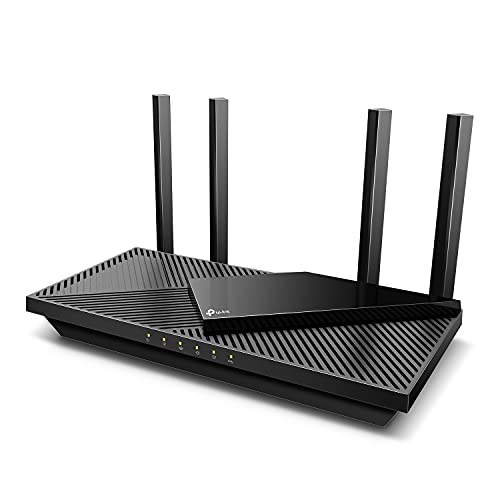 1. TP-Link Archer AX55 AX3000 Wi-Fi 6 Router | Check price on Amazon | |
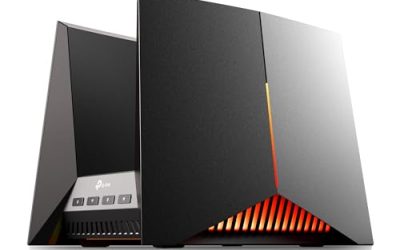
 2. TP-Link Archer AX73 AX5400 Wi-Fi 6 Router | Check price on Amazon | |
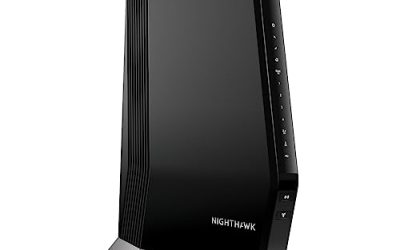
 3. NETGEAR Nighthawk RAX50 AX5400 Wi-Fi 6 Router | Check price on Amazon |
Key takeaways
- Find the best guest access wireless routers with separate guest networks, strong security, and Wi-Fi 6 speeds for visitors without risking your network.
The best guest access wireless routers give visitors internet access without giving them access to your computers, printers, shared files, or smart home devices. A proper guest network creates a separate wireless network with its own name and password, and it keeps guest traffic isolated from the devices on your main network. That separation matters every time a friend, a babysitter, a house guest, a contractor, or a neighbour needs Wi-Fi for an afternoon. You stay hospitable, and your private network stays private.
Guest access is not a rare extra feature any more. Most modern Wi-Fi 6 routers include it, but the quality varies a great deal. Some offer one guest network per band with a time limit and a separate password, while others add scheduling and bandwidth limits. This guide explains what to look for, then compares three routers whose guest features are documented by their manufacturers.
How to Choose a Router With Good Guest Access
Look for a True Isolated Guest Network
The core requirement is isolation. A guest network should let a connected device reach the internet and nothing else on your local network. That means guests cannot see shared folders, network printers, media servers, or smart cameras. Check the manufacturer specification page for the words guest network and access isolation, or words to that effect. All three routers in this guide list a guest network in their official specifications.
Isolation is different from simply creating a second wireless network name with the same password. If the second network can still reach local devices, it is not a real guest network. When you set the router up, test the idea in principle: a guest device should be able to browse the web and stream video, but it should not be able to open a shared drive on a home computer.
Decide How Many Guest Networks You Need
Most households need one guest network. A home with frequent visitors, a home office, or a small rental may benefit from more. TP-Link routers in this guide provide one guest network on the 2.4 GHz band and one on the 5 GHz band. ASUS routers often provide up to three per band, and NETGEAR routers provide a guest network on each band as well. More guest networks are useful when you want a different password for a short-term visitor, a cleaner, or a long-term house guest, and you want to change one password without changing the others.
Think about whether you need a guest network on both bands. The 2.4 GHz band reaches further through walls and works with older devices, while the 5 GHz band is faster at short range. Giving guests access to both bands lets their phones choose the better connection, and it avoids the situation where a guest device only supports one band and cannot connect at all.
Check the Guest Controls, Not Just the Switch
A good guest feature includes controls. Useful controls include a separate password, a time limit that turns the guest network off automatically, a limit on how many devices can connect, and an option to hide the guest network name. A time limit is especially useful for a party or a weekend visit: set the guest network to expire after a few hours, and you do not need to remember to turn it off. Scheduling is useful for a regular visitor, such as a weekly cleaner or tutor, because the guest network can appear only during the expected visit window.
Bandwidth control is another useful feature. If a guest starts a large download or a long video stream, a bandwidth limit keeps the main network usable for work calls and gaming. Not every router offers per-guest bandwidth limits in its basic interface, so check the app or the web interface description before you buy if that control matters to you.
Do Not Trade Security for Convenience
Guest access should be paired with current wireless security. Look for WPA3 support, or at least WPA2 with a strong password, plus automatic firmware updates. A guest network with an open, password-free connection is convenient for a cafe, but it is a poor choice for a home, because anyone in range can join it and use your internet connection. Use a password, even a simple one that you can share verbally, and change it after a large gathering.
Automatic firmware updates matter because router security flaws are fixed through firmware. A router that updates itself, or at least notifies you clearly when an update is available, is easier to keep safe than one that requires a manual check every few months. All three routers below support modern encryption and receive firmware updates from their manufacturers.
Match Speed and Coverage to Your Home
Guest access is only useful if guests actually get a usable connection. A router with Wi-Fi 6, dual-band operation, and multiple antennas will handle a house full of phones, laptops, and streaming devices far better than an older single-band router. Consider the size of your home and the number of devices that connect at the same time. A router rated for a medium to large home, with support for dozens of devices, is a sensible starting point for most families.
Also consider wired ports. Guests rarely need an Ethernet cable, but the rest of the household benefits from gigabit LAN ports for a desktop computer, a game console, or a television. A USB port is useful for sharing a drive or a printer on the main network, although shared resources on the main network should stay invisible to guests.
Set Up the Guest Network Before Guests Arrive
The best time to configure guest access is before you need it. Create the guest network, choose a clear name such as Home Guest, set a password you can remember, and decide whether it should stay on all the time or only when needed. Write the password on a card in the guest room, or share it through a QR code if your router app supports that option. A QR code lets guests join without typing a long password, and it avoids the awkward moment of spelling out a complicated string of characters.
Tell guests the network name and password when they arrive, and tell them the network will turn off after their visit if you have set a time limit. Most guests will appreciate the clarity, and you will not need to share your main network password with anyone.
Top Picks
1. TP-Link Archer AX55 AX3000 Wi-Fi 6 Router
The TP-Link Archer AX55 is a strong all-round choice for guest access, and it is the most affordable pick in this guide. It is a dual-band Wi-Fi 6 router with AX3000 speeds, four external antennas, and gigabit Ethernet ports. TP-Link lists one guest network on the 5 GHz band and one on the 2.4 GHz band in the official Archer AX55 specifications, so guests can connect on either band while staying separate from the main network.
Setup runs through the TP-Link Tether app or a web browser, and the guest network controls are straightforward. You can enable the guest network, set its name and password, and manage it alongside parental controls and quality of service settings. The router also supports TP-Link HomeShield for network security, OneMesh and EasyMesh for extending coverage with a compatible extender, and VPN server and client features for more advanced users.
The AX55 suits a small to medium home with a typical mix of phones, laptops, televisions, and smart devices. Its four antennas and beamforming help focus the signal toward connected devices, and its Wi-Fi 6 support helps when many devices are online at once. The USB 3.0 port is a useful extra for sharing a drive on the main network. If you want a capable guest router without paying for the fastest hardware on the market, this is a sensible place to start.
Check the TP-Link Archer AX55 on Amazon
2. TP-Link Archer AX73 AX5400 Wi-Fi 6 Router
The TP-Link Archer AX73 steps up from the AX55 with faster AX5400 dual-band Wi-Fi 6, six antennas, and a stronger processor for busy households. TP-Link lists one guest network on the 5 GHz band and one on the 2.4 GHz band for this model as well, so the guest experience is the same in structure, but the underlying network has more capacity for simultaneous streaming, video calls, and gaming.
That extra capacity matters when guests arrive while the household is already busy. The AX73 supports more than 200 connected devices according to TP-Link, along with OFDMA and MU-MIMO for handling many devices at once.
Coverage is another advantage. Six high-gain antennas and a high-power front-end module help the signal reach further through a larger home, which is useful when guests are in a spare bedroom, a garden room, or a part of the house far from the router. The router also includes HomeShield security, OneMesh support, a USB 3.0 port, and gigabit ports. If your home is larger, or if you regularly host several guests at once, the AX73 is the better TP-Link pick.
Check the TP-Link Archer AX73 on Amazon
3. NETGEAR Nighthawk RAX50 AX5400 Wi-Fi 6 Router
The NETGEAR Nighthawk RAX50 brings a different management style to guest access, through the Nighthawk app and a web interface that many users find clear and direct. NETGEAR lists Guest Wi-Fi Secure Access among the features of the RAX50, and the user manual explains how to set up a guest Wi-Fi network on each band, with default guest network names for the 2.4 GHz and 5 GHz bands. Consumer Reports also notes that this model supports guest networks on both bands.
The RAX50 is a six-stream AX5400 Wi-Fi 6 router with coverage for a medium to large home and support for up to 25 devices in typical use, according to NETGEAR. It has four gigabit Ethernet ports, a USB 3.0 port, and support for WPA3 security. The Nighthawk app makes it easy to pause the internet, run a speed test, and manage connected devices, which is helpful when you want to check who is on the guest network or turn guest access off quickly after visitors leave.
This router suits a household that prefers the Nighthawk app. Its guest setup is documented in detail in the official manual, and the dual-band guest networks cover a mix of older and newer guest devices.
Check the NETGEAR Nighthawk RAX50 on Amazon
Comparison Table
| Router | Wi-Fi Standard | Guest Networks | Bands | Key Strength |
|---|---|---|---|---|
| TP-Link Archer AX55 | Wi-Fi 6, AX3000 | 1 per band | 2.4 GHz and 5 GHz | Best value guest router |
| TP-Link Archer AX73 | Wi-Fi 6, AX5400 | 1 per band | 2.4 GHz and 5 GHz | Fastest capacity and coverage here |
| NETGEAR Nighthawk RAX50 | Wi-Fi 6, AX5400 | 1 per band | 2.4 GHz and 5 GHz | Clear app and detailed guest manual |
Setting Up Guest Access in Practice
Start by logging into the router app or web interface and finding the guest network section. Enable the guest network on both bands if that option is available. Choose a network name that guests will recognise, and set a password that is easy to share but hard to guess. Avoid reusing your main network password, and avoid a password that is simply the word guest or your house number.
Next, check the isolation setting. Some routers show an option such as allow guests to access local network resources, and that option should be turned off. Others isolate guests by default and do not offer a way to turn isolation off, which is fine. If you are unsure, check the help text in the interface or the manual for your model.
Set a time limit or a schedule if your router supports it. For a dinner party, a few hours is enough. For a weekend guest, set the network to expire on the day they leave. For a regular visitor, a weekly schedule works well. If your router does not offer a time limit, make a note to turn the guest network off after the visit.
Common Guest Network Mistakes to Avoid
The most common mistake is sharing the main network password with guests because the guest network was never set up. That gives visitors access to every device on the local network, including printers, shared drives, and smart home hubs. Setting up the guest network in advance removes the temptation to share the main password in a hurry.
Another mistake is leaving the guest network on permanently with a password that never changes. A guest network that stays on for months can be discovered by neighbours or by a former guest who still has the password. Change the password after a large gathering, and turn the network off when no guests are expected for a while.
A third mistake is using an open guest network with no password at all. An open network is easy to join, but it is also easy for anyone in range to use, and it offers no protection for guest traffic. A password, even a short one, is a meaningful improvement.
A fourth mistake is forgetting that guests may need the 2.4 GHz band. Some older phones, smart watches, and e-readers only support 2.4 GHz. If you enable the guest network only on 5 GHz, those devices cannot connect. Enabling both bands avoids that problem.
A fifth mistake is placing the router in a poor location. A router hidden in a basement cupboard or behind a television will struggle to reach a guest bedroom on another floor. Place the router in a central, elevated position where possible, and consider a mesh extender if the signal does not reach the guest areas.
FAQ
What is a guest network on a wireless router?
A guest network is a separate wireless network created by your router for visitors. It has its own name and password, and it gives guests internet access while keeping them separate from devices on your main network, such as computers, printers, and shared storage.
Is a guest network safer than sharing my main Wi-Fi password?
Yes. Sharing your main password gives a guest the same network access as a member of the household, including access to local devices and shared files. A guest network limits a visitor to internet access only, which is safer for both you and the guest.
Should the guest network have a password?
Yes. A password prevents anyone in range from joining the guest network without permission. Choose a password that is easy to share verbally or through a QR code, and change it after a large gathering or when a long-term guest leaves.
Can guests use both the 2.4 GHz and 5 GHz bands?
On the routers in this guide, yes. Each model offers a guest network on both bands, so guests can connect on the band that works best for their device and location. The 2.4 GHz band reaches further, while the 5 GHz band is faster at short range.
How do I turn off the guest network after visitors leave?
Open the router app or web interface, find the guest network section, and turn the guest network off. Some routers also let you set a time limit or a schedule so the guest network turns off automatically. Turning it off when it is not needed reduces the chance that an old password will be reused.
Conclusion
The best guest access wireless routers make hospitality simple and security straightforward. The TP-Link Archer AX55 is the best value pick for a small to medium home, with a documented guest network on each band and solid Wi-Fi 6 performance. The TP-Link Archer AX73 adds speed, capacity, and coverage for larger homes and busier households. The NETGEAR Nighthawk RAX50 offers a clear app, detailed guest documentation, and strong dual-band guest support for users who prefer the Nighthawk system.
Choose the router that matches the size of your home and the number of devices that connect at once, set up the guest network before guests arrive, and use a separate password with a time limit where possible. With those steps in place, visitors get a fast, reliable connection, and your main network stays private.
Disclosure: As an Amazon Associate, we earn from qualifying purchases.
FAQ
What is a guest network on a wireless router?
Is a guest network safer than sharing my main Wi-Fi password?
Should the guest network have a password?
Can guests use both the 2.4 GHz and 5 GHz bands?
How do I turn off the guest network after visitors leave?
More from Amazon
Programs that pair well with the guide above. Offers and eligibility are set by Amazon and may change.
Free shipping on eligible items, Prime Video and more. Eligible new members can start with a free trial.
Start a Prime free trialAd-free music streaming. Eligible new subscribers can start with a free trial.
Try Music Unlimited freeA Prime membership for ages 18-24 with a trial period. Eligibility is set by Amazon.
See Prime for Young AdultsAudiobooks and podcasts to listen to on the go. Eligible new members can start with a free trial.
Try Audible freeAs an Amazon Associate we earn from qualifying purchases.