Key takeaways
- The best 120Hz monitors for PC and console gaming, from sharp 4K panels to fast 1440p screens — compare refresh rates, panels and ports.
The best 120Hz monitors hit a sweet spot that a standard 60Hz screen never reaches. Motion looks smoother, mouse movement feels more connected to what happens on screen, and fast games stop smearing into a blur whenever the camera turns. At the same time, 120Hz is far easier to drive than the extreme refresh rates at the top of the market, so a mid-range graphics card can actually keep up, and a current console can output a 120Hz signal without demanding a flagship display.

Every monitor in this guide runs at 120Hz or above. Some are native 144Hz or 165Hz panels, which is no problem at all: a faster panel can always be set to run at exactly 120Hz, and that headroom is useful when a game or a console tops out at 120 frames per second. Others are built around HDMI 2.1, which is the port that makes 4K at 120Hz possible on a console.
How to Choose
1. Refresh rate and how you reach 120Hz
A monitor labelled 144Hz or 165Hz can run at 120Hz, so do not limit yourself to screens that carry the number 120 in the name. What matters is the connection: DisplayPort 1.4 handles high refresh rates at 1440p and 4K with ease, while HDMI 2.0 tops out at 1440p at 144Hz and 4K at 60Hz. For 4K at 120Hz from a console, HDMI 2.1 is required, so check the port list on the exact model before buying.
2. Resolution
Resolution decides how sharp the picture looks and how hard your graphics card has to work. A 1440p panel is the natural partner for 120Hz gaming: it looks noticeably sharper than 1080p, yet a mid-range card can still push frame rates into triple digits in most titles. A 4K panel is sharper still and suits single-player games and media, but it needs a much stronger graphics card to hold high frame rates, while a 1080p screen remains the sensible choice for competitive play on modest hardware.
3. Panel type
IPS panels offer wide viewing angles and accurate, consistent colour, which makes them the safest all-round choice for gaming, work, and media on one desk. VA panels deliver deeper blacks and stronger contrast, so dark scenes look richer, but they can show smearing on fast-moving dark objects. TN panels are fastest in raw response terms, yet their colours shift when viewed off-angle. For most buyers, IPS is the default, VA is the pick for atmospheric games and film watching, and TN only makes sense for pure competitive speed on a tight budget.
4. Response time and motion handling
Response time measures how quickly a pixel changes colour, and it matters as much as refresh rate for motion clarity. A quoted 1ms GtG figure is measured grey-to-grey and is the number to compare across IPS screens, while 1ms MPRT is a different measurement tied to backlight strobing and is common on VA panels. Overdrive settings in the on-screen menu speed up pixel transitions but can cause inverse ghosting at the maximum, so the middle setting is usually the best balance. Backlight strobing modes sharpen motion further but dim the picture and often cannot run with adaptive sync.
5. Adaptive sync
Adaptive sync matches the monitor refresh rate to the graphics card output, which removes screen tearing and reduces stutter when the frame rate varies. NVIDIA G-Sync Compatible and AMD FreeSync Premium are the two labels you will see most often, and most modern screens support both standards in practice. A wide variable refresh range matters: a screen that syncs from 48Hz up to its maximum covers the dips in demanding scenes. Console players should check for variable refresh support over HDMI as well as DisplayPort, since the two do not always match.
6. Ports and connectivity
Count the ports before you buy, because a monitor with a single HDMI input forces you to swap cables between a PC and a console. Two HDMI ports plus a DisplayPort is a comfortable layout for a PC and one console. HDMI 2.1 is essential only for 4K at 120Hz on a console; for 1440p at 120Hz, HDMI 2.0 is enough. A USB hub built into the monitor saves desk clutter. Check whether the stand offers height, tilt, and pivot adjustment, and whether a standard VESA mount is included for an arm.
7. Size, ergonomics and HDR
A 27 inch screen is the sweet spot for 120Hz gaming at 1440p and 4K: large enough to feel immersive, small enough that pixel density stays sharp at a normal desk distance. A 24 inch screen suits smaller desks and competitive play, while 32 inch screens need 4K to stay sharp and ask more of your graphics card. HDR support varies widely: DisplayHDR 400 means modest peak brightness, while DisplayHDR 600 brings noticeably brighter highlights. Treat HDR as a bonus rather than the deciding factor, and put refresh rate, panel quality, and ports first.
Top Picks
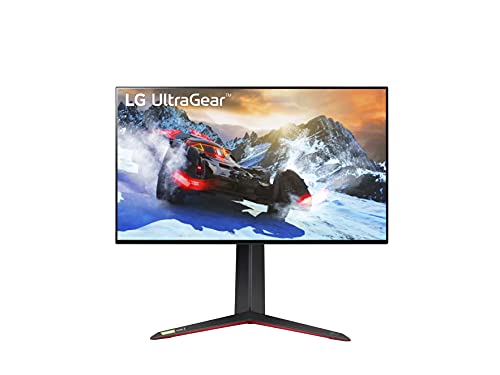
LG 27GP950-B — Best 4K 120Hz Monitor
The LG 27GP950-B is the pick for players who want 4K sharpness without giving up high refresh rates. Its 27 inch Nano IPS panel runs at 144Hz over DisplayPort, can be overclocked to 160Hz, and delivers 4K at 120Hz over HDMI 2.1, which is exactly what a current console needs for its 120Hz mode. That combination is still uncommon, and it makes this screen the most versatile in the guide: a PC gets a fast 4K display, and a console gets the full 4K 120Hz experience from the same panel.
Picture quality is the other half of the story. The Nano IPS panel covers 98 percent of the DCI-P3 colour range, response time is rated at 1ms GtG, and VESA DisplayHDR 600 certification means bright highlights have real punch in supported games and films. Two HDMI 2.1 ports sit alongside DisplayPort 1.4, and the stand adjusts for height, tilt, and pivot. G-Sync Compatible and FreeSync Premium support keep the picture tear-free across the refresh range.
Who it is for: players with a strong graphics card or a current console who want the sharpest picture in this guide. It also suits creators editing video or photos on the same desk.
Caveats: 4K at high frame rates demands a powerful graphics card, so owners of mid-range cards will spend more time at lower settings to hold smooth frame rates. HDR looks good for a monitor, yet it cannot match a dedicated HDR television for deep blacks.
Samsung Odyssey G5 G55C 27-Inch — Best Curved 120Hz Monitor
The Samsung Odyssey G5 G55C brings a 1000R curve to the 120Hz class, wrapping the picture around the player in a way a flat panel cannot. Its 27 inch QHD panel runs at 165Hz with a 1ms MPRT response time, so it clears the 120Hz bar with headroom to spare, and the deep curve makes the edges of the screen feel closer, which suits racing games, flight simulators, and any title where the world fills the view. The VA panel delivers strong contrast and deep blacks, giving dark scenes a richness that IPS screens struggle to match.
HDR10 support adds brighter highlights to supported content, and AMD FreeSync keeps the picture smooth when frame rates move around. The 2560 x 1440 resolution is the practical middle ground for this refresh rate: sharp enough to look clean at 27 inches, light enough that a mid-range graphics card can push frame rates well past 120 in most games.
Who it is for: players who want immersion first and like the wraparound feel of a curved screen, especially in driving and flying games.
Caveats: the 1000R curve is aggressive, and some people find it distracting for spreadsheets and documents, so it suits a gaming-first desk better than a mixed work setup. VA panels can smear on fast-moving dark objects, so competitive players who prioritise the cleanest possible motion may prefer an IPS pick, and the stand offers tilt adjustment but limited height range.
LG 27GP850-B — Best All-Round 120Hz Monitor
The LG 27GP850-B is the most balanced screen in this guide, and the one to choose when no single feature matters more than the overall package. Its 27 inch Nano IPS panel runs at 165Hz, overclockable to 180Hz over DisplayPort, with a 1ms GtG response time and QHD resolution. Colour is a genuine strength: the Nano IPS panel covers 98 percent of the DCI-P3 range, so games look vivid without the oversaturation that cheaper wide-gamut screens sometimes show, and the same accuracy carries over to photo and video work.
G-Sync Compatible and FreeSync Premium support cover both graphics card makers, and the variable refresh range is wide enough to keep tearing away through the dips in demanding scenes. The stand is a highlight in this class, with height, tilt, and pivot adjustment, plus a virtually borderless design on three sides that suits a dual-monitor setup.
Who it is for: most buyers. If the desk holds one monitor for gaming, work, and media, this is the screen that does all three well, and its 1440p resolution pairs naturally with the mid-range graphics cards most people actually own.
Caveats: contrast is typical for an IPS panel, so black levels in a dark room will not match the VA picks in this guide. The 165Hz top speed needs DisplayPort to reach, and HDR performance is modest next to the DisplayHDR 600 panel above.
ASUS TUF Gaming VG27AQ — Best 120Hz Monitor With Built-In Speakers
The ASUS TUF Gaming VG27AQ is a long-running favourite in the 1440p high-refresh class, and it earns its place here on a combination of speed, colour, and practical extras. Its 27 inch IPS panel runs at 165Hz, supports 144Hz operation, and carries a 1ms response time, with G-Sync Compatible certification and Extreme Low Motion Blur technology for sharper motion in fast games. The 2560 x 1440 resolution keeps text crisp and games detailed without asking a graphics card to push 4K pixel counts.
HDR10 support and a wide colour range make the picture lively, while the stand adjusts for height, tilt, pivot, and swivel, which is more flexibility than many rivals offer. Built-in speakers are the practical bonus: they will not replace a dedicated sound system, but they are genuinely useful for a clean desk, a second setup, or late-night sessions with a headset charging elsewhere.
Who it is for: players building a tidy single-monitor setup who want speakers included and a stand that adjusts in every direction. It also suits shared desks and smaller rooms where a separate speaker pair would crowd the surface.
Caveats: the motion blur reduction mode cannot run at the same time as adaptive sync, so you choose one or the other depending on the game. The speakers are convenient rather than powerful, and players who care about sound will still want headphones or external speakers for serious sessions.
Dell S2722DGM — Best Curved Value 120Hz Monitor
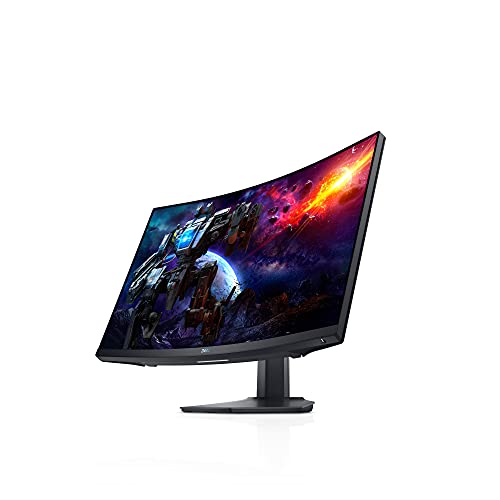
The Dell S2722DGM is a 27 inch curved QHD monitor that delivers the core 120Hz experience with a VA panel and a gentle 1500R curve. It runs at 165Hz over DisplayPort and 144Hz over HDMI 2.0, with a 1ms MPRT response time and 2ms GtG, so it clears the 120Hz target on either input. The VA panel gives it an advantage in contrast: blacks look deeper than on the IPS screens in this guide, and the 99 percent sRGB coverage keeps colours accurate for everyday gaming and media.
AMD FreeSync Premium support handles variable refresh rates, and the design is clean and understated, with a stand that adjusts for height and tilt. The 1500R curve is subtler than the 1000R curve on the Samsung pick, which makes this screen easier to live with for mixed use: games gain a sense of depth, while documents and browsing still feel natural.
Who it is for: players who want a curved screen and strong contrast without stretching to a flagship budget, and anyone whose desk mixes gaming with evening films and streaming. The restrained styling also fits an office or study better than the more aggressive gaming designs.
Caveats: the top refresh rate is only available over DisplayPort, so console players using HDMI will see 144Hz rather than 165Hz, which is still comfortably above 120Hz. VA smearing can appear on fast dark transitions, and the stand does not pivot into portrait mode. Viewing angles are narrower than on the IPS picks, so the screen is best viewed straight on.
Comparison Table
| Monitor | Size | Resolution | Refresh Rate | Panel | Key Ports |
|---|---|---|---|---|---|
| LG 27GP950-B | 27 inch | 3840 x 2160 | 144Hz, overclockable to 160Hz | Nano IPS | 2x HDMI 2.1, DisplayPort 1.4 |
| Samsung Odyssey G5 G55C | 27 inch | 2560 x 1440 | 165Hz | VA, 1000R curved | HDMI, DisplayPort |
| LG 27GP850-B | 27 inch | 2560 x 1440 | 165Hz, overclockable to 180Hz | Nano IPS | HDMI, DisplayPort |
| ASUS TUF Gaming VG27AQ | 27 inch | 2560 x 1440 | 165Hz | IPS | HDMI, DisplayPort |
| Dell S2722DGM | 27 inch | 2560 x 1440 | 165Hz over DisplayPort, 144Hz over HDMI | VA, 1500R curved | HDMI 2.0, DisplayPort 1.2 |
Which One Is Right for You?
Start with the device you play on most. Console players who want 4K at 120Hz should choose the LG 27GP950-B, because its HDMI 2.1 ports are the only ones in this guide that carry that signal, and its 4K panel makes the most of a current console. PC players with a strong graphics card can also enjoy it.
For most PC players, the choice comes down to the LG 27GP850-B and the ASUS TUF Gaming VG27AQ. Pick the LG if colour accuracy and a fully adjustable stand matter most, or if the same screen will handle photo and video work alongside gaming. Pick the ASUS if built-in speakers and a stand that swivels as well as tilts would simplify the desk.
Curved screens split the remaining choice. The Samsung Odyssey G5 G55C suits players who want the strongest sense of immersion, with its deep 1000R curve wrapping the picture around the viewer, while the Dell S2722DGM suits mixed-use desks where a gentler 1500R curve and stronger contrast matter more than maximum curvature. Both clear 120Hz comfortably, so the decision is about feel rather than speed.
Finally, match the resolution to the graphics card. A 1440p screen is the right partner for most mid-range cards, while 4K only makes sense with a high-end card or a console. Buying a faster panel than the hardware can feed wastes the extra headroom, while buying a slower panel than the hardware can drive leaves smoothness on the table.
Frequently Asked Questions
Is 120Hz enough for competitive gaming?
For most players, yes. The jump from 60Hz to 120Hz is the largest single improvement in smoothness, and it makes tracking moving targets and reacting to fast action noticeably easier. Moving from 120Hz to 240Hz brings a smaller gain that only the most competitive players tend to notice, and it demands a much stronger graphics card to feed.
Can a 144Hz or 165Hz monitor run at 120Hz?
Yes. A monitor can run at any refresh rate up to its maximum, and 120Hz is available as a setting in the display options on a PC and as an output mode on a current console. Set the refresh rate in the operating system or console settings after connecting, and check that the cable and port support the chosen combination of resolution and refresh rate. A 144Hz or 165Hz panel set to 120Hz looks identical to a native 120Hz panel at the same setting.
Do I need HDMI 2.1 for 120Hz?
It depends on the resolution. For 1440p at 120Hz, HDMI 2.0 and DisplayPort both work, so most monitors and consoles will manage it without HDMI 2.1. For 4K at 120Hz, HDMI 2.1 is required, because older HDMI versions do not carry enough bandwidth for that combination. On a PC, DisplayPort 1.4 handles 4K at high refresh rates without HDMI 2.1. Check the port version on the exact model before buying, since two screens with the same headline refresh rate can have very different port lists.
Will a 120Hz monitor help if my graphics card only reaches 60 frames per second?
Partly. The desktop, scrolling, and video will still feel smoother at 120Hz, because the screen refreshes twice as often regardless of the game frame rate. In games, the benefit is smaller when the card cannot exceed 60 frames per second, but adaptive sync still helps: it matches the screen to the card output, removing tearing and keeping motion steady as the frame rate moves. A 120Hz monitor is also a useful upgrade in advance of a future graphics card, since the screen will already be ready when the hardware catches up.
Disclosure: As an Amazon Associate, we may earn from qualifying purchases.
FAQ
Which One Is Right for You?
Is 120Hz enough for competitive gaming?
Can a 144Hz or 165Hz monitor run at 120Hz?
Do I need HDMI 2.1 for 120Hz?
Will a 120Hz monitor help if my graphics card only reaches 60 frames per second?
More from Amazon
Programs that pair well with the guide above. Offers and eligibility are set by Amazon and may change.
Free shipping on eligible items, Prime Video and more. Eligible new members can start with a free trial.
Start a Prime free trialAd-free music streaming. Eligible new subscribers can start with a free trial.
Try Music Unlimited freeA Prime membership for ages 18-24 with a trial period. Eligibility is set by Amazon.
See Prime for Young AdultsAudiobooks and podcasts to listen to on the go. Eligible new members can start with a free trial.
Try Audible freeAs an Amazon Associate we earn from qualifying purchases.