Key takeaways
- Find the best affordable monitors for work, study and play: four budget-friendly 21.5-inch and 24-inch Full HD IPS displays with HDMI, eye care and slim stands.
A monitor is the part of a desk setup you stare at all day, so a cheap panel with washed-out colours or a flickering backlight becomes tiring fast. The good news is that a modest monitor no longer means a bad one: full HD IPS panels, slim bezels and eye-care features have reached the lowest tier. The real decision is which size, refresh rate and ports fit your desk and your daily work.
This guide is for students, home workers and casual players who want a clear, comfortable screen without paying for features they will never use. Every monitor below was chosen from the names and specifications on its Amazon page, with the panel type, size, refresh rate and ports that decide whether a budget screen feels good after eight hours. The four models below cover compact desks, long workdays, clean setups and light gaming, so most buyers will find a match.
Quick Picks
As an Amazon Associate we earn from qualifying purchases
| Product | Best for | Key spec from title |
|---|---|---|
| ASUS VA24EHF | Smooth everyday use | 23.8-inch IPS, 100Hz |
| Acer SB220Q bi | A compact desk | 21.5-inch IPS, 75Hz |
| AOC 24B2XH | A clean frameless look | 24-inch IPS, 75Hz |
| LG 24MP400-B | Eye comfort during long workdays | 24-inch IPS, Reader Mode |
How to Choose
Panel Type and Size
An IPS panel is the safest choice at this tier, because it keeps colours steady when you view the screen from an angle and looks better than the older TN panels still found on the cheapest screens. A VA panel offers deeper blacks than IPS but narrower viewing angles. A 24-inch screen suits most desks and lets two windows sit side by side, while a 21.5-inch screen fits a small desk or a second display. Bigger is not always better: a 27-inch full HD panel shows the same pixels stretched wider, so text looks softer unless you move up to a higher resolution.
Resolution and Refresh Rate
Full HD resolution is the standard for affordable monitors, and it is sharp enough at 21.5 and 24 inches for documents, video and everyday games. A 75Hz or 100Hz refresh rate makes scrolling and mouse movement feel smoother than the old 60Hz standard, and it costs little extra at this tier. Gamers who play fast shooters will notice the difference most, but office work benefits too. A higher resolution also helps if you edit photos or read small text all day. Do not chase a high refresh rate at the cost of a worse panel, because colour and viewing angles matter every hour you use the screen.
Ports and Stand
Check the ports before you buy, because a monitor with only one HDMI port forces you to swap cables when a second device joins the desk. VGA is still common on budget models and works for older computers, but HDMI is the connection most laptops and consoles use today. The stand matters more than it seems: a tilt-only stand is fine on a flat desk, while a VESA mount lets you put the screen on an arm and free up desk space. Built-in speakers are a bonus, but they are usually too weak for anything beyond video calls. Some budget monitors also include a headphone jack, which is handy for video calls.
Eye Care and Everyday Comfort
A monitor you use all day should be easy on the eyes, so look for flicker-free backlights and a low blue light mode, both of which reduce strain during long sessions. A matte screen cuts reflections from windows and lamps better than a glossy one, which matters in a bright room. Brightness around 250 nits is enough indoors, and a stand that tilts lets you set the screen at a comfortable angle. A height-adjustable stand is rare at this tier, so check the listing before you assume one is included. Small comfort features add up when the screen is in front of you for hours.
The 4 Best Options
ASUS VA24EHF

The ASUS VA24EHF is the smoothest screen here, with a 100Hz refresh rate that makes scrolling, video and light gaming feel noticeably more fluid than a standard 60Hz panel. Its 23.8-inch IPS display keeps colours steady from the side, and the frameless design looks tidy on a desk or mounted on an arm. Low blue light and flicker-free technology round out a monitor that is easy to live with through a long workday.
- Specs: 23.8-inch viewable IPS panel, 1920 x 1080 Full HD, 100Hz refresh rate, 1ms MPRT, Adaptive-Sync, HDMI port, Low Blue Light, Flicker Free, VESA wall mountable
- Best for: Everyday work and light gaming where smooth motion matters
- Watch out for: Only one HDMI port, so a second device needs a switch or a different connection
Acer SB220Q bi
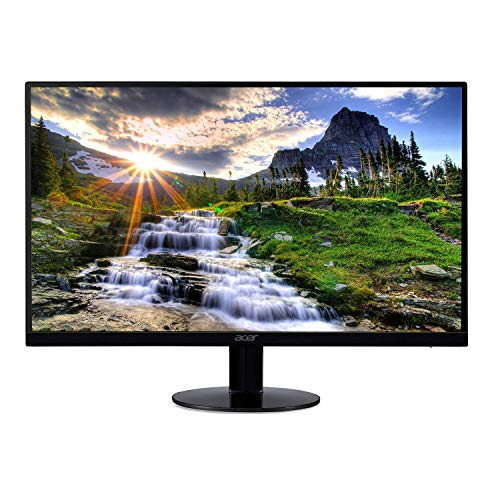
The Acer SB220Q bi is the compact pick, a 21.5-inch screen that fits desks where a 24-inch panel would crowd the keyboard or the wall. Its IPS panel delivers the same wide viewing angles as the larger models, and the 75Hz refresh rate keeps motion smooth enough for office work and casual games. The zero-frame design makes it look more expensive than it is, and it works well as a second screen beside a laptop.
- Specs: 21.5-inch IPS panel, 1920 x 1080 Full HD, 75Hz refresh rate, 4ms response time, 250 nits brightness, HDMI and VGA ports, Zero Frame design, FreeSync support
- Best for: Small desks and second-screen setups
- Watch out for: The smaller screen shows less at once, so heavy multitasking feels cramped
AOC 24B2XH

The AOC 24B2XH is the tidy-looking choice, with a three-sided frameless design and an ultra-slim profile that suits a clean desk or a dual-monitor setup. Its 24-inch IPS panel shows sharp full HD text and steady colours, and the low blue light mode helps during long reading sessions. HDMI and VGA cover both modern laptops and older desktops, and the VESA mount lets you lift it onto an arm. The slim profile keeps the desk looking tidy.
- Specs: 24-inch IPS panel, 1920 x 1080 Full HD, 75Hz refresh rate, 3-sided frameless design, HDMI and VGA inputs, Low Blue Mode, VESA compatible, ultra slim profile
- Best for: A clean desk setup or a matching pair of screens
- Watch out for: The stand only tilts, so height adjustment needs a monitor arm
LG 24MP400-B
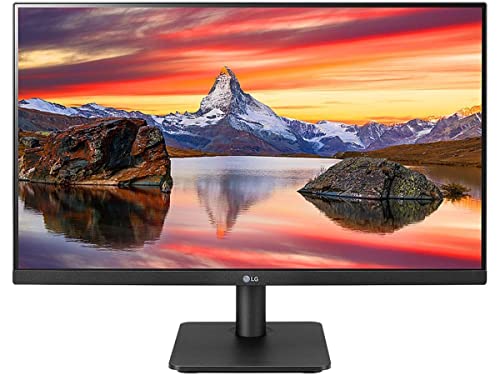
The LG 24MP400-B is built for long workdays, with a Reader Mode that softens the screen for documents and a flicker-safe backlight that reduces eye strain. Its 24-inch IPS panel is bright and clear, and AMD FreeSync keeps video smooth when the frame rate varies. The three-side borderless design looks modern, and OnScreen Control software lets you adjust settings from the desktop instead of fumbling with buttons. The slim stand takes up little desk space.
- Specs: 24-inch IPS panel, 1920 x 1080 Full HD, 75Hz refresh rate, 5ms response time, AMD FreeSync, HDMI and D-Sub ports, Reader Mode, Smart Energy Saving, OnScreen Control
- Best for: Reading, writing and office work across long days
- Watch out for: No DisplayPort, so newer laptops may need an HDMI adapter
Which One Fits Your Situation
A Small Desk in a Bedroom
The Acer SB220Q bi fits where space is tight, because its 21.5-inch screen leaves room for a keyboard, a notebook and a lamp. The IPS panel still looks good from a bed or a chair at an angle, and the 75Hz refresh rate keeps everyday use smooth. If the desk is against a wall, the slim zero-frame design helps the setup feel less crowded.
Work From Home All Day
The LG 24MP400-B suits a full workday, since Reader Mode and the flicker-safe backlight ease the strain of hours of documents and video calls. Its 24-inch screen shows two windows side by side, and the borderless design keeps the focus on the work. Eye-care features matter most when the monitor is on all day. Pair it with a monitor arm if the tilt-only stand leaves the screen too low for your chair.
A Second Screen for a Laptop
The ASUS VA24EHF works well as a laptop’s second screen, because the 100Hz panel makes dragging windows and scrolling feel smooth, and the single HDMI port matches what most laptops offer. The 23.8-inch size gives documents room without overwhelming a desk, and the frameless edges look neat beside a laptop display. The screen is large enough for documents yet small enough to sit beside a laptop without crowding the desk.
Light Gaming After Work
The AOC 24B2XH covers evening gaming on a budget, with an IPS panel that keeps colours vivid and a 75Hz refresh rate that beats the old 60Hz standard. Its frameless design looks good in a gaming corner, and the VESA mount lets you raise it to eye level. The 75Hz refresh rate is enough for relaxed games and video. It suits casual and story-driven games rather than competitive shooters that demand higher refresh rates.
Common Mistakes
- Buying the biggest screen in the budget and getting a soft image from stretched full HD pixels.
- Ignoring the ports and discovering the monitor has no input your laptop uses.
- Choosing a TN panel for the lowest sticker figure and living with washed-out angles.
- Skipping eye-care features on a screen you will use for eight hours a day.
- Forgetting to check whether the stand adjusts, then living with a screen at the wrong height.
Frequently Asked Questions
Is 1080p enough for an affordable monitor?
Yes, at 21.5 and 24 inches full HD looks sharp for documents, video and everyday games. The pixels are dense enough that text stays crisp at a normal viewing distance. A larger screen at the same resolution spreads those pixels wider and looks softer, so if you want a 27-inch display, look for a higher resolution instead of settling for stretched full HD.
Do I need HDMI or DisplayPort?
Most affordable monitors use HDMI, which covers laptops, desktops and consoles, so HDMI is usually enough. DisplayPort appears on higher-end screens and matters more for high refresh rates than for everyday use. Check what your computer offers before buying, and remember that an adapter can bridge the gap if the monitor and the computer use different ports. USB-C video is rare at this tier.
What is FreeSync?
FreeSync is AMD’s technology that matches the monitor’s refresh rate to the graphics card’s frame rate, which reduces tearing and stutter in games and video. It works over HDMI on most affordable monitors and needs no special setup beyond turning it on. Even outside games, it can make scrolling and video playback feel smoother when the frame rate changes. It needs a compatible graphics card to work.
Can I mount an affordable monitor on an arm?
Most budget monitors in this guide support VESA mounting, which lets you attach them to a monitor arm or a wall bracket. Check the listing for VESA compatibility and the hole pattern before buying an arm, because a few ultra-cheap models skip it. An arm frees desk space and lets you set the height and angle exactly where you want them.
FAQ
Is 1080p enough for an affordable monitor?
Do I need HDMI or DisplayPort?
What is FreeSync?
Can I mount an affordable monitor on an arm?
More from Amazon
Programs that pair well with the guide above. Offers and eligibility are set by Amazon and may change.
Free shipping on eligible items, Prime Video and more. Eligible new members can start with a free trial.
Start a Prime free trialAd-free music streaming. Eligible new subscribers can start with a free trial.
Try Music Unlimited freeA Prime membership for ages 18-24 with a trial period. Eligibility is set by Amazon.
See Prime for Young AdultsAudiobooks and podcasts to listen to on the go. Eligible new members can start with a free trial.
Try Audible freeAs an Amazon Associate we earn from qualifying purchases.