Key takeaways
- Find the best monitors for dual screen setup with our guide to size, resolution, panels, stands, and matching pairs for work, gaming, and creative use.
As an Amazon Associate we earn from qualifying purchases.
The best monitors for dual screen setup are not always the biggest or most expensive screens you can buy. They are the pair that matches well, sits comfortably side by side, and suits the way you actually work and play. A good dual screen setup gives you room to spread out: a document on one screen and research on the other, a game on one display and chat or a guide on the second, or a video timeline on one monitor and a preview window on its twin. When the two screens match in size, height, colour, and sharpness, the experience feels like one wide workspace instead of two separate boxes fighting for attention.
This guide explains how to choose a matching pair, which sizes and resolutions make sense, which panel types suit different uses, and how to arrange two monitors so your neck, eyes, and desk all stay happy. It covers work, gaming, and creative setups, and it finishes with practical answers to the questions people ask most before buying a second screen.
Why a Matching Pair Matters More Than One Great Screen
Two monitors only feel like a real upgrade when they work together. If one screen is brighter, warmer, taller, or sharper than the other, your eyes keep adjusting every time you look across the join. That small adjustment adds up over a long day, and it can make colour work unreliable because the same image looks different on each display.
Matching does not have to mean buying two identical models, although that is the simplest route and usually the best one. Two screens of the same size, resolution, and panel type will normally share the same height, pixel density, and colour character. If you already own one good monitor, buying a second copy of the same model is often the smartest move. If that model is no longer sold, look for a screen with the same size, resolution, refresh rate, and panel type, and check that its stand can bring it to the same height as your first monitor.
Height matters more than most buyers expect. A 27 inch screen next to a 24 inch screen leaves a visible step at the top, and windows dragged across the join jump up or down. A monitor arm can fix some of this, but it is far easier to start with two screens that are the same height. The same logic applies to bezels. Slim bezels make the gap between the two displays less distracting, which matters when you stretch a spreadsheet, a timeline, or a game across both screens, or when you simply want the pair to look tidy on your desk.
What Size Works Best for Two Screens
Size is the first decision, and it depends on your desk depth, your eyesight, and what you do on the computer. The most popular dual screen combinations use two 24 inch or two 27 inch monitors, and for good reason: they fit on a normal desk, they are easy to angle toward you, and text stays readable without scaling tricks.
Two 24 inch monitors are a strong choice for smaller desks and for people who mainly work with documents, email, code, and web browsing. A 24 inch screen with a 1080p resolution gives crisp, readable text at normal viewing distance, and two of them side by side provide plenty of room without demanding a deep desk or a large budget. They are also light enough for most monitor arms, which makes positioning simple.
Two 27 inch monitors are the sweet spot for most dual screen setups. At this size, a 1440p resolution looks noticeably sharper than 1080p, and you can fit two windows side by side on each screen without everything feeling cramped. A pair of 27 inch displays suits office work, photo editing, programming, and gaming, and it fills a standard desk nicely without overwhelming the room. If your desk is at least 120 centimetres wide, two 27 inch monitors will usually fit with room for speakers or a notebook at the side.
Two 32 inch monitors are best for people with a deep desk and a need for lots of on-screen space, such as video editors, financial analysts, and designers who keep many panels open at once. They are impressive, but they need distance: sit too close and you will turn your head constantly to see the outer edges. They also demand a sturdy desk and strong monitor arms, because they are heavier and wider than smaller screens.
Mixed sizes can work if the pairing is deliberate. A large main monitor with a smaller secondary screen in portrait orientation is popular for programmers, writers, and streamers. The main screen handles the primary task, while the portrait screen shows code, chat, or a document. Place the smaller screen where it does not force an awkward neck angle.
Resolution: Keep Both Screens at the Same Sharpness
Resolution decides how much you can fit on screen and how sharp text looks. For a dual screen setup, matching resolution is almost as important as matching size, because a window moved from one screen to the other should not suddenly change size or sharpness.
A pair of 1080p monitors is fine for general office work, browsing, and casual gaming, especially at 24 inches. Text is readable, graphics cards have no trouble driving two screens, and the setup stays affordable. At 27 inches, however, 1080p starts to look soft, and individual pixels become easier to see. If you are buying 27 inch screens, 1440p is the better choice: text is crisper, you can fit more on screen, and the jump in clarity is easy to notice.
A pair of 1440p monitors is the best balance for most people. They are sharp enough for detailed work, smooth enough for gaming at high refresh rates, and still manageable for a mid-range graphics card when you are not gaming on both screens at once. Most dual screen users game on one monitor and use the second for other tasks, so a 1440p pair rarely strains a modern system.
A pair of 4K monitors gives the sharpest image and the most workspace, and it suits photo and video editing, design work, and anyone who reads small text for hours. At 32 inches, 4K feels more natural, so buy two identical models if you choose 4K.
Whatever resolution you choose, avoid pairing a 1080p screen with a 4K screen as your main working pair. The difference in sharpness and in how large windows appear will be obvious every time you drag something across the middle.
Panel Types Explained Simply
The panel type affects colour, contrast, viewing angles, and response time. There are three main types to know, and each suits a different kind of dual screen setup.
IPS panels are the best all-round choice for a dual screen setup. They offer wide viewing angles, which matters when two screens are angled toward you, because the outer edges of each screen are viewed at a slant. Colours stay consistent, text looks clean, and modern IPS panels are fast enough for most gaming. If you are unsure which panel to buy, choose IPS.
VA panels offer deeper blacks and stronger contrast than IPS, which makes them appealing for watching films, playing atmospheric games, and working in a dark room. Their viewing angles are narrower, so colours can shift slightly at the edges of a wide dual setup, and some VA panels show more smearing in fast motion. They are a good choice when contrast matters more than perfect colour consistency across the pair.
Refresh Rate and Response Time for Gaming Pairs
If gaming is part of your dual screen plan, refresh rate matters, but only on the screen you play on. A 144 Hz or 165 Hz main monitor makes motion smoother in fast games, while the second screen can be a standard 60 Hz or 75 Hz display used for chat, video, or a browser. Many gamers buy a fast primary monitor and a cheaper secondary monitor, and that split makes sense when the second screen never shows a game.
If you want both screens to feel the same when moving the mouse or dragging windows, matching refresh rates help. A mouse moving from a 165 Hz screen to a 60 Hz screen feels noticeably less smooth on the slower display. For pure gaming pairs where both screens might show a game, matching high refresh rates is worth it. For a work-first setup with occasional gaming, spend the money on one fast, high-quality primary screen and a solid, matching-resolution secondary screen.
Ports, Cables, and Connecting Two Monitors
Before you buy, check how your computer connects to two screens. Most modern graphics cards and laptops support two external displays, but the ports available decide which cables you need and whether both screens can run at full resolution and refresh rate.
DisplayPort is the best connection for a dual monitor setup on a desktop computer. It supports high resolutions and high refresh rates, and many graphics cards have several DisplayPort outputs. HDMI is also common and works well, especially for 1440p and 4K at 60 Hz, but older HDMI versions may limit refresh rate at higher resolutions. USB-C with DisplayPort support is the simplest option for many laptops, because a single cable can carry video, data, and charging, and a USB-C dock can drive two monitors from one port.
Check your graphics card or laptop specifications for the maximum number of external displays and the resolution each port supports. Some laptops support only one external 4K screen at full speed, or they mirror the same image to both screens unless a dock is used. A quick check before buying avoids the frustration of a second monitor that will not light up.
Stands, Arms, and Desk Layout
The stands that come with monitors are often bulky and offer limited adjustment, which is a problem when you need two screens at exactly the same height. A dual monitor arm, or two single arms, solves this neatly: the screens float above the desk, you gain space underneath, and you can adjust height, tilt, and angle precisely. Look for arms rated for the weight and size of your monitors, and check that your monitors have VESA mounting holes, which most do.
If you prefer stands, choose monitors with height-adjustable stands and check the adjustment range before you buy. Two stands with different height ranges can leave one screen higher than the other, and shimming a stand with books is not a long-term solution.
Arrange the screens in a gentle arc, angled slightly toward you, with the join directly in front of your usual seating position. The tops of the screens should sit at or slightly below eye level, and the screens should be about an arm’s length away. If one screen is your main display, place it directly in front of you and the second screen to the side at a slight angle, so you turn your head a little rather than twisting your neck. If you use both screens equally, centre the join in front of you and angle both screens inward.
Dual Screen Setups for Different Uses
Office and study setups benefit most from matching 24 inch or 27 inch IPS monitors at 1440p, with height-adjustable stands or a dual arm. Prioritise text clarity, comfortable brightness, a low blue light mode for evening work, and a matte screen that resists reflections from office lighting. Two identical screens make it easy to compare documents side by side and to keep your email or calendar open on the second screen.
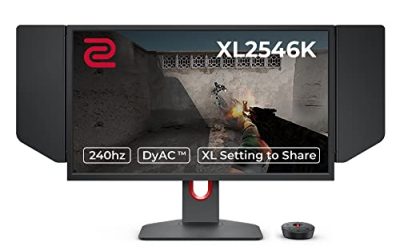
Gaming setups need a fast primary monitor with a high refresh rate, good response time, and adaptive sync support, paired with a secondary screen that matches in size and resolution. The secondary screen handles streaming chat, game guides, music, and voice chat. If you play competitive shooters, the primary screen deserves the biggest share of your budget. If you play story-driven games and watch films, a larger primary screen with strong contrast may matter more than the highest refresh rate.
Creative setups for photo editing, video editing, and design need colour accuracy above all. Look for monitors that cover a wide colour range, offer good factory calibration, and allow hardware calibration. Two identical colour-accurate screens let you keep your editing tools on one display and a clean preview on the other. A 27 inch 4K pair is a popular choice here, with one screen in landscape and the other sometimes rotated to portrait for tool panels or long documents.
Programming setups often pair a wide main monitor with a portrait secondary monitor for code, documentation, or a terminal window. A portrait screen shows far more lines of code than a landscape screen of the same size, and it takes up less desk width. Sharp text, a matte finish, and a stand that rotates easily are more important here than gaming features.
Comparison Table
| Feature | Office Pair | Gaming Pair | Creative Pair |
|---|---|---|---|
| Best size | Two 24 or 27 inch screens | Two 27 inch screens | Two 27 or 32 inch screens |
| Resolution | 1080p at 24 inch, 1440p at 27 inch | 1440p | 4K |
| Panel type | IPS | Fast IPS | Colour-accurate IPS |
| Refresh rate | 60 to 75 Hz | 144 Hz or higher on main screen | 60 Hz is usually enough |
| Key priority | Text clarity and comfort | Smooth motion on main screen | Colour accuracy |
| Stand | Height adjustable or dual arm | Dual arm for precise angles | Height adjustable, rotation for portrait use |
Common Mistakes to Avoid
The most common mistake is buying two different monitors because one was on sale. A bargain second screen that does not match the first will annoy you every day, and you may end up replacing it anyway. If budget is tight, buy one good monitor now and save for an identical second one, rather than buying a mismatched pair immediately.
Frequently Asked Questions
Is it better to buy two identical monitors for a dual screen setup?
Yes, in most cases. Two identical monitors give you the same size, height, resolution, colour, and brightness, so windows move smoothly across the join and your eyes do not have to adjust. If you already own one monitor, buying a second copy of the same model is usually the best option.
What is the best size for dual monitors?
Two 27 inch monitors suit most people, offering a good balance of screen space, sharpness at 1440p, and desk fit. Two 24 inch monitors suit smaller desks and office work, while two 32 inch monitors suit deep desks and people who need maximum space for editing or data work.
Do both monitors need the same refresh rate?
No, not necessarily. Only the screen you game on needs a high refresh rate. The second screen can run at a standard refresh rate if it is used for chat, browsing, or documents. Matching refresh rates feels smoother when moving the mouse between screens, but it is not essential.
Can I use monitors of different sizes together?
Yes, and a large main screen with a smaller portrait secondary screen is a popular setup for coding and streaming. The pair will not form one seamless image, so place the main screen directly in front of you and the second screen where it is easy to glance at without twisting your neck.
How far apart should dual monitors sit?
Place them side by side with as small a gap as the bezels allow, angled slightly toward you in a gentle arc. Sit about an arm’s length away, with the tops of the screens at or slightly below eye level. This keeps both screens in comfortable view without constant head turning.
Conclusion
The best monitors for dual screen setup are the pair that matches your desk, your eyes, and your daily tasks. Start with size and resolution, choose a panel type that suits your work, and buy two screens that match in height, sharpness, and colour. Add a good monitor arm, match the brightness settings, and arrange the screens in a gentle arc at eye level. Do that, and two screens will feel like one generous workspace that makes work faster, gaming more enjoyable, and long days at the desk far more comfortable. Choose carefully once, and your dual screen setup will serve you well for years.
FAQ
Is it better to buy two identical monitors for a dual screen setup?
What is the best size for dual monitors?
Do both monitors need the same refresh rate?
Can I use monitors of different sizes together?
How far apart should dual monitors sit?
More from Amazon
Programs that pair well with the guide above. Offers and eligibility are set by Amazon and may change.
Free shipping on eligible items, Prime Video and more. Eligible new members can start with a free trial.
Start a Prime free trialAd-free music streaming. Eligible new subscribers can start with a free trial.
Try Music Unlimited freeA Prime membership for ages 18-24 with a trial period. Eligibility is set by Amazon.
See Prime for Young AdultsAudiobooks and podcasts to listen to on the go. Eligible new members can start with a free trial.
Try Audible freeAs an Amazon Associate we earn from qualifying purchases.