Our Short List of 3

- Best Overall: BenQ GW2790QT — QHD sharpness, adaptive brightness, USB-C hub, and a full eye-care feature set in one 27-inch display.
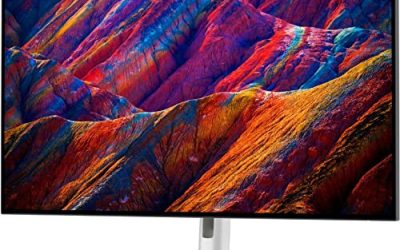
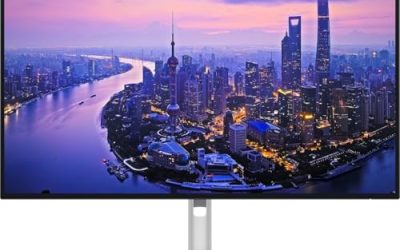
- Best 4K Sharpness: Dell UltraSharp U2723QE — a 4K IPS Black panel with ComfortView Plus and a built-in USB-C hub for a clean, single-cable desk.
- Best for Colour Work: ASUS ProArt PA278CV — a factory-calibrated QHD panel with Eye Care features, USB-C, and daisy-chain support.
- Best Value Full HD: BenQ GW2790 — a 100Hz Full HD panel with Eye-Care technology, built-in speakers, and a matte screen.

- Finest text rendering in this guide thanks to 4K resolution
- IPS Black panel for deeper blacks and stronger text contrast
- Always-on ComfortView Plus low blue light
- USB-C hub with KVM and wired network port

- Factory-calibrated colour with independent verification
- Sharp QHD panel with wide viewing angles
- Eye Care low blue light and flicker-free modes
- USB-C with laptop charging and daisy-chain support
All 5 Picks at a Glance
| Product | Specs | Action |
|---|---|---|
| Our Top Picks |
| Check price on Amazon |
| 2. Dell UltraSharp U2723QE — Best 4K Sharpness |
| Check price on Amazon |
| 3. ASUS ProArt PA278CV — Best for Colour Work |
| Check price on Amazon |
 4. BenQ GW2790 — Best Value Full HD |
| Check price on Amazon |
 5. ASUS VA27DQSB — Best Budget Pick |
| Check price on Amazon |
Key takeaways
- Searching for the best monitors for eyes? These five eye-comfort displays pair low blue light modes, flicker-free panels and matte screens for long days.
As an Amazon Associate I earn from qualifying purchases.
The Short Answer
The best monitors for eyes combine a sharp, high-resolution panel with hardware-level comfort features: a low blue light mode, a flicker-free backlight, a matte anti-glare coating, and a stand that sets the screen at the right height and angle. No single feature does the job alone. Sharp text matters just as much as blue light filtering, because blurry text forces your eyes to work harder on every line you read.
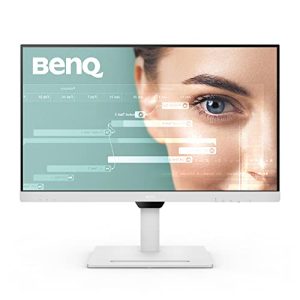
If you want one straightforward pick, the BenQ GW2790QT is the strongest all-rounder in this guide. Its 27-inch QHD panel renders text crisply, its Brightness Intelligence system adjusts the backlight to the room around you, and its USB-C connection carries video and laptop charging over a single cable. If your work is colour-critical, the ASUS ProArt PA278CV adds factory-calibrated colour on the same size of QHD panel. And if you want the sharpest text of the group, the Dell UltraSharp U2723QE moves up to a 4K panel with an IPS Black display and an always-on low blue light layer.
Our Top Picks
- Best Overall: BenQ GW2790QT — QHD sharpness, adaptive brightness, USB-C hub, and a full eye-care feature set in one 27-inch display.
- Best 4K Sharpness: Dell UltraSharp U2723QE — a 4K IPS Black panel with ComfortView Plus and a built-in USB-C hub for a clean, single-cable desk.
- Best for Colour Work: ASUS ProArt PA278CV — a factory-calibrated QHD panel with Eye Care features, USB-C, and daisy-chain support.
- Best Value Full HD: BenQ GW2790 — a 100Hz Full HD panel with Eye-Care technology, built-in speakers, and a matte screen.
Quick Comparison
| Monitor | Size and Resolution | Panel | Eye-Comfort Features | Standout Trait |
|---|---|---|---|---|
| BenQ GW2790QT | 27-inch, 2560 x 1440 | IPS | Low Blue Light Plus, flicker-free, Brightness Intelligence Gen2, matte screen | USB-C with laptop charging and daisy chain |
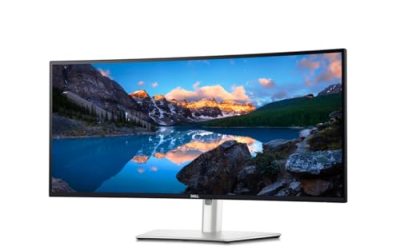
| Dell UltraSharp U2723QE | 27-inch, 3840 x 2160 | IPS Black | ComfortView Plus always-on low blue light, flicker-free, anti-glare coating | Sharpest text in this guide |
| ASUS ProArt PA278CV | 27-inch, 2560 x 1440 | IPS | Eye Care low blue light and flicker-free modes, anti-glare coating | Factory-calibrated colour |
| BenQ GW2790 | 27-inch, 1920 x 1080 | IPS | Eye-Care technology, Low Blue Light, flicker-free, anti-glare, adaptive brightness | Smooth 100Hz panel with speakers |
| ASUS VA27DQSB | 27-inch, 1920 x 1080 | IPS | Flicker-free and Low Blue Light modes, Rest Reminder | Lowest-cost entry to certified eye care |
How to Choose
Start with resolution and size
Resolution decides how sharp text looks, and sharp text is the single biggest comfort factor for reading and writing. A 27-inch Full HD panel spreads 1920 x 1080 pixels across a large area, so individual characters can look soft at close range. The same 27-inch size at QHD resolution (2560 x 1440) packs in far more pixels, and text edges look noticeably cleaner. A 4K panel at 27 inches goes further still, with the finest text in this guide.
If your day is mostly documents, email, and spreadsheets, a QHD panel is the sweet spot: sharp enough for all-day reading. If you edit photos or video, or you simply want the crispest text available, 4K is worth the step up. Full HD still works well, but on a 27-inch screen the difference in text clarity is easy to see side by side.
Look for hardware low blue light, not just a software filter
Most monitors now include a low blue light setting. The better implementations filter blue light at the panel level, so the effect is always on and colours stay closer to natural. Dell calls its version ComfortView Plus, and it runs constantly without a separate mode to switch on. BenQ and ASUS take a similar approach with dedicated low blue light settings that work alongside their flicker-free backlights.
A software filter on your computer can help too, and many operating systems include a night mode that warms the screen in the evening.
Flicker-free backlights matter more than refresh rate
A flicker-free backlight keeps its brightness steady instead of pulsing many times per second. Some people are sensitive to that pulsing even when they cannot consciously see it, and it can add to tired eyes over a long session. All five monitors in this guide use flicker-free backlights, and several carry independent certification for it. Refresh rate is a separate matter: a 100Hz panel like the BenQ GW2790 scrolls more smoothly than a 60Hz or 75Hz panel, which can feel easier on the eyes when you move through long documents.
Matte screens beat glossy screens for most desks
A matte anti-glare coating scatters reflections from windows and room lights instead of bouncing them straight back at you. That matters because glare forces your eyes to fight the reflection while also reading the screen. Every pick in this guide has a matte or anti-glare surface. If your desk faces a window, a matte screen is one of the most practical comfort upgrades you can make.
Ergonomics are part of eye comfort
Where the screen sits changes how your eyes work. A screen that is too high forces you to look up, which dries the eyes faster; a screen that is too low pulls your neck down and narrows your field of view. The top of the display should sit roughly at eye level, about an arm’s length away, with a slight downward tilt to the centre of the screen. Every monitor here has a height-adjustable stand except the BenQ GW2790, which adjusts by tilt only. All five support VESA mounting.
Habits matter as much as hardware
No monitor, however well designed, replaces good viewing habits. The widely repeated 20-20-20 guideline is simple to follow: every 20 minutes, look at something about 20 feet away for about 20 seconds. Blinking fully and often helps too. Keep room lighting even and set brightness so the screen matches the room rather than glowing against it. If your eyes hurt often, or your vision changes, talk to an eye care professional rather than shopping for a new display.
The Picks in Detail
1. BenQ GW2790QT — Best Overall
The GW2790QT is the most complete eye-comfort monitor in this guide. Its 27-inch QHD IPS panel gives text the sharpness that long reading sessions need, and its Brightness Intelligence Gen2 system reads the ambient light in your room and adjusts the backlight to match. Low Blue Light Plus and a flicker-free backlight handle the core comfort features, and BenQ adds Eye-CareU modes for coding and reading.
Connectivity is a strong point. A single USB-C cable carries video and charges a laptop, and the monitor supports daisy chaining a second display from its DisplayPort output. The stand adjusts for height, tilt, pivot, and swivel. Built-in speakers and a noise-cancelling microphone suit video calls as well as documents.
Pros
- Sharp QHD text on a 27-inch IPS panel
- Adaptive brightness that follows room lighting
- USB-C with laptop charging and daisy-chain support
- Full height, tilt, pivot, and swivel adjustment
- Built-in speakers and noise-cancelling microphone
Cons
- Refresh rate is 75Hz, so motion is less smooth than on the 100Hz BenQ GW2790
- White finish may not suit every desk setup
- Confirm the exact USB-C charging wattage on the listing before pairing it with a power-hungry laptop
2. Dell UltraSharp U2723QE — Best 4K Sharpness
- Finest text rendering in this guide thanks to 4K resolution
- IPS Black panel for deeper blacks and stronger text contrast
- Always-on ComfortView Plus low blue light
- USB-C hub with KVM and wired network port
The U2723QE is the pick for anyone whose eyes spend the day on fine text. Its 27-inch 4K panel renders characters with the finest edges in this guide, and its IPS Black technology deepens black levels compared with a standard IPS panel, which gives text on a white background stronger contrast. Dell’s ComfortView Plus is an always-on low blue light layer built into the panel, so there is no mode to remember to switch on, with flicker-free operation.
It is also a capable USB-C hub monitor. A single USB-C connection drives the display, charges a laptop, and connects the monitor’s USB ports and wired network port. The built-in KVM lets one keyboard and mouse control two connected computers. The stand covers height, tilt, swivel, and pivot, and the anti-glare coating handles bright rooms well.
Pros
Cons
3. ASUS ProArt PA278CV — Best for Colour Work
- Factory-calibrated colour with independent verification
- Sharp QHD panel with wide viewing angles
- Eye Care low blue light and flicker-free modes
- USB-C with laptop charging and daisy-chain support
The PA278CV pairs eye comfort with colour accuracy, which makes it the natural pick for photo editing, design work, and any task where colours need to be trustworthy. Its 27-inch QHD IPS panel is factory calibrated to a tight colour tolerance, with full sRGB and Rec. 709 coverage and Calman verification. Eye Care features cover low blue light and flicker-free operation, and the anti-glare coating keeps reflections down in bright rooms.
For desk setup, USB-C carries video and laptop charging, and DisplayPort daisy chaining lets a second monitor connect through the first. The stand adjusts for height, tilt, pivot, and swivel.
Pros
Cons
4. BenQ GW2790 — Best Value Full HD
- Smooth 100Hz panel for scrolling and general use
- Eye-Care technology with low blue light and flicker-free backlight
- Adaptive brightness and matte anti-glare screen
- Built-in speakers and dual HDMI plus DisplayPort
The GW2790 is the simplest route to a comfortable screen. Its 27-inch Full HD IPS panel runs at 100Hz, so scrolling through long documents feels smoother than on the 75Hz monitors in this guide, and its Eye-Care technology combines low blue light with a flicker-free backlight. Brightness Intelligence adjusts the backlight to ambient light, and the matte anti-glare screen keeps reflections down.
Built-in speakers mean no extra desktop clutter, and dual HDMI ports plus DisplayPort make it easy to connect a desktop and a laptop side by side. The stand adjusts by tilt only, so height adjustment needs a monitor arm or a riser.
Pros
Cons
5. ASUS VA27DQSB — Best Budget Pick
- Certified flicker-free and low blue light modes
- Rest Reminder encourages regular screen breaks
- Fully adjustable stand with height, tilt, pivot, and swivel
- USB hub plus HDMI, DisplayPort, and VGA
The VA27DQSB is the lowest-cost monitor in this guide, and it still covers the eye-comfort essentials. Its 27-inch Full HD IPS panel carries ASUS Eye Care technology with independently certified flicker-free and low blue light modes, and a built-in Rest Reminder prompts you to take a break from the screen at regular intervals.
Practical features are generous for the category. The stand adjusts for height, tilt, pivot, and swivel, the monitor includes a USB hub for peripherals, and connectivity covers HDMI, DisplayPort, and VGA. Built-in speakers handle video calls and casual viewing. Text is less sharp than on the QHD and 4K picks in this guide, because Full HD pixels are larger at 27 inches, but for everyday office work, study, and browsing, this monitor covers the comfort basics at the lowest entry point here.
Pros
Cons
Who Should Choose What
- Long days of reading and writing: BenQ GW2790QT. Sharp QHD text, adaptive brightness, and single-cable USB-C.
- Finest text and a premium desk setup: Dell UltraSharp U2723QE. Crispest characters here, plus a built-in hub and KVM for a multi-device desk.
- Photo editing and design work: ASUS ProArt PA278CV. Factory-calibrated colour plus Eye Care features in one display.
- A second screen or a simple home office: BenQ GW2790. Smooth 100Hz scrolling with built-in speakers.
- A tight budget with real eye-care features: ASUS VA27DQSB. Certified flicker-free and low blue light modes with a fully adjustable stand.
Common Mistakes
Buying on size alone. A larger screen is not automatically easier on the eyes. A 27-inch Full HD panel shows bigger but softer text than a 27-inch QHD panel, so resolution matters more than diagonal size for reading comfort.
Sitting too close. A big screen at close range fills too much of your field of view and forces constant head movement. Start at about an arm’s length and move the monitor back until you can read comfortably without leaning in.
Running the screen at full brightness. A monitor set far brighter than the room around it creates a glowing rectangle that your eyes must adapt to all day. Match screen brightness to the room.
Ignoring the stand. A screen that cannot reach eye level ends up propped on books or tilted at an awkward angle. Check height adjustment before you buy, or budget for a monitor arm.
Forgetting breaks. Even the most comfortable monitor cannot compensate for eight unbroken hours of staring. Short, regular breaks away from the screen do more for comfort than any single display feature.
Using a glossy screen facing a window. Reflections compete with the text you are trying to read. A matte screen and a desk position that avoids direct window glare solve most of this without any extra equipment.
FAQ
Do low blue light monitors actually help with eye comfort?
Low blue light modes and hardware filtering reduce the amount of blue light the panel emits, which many people find more comfortable during long evening sessions. They are a comfort feature, not a medical treatment, and they work best alongside regular breaks and matched screen brightness.
Is a higher resolution better for your eyes?
For reading and writing, yes, up to a point. Higher resolution renders text with cleaner edges, so your eyes do less work to distinguish characters. The step from Full HD to QHD at 27 inches is clearly visible; the step from QHD to 4K is finer but still noticeable at close range.
What does flicker-free mean on a monitor?
A flicker-free monitor keeps its backlight brightness steady instead of pulsing rapidly to control brightness. Some people are sensitive to that pulsing, and a steady backlight can feel more comfortable over a long session.
Is a matte screen better than a glossy screen for eye comfort?
For most desks, yes. A matte anti-glare coating spreads reflections from windows and lamps instead of bouncing a sharp reflection back at you, which makes text easier to read in bright rooms.
How far should I sit from my monitor?
About an arm’s length is a good starting point, with the top of the screen roughly at eye level. If you find yourself leaning in to read, move the screen closer in small steps.
Can a monitor replace reading glasses or an eye exam?
No. A comfortable monitor makes screen work pleasanter, but it cannot correct vision or diagnose eye problems. If text looks blurry even on a sharp display, or your eyes hurt often, an eye care professional is the right next step.
Conclusion
The best monitors for eyes make long sessions feel easy: sharp text, a steady flicker-free backlight, low blue light handling, a matte screen, and a stand that puts the display where it belongs. The BenQ GW2790QT covers that whole list at QHD resolution and is the pick most people should start with. The Dell UltraSharp U2723QE is the upgrade for the sharpest text, the ASUS ProArt PA278CV adds calibrated colour for creative work, and the BenQ GW2790 and ASUS VA27DQSB bring genuine eye-care features to simpler budgets.
Whichever you choose, pair it with good habits: match brightness to the room, sit at a comfortable distance, and step away at regular intervals. The monitor sets the stage, but the breaks keep your eyes comfortable through a long day.
FAQ
Do low blue light monitors actually help with eye comfort?
Is a higher resolution better for your eyes?
What does flicker-free mean on a monitor?
Is a matte screen better than a glossy screen for eye comfort?
How far should I sit from my monitor?
Can a monitor replace reading glasses or an eye exam?
More from Amazon
Programs that pair well with the guide above. Offers and eligibility are set by Amazon and may change.
Free shipping on eligible items, Prime Video and more. Eligible new members can start with a free trial.
Start a Prime free trialAd-free music streaming. Eligible new subscribers can start with a free trial.
Try Music Unlimited freeA Prime membership for ages 18-24 with a trial period. Eligibility is set by Amazon.
See Prime for Young AdultsAudiobooks and podcasts to listen to on the go. Eligible new members can start with a free trial.
Try Audible freeAs an Amazon Associate we earn from qualifying purchases.