Our Short List of 3
All 3 Picks at a Glance
| Product | Specs | Action |
|---|---|---|
 1. Dell UltraSharp U2723QE — Best Overall | Check price on Amazon | |
 2. ASUS ProArt Display PA279CRV — Best for Wide Gamut | Check price on Amazon | |
 3. LG UltraFine 27UP850-W — Best Value | Check price on Amazon |
Key takeaways
- Find the best computer monitors for photo editing with accurate color, 4K detail and factory calibration. Compare four IPS displays built for photographers.
The best computer monitors for photo editing show colors the way your camera captured them, hold detail in deep shadows, and stay consistent from one edge of the screen to the other. A general-purpose display can look bright and pleasing while quietly shifting skin tones, crushing shadow detail, or drifting toward blue as the panel warms up. For editing work, that kind of drift is not a minor flaw. It is the difference between a print that matches your screen and one that comes back too dark, too warm, or oddly flat.
Photo editing places demands on a monitor that gaming and office work do not. You need wide and accurate color coverage, enough resolution to judge fine detail at normal viewing distance, a panel that does not change color when you lean to one side, and a factory calibration you can trust until you run your own calibrator. Refresh rate matters far less here than it does for gaming, and most editing monitors run at 60 Hz for exactly that reason. The four monitors in this guide all meet that bar: each one is a 27-inch 4K IPS display with measured color coverage, a calibration report or verification, and the connectivity to serve as the center of an editing desk.
How to Choose a Monitor for Photo Editing
Color gamut comes first
A monitor can only display the colors inside its gamut, so coverage is the first specification to check. For photographers, three color spaces matter. sRGB is the standard for web delivery and most consumer printing. Adobe RGB is wider in greens and cyans and matters for fine-art printing. DCI-P3 is wider in reds and greens and matters when your work also goes to modern phones, tablets, and video.
Look for a monitor that covers at least 99 percent of sRGB, and treat wider coverage as a bonus that matches your output. A display that covers 99 percent of DCI-P3 and Adobe RGB gives you room for both print and screen delivery. A display that covers 95 percent of DCI-P3 is still a strong choice for web-first work. What matters is that the coverage figure comes from the manufacturer and is tied to a calibration report, not a vague marketing claim.
Accuracy matters more than coverage
Wide gamut means little if the colors inside it are wrong. The standard measure is Delta E, which describes how far a displayed color sits from the intended color. A Delta E under 2 is generally considered accurate enough that the difference is hard to see. A Delta E under 3 is acceptable for most editing work. Every monitor in this guide ships with a factory calibration report or an independent verification, which means the accuracy claim is backed by a measurement rather than a promise.
Factory calibration is a starting point, not a permanent state. Panels drift over months of use, and room lighting changes with the seasons. A hardware calibrator used every few months keeps the display honest. When you compare monitors, favor models that support hardware calibration or at least offer a wide set of color modes, so a calibrator can build an accurate profile for each space you work in.
Resolution and size set the working distance
A 27-inch 4K panel at 3840 by 2160 is the sweet spot for most photo editors. At that size and resolution, fine detail is visible without scaling the interface so far that menus become unreadable, and a full-resolution image can be judged at a comfortable zoom. A 32-inch 4K panel gives more room for toolbars and a larger image, but the pixel density drops, so fine detail is slightly softer. A 27-inch QHD panel is workable on a tight desk, but it shows less detail per inch and makes it harder to judge sharpness at 100 percent zoom.
Panel type matters too. IPS panels hold color and brightness steady across wide viewing angles, which matters when a client leans in beside you to look at a proof. VA panels offer deeper blacks but shift color off-axis, and TN panels are a poor fit for color work altogether. All four picks here use IPS panels.
Brightness, contrast, and the room you edit in
Brightness is measured in nits. A monitor rated at 250 nits is fine in a dim, controlled editing room. A monitor rated at 400 nits with DisplayHDR 400 certification gives more headroom for bright rooms and for checking HDR images. Neither figure tells the whole story, because contrast matters just as much. Standard IPS panels sit near a 1000 to 1 contrast ratio. IPS Black panels reach 2000 to 1, which keeps more detail visible in shadows and dark tones. If you edit a lot of low-key portraits or night landscapes, that extra contrast is easy to see.
Control your room as well as your monitor. Edit in consistent, indirect light, keep bright windows out of the screen, and avoid a strong light source directly behind you. A hood or a matte screen finish helps, but no monitor can compensate for sunlight falling across the panel.
Connectivity and ergonomics
A photo editing desk usually holds a laptop, a desktop, or both, plus a card reader, an external drive, and a calibrator. A monitor with a USB-C port that carries video, data, and power delivery turns into a one-cable dock: plug in a laptop and it charges while it displays. A built-in KVM switch lets one keyboard and mouse serve two computers, which is useful if you edit on a desktop and cull on a laptop. DisplayPort output supports daisy-chaining a second display, and a height, tilt, swivel, and pivot stand lets you set the panel at eye level and rotate it for portrait-oriented images.
Top Picks
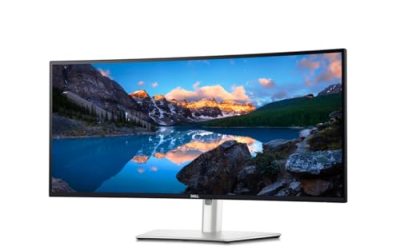
1. Dell UltraSharp U2723QE — Best Overall
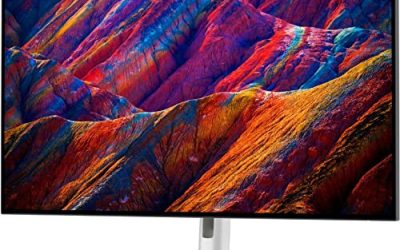
The Dell UltraSharp U2723QE is the most complete editing monitor in this guide. Its 27-inch 4K IPS Black panel reaches a 2000 to 1 contrast ratio, twice the figure of a conventional IPS panel, so shadows hold more detail and dark images keep their depth. Dell publishes 100 percent sRGB, 100 percent Rec. 709, and 98 percent DCI-P3 coverage, with a factory calibration report and Delta E under 2. The 400-nit brightness and DisplayHDR 400 certification give headroom for HDR checks in a brighter room.
Connectivity is the other half of the appeal. A USB-C port carries video, data, and up to 90W of power delivery, so a laptop docks with a single cable, while DisplayPort 1.4 in and out, HDMI 2.0, RJ45 Ethernet, and four USB-A ports turn the monitor into a desk hub. A built-in KVM switches one keyboard and mouse between two machines, and the stand adjusts height, tilt, swivel, and pivot. The 60 Hz refresh and 5 ms gray-to-gray response suit still-image work, and the matte finish keeps reflections under control.
This is the pick for an editor who wants one monitor to do everything: accurate color, deep contrast, and a full docking station in the same box. Its main trade-offs are the 60 Hz refresh, which rules out fast gaming, and a panel that shows its best in a controlled room rather than in direct sunlight.
2. ASUS ProArt Display PA279CRV — Best for Wide Gamut
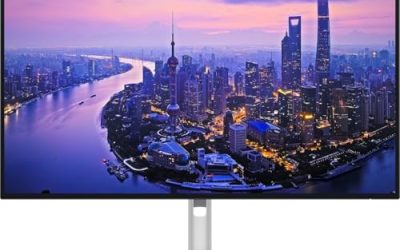
The ASUS ProArt Display PA279CRV is built for editors who work across color spaces. Its 27-inch 4K IPS panel covers 99 percent of DCI-P3 and 99 percent of Adobe RGB, the widest coverage in this guide, with Delta E under 2 and Calman Verified factory calibration. That combination suits a photographer who delivers both fine-art prints in Adobe RGB and screen work in DCI-P3, because the monitor can show both spaces accurately without a second display.
The rest of the specification sheet is equally editing-focused. The panel runs at 3840 by 2160 at 60 Hz with a 5 ms gray-to-gray response, and VESA DisplayHDR 400 certification pairs with 400-nit brightness for HDR checks. A USB-C port delivers up to 96W of power, charging most laptops while carrying the video signal, and DisplayPort with daisy-chain support lets a second monitor run from the same connection. The ergonomic stand adjusts in every direction, and the slim profile keeps the desk footprint small.
Choose the ProArt if your work moves between print and screen and you want the widest accurate gamut at this size. Its trade-offs are a conventional IPS contrast ratio rather than the deeper blacks of an IPS Black panel, and a hub that is simpler than the Dell, with fewer USB-A ports and no Ethernet.
3. LG UltraFine 27UP850-W — Best Value
The LG UltraFine 27UP850-W is the value pick for editors who want a bright, color-capable 4K panel with a single-cable laptop connection. Its 27-inch IPS panel covers 95 percent of DCI-P3 and carries VESA DisplayHDR 400 certification at 400 nits, so HDR images show with more punch than on a standard-range display. The 5 ms gray-to-gray response and 60 Hz refresh keep playback steady, and AMD FreeSync smooths uneven playback when you review video alongside stills.
The USB-C port delivers up to 96W of power, charging most laptops while carrying the video signal, and the monitor also offers DisplayPort and HDMI inputs, a USB hub, and built-in 5W speakers for quick audio checks. The height, pivot, and tilt stand adjusts easily, and the three-side virtually borderless design keeps the focus on the image. The matte screen finish cuts reflections in a bright room.
This monitor suits a creator who wants a bright 4K panel and a 96W USB-C connection without paying for the widest gamut or the deepest contrast. Its limits are the narrower DCI-P3 coverage next to the ASUS, and a factory calibration that is solid for sRGB work but benefits sooner from a hardware calibrator if you print in Adobe RGB.
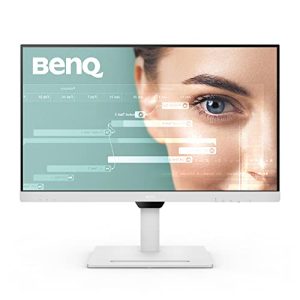
4. BenQ DesignVue PD2705U — Best for sRGB and Rec. 709 Work
The BenQ DesignVue PD2705U is the specialist pick for editors who work to sRGB and Rec. 709. BenQ publishes 99 percent sRGB and 99 percent Rec. 709 coverage with Delta E of 3 or under, and every unit ships with an individual calibration report, so the color you see is tied to a measured result rather than a batch average. The IPS panel runs at 3840 by 2160 at 60 Hz with a 5 ms gray-to-gray response, and HDR10 support lets it accept an HDR signal, though its 250-nit brightness keeps it in standard dynamic range territory.
What sets the BenQ apart is how it fits an editing workflow. The included Hotkey Puck G2 puts color modes, brightness, and input switching under your fingertips, so you can flip between sRGB, Rec. 709, and a darkroom mode without opening a menu. A KVM switch serves two computers from one keyboard and mouse, USB-C carries video and power, and DisplayPort 1.4 and HDMI 2.0 cover a desktop connection. Dedicated modes for animation, CAD and CAM, and darkroom work make it a flexible second tool for mixed creative desks.
Choose the BenQ if your deliverables are web and standard video, and you value the calibration report and the Hotkey Puck over raw brightness. Its trade-offs are the lower brightness next to the 400-nit picks, and the narrower gamut for Adobe RGB printing.
Comparison Table
| Monitor | Size and Resolution | Panel | Gamut | Brightness | USB-C Power | Best For |
|---|---|---|---|---|---|---|
| Dell UltraSharp U2723QE | 27-inch, 3840 x 2160 | IPS Black | 100% sRGB, 98% DCI-P3 | 400 nits | 90W | Best overall, docking hub |
| ASUS ProArt PA279CRV | 27-inch, 3840 x 2160 | IPS | 99% DCI-P3, 99% Adobe RGB | 400 nits | 96W | Widest accurate gamut |
| LG UltraFine 27UP850-W | 27-inch, 3840 x 2160 | IPS | 95% DCI-P3 | 400 nits | 96W | Best value, bright panel |
| BenQ DesignVue PD2705U | 27-inch, 3840 x 2160 | IPS | 99% sRGB, 99% Rec. 709 | 250 nits | Yes | sRGB and Rec. 709 work |
How to Set Up Your Editing Monitor
Calibrate before you trust it
A factory calibration report is a good start, but your monitor, your room, and your eyes are a unique combination. Run a hardware calibrator when the monitor is new, then repeat the process every two to three months. Set the white point to D65 and the gamma to 2.2 for most photo work, and match the target brightness to your print viewing light rather than to the brightest setting available.
Match the monitor to your output
If you print, soft-proof in your editing software using the ICC profile for your paper and printer, and view the print under a consistent light. If you deliver for the web, export in sRGB and check the result on a second device, such as a phone or tablet, to catch gamut surprises. If you deliver for both, keep your master files in a wide space such as Adobe RGB or ProPhoto RGB and export separate versions for each destination.
Keep the workspace consistent
Set the monitor at eye level, about an arm’s length away, with the top of the screen at or slightly below eye height. Keep the room lighting steady and avoid colored walls or bright objects in your peripheral vision, since they shift how your eyes judge color. A neutral gray desktop background helps too, because a bright or saturated wallpaper changes your perception of the image on screen.
FAQ
What size monitor is best for photo editing?
A 27-inch 4K monitor is the best fit for most photographers. It shows fine detail at normal viewing distance, leaves room for toolbars and panels, and fits a standard desk. A 32-inch 4K panel suits a larger desk and a bigger image, while a 24-inch panel can feel cramped once editing software fills the screen.
Do I need a 4K monitor for photo editing?
A 4K monitor is not strictly required, but it makes judging sharpness and fine detail much easier at 100 percent zoom. Modern cameras produce files with far more detail than a QHD panel can show at once, so a 4K panel lets you see more of the image without scrolling. If your budget only stretches to QHD, prioritize color accuracy and calibration over resolution.
Is IPS better than VA for photo editing?
Yes, IPS is the better choice for photo editing. IPS panels hold color and brightness steady across wide viewing angles, so the image looks the same when you lean to one side or when a client views it from beside you. VA panels offer deeper blacks but shift color off-axis, which makes it harder to trust what you see.
How often should I calibrate my photo editing monitor?
Calibrate a new monitor before your first serious editing session, then repeat every two to three months. Panels drift with age and use, and seasonal changes in room lighting shift your perception. A hardware calibrator is the reliable route; software-only calibration cannot measure the panel and should not be trusted for print work.
Does refresh rate matter for photo editing?
Refresh rate matters very little for still-image editing. A 60 Hz panel is smooth enough for culling, retouching, and grading, and every monitor in this guide runs at 60 Hz. A higher refresh rate helps gaming and fast video playback, but it adds cost without improving color accuracy or detail for photography.
Conclusion
The best computer monitors for photo editing share the same foundation: accurate color, enough resolution to judge fine detail, and a panel that stays consistent from edge to edge. The Dell UltraSharp U2723QE is the strongest all-round choice, pairing IPS Black contrast with a full USB-C docking hub. The ASUS ProArt PA279CRV suits editors who need the widest accurate gamut for both print and screen. The LG UltraFine 27UP850-W delivers a bright 4K panel and a 96W USB-C connection at the best value here. The BenQ DesignVue PD2705U fits a photo-first editor who works in sRGB and Rec. 709 and values the calibration report and the Hotkey Puck. Pick the monitor that matches your output, calibrate it on a regular schedule, and your screen will finally show what your camera captured.
Disclosure: As an Amazon Associate, we earn from qualifying purchases.
FAQ
What size monitor is best for photo editing?
Do I need a 4K monitor for photo editing?
Is IPS better than VA for photo editing?
How often should I calibrate my photo editing monitor?
Does refresh rate matter for photo editing?
More from Amazon
Programs that pair well with the guide above. Offers and eligibility are set by Amazon and may change.
Free shipping on eligible items, Prime Video and more. Eligible new members can start with a free trial.
Start a Prime free trialAd-free music streaming. Eligible new subscribers can start with a free trial.
Try Music Unlimited freeA Prime membership for ages 18-24 with a trial period. Eligibility is set by Amazon.
See Prime for Young AdultsAudiobooks and podcasts to listen to on the go. Eligible new members can start with a free trial.
Try Audible freeAs an Amazon Associate we earn from qualifying purchases.