Our Short List of 3
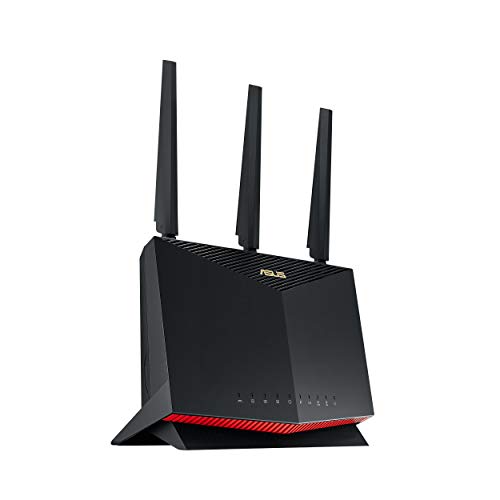
- Best for: Quest owners who want the strongest all-round Wi-Fi 6 setup with a wired PC.
- Wi-Fi 6 dual-band router rated AX5700, with speeds up to 5700 Mbps
- 2.0 GHz quad-core CPU with 1 GB of RAM
- 2.5 Gbps port plus a dedicated gaming port
- Mobile Game Mode, Adaptive QoS, and port forwarding

- Best for: Quest 3 owners who want a quiet 6 GHz channel away from crowded 5 GHz traffic.
- Wi-Fi 6E tri-band router rated AXE5400
- 6 GHz band at 2402 Mbps, 5 GHz at 2402 Mbps, 2.4 GHz at 574 Mbps
- 160 MHz channel support on the 5 GHz and 6 GHz bands
- 1.7 GHz quad-core CPU with 512 MB of RAM

- Best for: a dedicated VR access point or a first Wi-Fi 6 upgrade for Virtual Desktop.
- Wi-Fi 6 dual-band router rated AX5400
- 5 GHz at 4804 Mbps and 2.4 GHz at 574 Mbps
- 1.5 GHz triple-core CPU with 512 MB of RAM
- Six fixed high-performance antennas with beamforming
All 3 Picks at a Glance
| Product | Specs | Action |
|---|---|---|
| ASUS RT-AX86U Pro |
| Check price on Amazon |
| TP-Link Archer AXE75 |
| Check price on Amazon |
| TP-Link Archer AX73 |
| Check price on Amazon |
Our Top Picks
- TP-Link AXE5400 Tri-Band WiFi 6E RouterWiFi 6E, Tri-Band AXE540012.91 x 10.43 x 4.72 inches1.5 poundsCheck on Amazon
Virtual Desktop turns a Quest headset into a wireless PC VR headset, and the router sits in the middle of every frame. The game runs on the PC, the video stream travels over local Wi-Fi to the headset, and any congestion or weak signal on that link shows up as stutter or lag that breaks immersion. A strong internet plan cannot fix a crowded wireless channel, and a headset in the next room cannot fix a router buried behind a cabinet. Picking the right router is really about buying a clean, stable wireless path between the PC and the headset.
This guide is for Quest 2, Quest 3, and Quest 3S owners who stream PC VR games with Virtual Desktop. The three routers below all suit that job: the ASUS RT-AX86U Pro is the strongest all-round Wi-Fi 6 pick, the TP-Link Archer AXE75 adds a quiet 6 GHz band, and the TP-Link Archer AX73 is the straightforward Wi-Fi 6 pick for a dedicated VR setup.
Quick Picks
As an Amazon Associate we earn from qualifying purchases
| Product | Best for | Key spec from title |
|---|---|---|
| ASUS RT-AX86U Pro | Strongest all-round Wi-Fi 6 setup | AX5700 dual-band Wi-Fi 6, 2.5G port |
| TP-Link Archer AXE75 | Quiet 6 GHz channel for Wi-Fi 6E headsets | AXE5400 tri-band Wi-Fi 6E, 6 GHz band |
| TP-Link Archer AX73 | Dedicated VR setup on a clear 5 GHz channel | AX5400 dual-band Wi-Fi 6, 5 GHz at 4804 Mbps |
How to Choose
A clean 5 GHz or 6 GHz channel
Virtual Desktop streams over local Wi-Fi, so the channel the headset uses matters more than the speed of the internet plan. The headset should sit on a 5 GHz or 6 GHz channel with as little competing traffic as possible, because every neighbouring network and smart device on the same channel adds latency and jitter to the VR stream. A router that supports wide 160 MHz channels gives the stream more room to breathe, and a separate network name for the VR band makes it easy to keep the headset on the right channel. If the 5 GHz band is packed with neighbours, a 6 GHz router is worth the step up.
Wire the PC to the router
The single most effective change for Virtual Desktop is connecting the gaming PC to the router with an Ethernet cable. A wired PC removes one wireless hop from the path, so the only wireless leg left is the short one between the router and the headset, and that leg is the one the stream actually needs. A PC on Wi-Fi shares airtime with the headset, doubles the chance of interference, and adds latency at exactly the wrong point in the chain. Any router in this guide has gigabit or faster wired ports for the PC, so the cable is the cheap part of the setup.
Wi-Fi 6 or Wi-Fi 6E hardware
Virtual Desktop works best on modern Wi-Fi 6 or Wi-Fi 6E hardware, because the newer standards handle crowded airtime far better than older Wi-Fi 5 routers. Wi-Fi 6 brings OFDMA and MU-MIMO, which let the router serve several devices at once instead of making each one wait its turn, and that keeps latency steadier when other devices are active on the network. Wi-Fi 6E adds the 6 GHz band, which is almost empty in most homes and therefore gives the headset a channel with very little competition. A router with a fast multi-core processor also helps, since it has to move a constant high-bitrate stream without stalling when other traffic arrives.
A dedicated setup beats a shared network
The most reliable Virtual Desktop setups treat VR as its own network rather than one more device on a busy household router. That can mean a separate network name for the VR band, a second router used only as an access point near the play space, or simply moving the main router into the room where VR happens. The goal is the same in each case: the headset gets a short, clear wireless path with as few other devices on it as possible. A dedicated access point is a popular option because it puts the radio a few steps from the headset while the PC stays wired to the main router.
The 3 Best Options
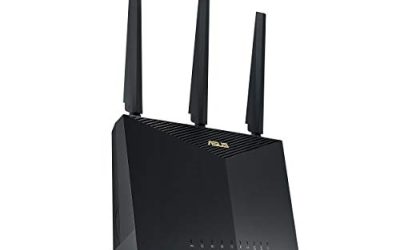
ASUS RT-AX86U Pro
- Best for: Quest owners who want the strongest all-round Wi-Fi 6 setup with a wired PC.
- Wi-Fi 6 dual-band router rated AX5700, with speeds up to 5700 Mbps
- 2.0 GHz quad-core CPU with 1 GB of RAM
- 2.5 Gbps port plus a dedicated gaming port
- Mobile Game Mode, Adaptive QoS, and port forwarding
Quest owners who want the strongest all-round Wi-Fi 6 setup with a wired PC.
dual-band only, so there is no 6 GHz band for Wi-Fi 6E headsets.
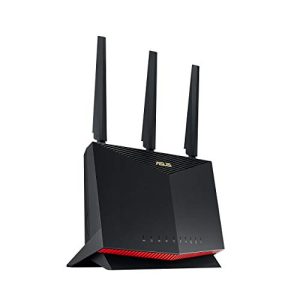
The RT-AX86U Pro is the strongest all-round pick here because it pairs fast Wi-Fi 6 with the wired features a VR setup actually uses. Its 5 GHz band runs at wide channel widths that suit a high-bitrate Virtual Desktop stream, and the dedicated gaming port gives the wired PC priority on the network without extra configuration. The router also handles a busy household well, so other devices streaming video or downloading in the background are less likely to disturb the VR session. It is a dual-band router, so there is no 6 GHz band for headsets that support Wi-Fi 6E.
Watch out for: dual-band only, so there is no 6 GHz band for Wi-Fi 6E headsets.
TP-Link Archer AXE75
- Best for: Quest 3 owners who want a quiet 6 GHz channel away from crowded 5 GHz traffic.
- Wi-Fi 6E tri-band router rated AXE5400
- 6 GHz band at 2402 Mbps, 5 GHz at 2402 Mbps, 2.4 GHz at 574 Mbps
- 160 MHz channel support on the 5 GHz and 6 GHz bands
- 1.7 GHz quad-core CPU with 512 MB of RAM
Quest 3 owners who want a quiet 6 GHz channel away from crowded 5 GHz traffic.
only one 2.5 Gbps port, and the 6 GHz band covers a shorter distance than 5 GHz.
The Archer AXE75 is the pick for anyone whose 5 GHz band is crowded, because its 6 GHz band is almost empty in most homes and gives the headset a channel with very little competition. Quest 3 headsets support Wi-Fi 6E, so they can use that quiet band directly, while older headsets still get a strong 5 GHz connection from the same router. Six external antennas help the signal hold up across a room, and the 2.5 Gbps wired port keeps the PC link fast. The router is a straightforward tri-band unit without gaming-specific extras, which keeps setup simple.
Watch out for: only one 2.5 Gbps port, and the 6 GHz band covers a shorter distance than 5 GHz.
TP-Link Archer AX73
- Best for: a dedicated VR access point or a first Wi-Fi 6 upgrade for Virtual Desktop.
- Wi-Fi 6 dual-band router rated AX5400
- 5 GHz at 4804 Mbps and 2.4 GHz at 574 Mbps
- 1.5 GHz triple-core CPU with 512 MB of RAM
- Six fixed high-performance antennas with beamforming
a dedicated VR access point or a first Wi-Fi 6 upgrade for Virtual Desktop.
no 6 GHz band and no 2.5 Gbps port.
The Archer AX73 is the straightforward pick for a dedicated Virtual Desktop setup, and it is the natural choice for a second router used only as a VR access point. Its 5 GHz band is wide and fast enough for a high-bitrate stream, with six fixed antennas and beamforming to keep the signal steady across the play space. There is no 6 GHz band and no multi-gigabit port, so it does not suit buyers who want the newest wireless standard, but neither gap matters much when the PC is wired at gigabit speed and the headset sits a few steps from the router.
Watch out for: no 6 GHz band and no 2.5 Gbps port.
Which One Fits Your Situation
You want the strongest all-round setup
Choose the ASUS RT-AX86U Pro. Its fast 5 GHz band, dedicated gaming port, and strong processor handle a high-bitrate Virtual Desktop stream while the rest of the household keeps using the network. It suits a main-router role in a home where the PC is wired and the headset plays in the same room, and it leaves room to grow if more devices join the network later.
You own a Quest 3 and want the quietest channel
Choose the TP-Link Archer AXE75. The Quest 3 supports Wi-Fi 6E, so it can use the router’s 6 GHz band, which is far less crowded than 5 GHz in most homes. That empty channel is the closest thing to a private wireless lane for the VR stream, and it makes the biggest difference in apartments or dense neighbourhoods where the 5 GHz band is packed.
You want a dedicated VR access point
Choose the TP-Link Archer AX73 as a second router in access point mode, placed near the play space and wired back to the main router. The headset then gets a short, clear 5 GHz path with no other devices on it, which is the most reliable layout for Virtual Desktop. The same router also works fine as a main router for a smaller home.
You are upgrading from an older Wi-Fi 5 router
Choose the TP-Link Archer AX73 if the budget is tight, or the Archer AXE75 if a 6 GHz band is wanted for the future. Either one is a large step up from Wi-Fi 5 for VR streaming, because both bring wider channels, better airtime handling, and a faster processor. Keep the old router out of the VR path once the new one is in place.
Common Mistakes
- Running Virtual Desktop on the 2.4 GHz band, which is slow, crowded, and unsuited to a high-bitrate VR stream
- Leaving the gaming PC on Wi-Fi instead of wiring it to the router with an Ethernet cable
- Sharing the VR channel with the whole household instead of giving the headset its own network name or band
- Placing the router far from the play space, behind furniture, or inside a cabinet that weakens the signal
- Choosing a router for internet speed instead of local wireless quality, when the stream never leaves the home network
Frequently Asked Questions
Do I need a Wi-Fi 6E router for Virtual Desktop?
No. A good Wi-Fi 6 router on a clear 5 GHz channel works well for Virtual Desktop, and Quest 2 headsets only support Wi-Fi 6 anyway. Wi-Fi 6E helps mainly where the 5 GHz band is crowded, because the 6 GHz band is almost empty in most homes. Quest 3 headsets support Wi-Fi 6E, but it is not required for smooth streaming.
Should my PC connect to the router with a cable?
Yes, whenever possible. A wired PC removes one wireless hop from the streaming path, so the only wireless leg is the short one between the router and the headset. A PC on Wi-Fi shares airtime with the headset and adds latency at the worst point in the chain. Every router in this guide has wired ports for the PC, so an Ethernet cable is the cheapest upgrade here.
Can I use the router my internet provider gave me?
Sometimes, but it is often the weakest link in a Virtual Desktop setup. Provider routers are usually older, lack wide 160 MHz channels, and sit in a hallway far from the play space. If the headset stutters or the stream drops, a dedicated Wi-Fi 6 or Wi-Fi 6E router near the play space, with the PC wired to it, is the first change to make.
Does the router need to be in the same room as the headset?
Yes, in the same room is best, or in the next room with a clear path. Virtual Desktop streams at a high bitrate, so the headset needs a strong, stable signal, and every wall between the router and the headset weakens it. If the same room is not possible, a dedicated access point near the play space is the next best option.
FAQ
Do I need a Wi-Fi 6E router for Virtual Desktop?
Should my PC connect to the router with a cable?
Can I use the router my internet provider gave me?
Does the router need to be in the same room as the headset?
More from Amazon
Programs that pair well with the guide above. Offers and eligibility are set by Amazon and may change.
Free shipping on eligible items, Prime Video and more. Eligible new members can start with a free trial.
Start a Prime free trialAd-free music streaming. Eligible new subscribers can start with a free trial.
Try Music Unlimited freeA Prime membership for ages 18-24 with a trial period. Eligibility is set by Amazon.
See Prime for Young AdultsAudiobooks and podcasts to listen to on the go. Eligible new members can start with a free trial.
Try Audible freeAs an Amazon Associate we earn from qualifying purchases.