Key takeaways
- Confusing Download Speed with Upload Speed: Internet providers love to advertise “1000 Mbps speeds!” on their packages, but this is almost always the download speed. The upload speed is often a fraction of that (sometimes as low as 5 Mbps on cable connections). Always check the upload metric specifically.
- Underestimating Cable Management Depth: When pushing a desk against a wall, people often forget that monitor mounts, power bricks, and thick Ethernet cables require 2 to 4 inches of physical clearance. Forcing a desk flush against a wall can pinch and damage your cables, leading to packet loss and dropped stream frames.
- Over-allocating Budget to Physical Decor Over Bandwidth: A beautiful neon sign and acoustic foam look great on camera, but if your upload speed is choking at 3 Mbps, your viewers will only see a pixelated, buffering mess. Allocate your budget to a stable, high-speed fiber internet connection before buying high-end studio decor.
- Ignoring the “Household Tax” on Upload Speed: If you have 15 Mbps of upload speed and your stream uses 8 Mbps, you might think you are safe. However, if a family member uploads a video to cloud storage or joins a high-definition video call in the next room, your stream will likely lag. Always ensure you have a comfortable 10 Mbps overhead buffer.
Designing the ultimate home streaming studio is a balancing act between physical layout and digital bandwidth. As a home and furniture editor, I often see creators invest thousands of dollars in gorgeous, solid-wood standing desks and ergonomic chairs, only to find their stream stuttering because they neglected the “invisible” dimensions of their setup: bandwidth and system resource allocation.
When planning your creative corner in 2026, you must treat your internet upload speed with the same spatial awareness you use for your desk depth or room layout. Just as a physical room can only fit a certain size desk, your internet connection can only support a certain “size” of video and audio stream. Here is everything you need to know to size your digital bandwidth alongside your physical studio space.
Our top picks
![MixPad Free Multitrack Recording Studio and Music Mixing Software [Download]](https://m.media-amazon.com/images/I/71ltIxIuz1L._SL500_.jpg) MixPad Free Multitrack Recording Studio and Music
MixPad Free Multitrack Recording Studio and Music- Create a mix using audio, music and voice…
- Customize your tracks with amazing effects and helpful…
- Use tools like the Beat Maker and Midi…
![DeskFX Free Audio Effects & Audio Enhancer Software [PC Download]](https://m.media-amazon.com/images/I/41fXbDohyuS._SL500_.jpg) DeskFX Free Audio Effects & Audio Enhancer
DeskFX Free Audio Effects & Audio Enhancer- Transform audio playing via your speakers and headphones
- Improve sound quality by adjusting it with effects
- Take control over the sound playing through audio…
![Free Fling File Transfer Software for Windows [PC Download]](https://m.media-amazon.com/images/I/41Vq6ZqHfjL._SL500_.jpg) Free Fling File Transfer Software for Windows
Free Fling File Transfer Software for Windows- Intuitive interface of a conventional FTP client
- Easy and Reliable FTP Site Maintenance.
- FTP Automation and Synchronization
| Product | Key specs | |
|---|---|---|
| MixPad Free Multitrack Recording Studio and Music | Create a mix using audio, music and voice… Customize your tracks with amazing effects and helpful… Use tools like the Beat Maker and Midi… | Check price |
| DeskFX Free Audio Effects & Audio Enhancer | Transform audio playing via your speakers and headphones Improve sound quality by adjusting it with effects Take control over the sound playing through audio… | Check price |
| Free Fling File Transfer Software for Windows | Intuitive interface of a conventional FTP client Easy and Reliable FTP Site Maintenance. FTP Automation and Synchronization | Check price |
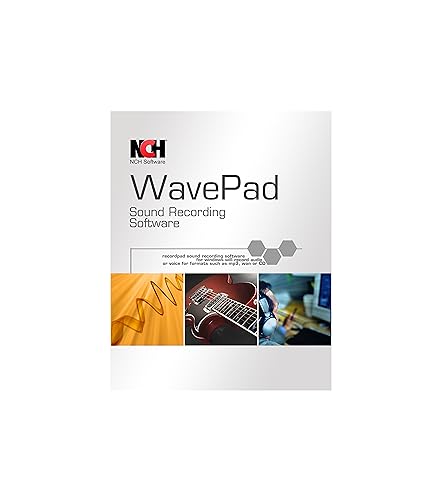 WavePad Audio Editing Software WavePad Audio Editing Software | Full-featured professional audio and music editor that lets… Add effects like echo, amplification, noise reduction, normalize,… Supports all popular audio formats including, wav, mp3,… | Check price |
As an Amazon Associate we earn from qualifying purchases at no extra cost to you.
The Short Answer
To run standard PC streaming software reliably, you need a minimum upload speed of 10 Mbps to 15 Mbps for a high-definition (1080p at 60 frames per second) broadcast. If you are stepping up to ultra-high-definition 4K streaming, your upload speed must be at least 25 Mbps to 35 Mbps.
Always aim for a “bandwidth buffer” of 30% to 40% above your streaming software’s output. If your software requires a 6,000 Kbps (6 Mbps) video bitrate, your total household upload speed should be at least 10 Mbps to accommodate other connected smart devices, background system processes, and family members sharing the network.
Standard Sizes
To help you visualize how your digital broadcast size correlates with your physical studio footprint, we have mapped out the standard streaming resolutions, their bandwidth requirements, and the recommended physical desk sizes to house the corresponding gear.
| Stream Resolution (“Size”) | Required Upload Speed | Recommended Software Bitrate | Ideal Desk Width (Inches / cm) | Recommended Desk Depth (Inches / cm) |
|---|---|---|---|---|
| 720p at 30fps (Entry-Level / Budget) | 5 – 8 Mbps | 3,000 – 4,000 Kbps | 40 in / 101.6 cm | 24 in / 61 cm |
| 1080p at 30fps (Standard Creative/Just Chatting) | 8 – 10 Mbps | 4,500 – 5,500 Kbps | 48 in / 121.9 cm | 30 in / 76.2 cm |
| 1080p at 60fps (Pro Gaming / High-Action) | 10 – 15 Mbps | 6,000 – 8,000 Kbps | 60 in / 152.4 cm | 30 in / 76.2 cm |
| 4K at 60fps (Ultra-Premium / Cinematic) | 25 – 35 Mbps | 20,000 – 30,000 Kbps | 72 in / 182.9 cm | 36 in / 91.4 cm |
How to Measure Your Space
Setting up a streaming room requires measuring both your physical square footage and your digital pipe. Follow these steps to ensure your hardware and your internet connection are perfectly scaled to one another.
- Test Your Actual Upload Speed: Do not rely on the speed promised on your internet service provider’s bill. Run three separate speed tests throughout the day using an online speed test tool. Take the average upload speed and subtract 30% to determine your “safe streaming baseline.”
- Measure Your Desk Depth: A standard streaming setup requires space for a keyboard, a mouse, a microphone boom arm, and at least one monitor. Ensure your desk is at least 30 inches (76.2 cm) deep. If your desk is too shallow, your microphone will pick up too much keyboard noise, and your monitors will sit uncomfortably close to your eyes.
- Calculate Your Software and Audio Footprint: Consider how much desk space physical audio mixers take up. To save physical space on smaller desks, you can use virtual solutions. For instance, utilizing a digital mixer like the MixPad Free Multitrack Recording Studio and Music Mixing Software [Download] (available for free) allows you to route multiple audio channels internally on your PC, saving you from needing a physical 12-inch mixing console on your desktop.
- Map Out Your Camera Angles and Lighting: Ring lights and softboxes require significant floor space. A standard 18-inch ring light on a tripod requires a physical footprint of roughly 24 x 24 inches (61 x 61 cm) on your floor. Ensure you have at least 3 feet of clearance behind your desk chair to prevent hitting your lights or green screen when you stand up.
By Room or Use Case
Every room in a home presents unique spatial constraints and network challenges. Here is how to configure your setup based on your specific environment.
The Bedroom Streaming Corner (Compact Setup)
In a bedroom, space is at a premium. You are likely limited to a desk width of 40 to 48 inches. Because physical space is tight, keep your hardware footprint minimal. Instead of buying bulky outboard voice processors, you can use lightweight digital tools like DeskFX Free Audio Effects & Audio Enhancer Software [PC Download] (free) to apply equalizers, high-pass filters, and voice effects directly through your PC. This eliminates the need for physical rack-mount gear, keeping your small bedroom desk clean. For bedroom streaming at 1080p 30fps, an upload speed of 8 to 10 Mbps is perfect, allowing you to run your software smoothly without overloading a standard home Wi-Fi connection.
The Dedicated Home Studio (Professional Setup)
If you have a spare room (at least 10 x 10 feet), you can scale up to a professional setup. Here, you can accommodate a 60-inch to 72-inch standing desk, dual monitors, and dedicated acoustic treatment panels. For audio production, software like WavePad Audio Editing Software – Professional Audio and Music Editor for Anyone [Download] (priced around $69.99) provides the robust, professional-grade editing environment required for high-end voiceovers, podcast editing, and stream highlights. A dedicated studio setup of this caliber generally targets 1080p 60fps or 4K streaming, requiring a hardwired Ethernet connection with an upload speed of at least 15 to 25 Mbps to handle the massive data loads without frame drops.
The Multi-PC or Multi-Room Production Suite
For creators who run a dual-PC streaming setup (one PC for gaming, one PC for encoding and broadcasting), physical organization and local network speeds are critical. You will need a spacious L-shaped desk or two adjacent desks totaling at least 80 inches of width. In these complex environments, transferring massive video files between computers can clog your network. Using automated utility tools like the Free Fling File Transfer Software for Windows [PC Download] allows you to seamlessly sync local recordings and assets over your local area network (LAN) without eating into the external upload bandwidth you need to keep your live stream online.
Common Sizing Mistakes
- Confusing Download Speed with Upload Speed: Internet providers love to advertise “1000 Mbps speeds!” on their packages, but this is almost always the download speed. The upload speed is often a fraction of that (sometimes as low as 5 Mbps on cable connections). Always check the upload metric specifically.
- Underestimating Cable Management Depth: When pushing a desk against a wall, people often forget that monitor mounts, power bricks, and thick Ethernet cables require 2 to 4 inches of physical clearance. Forcing a desk flush against a wall can pinch and damage your cables, leading to packet loss and dropped stream frames.
- Over-allocating Budget to Physical Decor Over Bandwidth: A beautiful neon sign and acoustic foam look great on camera, but if your upload speed is choking at 3 Mbps, your viewers will only see a pixelated, buffering mess. Allocate your budget to a stable, high-speed fiber internet connection before buying high-end studio decor.
- Ignoring the “Household Tax” on Upload Speed: If you have 15 Mbps of upload speed and your stream uses 8 Mbps, you might think you are safe. However, if a family member uploads a video to cloud storage or joins a high-definition video call in the next room, your stream will likely lag. Always ensure you have a comfortable 10 Mbps overhead buffer.
FAQ
Can I stream on Wi-Fi, or do I need a physical Ethernet cable run?
While modern Wi-Fi routers are highly advanced, a physical Ethernet cable (Cat 6 or Cat 6a) is highly recommended for streaming. Wi-Fi is prone to signal interference from household walls, microwave ovens, and other wireless devices, which can cause sudden drops in upload speed. A hardwired connection ensures a consistent, uncompromised pipeline for your PC streaming software.
How much physical space does an audio mixer take compared to virtual mixing software?
A physical 4-channel hardware mixer typically measures about 8 x 6 inches (20 x 15 cm) and weighs 2 to 3 pounds. Larger multi-channel consoles can easily take up 18 x 12 inches of desk space. Using virtual mixing software on your PC completely eliminates this physical footprint, freeing up valuable space on your desktop for your mouse pad, keyboard, or stream controller.
What is the minimum physical desk depth needed for a dual-monitor streaming setup?
You should look for a desk with a depth of at least 30 inches (76.2 cm). If you use a dual-monitor setup on a desk that is only 24 inches deep, the screens will be too close to your face, causing eye strain. Additionally, a deeper desk allows you to clamp monitor arms to the back edge, keeping the desk surface clear for your keyboard, mouse, and audio gear.
How much upload speed do I need if I am streaming to multiple platforms simultaneously?
If you are “multistreaming” (broadcasting to YouTube, Twitch, and TikTok at the same time) directly from your local PC streaming software, your computer must send separate video feeds to each platform. This doubles or triples your upload speed requirement. For example, if one 1080p stream requires 6 Mbps, streaming to three platforms simultaneously will require at least 18 Mbps of dedicated upload speed. Alternatively, you can use a cloud-based restreaming service to send a single stream to the cloud, which then distributes it to multiple platforms, keeping your local upload requirement at a standard 6 to 10 Mbps.