Key takeaways
- Keep the low end flat. Hold fans at a low, steady speed until the CPU or GPU reaches a moderate temperature, so ordinary desktop use stays quiet.
- Use a gentle slope. A steep curve makes fan speed jump with each small change in temperature. A shallow slope sounds smoother.
- Base case fans on a sensible sensor. Case fans reacting to CPU temperature tend to surge during short bursts. Some boards let you tie them to a motherboard or system sensor or add response-time smoothing, which sounds calmer.
- Set a minimum speed above the stall point. Fans that drop too low can start and stop or make a clicking noise.
- Do not disable fans. Keep the curve reaching full speed at high temperatures. Turning cooling off to save noise risks thermal throttling and shortened component life.
The fastest way to make a gaming PC quieter is to lower fan speeds along a smooth fan curve in the BIOS or fan software, then fix whatever is forcing the fans to ramp up: dust, poor airflow, a hot GPU or a rattling part. Most noise comes from fans running at high RPM, so every change below either lets the fans spin slower or removes a source of vibration.
Our top picks


As an Amazon Associate we earn from qualifying purchases at no extra cost to you.
Short Answer: The Five Changes That Matter Most
- Work out where the noise comes from (CPU cooler, case fans, GPU fans, power supply, hard drive or a loose panel).
- Clean dust from filters, radiators and heatsinks.
- Set a gentler fan curve so fans do not jump to full speed on brief load spikes.
- Improve airflow so fans need less speed to hold the same temperatures.
- Replace the part that is genuinely loud, usually a small stock cooler, a worn fan or a spinning hard drive.
Step 1: Find Which Component Is Making the Noise
Guessing wastes time. Run the PC with the side panel off while idle, then under a game or stress load, and listen for which sound changes. A steady whoosh that rises with load is airflow. A buzzing or rattling tone that appears at one specific speed is usually vibration. A clicking or grinding sound is a worn fan bearing or a mechanical drive. A high-pitched whine that changes as the screen scrolls or as frame rates change is often coil whine from the graphics card or the power supply, which is electrical rather than airflow related.
Use the monitoring tools that come with your motherboard, your graphics card software or a general utility to read fan RPM and temperatures at the same time. If a fan is at maximum RPM while temperatures are already modest, the fan curve is the problem. If temperatures are high with the fans at maximum, the cooling hardware or airflow is the problem.
| Symptom | Likely cause | Where to start |
|---|---|---|
| Constant loud whoosh at idle | Aggressive default fan curve or a fan set to a fixed high speed | Edit the fan curve in BIOS or fan software |
| Fans surge up and down every few seconds | Curve reacts to short CPU spikes | Add a delay or smoothing setting, or flatten the low-temperature part of the curve |
| Rattling or buzzing at one RPM range | Vibration from a fan, panel, cable or drive | Shift the curve away from that RPM, tighten screws, add rubber mounts |
| Clicking or grinding | Worn fan bearing, cable touching blades, or a hard drive | Stop the fan briefly to confirm, reroute cables, replace the part |
| Whine that follows frame rate | Coil whine | Cap frame rate, try a different power cable route, contact the maker if severe |
| GPU fans loud only in games | High GPU temperature or power limit | Improve case airflow, tune GPU fan curve, consider a modest power limit |
Step 2: Clean the Dust
Dust on intake filters and heatsink fins restricts airflow, which pushes temperatures up and makes the controller spin fans faster. Power the PC off and unplug it from the wall before opening the case. Brush or vacuum the filters, and use short bursts of compressed air on heatsink fins while holding the fan blades still so they do not over-spin. Never open the power supply to clean it; if dust inside the power supply is a concern, contact a technician or the maker.
Step 3: Tune the Fan Curve
A fan curve maps temperature to fan speed. Many boards ship with curves that ramp quickly because they prioritise cooling over sound. Motherboard makers include fan control in the BIOS or UEFI setup, and several also offer a Windows utility; menu names differ by maker, so check the motherboard manual for the exact fan or hardware monitor page.
- Keep the low end flat. Hold fans at a low, steady speed until the CPU or GPU reaches a moderate temperature, so ordinary desktop use stays quiet.
- Use a gentle slope. A steep curve makes fan speed jump with each small change in temperature. A shallow slope sounds smoother.
- Base case fans on a sensible sensor. Case fans reacting to CPU temperature tend to surge during short bursts. Some boards let you tie them to a motherboard or system sensor or add response-time smoothing, which sounds calmer.
- Set a minimum speed above the stall point. Fans that drop too low can start and stop or make a clicking noise.
- Do not disable fans. Keep the curve reaching full speed at high temperatures. Turning cooling off to save noise risks thermal throttling and shortened component life.
Changing BIOS settings carries a small risk of instability and, depending on the maker, can affect warranty terms if you go beyond fan settings into overclocking. Fan curve edits alone are generally low risk, but note the original values before changing anything.
Step 4: Improve Airflow
Better airflow means fans can run slower for the same temperature. A basic layout is front or bottom intake with rear and top exhaust, which moves cool air across the components and out the back. Reviewers who cover case airflow commonly point out that a mesh front panel generally lets fans move air with less speed and noise than a solid front with narrow side vents.
- Remove unneeded obstructions such as old drive cages blocking the intake path.
- Tidy cables so they do not sit in front of fans or touch fan blades.
- Leave space between the case and a wall or desk panel so intakes can breathe.
- Balance intake and exhaust; heavily unbalanced airflow can create turbulence noise and pull dust through gaps.
- Put the tower on a hard desk or a raised stand rather than thick carpet that blocks bottom intakes.
Step 5: Reduce Vibration
Many annoying sounds are not airflow at all. Fans, hard drives and thin side panels can resonate against the chassis. Rubber fan mounts or silicone pins in place of metal screws reduce transferred vibration. Make sure side panel screws are tight and the graphics card is seated and supported by its bracket. A graphics card that sags can also rub against cables. Mechanical hard drives vibrate and click as they seek; moving to an SSD removes that sound entirely, and drives can be mounted with isolating grommets if you must keep a hard drive.
Step 6: Quiet the Graphics Card
Modern graphics cards usually have a zero-RPM or semi-passive mode that stops the fans at low temperatures; makers describe this feature in their product documentation, and it is often tunable in the card maker’s software. Within the tuning software you can usually adjust the fan curve, lower the power limit, or undervolt. A modest reduction in power limit cuts heat and noise, often with a small performance trade-off, but results vary by card and unstable settings can crash games. Change values in small steps and keep the maker’s guidance in mind. Capping the frame rate to your monitor’s refresh rate also lowers sustained load, which lowers fan speed.
Step 7: Consider Hardware Upgrades
| Upgrade | What it does for noise | Best for | Limits |
|---|---|---|---|
| Larger tower air cooler | More surface area lets fans spin slower | CPUs running hot on a small stock cooler | Check case clearance and RAM height |
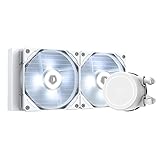
| Liquid cooler (AIO) | Radiator fans can run slowly; pump adds its own hum | High-power CPUs, cases with radiator mounts | Pump noise, radiator fit, more parts to fail |
| Larger case fans (140 mm) | Move similar air at lower RPM than smaller fans | Cases with 140 mm mounts | Mount sizes vary by case |
| Fluid-dynamic or similar quality-bearing fans | Smoother, quieter at low speeds | Replacing worn or buzzing fans | Compare noise specs from the maker |
| SSD in place of a hard drive | Removes seek and spin noise | Systems with a mechanical boot or game drive | Cost per terabyte of storage |
| Quieter-rated power supply | Larger fan, semi-passive mode | Power supply fan is the audible source | Pick adequate wattage and reputable models |
Common Mistakes
- Setting every fan to the minimum and ignoring temperatures. A quiet PC that throttles is slower and can shorten component life.
- Adding more fans without improving the airflow path, which adds noise without lowering temperatures.
- Pointing exhaust and intake fans against each other so they fight for the same air.
- Blaming the GPU when the real culprit is a small CPU cooler or a vibrating panel.
- Using compressed air without holding the fan blades, which can spin them far beyond normal speed and damage bearings.
- Opening the power supply. Leave it sealed and speak to a technician.
Which Fix Suits Which Situation
| Pick this if | Do this |
|---|---|
| It is loud even when idle | Edit the fan curve and clean filters |
| It gets loud only when gaming | Improve airflow, tune the GPU curve, cap frame rate |
| A specific tone or rattle appears | Isolate vibration, tighten parts, move the RPM range |
| You hear clicking or grinding | Find the failing fan or drive and replace it |
| Temperatures are high even with maximum fans | Upgrade the CPU cooler or case airflow |
Frequently Asked Questions
Is a loud gaming PC a sign something is wrong?
Not always. High fan speed under heavy load is normal. It becomes a concern if fans are loud at idle, if the noise is a grinding or clicking sound, or if temperatures are very high. Check temperatures and clean the dust before replacing anything.
Can I make the PC quiet without lowering performance?
Often yes. Cleaning, a smarter fan curve and better airflow lower noise without touching performance. Power limit or undervolt tweaks can trade a small amount of speed for less heat, but that is optional.
Is liquid cooling quieter than air cooling?
Not automatically. Large air coolers with slow fans can be very quiet, while a liquid cooler adds pump noise. Reviewers generally frame the choice around the CPU’s power draw and the case, not an automatic noise advantage.
Why do my fans speed up and slow down repeatedly?
The fan curve is reacting to short spikes in CPU temperature. Smooth the response with a time delay or hysteresis setting if your board offers one, or flatten the lower part of the curve so fans hold a steady speed until temperatures climb meaningfully.
Does a sound-dampened case help?
Foam-lined panels reduce some mid and high frequency noise, but they can restrict airflow and raise temperatures if the intake is limited. A well-ventilated case with slow fans is usually the better starting point.
When should I contact the maker or a technician?
If a fan or the power supply makes a grinding noise, smells of burning, or the card has loud coil whine from new, contact the maker about warranty options. Do not open a power supply yourself, and unplug the PC before touching any internal parts.
FAQ
Is a loud gaming PC a sign something is wrong?
Can I make the PC quiet without lowering performance?
Is liquid cooling quieter than air cooling?
Why do my fans speed up and slow down repeatedly?
Does a sound-dampened case help?
When should I contact the maker or a technician?
More from Amazon
Programs that pair well with the guide above. Offers and eligibility are set by Amazon and may change.
Free shipping on eligible items, Prime Video and more. Eligible new members can start with a free trial.
Start a Prime free trialAd-free music streaming. Eligible new subscribers can start with a free trial.
Try Music Unlimited freeA Prime membership for ages 18-24 with a trial period. Eligibility is set by Amazon.
See Prime for Young AdultsAudiobooks and podcasts to listen to on the go. Eligible new members can start with a free trial.
Try Audible freeAs an Amazon Associate we earn from qualifying purchases.