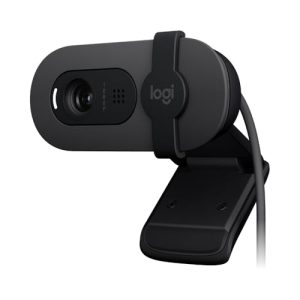
Our Short List of 3

- Best for: creators who want one 4K camera for recorded lessons and streams.
- 4K video at 30 fps; 1080p video at 60 fps
- 8.5MP Sony STARVIS sensor
- Autofocus
- RightLight 5 with HDR

- Best for: presenters recording 4K video in mixed lighting.
- 4K Ultra HD video at 30 fps
- Autofocus with 5x digital zoom
- RightLight 3 with HDR
- Adjustable field of view 65°, 78°, or 90° diagonal

- Best for: recording in dim rooms without extra lights.
- Uncompressed Full HD 1080p video at 60 fps
- Adaptive light sensor
- HDR enabled
- Adjustable field of view 103°, 90°, 80°
All 4 Picks at a Glance
| Product | Specs | Action |
|---|---|---|
| Logitech MX Brio |
| Check price on Amazon |
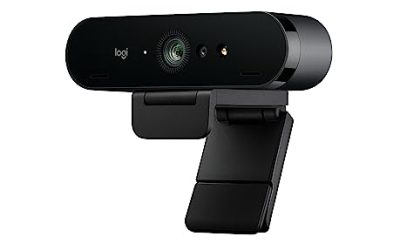
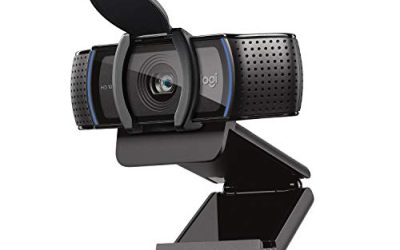
| Logitech Brio 4K |
| Check price on Amazon |
| Razer Kiyo Pro |
| Check price on Amazon |
 Logitech C922x Pro Stream |
| Check price on Amazon |
Our Top Picks
A webcam that only looks good on a live call can still fail you the moment you press record. Live video forgives a soft frame or a brief focus hunt because the audience never sees it again, but a recording keeps every flaw on file, ready to be replayed, clipped, and shared. That difference changes what matters: steady frame rates, honest low-light handling, and audio that stays in sync beat a flashy resolution number that only holds up in perfect light.
This guide is for streamers, teachers, and remote workers who want footage they can reuse, whether that means a lesson, a gameplay commentary, or a presentation for clients. It compares five webcams whose Amazon listings describe them for recording, judging each one on the resolution and frame rate it actually captures, the light it can handle, and the audio it brings along, so you can pick the camera that fits the videos you plan to keep.
Quick Picks
As an Amazon Associate we earn from qualifying purchases
| Product | Best for | Key spec from title |
|---|---|---|
| Logitech MX Brio | Recorded lessons and streams in 4K | 4K at 30 fps, 1080p at 60 fps |
| Logitech Brio 4K | Presenters recording in mixed light | 4K Ultra HD with autofocus |
| Elgato Facecam MK.2 | Uncompressed 1080p60 for OBS recording | Uncompressed 1080p60, HDR |
| Razer Kiyo Pro | Recording in dim rooms | Uncompressed 1080p at 60 fps |
| Logitech C922x Pro Stream | New streamers recording gameplay commentary | 1080p at 30 fps, 720p at 60 fps |
How to Choose
Match the frame rate to the motion in your videos
Resolution gets the headlines, but frame rate decides whether movement looks natural once the video is saved. A camera that records 4K at 30 frames per second gives you fine detail for a seated presenter, a document on a desk, or a product close-up, while a camera that records 1080p at 60 frames per second keeps hand gestures, gameplay reactions, and head turns smooth. Decide what moves in your recordings first. If you sit still and talk, detail matters more; if you gesture, demonstrate, or react quickly, the higher frame rate will show up in every replay.
Check the light before you trust the lens
A webcam sensor has to work with the room you actually record in, not the studio in the marketing photos. Look for the listing to name its approach to difficult light, whether that is an HDR mode, automatic light correction, or a larger sensor that gathers more light. A camera with honest low-light handling keeps your face readable when the only light is a desk lamp or a window behind you. If your room has a bright window, HDR matters even more, because it stops the window from turning you into a silhouette while the background stays visible.
Treat audio as part of the recording, not an afterthought
Viewers forgive a slightly soft image far sooner than they forgive muddy or distant sound, and a recording locks both in place. Some webcams on this list carry two microphones with noise reduction, which is enough for lessons and commentary recorded at a desk. Others carry no microphone at all and expect a headset or a separate microphone, which is a fair trade when the picture quality is the priority. Read the listing before you buy so the missing microphone does not surprise you on recording day.
Make sure the recording workflow fits your setup
A good camera still needs to reach your recording software without a fight. Check the connection type, the cable length, and whether the camera works with the apps you already use, from OBS to the meeting tools your work depends on. A privacy shutter matters when the camera sits on a monitor all day, and a mount that also fits a tripod gives you a second angle for demonstrations. Keep the software in mind too, since framing controls, zoom, and exposure settings often live in the maker’s app rather than on the camera itself.
The 5 Best Options
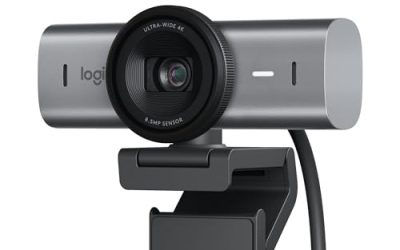
Logitech MX Brio
- Best for: creators who want one 4K camera for recorded lessons and streams.
- 4K video at 30 fps; 1080p video at 60 fps
- 8.5MP Sony STARVIS sensor
- Autofocus
- RightLight 5 with HDR
creators who want one 4K camera for recorded lessons and streams.
4K tops out at 30 fps, and the finer framing and exposure controls need Logi Options+ or G HUB. Confirm it is still sold before buying, since the live Amazon page could not be opened and the listing evidence comes from search results.
The MX Brio is the most flexible camera in this group for someone who records a mix of lessons, meetings, and streams from one desk. It captures 4K at 30 frames per second when detail matters, then drops to 1080p at 60 frames per second when smooth motion matters more, so one camera covers both kinds of footage. Its larger sensor and automatic light handling keep skin tones steady in ordinary home-office light, while the tilt-down Show Mode lets you point the lens at notes or sketches on the desk without moving the whole mount.
Watch out for: 4K tops out at 30 fps, and the finer framing and exposure controls need Logi Options+ or G HUB. Confirm it is still sold before buying, since the live Amazon page could not be opened and the listing evidence comes from search results.
Logitech Brio 4K
- Best for: presenters recording 4K video in mixed lighting.
- 4K Ultra HD video at 30 fps
- Autofocus with 5x digital zoom
- RightLight 3 with HDR
- Adjustable field of view 65°, 78°, or 90° diagonal
presenters recording 4K video in mixed lighting.
this is an older model in the Brio line, and 4K stops at 30 fps. Confirm it is still sold before buying, since the Amazon page copy available was months old and showed no live buy box.
The Brio 4K suits a presenter who records in a room where the light changes through the day. Its autofocus and five-times digital zoom keep a seated speaker sharp without manual adjustments, while RightLight 3 with HDR compensates for glare and backlighting from a window. The three field-of-view presets let you frame a tight head-and-shoulders shot or pull back to show more of the room, and the dual microphones capture clear audio from a normal desk distance. Windows Hello support adds a small convenience for anyone who signs in with their face between recordings.
Watch out for: this is an older model in the Brio line, and 4K stops at 30 fps. Confirm it is still sold before buying, since the Amazon page copy available was months old and showed no live buy box.
Elgato Facecam MK.2
The Facecam MK.2 is built for streamers who record in OBS and want the cleanest possible 1080p file. It sends uncompressed 1080p video at 60 frames per second over USB 3.0, which avoids the blocky compression artifacts that can appear in fast-moving footage from other cameras. HDR handles high-contrast rooms, the fixed-focus lens stays sharp across a normal desk distance, and the onboard flash memory saves your camera settings so they survive a restart. It is the pick here when picture purity matters more than having a microphone built in.
Specs
- Uncompressed 1080p video at 60 fps
- HDR-enabled
- Sony STARVIS CMOS sensor
- Elgato Prime Lens f/2.4, 24 mm fixed focus
- 84° field of view
- PTZ control
- USB 3.0 connection
- Video capture format MP4
- Privacy shutter
Best for: streamers recording uncompressed 1080p60 in OBS.
Watch out for: there is no built-in microphone, so plan on a headset or a separate microphone. Confirm it is still sold before buying, since the live Amazon page could not be opened and the listing evidence comes from search results.
Razer Kiyo Pro
- Best for: recording in dim rooms without extra lights.
- Uncompressed Full HD 1080p video at 60 fps
- Adaptive light sensor
- HDR enabled
- Adjustable field of view 103°, 90°, 80°
recording in dim rooms without extra lights.
the adaptive sensor helps in poor light but cannot replace a real light source for a dark room. Confirm it is still sold before buying, since the live Amazon page was not opened and the listing evidence comes from search results.
The Kiyo Pro earns its place for anyone who records in a dim room with no studio lighting to add. Its adaptive light sensor adjusts to changing light through a session, and HDR support at 30 frames per second keeps bright and dark areas of the frame readable at the same time. Uncompressed 1080p at 60 frames per second gives smooth motion for reactions and gestures, while the three field-of-view settings let you widen the shot for a two-person setup or tighten it for a solo recording. A built-in microphone means it works straight out of the box.
Watch out for: the adaptive sensor helps in poor light but cannot replace a real light source for a dark room. Confirm it is still sold before buying, since the live Amazon page was not opened and the listing evidence comes from search results.
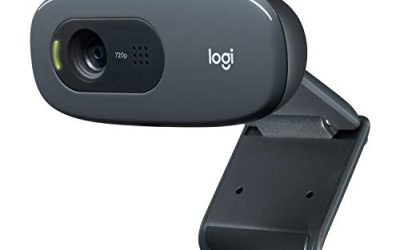
Logitech C922x Pro Stream
- Best for: new streamers recording gameplay commentary.
- Full HD 1080p video at 30 fps; 720p video at 60 fps
- Background replacement powered by Personify
- Premium autofocus
- Automatic light correction
new streamers recording gameplay commentary.
background replacement works on Windows only, and there is no privacy shutter. Confirm it is still sold before buying, since the live Amazon page was not opened and the listing evidence comes from search results.
The C922x is the simplest way into recorded streaming for someone starting out. It records full HD 1080p at 30 frames per second, or steps down to 720p at 60 frames per second when smoother motion matters more, and its background replacement tool lets a new streamer put a clean backdrop behind them without a green screen. Autofocus and automatic light correction keep the picture steady in a typical bedroom or home office, and the two built-in microphones capture stereo audio for commentary. It is a modest camera, but it covers the basics without asking the buyer to learn a new app first.
Watch out for: background replacement works on Windows only, and there is no privacy shutter. Confirm it is still sold before buying, since the live Amazon page was not opened and the listing evidence comes from search results.
Which One Fits Your Situation
You record lessons or tutorials at a desk
Pick the Logitech MX Brio. Its 4K detail keeps text and small objects readable on screen, the autofocus follows you if you lean in to point at something, and Show Mode turns the same camera into a document camera for notes and sketches. The dual microphones handle narration without extra gear, so a lesson can go from idea to finished file with one device on the monitor.
You stream gameplay and want a face camera
Pick the Elgato Facecam MK.2. Uncompressed 1080p at 60 frames per second keeps your reactions smooth and free of compression artifacts in the corner of the stream, and the recorded file stays clean enough to clip later. Pair it with a headset microphone, since the camera carries no microphone of its own, and the rest of the setup is already in OBS.
Your room has one window and no studio lights
Pick the Razer Kiyo Pro. The adaptive light sensor and HDR handling cope with a bright window and a dim corner in the same frame, which is the exact problem a single-window room creates. The uncompressed 1080p60 feed stays smooth for gestures, and the built-in microphone means you can start recording before you buy any extra lighting.
You are starting out and want the simplest setup
Pick the Logitech C922x Pro Stream. It plugs in over USB, records 1080p with autofocus and light correction, and its background replacement hides a messy room without a green screen. The stereo microphones cover commentary, so the whole recording setup is one camera, one cable, and the app you already use.
Common Mistakes
- Choosing a camera by its resolution number alone, then finding the frame rate too low for the motion in your videos.
- Recording in a room with a bright window behind you and no HDR or light correction to stop the silhouette effect.
- Forgetting to check whether the camera has a microphone, then discovering the silent footage after a long recording.
- Letting autofocus hunt during a recording instead of locking focus or checking the framing first.
- Buying a camera for its streaming features and never checking whether it works with the recording app you plan to use.
Frequently Asked Questions
Do I need 4K to record good video?
No, 4K is useful but not required for most recorded video. A clean 1080p recording at 60 frames per second often looks better than a 4K recording made in poor light, because smooth motion and honest exposure matter more than extra pixels. Choose 4K when you crop into the frame, show fine detail, or want room to reframe the shot in editing.
Can a webcam record without streaming software?
Yes, most webcams record through ordinary apps rather than streaming tools. A camera app on Windows or QuickTime on a Mac can save video from any of the cameras in this guide, while OBS adds scene control and a microphone mix for more polished results. The camera itself only supplies the picture and sound; the app on your computer does the saving.
Why does my recorded video look worse than the live preview?
The preview and the recording often use different settings, and compression is the usual culprit. A camera that sends compressed video over USB can look fine in a small preview window, then show artifacts once the file is saved and watched full screen. An uncompressed feed, a higher frame rate, and a better-lit room all reduce the gap between preview and finished file.
Does a webcam need a microphone for recording?
It depends on how you plan to capture sound. Cameras with dual microphones record usable narration at a desk, which is enough for lessons and commentary. Cameras without a microphone need a headset or a separate microphone, and that is a reasonable trade when picture quality is the priority. Check the listing first so you know which kind you are buying.
FAQ
Do I need 4K to record good video?
Can a webcam record without streaming software?
Why does my recorded video look worse than the live preview?
Does a webcam need a microphone for recording?
More from Amazon
Programs that pair well with the guide above. Offers and eligibility are set by Amazon and may change.
Free shipping on eligible items, Prime Video and more. Eligible new members can start with a free trial.
Start a Prime free trialAd-free music streaming. Eligible new subscribers can start with a free trial.
Try Music Unlimited freeA Prime membership for ages 18-24 with a trial period. Eligibility is set by Amazon.
See Prime for Young AdultsAudiobooks and podcasts to listen to on the go. Eligible new members can start with a free trial.
Try Audible freeAs an Amazon Associate we earn from qualifying purchases.