Our Short List of 3
All 4 Picks at a Glance
| Product | Specs | Action |
|---|---|---|
 1. Dell 27 Plus QHD Monitor S2725DS — the balanced default | Check price on Amazon | |
 2. ASUS ProArt Display PA278QV — the portrait-reading specialist | Check price on Amazon | |
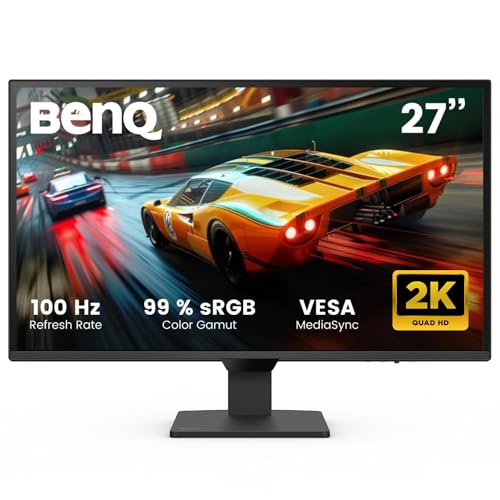 3. BenQ GW2790Q — the eye-care-first QHD option | Check price on Amazon | |
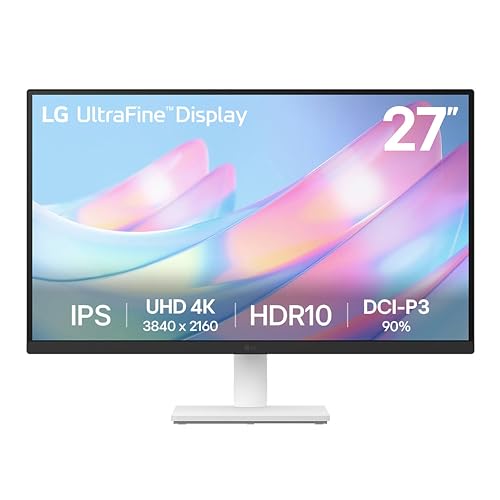 4. LG 27US500-W UltraFine — the sharpest text | Check price on Amazon |
Our Top Picks
As an Amazon Associate we earn from qualifying purchases.
Word processing looks simple until you do it for eight hours. The document does not move much, colour accuracy matters less than it does for photo work, and the refresh-rate wars that dominate gaming monitors are almost irrelevant. What matters is whether letters stay crisp at five in the afternoon, whether a bright window turns the screen into a mirror, and whether your neck and eyes feel the same at the end of the day as they did at the start. The best monitors for word processing are therefore not the biggest or fastest screens you can buy. They are calm, sharp, matte office panels in the 24- to 27-inch range, with enough pixels to render text cleanly and a stand that puts the page where your body wants it.
This guide deliberately stays in that mainstream office class. Every pick is a 27-inch IPS monitor, either QHD or 4K, with an anti-glare or matte finish and an eye-care feature named in the product listing. There are no ultrawide panels here and no screens larger than 27 inches. A larger screen can help with wide spreadsheets or financial models, but for drafting, editing, proofreading, and reading long documents, a well-chosen 27-inch screen is easier to place, easier to read at a normal desk distance, and usually better value. If you work in portrait — contracts, manuscripts, legal filings, academic papers — pay special attention to picks whose stands pivot, because reading a full page vertically is one of the most underrated upgrades in document work.
Affiliate disclosure: This article contains affiliate links. If you buy through a link on this page, the site may earn a commission at no extra cost to you. Product selections are based on published specifications and listing information, not on commissions.
All specifications are taken from the product listing or the manufacturer’s published information for each model, as noted in each section. Nothing here is based on detailed research. Confirm the exact variant, ports, and stand adjustments on the listing before ordering, because monitor families often include near-identical versions with different stands or connections.
What actually matters for word processing
Resolution and pixel density come first
Text sharpness is mostly a question of how many pixels are packed into each inch. A 27-inch Full HD monitor stretches few pixels across a large area, so letter edges look soft and your eyes work harder over a long session. Step up to QHD at 2560 x 1440 on a 27-inch panel and text becomes noticeably cleaner while the interface stays at a comfortable size without scaling tricks. That is why QHD at 27 inches is the sweet spot for most writers and editors, and three of the four picks use it.
A 27-inch 4K panel at 3840 x 2160 goes further, rendering letterforms with very fine detail. The trade-off is that operating systems usually scale the interface up, so you do not gain as much workspace as the pixel count suggests, and some older software handles scaling poorly. For pure reading, though, 4K text is the crispest option in this size, which is why one pick offers it for readers who put sharpness above stand flexibility.
IPS panels and anti-glare finishes
Every pick uses an IPS panel. For documents, IPS matters less for colour showmanship than for consistency: text near the edges stays the same brightness and contrast as text in the centre when you shift in your chair. Just as important is the finish. A glossy screen reflects lamps and windows into your eyes. The listings for these picks describe matte or anti-glare surfaces, which scatter that reflection instead. If your desk faces a window, this feature can matter more than any resolution upgrade.
Eye care is a set of small features
Listings use different names — flicker-free or Flicker Safe, low blue light modes, Reader Mode, ComfortView Plus, Eye-CareU — but they point at two ideas. The first is avoiding rapid brightness pulsing that some backlights use at low brightness, which some readers find tiring. The second is reducing blue light or warming the image for evening reading. Neither replaces sensible habits: moderate brightness matched to your room, regular breaks, and a screen height that does not force you to look down all day. Treat the named modes as useful tools, especially a reading or ePaper-style mode that lowers contrast for long plain-text sessions, rather than as medical promises.
Most writers run these panels well below maximum brightness indoors. In a sunlit room, repositioning the desk helps more than brightness alone.
The stand is a reading feature
Height adjustment lets you place the top of the text area near eye level. Tilt handles the angle of the page. Swivel helps when you share the screen. Pivot — rotating the panel into portrait — is the standout for long documents: a full page fits at a readable size, scrolling drops dramatically, and proofreading feels closer to reading paper. Three picks list height, tilt, swivel, and pivot in some combination from the product listing. The fourth, the 4K option, lists a tilt-only stand in the sources consulted, and that limitation is stated plainly in its section so you can decide whether a separate VESA arm belongs in your budget.
Connections can stay simple: most writing desks need one good video connection, HDMI or DisplayPort. USB-C docking and USB hubs are conveniences, not requirements.
The picks at a glance
- Dell 27 Plus QHD Monitor S2725DS — the balanced default: 27-inch QHD IPS, a fully adjustable stand with pivot, and a TÜV Rheinland eye comfort rating named in the listing.
- ASUS ProArt Display PA278QV — the portrait-reading specialist: 27-inch QHD IPS with anti-glare coating, Eye Care features, and tilt, pivot, swivel, and height adjustment from the listing.
- BenQ GW2790Q — the eye-care-first QHD option: 27-inch QHD IPS with ePaper Mode, Low Blue Light Plus, Brightness Intelligence, and Eye-CareU from the listing, on a simpler stand.
- LG 27US500-W UltraFine — the sharpest text: 27-inch 4K IPS with Reader Mode and Flicker Safe from the listing, with a tilt-only stand as the clear compromise.
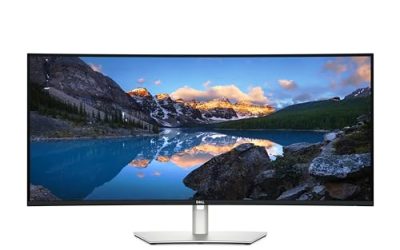
1. Dell 27 Plus QHD Monitor S2725DS — the balanced default
From the product listing, the S2725DS is a 27-inch monitor with QHD resolution of 2560 x 1440, an IPS panel with 99 percent sRGB coverage, a 100Hz refresh rate, and a 1500:1 contrast ratio. For word processing, the headline numbers are the resolution and panel type: QHD at this size renders body text and footnotes cleanly, and IPS keeps the page even from edge to edge when you lean back to read.
The listing highlights eye comfort explicitly, describing a TÜV Rheinland Eye Comfort 4-star rating and Dell’s ComfortView Plus approach to reducing blue light emissions without sacrificing colour accuracy. That matters for writers who also review designed documents — proofs, newsletters, slide decks — where a heavy warm filter would make judgement calls harder.
Ergonomics are the other reason this model leads the list. The listing describes height, tilt, swivel, and pivot adjustment. Pivot is the one to underline: rotate the screen to portrait and a long report, contract, or chapter draft reads as a single tall page. Return it to landscape for email, research, and two-window drafting. Practical details from the listing include integrated dual speakers, useful for dictation playback, meeting recordings, and proof-listening with text-to-speech — a common editing technique where hearing a sentence exposes errors your eyes skip. Connections listed include HDMI and DisplayPort, the finish is described as matte, and the 100Hz rate makes scrolling through a long document feel smoother, which helps your eyes track moving text.
Choose this Dell if you want the complete package in one box: sharp QHD text, a stand that does everything including portrait, named eye-comfort certification, and speakers for playback and calls. Its main compromise is the lack of a USB-C docking story in the listing consulted, so laptop users connect power and video separately.
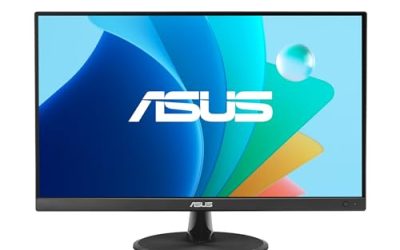
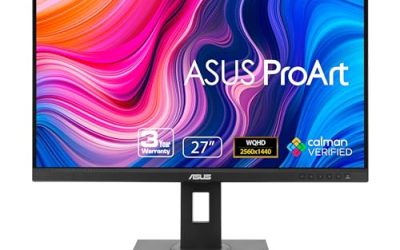
2. ASUS ProArt Display PA278QV — the portrait-reading specialist
The ProArt name suggests colour work, and the listing leads with colour credentials — a 27-inch WQHD panel at 2560 x 1440, IPS technology, 100 percent sRGB and Rec. 709 coverage, and Calman Verified accuracy from the product listing. For word processing, the reasons to shortlist it are more physical: the listing describes an anti-glare panel, ASUS Eye Care features, and a stand with tilt, pivot, swivel, and height adjustment. That is the full ergonomic set, making this the natural choice for readers whose work is dominated by very long documents.
In landscape, QHD gives you a draft on the left and source material on the right, both readable. For a final proofread, pivot to portrait and the document becomes one tall, paper-like page. Fewer scrolls mean fewer lost places, and margin comments stay beside the paragraph they belong to. The anti-glare finish helps in rooms where editing actually happens — near windows, under mixed lighting — by keeping reflections diffuse.
The connection set in the listing is generous for an office monitor of its generation, including DisplayPort, Mini DisplayPort, HDMI, and DVI-D, which helps if the screen must serve an older desktop alongside a modern laptop. Check the exact port list on the current listing, as regional variants can differ.
Where it gives ground to the Dell is focus: some of what you pay for — factory calibration credentials — is aimed at visual work rather than text, which is harmless but not essential for pure writing. The sources consulted also do not emphasise integrated speakers, so plan on laptop speakers or a headset for calls. As a reading and editing instrument with a fully adjustable stand, it is hard to fault on the published specifications.
3. BenQ GW2790Q — the eye-care-first QHD option
BenQ builds its home-office line around eye care, and this listing is the clearest example in the guide. From the product listing, the GW2790Q is a 27-inch IPS monitor with QHD resolution at 2560 x 1440, a 100Hz refresh rate, a matte screen surface, HDMI and DisplayPort connections, and an ultra-slim bezel design. Its text credentials match the other QHD picks, with the 100Hz rate keeping page scrolling fluid.
What sets it apart is the stack of reading features named in the listing. Brightness Intelligence technology adjusts brightness in response to ambient light, suiting writers whose rooms change through the day. Low Blue Light Plus and Eyesafe certification are named in the listing, along with Eye-CareU software. Most distinctive are the modes the listing describes: a Coding Mode and an ePaper Mode intended, in the listing’s words, to support effortless readability and eye comfort during long reading sessions. An ePaper-style presentation — softer contrast, paper-like tones — is what many proofreaders simulate with software; having it built in, to toggle for a final read and switch back afterwards, is a thoughtful fit for this job.
The honest compromise is the stand. The listing consulted emphasises VESA mounting and the slim bezel rather than a full ergonomic stand, and secondary coverage notes that the title lists no height adjustment or speakers. Treat it as a monitor that expects careful initial placement or, better, a simple VESA desk arm — which would also add the portrait rotation its own stand does not promise. Writers who read in landscape only, and who value the eye-care modes above stand gymnastics, will not feel short-changed. Portrait-first readers should choose the Dell or ASUS instead, or budget the arm into this purchase. Connectivity is straightforward, with dual HDMI and DisplayPort in the listing details, covering a work computer plus a personal machine.
4. LG 27US500-W UltraFine — the sharpest text
This is the pick for the reader with one priority: the crispest possible letters. From the product listing, the 27US500-W is a 27-inch UltraFine monitor with 4K UHD resolution of 3840 x 2160, an IPS panel, HDR10 support, a borderless design, HDMI and DisplayPort connections, and a white finish. At this size, 4K renders text with exceptionally fine edges. Small print — footnotes, endnotes, table text, tracked changes in a margin — stays legible without leaning in.
LG’s listing names the two eye-care features that matter here: Reader Mode, which adjusts the image for reading, and Flicker Safe, its flicker-reduction approach. The listing’s product information also describes a matte finish and brightness typical for indoor office use, both suiting a shaded writing room. OnScreen Control software, mentioned in the listing materials, lets you split the screen into window layouts from the computer, helping organise a draft beside its sources.
Now the compromise, stated plainly: the stand. Coverage of the listing consistently describes tilt-only adjustment — no height, no swivel, and no pivot to portrait. Some writers will accept that, solve height with a riser, and skip portrait altogether. Others, especially anyone who proofreads long documents daily, should pair it with a VESA-compatible desk arm or choose a fully adjustable QHD model above. There is also no USB-C connection in the listing, so laptop users connect by HDMI or DisplayPort and charge separately.
Why include it? Because for a fixed, landscape setup with small type and a reader sensitive to soft text, 4K sharpness is a real daily benefit no QHD panel quite matches, and this model delivers it in a mainstream 27-inch IPS format rather than a premium professional line. Buy it for the pixels, with your eyes open about the stand.
How to choose among these four
Start with orientation. If portrait reading is part of your routine — and for editors, lawyers, academics, translators, and authors it often should be — narrow the list to the Dell S2725DS and the ASUS PA278QV, whose listings describe pivot alongside height, tilt, and swivel. Between them, the Dell adds integrated speakers and a named eye-comfort certification from its listing; the ASUS adds a broader legacy port selection and colour-calibration credentials from its listing.
If you work only in landscape and sessions run long into changing light, the BenQ GW2790Q earns its place through its reading modes and adaptive brightness from the listing, provided you place it carefully or add a VESA arm. If maximum sharpness outranks every ergonomic concern and your setup is fixed, the LG 27US500-W gives you 4K definition with Reader Mode, accepting its tilt-only stand.
Before ordering any of them, confirm your computer’s video output matches the monitor’s inputs and that the cable you need is included or ordered. Measure desk depth: a 27-inch screen wants roughly an arm’s length of viewing distance. Set brightness to match your room, enable the reading or low blue light mode for evening sessions, and take height adjustment seriously on day one. Finally, re-check the exact model suffix on the listing, because near-identical variants with different stands exist in several of these families.
Frequently asked questions
Is QHD or 4K better for word processing?
Both are strong at 27 inches. QHD is the balanced choice: sharp text, a comfortable interface size without heavy scaling, and two useful windows side by side. 4K renders the finest text, especially small print, but usually relies on scaling and, in the pick above, comes with a simpler stand. Most writers should start with QHD.
Why does pivot matter for documents?
A portrait screen shows a full page at a readable size, cutting scrolling during proofreading and making long documents feel like paper. For long-form reading, a pivot stand is one of the most valuable features a monitor can offer.
Do eye-care modes really help?
The modes named in the listings — flicker reduction, low blue light settings, reader and ePaper modes — can make long sessions more comfortable, particularly in the evening. They work best alongside moderate brightness, good room lighting, correct screen height, and regular breaks, rather than replacing those habits.
Is 27 inches too big for a writing desk?
For most desks, no. At a normal viewing distance, a 27-inch QHD screen holds a draft plus a reference window comfortably. If your desk is shallow, a 24-inch QHD model follows the same logic in a smaller footprint — just keep the IPS panel, anti-glare finish, and adjustable stand on your checklist.
Conclusion
The best monitors for word processing are not showpieces. They are sharp, matte, comfortable tools: QHD or 4K IPS panels at 27 inches, eye-care features you will actually leave on, and stands that put the page — landscape or portrait — where your body wants it. The Dell S2725DS is the balanced default, the ASUS PA278QV the portrait specialist, the BenQ GW2790Q the eye-care-first landscape option, and the LG 27US500-W the sharpness-first 4K choice. Pick by how you read, set it up carefully, and the screen will disappear — leaving only the words, which is exactly the point.
FAQ
Is QHD or 4K better for word processing?
Why does pivot matter for documents?
Do eye-care modes really help?
Is 27 inches too big for a writing desk?
More from Amazon
Programs that pair well with the guide above. Offers and eligibility are set by Amazon and may change.
Free shipping on eligible items, Prime Video and more. Eligible new members can start with a free trial.
Start a Prime free trialAd-free music streaming. Eligible new subscribers can start with a free trial.
Try Music Unlimited freeA Prime membership for ages 18-24 with a trial period. Eligibility is set by Amazon.
See Prime for Young AdultsAudiobooks and podcasts to listen to on the go. Eligible new members can start with a free trial.
Try Audible freeAs an Amazon Associate we earn from qualifying purchases.