Key takeaways
- Learn how to compare best prices for external hard drives by capacity, speed, interface, and warranty, and time your purchase for the strongest value.
An external hard drive listing can look identical from one page to the next, yet the drives behind those listings differ in ways that matter for years: capacity, interface speed, enclosure build, bundled software, and warranty length. Shoppers who compare only the headline number on a listing often end up with a drive that fills too soon, transfers slowly, or lacks the backup tools they assumed were included. The real decision is not which listing sits at the top of a search page, but which combination of capacity, speed, and support matches the files you actually keep.
This guide is written for students archiving coursework, photographers protecting raw files, office workers keeping a second copy of important documents, and gamers moving large libraries off a crowded internal drive. It explains how to read a listing, what to compare before choosing, and when during the year listings tend to shift. As an Amazon Associate we earn from qualifying purchases
How to Choose
Match Capacity to Your Library
Start by counting what you already store, not by guessing. Add up your photo folders, video projects, game libraries, and document archives, then add room for at least a year of growth, because a drive that is nearly full on the day you buy it will slow your workflow within months. Video footage grows fastest of all, so editors and photographers should step up a size rather than squeezing into the smallest capacity that fits today. A drive used only for documents and occasional backups can stay modest, while a drive that holds a whole media collection needs generous headroom. Remember that the capacity printed on the box is measured in decimal terabytes, so the usable space your computer reports will read slightly lower. Choosing with growth in mind means you buy once instead of buying again next year.
Read the Interface and Speed Claims
The connector decides how fast files actually move, so read it before anything else. A drive with a USB 3.0 or USB 3.2 port will transfer far faster than an older USB 2.0 model, and a USB-C connector is the most flexible choice for newer laptops that have dropped the larger rectangular port. Transfer numbers on a listing describe a ceiling measured under ideal conditions, not the speed you will see when copying thousands of small files, so treat them as a ranking tool rather than a promise. Spinning hard drives top out well below solid state drives, which matters when you move large video files every day and matters far less for overnight backups. Check which ports your own computer has before choosing, because the fastest drive in a roundup is useless if you need an adapter you do not own.
Weigh Build, Warranty, and Software
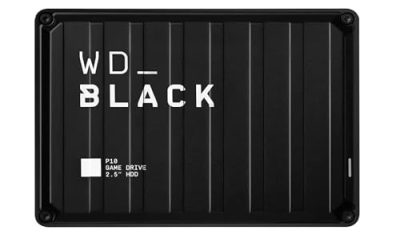
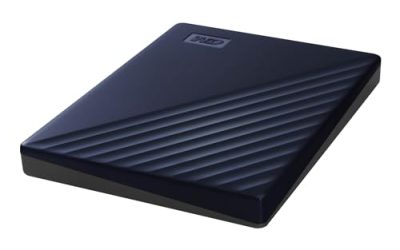
Two drives with the same capacity can still be very different purchases once you look past the headline figures. A rugged enclosure with drop resistance suits a drive that travels in a backpack, while a desktop drive that never leaves a desk can trade toughness for larger capacity and a lower profile. Read the warranty length and what it covers, because a longer warranty signals that the maker expects the drive to last, and some listings include data recovery services that can rescue files after a failure. Bundled backup software and password protection add real convenience, especially for family computers where several people share one drive. A metal enclosure sheds heat better than thin plastic during long transfers, and a drive that runs cool tends to last longer. These details decide whether a drive is still serving you in three years.
Time Your Purchase Around the Calendar
Listings for external drives shift through the year, and a little patience often lands you a stronger combination of capacity and features. Major shopping periods in late autumn and around the new year tend to bring the widest selection of listings, while new model launches can push previous generations into more attractive positions. If your current drive still works, watch a short list of candidates for several weeks and note how their listings change, comparing the same capacity and interface each time so the comparison stays honest. A drive bought in a rush because an old one failed will rarely be the best match, so keep a spare ready before you need it. When a listing you have been watching moves, check that the capacity, interface, and warranty are exactly the ones you compared before acting.
Which One Fits Your Situation
Backing Up a Family Computer
A family backup drive should be simple enough that everyone in the house can use it without a manual. Look for a portable drive with generous capacity, a single cable, and backup software that runs on a schedule, so copies happen even when nobody remembers to start them. Password protection matters when the drive holds tax records, school files, and personal photos, and a rugged enclosure helps when the drive moves between rooms. Keep the drive in a different spot from the computer it protects, because a backup stored next to the machine it backs up shares the same risks from spills, theft, and power problems.
Carrying Files Between Home and Office
A commuter drive lives in a bag, so size, weight, and toughness matter as much as capacity. A slim portable model with a metal or reinforced shell survives daily travel, while a fast interface keeps large presentations and project folders moving quickly between machines. Choose a drive that works with both of your computers without reformatting, or be ready to reformat once and keep it in that format. A short, sturdy cable beats a long one that tangles, and a drive with no separate power adapter is one less thing to forget. If the files are sensitive, password protection should be a requirement rather than a bonus.
Storing a Photo or Video Library
Photographers and editors need capacity first, speed second, and reliability above all. Raw photos and video footage consume space quickly, so a desktop drive with several terabytes is usually the right home base, while a portable drive handles shoots on location. Look for drives with strong warranties and, where available, data recovery services, because a library that took years to build deserves more than one copy. Keep a second drive as a mirror of the first, and store it somewhere separate. A drive that is fast enough to edit from directly can save hours, but only if its interface matches your computer.
Expanding Game Storage
Game libraries grow with every install, and an external drive is the simplest way to give a crowded console or PC room to breathe. Consoles accept external drives for storing and playing many titles, while PC gamers can move less-played games off the internal drive and bring them back when needed. A fast USB interface keeps load times reasonable, and a large capacity means fewer uninstalls when a new release arrives. Desktop drives suit a fixed gaming setup, while portable drives suit players who carry games between machines. Check your platform’s rules for external storage before choosing, because some systems treat external drives differently for newer titles.
Common Mistakes
- Comparing drives of different capacities side by side without adjusting for the size gap.
- Judging a drive by its headline transfer number alone, without checking the interface on your own computer.
- Buying the smallest capacity that fits today, with no room for a year of new files.
- Skipping the warranty and backup software details, which decide how the drive serves you over time.
- Keeping your only backup drive next to the computer it protects, sharing the same risks.
Frequently Asked Questions
What capacity should I start with for general backups?
Start by adding up the files you already keep, then choose a drive with at least double that amount so growth has somewhere to go. A household with photos, documents, and a modest media collection is usually comfortable with one to two terabytes, while video editors and photographers should look at four terabytes or more. A drive that is nearly full on arrival slows down and forces another purchase sooner than expected, so headroom is part of the decision, not a luxury.
Does a solid state drive make sense for backups?
A solid state drive moves files much faster and survives knocks better than a spinning drive, which makes it attractive for frequent transfers and travel. For backups that run overnight and sit on a shelf, a spinning drive offers far more capacity for the same footprint, and speed matters less. Many people use both: a fast solid state drive for active work and a large spinning drive for archives. The right mix depends on how often you move files and how much you store.
Can one drive work with both Windows and Mac computers?
Most external drives arrive formatted for Windows, and a Mac can read that format but cannot always write to it without reformatting. Reformatting a drive for Mac use, or choosing a format both systems can share, solves the problem, though it erases anything already on the drive. Some drives ship with software that bridges the gap, and drives marketed for Mac arrive ready for Time Machine. Settle which machines the drive must serve before you connect it for the first time.
How often should I replace an external drive?
A well-made drive can serve for several years, but no drive lasts forever, so plan on replacing it before it fails rather than after. Watch for warning signs such as slow transfers, clicking sounds, or files that fail to copy, and treat any of those as a reason to move your data immediately. Keep at least two copies of anything irreplaceable, and replace a drive that holds your only copy as soon as you can. A regular replacement cycle is cheaper than recovering lost files.
FAQ
What capacity should I start with for general backups?
Does a solid state drive make sense for backups?
Can one drive work with both Windows and Mac computers?
How often should I replace an external drive?
More from Amazon
Programs that pair well with the guide above. Offers and eligibility are set by Amazon and may change.
Free shipping on eligible items, Prime Video and more. Eligible new members can start with a free trial.
Start a Prime free trialAd-free music streaming. Eligible new subscribers can start with a free trial.
Try Music Unlimited freeA Prime membership for ages 18-24 with a trial period. Eligibility is set by Amazon.
See Prime for Young AdultsAudiobooks and podcasts to listen to on the go. Eligible new members can start with a free trial.
Try Audible freeAs an Amazon Associate we earn from qualifying purchases.