Our Short List of 3

- Best for: A home archive for finished video projects.
- 8TB capacity
- USB 3.0 interface
- 3.5-inch desktop form factor
- Password protection with hardware encryption

- Best for: Simple, large desktop storage for video files.
- 8TB capacity
- USB 3.0 interface
- 3.5-inch desktop form factor
- Plug-and-play operation
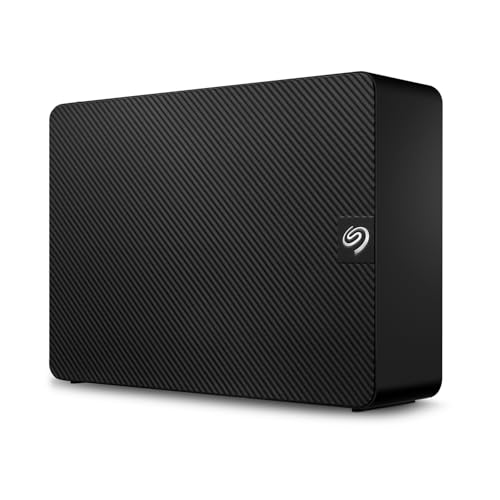
- Best for: Irreplaceable footage that needs a recovery safety net.
- 8TB capacity
- USB 3.0 interface
- 3.5-inch desktop form factor
- 120 MB/s read speed
All 4 Picks at a Glance
| Product | Specs | Action |
|---|---|---|
| WD My Book 8TB |
| Check price on Amazon |
| WD Elements Desktop 8TB |
| Check price on Amazon |
| Seagate Expansion Desktop 8TB |
| Check price on Amazon |
 Toshiba Canvio Advance 4TB |
| Check price on Amazon |
Key takeaways
- Compare the best external hard drives for video by capacity, transfer speed, reliability, and backup software, and pick the drive for your footage today.
Video footage is the hungriest kind of file a creator stores, and a single project can swallow the capacity that a whole photo library used to need. The right external drive for video is not just a big box: it needs room for raw clips and finished exports, a fast enough interface to move them without an overnight wait, and the reliability to hold work that cannot be shot again. The four drives below were picked from the names and specifications shown on their Amazon pages, and each one suits a different stage of a video workflow.
This guide is for YouTubers archiving finished videos, wedding videographers protecting client footage, editors moving projects between machines, and streamers keeping a growing library of recordings. Every drive below was chosen from the name and specifications shown on its Amazon page, with capacity, interface, and backup features checked against the listing before it made the cut.
Quick Picks
As an Amazon Associate we earn from qualifying purchases
| Product | Best for | Key spec from title |
|---|---|---|
| WD My Book 8TB | Home video archive | 8TB desktop capacity |
| WD Elements Desktop 8TB | Simple plug-and-play storage | Plug-and-play desktop storage |
| Seagate Expansion Desktop 8TB | Protected archives | Rescue Data Recovery Services |
| Toshiba Canvio Advance 4TB | Portable video work | 4TB portable capacity |
How to Choose
Size the Drive to Your Footage
Video capacity planning starts with honest math, because raw footage grows faster than any other file type. Add up the size of a typical shoot, multiply by the number of projects you keep, and add room for exports, proxies, and the next year of work. A single hour of high-bitrate footage can occupy hundreds of gigabytes, so editors should think in terabytes, not gigabytes. Desktop drives in this guide offer 8TB for a home archive, while the portable 4TB drive suits shoots on location. Buy the capacity that holds your library with room to grow, not the one that barely fits today.
Read Transfer Speeds for Video Work
Transfer speed decides whether moving a project takes minutes or an overnight wait, so read the interface before anything else. A USB 3.0 connection moves large video files far faster than an older port, and the drives in this guide all use it. Sequential read and write numbers describe large single files, which is exactly how video moves, so they are a fair guide for this use. Remember that the numbers on a listing describe a ceiling under ideal conditions, and that copying thousands of small files runs slower than moving one large clip. Check your computer’s ports too, because the fastest drive is useless without a matching connection.
Protect Footage That Cannot Be Reshot
Client weddings, once-in-a-lifetime events, and long documentary shoots cannot be filmed again, so reliability outranks speed for the drive that holds them. Look for drives with strong warranties, and favor listings that include data recovery services, which can rescue files after a failure. Keep at least two copies of anything irreplaceable, and store the second copy somewhere separate from the first. Password protection matters when a drive holds client work, and backup software that runs on a schedule keeps copies current without anyone remembering to start them. A drive is only as good as the backup plan behind it.
Match the Form to the Workflow
Desktop drives stay on a desk beside the editing machine, drawing power from a wall adapter and offering the largest capacities, while portable drives travel to shoots in a bag and draw power from the USB cable. An editor who works in one room should favor a desktop drive for its capacity and steady performance, while a videographer who shoots on location needs a portable drive that survives the bag. Many creators use both: a portable drive for the shoot, and a desktop drive for the archive back home. Choose the form that matches where the footage actually lives.
The 4 Best Options
WD My Book 8TB
- Best for: A home archive for finished video projects.
- 8TB capacity
- USB 3.0 interface
- 3.5-inch desktop form factor
- Password protection with hardware encryption
A home archive for finished video projects.
Needs wall power, so it stays on the desk.
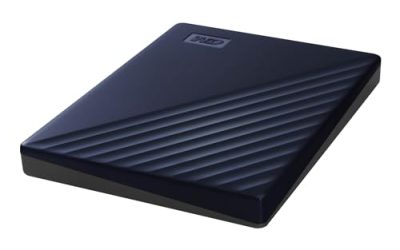
The My Book is the archive drive for creators who have stopped deleting old projects, offering eight terabytes of desktop storage in a single enclosure. Its USB 3.0 connection moves large video files briskly, and password protection with hardware encryption keeps client footage private. The included backup software works with WD Backup or Apple Time Machine, so scheduled copies happen without a second thought, and the drive’s steady desktop design is built to sit beside an editing machine for years. It is the home base for a video library that only grows. The drive runs quietly enough to sit beside a desk without distracting an edit.
Watch out for: Needs wall power, so it stays on the desk.
WD Elements Desktop 8TB
- Best for: Simple, large desktop storage for video files.
- 8TB capacity
- USB 3.0 interface
- 3.5-inch desktop form factor
- Plug-and-play operation
Simple, large desktop storage for video files.
No bundled backup software, so plan your own backup routine.
The Elements Desktop drive keeps things simple: eight terabytes of plug-and-play storage with nothing to install and nothing to configure. Connect the USB 3.0 cable and the power adapter, and the drive appears ready for files, working with Windows out of the box and with Mac after a reformat. Its plain design hides a large, reliable mechanism that handles video archives without complaint, and the price of simplicity is the absence of backup software, so owners should bring their own backup routine. It is the straightforward choice for creators who want capacity first and extras second.
Watch out for: No bundled backup software, so plan your own backup routine.
Seagate Expansion Desktop 8TB
- Best for: Irreplaceable footage that needs a recovery safety net.
- 8TB capacity
- USB 3.0 interface
- 3.5-inch desktop form factor
- 120 MB/s read speed
Irreplaceable footage that needs a recovery safety net.
The recovery service covers the drive, not a second backup copy.
The Expansion Desktop drive pairs eight terabytes of storage with the strongest safety net in this guide: a Rescue Data Recovery Service that can recover files after a failure. Its USB 3.0 connection moves video at 120 MB/s, and setup is drag-and-drop with no software required, working with Windows or Mac after a reformat for Time Machine. The included 18-inch USB cable and 18W power adapter cover the desk, and the drive’s steady desktop design suits a fixed editing station. For footage that cannot be reshot, the recovery service is worth more than any speed figure.
Watch out for: The recovery service covers the drive, not a second backup copy.
Toshiba Canvio Advance 4TB
- Best for: Carrying footage from shoots back to the studio.
- 4TB capacity
- USB 3.0 interface
- 2.5-inch portable form factor
- Textured finish with color options
Carrying footage from shoots back to the studio.
The backup software is Windows only, and Mac use needs a reformat.
The Canvio Advance is the portable drive in this guide, built for creators who shoot on location and need their footage to travel safely. Its four terabytes hold a full shoot in a compact, textured enclosure that fits in a camera bag, and the USB 3.0 interface moves files quickly enough to clear cards between takes. Free downloadable backup and password protection software, for Windows PC only, adds a layer of safety for client work, and the vibrant color options make the drive easy to spot in a busy kit bag. It is the field drive that feeds the archive back home.
Watch out for: The backup software is Windows only, and Mac use needs a reformat.
Which One Fits Your Situation
Archiving Finished Projects
Finished projects deserve a drive that sits quietly on a desk and holds years of work, and the My Book is built for exactly that. Its eight terabytes cover a large library, its backup software keeps copies current, and password protection guards client footage. The desktop form stays put beside the editing machine, always ready. Choose this one when the archive is the priority.
Keeping Storage Simple
Creators who want capacity without configuration should look at the Elements Desktop drive. It connects, appears, and accepts files with no software to learn and no settings to tune. Eight terabytes is generous for most libraries, and the plain design does its job without drawing attention. Pick this one when you want storage that simply works.
Protecting Footage That Cannot Be Reshot
Wedding videographers and documentary shooters hold footage that can never be filmed again, and the Expansion Desktop drive answers with a Rescue Data Recovery Service. Its eight terabytes hold a season of shoots, and the drag-and-drop setup works on any machine in the studio. Choose this one when a failed drive would mean losing work forever.
Shooting on Location
Field work needs a drive that travels, and the Canvio Advance is the only portable drive in this guide. Its four terabytes hold a full shoot, its textured shell survives a camera bag, and its backup software protects client files on Windows machines. Pick this one when the drive goes where the camera goes.
Common Mistakes
- Buying a drive that barely fits today’s library, with no room for the next project.
- Keeping only one copy of footage that cannot be reshot.
- Judging a drive by its headline speed without checking your computer’s ports.
- Ignoring backup software, then never backing up at all.
- Choosing a desktop drive for field work, then having no power on location.
Frequently Asked Questions
How much storage do I need for video editing?
A single hour of high-bitrate footage can occupy hundreds of gigabytes, so video editors should think in terabytes. An 8TB desktop drive holds a large library of projects and raw clips, while a 4TB portable drive suits a single shoot or a smaller archive. Add up a project, multiply by the number you keep, and leave room for exports and proxies.
Can I edit video directly from an external hard drive?
You can, but the experience depends on the drive and the footage. A USB 3.0 spinning drive handles proxy editing and lighter codecs well, while high-bitrate raw footage may stutter without a faster solid state drive. Many editors keep active projects on a fast internal drive and move work to an external archive. Test your workflow with a short clip.
Should I keep two copies of my video footage?
Yes, always keep at least two copies of anything irreplaceable, and store the second copy somewhere separate from the first. A single drive can fail without warning, and client footage, weddings, and documentary material cannot be filmed again. The drives in this guide make good first copies, and a second drive in a different location completes the plan.
Does an external drive work with both Windows and Mac?
Most drives arrive formatted for Windows, and a Mac can read that format but may not write to it without reformatting. The WD and Seagate drives here work with Mac after a reformat, and the My Book supports Apple Time Machine. The Toshiba Canvio Advance needs a reformat for Mac use, so check which machines the drive will serve first.
FAQ
How much storage do I need for video editing?
Can I edit video directly from an external hard drive?
Should I keep two copies of my video footage?
Does an external drive work with both Windows and Mac?
More from Amazon
Programs that pair well with the guide above. Offers and eligibility are set by Amazon and may change.
Free shipping on eligible items, Prime Video and more. Eligible new members can start with a free trial.
Start a Prime free trialAd-free music streaming. Eligible new subscribers can start with a free trial.
Try Music Unlimited freeA Prime membership for ages 18-24 with a trial period. Eligibility is set by Amazon.
See Prime for Young AdultsAudiobooks and podcasts to listen to on the go. Eligible new members can start with a free trial.
Try Audible freeAs an Amazon Associate we earn from qualifying purchases.