Key takeaways
- Identify the Bottleneck: Before buying anything, determine whether your lag stems from network ping, display processing, controller polling, or capture passthrough—each requires a different hardware solution.
- Passthrough Latency: If you stream or capture gameplay, prioritize cards with true HDMI 2.1 passthrough and variable refresh rate support so your live feed stays untouched while capture runs in parallel.
- Network Prioritization: Look for gaming routers or accelerators with dedicated traffic-shaping firmware that prioritizes game packets over background downloads and streaming traffic.
- Input Polling Compatibility: Controller emulators and adapters should support high polling rates and be compatible with your specific platform—Xbox, PlayStation, Switch, or PC—to avoid introducing translation delay.
- Display Processing Overhead: Video processors and scalers must operate with near-zero added latency; verify that any upscaling or image-enhancement device preserves a true game-mode signal path.
Input lag is the silent killer of competitive performance. Whether you’re grinding ranked in a fast-paced FPS, chaining combos in a fighting game, or trying to react to a boss mechanic in an action RPG, every millisecond between your physical input and the on-screen result matters. The problem is that modern gaming setups are stacked with potential bottlenecks—from network latency and display processing to controller polling rates and capture device overhead. Gamers often blame their reflexes when the real culprit is a hardware chain that hasn’t been optimized for low-latency performance.
Our top picks




As an Amazon Associate we earn from qualifying purchases at no extra cost to you. Ratings are shown as listed on Amazon.
This guide covers the hardware that actually moves the needle on input lag in 2026. We’ve selected products across the latency stack: network acceleration to cut ping and jitter, low-latency capture cards that won’t choke your passthrough signal, controller emulators and adapters that tighten input polling, and video processors that restore clean game-mode image quality without adding processing delay. Every pick below addresses a specific link in the input chain, so you can target exactly where your setup is losing time.
🛒 Best Price Today on Amazon
Prime members get fast, free shipping on everything above, plus member-only deals. New members get a 30-day free trial — cancel anytime.
Watch: How to Reduce Input Lag in Games — Video Review
How to Choose a How to Reduce Input Lag in Games (2026)
- Identify the Bottleneck: Before buying anything, determine whether your lag stems from network ping, display processing, controller polling, or capture passthrough—each requires a different hardware solution.
- Passthrough Latency: If you stream or capture gameplay, prioritize cards with true HDMI 2.1 passthrough and variable refresh rate support so your live feed stays untouched while capture runs in parallel.
- Network Prioritization: Look for gaming routers or accelerators with dedicated traffic-shaping firmware that prioritizes game packets over background downloads and streaming traffic.
- Input Polling Compatibility: Controller emulators and adapters should support high polling rates and be compatible with your specific platform—Xbox, PlayStation, Switch, or PC—to avoid introducing translation delay.
- Display Processing Overhead: Video processors and scalers must operate with near-zero added latency; verify that any upscaling or image-enhancement device preserves a true game-mode signal path.
The Best How to Reduce Input Lag in Games (2026)s Reviewed
HYPEREV AX3000 Gaming Router
This WiFi 6 accelerator is purpose-built for console and PC gaming, using traffic-shaping firmware to cut ping and reduce jitter on dual-band connections up to 2402Mbps. The included 90-day GearUP VIP Core Plan adds optimized routing paths, making it a strong first upgrade if network latency is your primary bottleneck.
Elgato 4K X Capture Card
With HDMI 2.1 and VRR passthrough at up to 4K144, this card lets you capture or stream without injecting latency into your live display feed. Its ultra-low-latency architecture and USB 3.2 Gen 2 connection make it the top choice for competitive streamers who refuse to compromise their own input response.
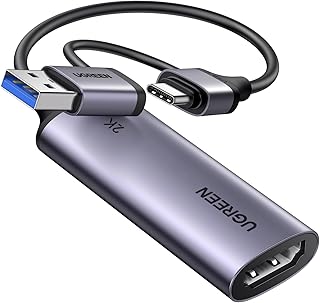
UGREEN 1080P 60FPS Video Capture Card
A budget-friendly capture solution that accepts 4K HDMI input while delivering clean 1080p60 capture with low latency over USB 3.0. It’s ideal for streamers and content creators who need reliable recording across Switch, Xbox, PlayStation, and PC without adding noticeable lag to their passthrough signal.
Cronus Zen Controller Emulator
The Cronus Zen bridges controllers across Xbox, PlayStation, Nintendo, and PC, allowing custom scripts and sensitivity tweaks that can tighten aim response and reduce effective input delay. It’s a versatile tool for players looking to fine-tune controller behavior across multiple platforms through a single device.
XIM Matrix Multi-Input Adapter
Built for precision input conversion, the XIM Matrix lets you use keyboard and mouse on Xbox Series X/S, PS5, PS4, Xbox One, and PC with advanced translation algorithms that minimize the lag typically introduced by cross-platform adapter hardware. It’s the go-to for players migrating from PC peripherals to console play.
Frequently Asked Questions
What causes input lag in games?
Input lag comes from multiple sources: network ping and jitter, display processing in your monitor or TV, controller polling rate and translation layers, and capture device overhead if you stream. Measuring each link individually helps you find the slowest part of your chain.
Will a gaming router actually reduce my ping?
A quality gaming router or accelerator can reduce ping and jitter by prioritizing game traffic and routing packets along optimized paths. The improvement depends on your baseline connection quality and how far your traffic currently travels, but traffic-shaping firmware consistently helps stabilize latency.
Do capture cards add input lag?
Capture cards with proper passthrough technology do not add lag to your live gameplay signal because they split the feed before processing. However, cheap cards without true passthrough can introduce delay, so choose models with HDMI 2.1 and VRR passthrough support.
Are controller emulators and adapters legal in competitive play?
Most competitive platforms and tournaments prohibit controller emulators that provide scripting or aim-assist modifications. Check your specific game’s rules and tournament guidelines before using devices like the Cronus Zen or XIM Matrix in ranked or official matches.
Final Thoughts
For most players, the Elgato 4K X Capture Card and the HYPEREV AX3000 Gaming Router cover the two biggest latency culprits—streaming overhead and network ping. If your bottleneck is on the input side, the XIM Matrix offers the most refined cross-platform precision, making it the top pick for keyboard-and-mouse players adapting to console environments.