Key takeaways
- Find the right CAD CAM graphics card for design work by comparing memory, drivers, cooling and single-slot fit, using specs from the Amazon listing.
Choosing a graphics card for CAD and CAM work means choosing between a card built for games and a card built for professional design software. A gaming card chases high frame rates in fast scenes, while a workstation card aims for steady viewport performance, accurate geometry and long sessions without display errors. The decision matters because a card that stutters while you rotate a large assembly, or drops detail while you check a toolpath, slows every part of the job that follows.
This guide fits CAD designers who model parts and assemblies, CAM programmers who prepare toolpaths for machining, engineers who check drawings on screen before anything gets built, and architects who work with detailed building models. It also fits anyone moving from a gaming card to a professional card for the first time and wondering what actually changes. The single pick below comes from its Amazon product title and listing details, with memory, core count, interface and form factor taken from those listing details.
Quick Picks
As an Amazon Associate we earn from qualifying purchases.
| Product | Best for | Key spec from title |
|---|---|---|
| PNY NVIDIA RTX A4000 16GB GDDR6 | Professional CAD and CAM work in a single-slot workstation card | 16GB GDDR6 ECC memory with 6144 CUDA cores |
How to Choose
Memory Capacity and Error Correction
Graphics memory decides how much model data a card can hold close at hand while you work. A large assembly with many parts, textures and reference geometry fills memory quickly, and a card that runs short starts swapping data back and forth instead of drawing the model smoothly. Sixteen gigabytes gives room for detailed parts, large assemblies and the working data that CAM software keeps ready while it calculates toolpaths. Error-correcting memory adds protection by catching and fixing single-bit memory errors before they show up as a wrong dimension, a broken surface or a crash during a long calculation.
Drivers and Application Certification
Professional cards earn their place through drivers that design software makers have checked against their own applications. Certified drivers aim for correct rendering of lines, shaded surfaces and hidden-line views, so what you see on screen matches the model data underneath. A gaming driver may run the same application, yet it has not gone through the same checks for the drawing modes, viewport features and edge cases that CAD and CAM tools rely on every day. Look for the professional driver line that matches your software, and check whether your application lists the card or its driver family among its supported hardware.
Cooling, Noise and Single-Slot Fit
A workstation card runs for hours at a time, so cooling decides whether performance stays steady from the first model of the morning to the last toolpath of the afternoon. A blower-style cooler pushes warm air out of the case, which suits compact workstations and machines that sit under a desk in a warm room. Noise matters too, because a card that spins its fan loudly during every viewport move becomes tiring in a quiet office or a shared design studio. Form factor decides whether the card fits at all: a single-slot card takes up one expansion slot and leaves the slot beside it free for another card, a capture card or extra storage.
Interface, Power and Workstation Compatibility
A graphics card only performs well when the rest of the workstation can support it, so the interface and the power delivery deserve the same attention as the memory size. A PCI Express 4.0 x16 slot gives the card its full connection to the processor and system memory, which matters when large models move between the card and the rest of the machine. Check that your motherboard has a free slot of the right size and generation, and that no other card or drive blocks the space the new card needs. Look at the power supply as well: confirm the wattage headroom, the available power connectors and the airflow inside the case before committing to a card.
The 1 Best Option
PNY NVIDIA RTX A4000 16GB GDDR6
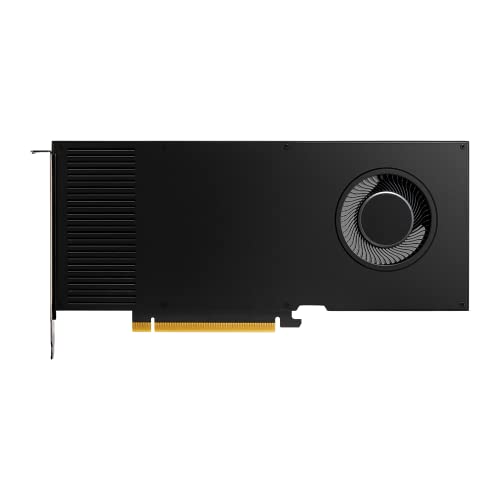
The PNY NVIDIA RTX A4000 suits designers and CAM programmers who want a professional card without giving up a second expansion slot. Its 16GB of GDDR6 ECC memory holds large assemblies and detailed toolpath data, while its 6144 CUDA cores handle shaded views, model rotation and rendering work. The single-slot design fits compact workstations and leaves room beside the card for other hardware, and the PCI Express 4.0 x16 interface connects it to the rest of the machine. As a professional card in the RTX A series, it belongs to the workstation line rather than the gaming line, so its drivers aim at design software first.
Specs
- NVIDIA RTX A4000 professional graphics card for CAD and CAM workstation use
- 16GB GDDR6 ECC memory for large assemblies and complex CAM toolpath data sets, with room for assemblies that keep growing as a project develops
- 6144 CUDA cores for shaded views, model rotation and rendering work across modelling, drawing and rendering tasks
- PCI Express 4.0 x16 interface for a full-speed connection to the workstation, so large models move quickly between card and system
- Single-slot form factor that leaves the neighbouring expansion slot free for capture hardware, storage or a second card
- Part number VCNRTXA4000-PB, as shown on the product listing
Best for: Professional CAD and CAM work in a workstation where a single-slot card and error-correcting memory matter.
Watch out for: Confirm the exact part number VCNRTXA4000-PB on the listing before ordering, since similar workstation cards carry different memory sizes and model numbers.
Which One Fits Your Situation
Large Assemblies and Complex Models
Large assemblies punish cards with small memory and reward cards that keep the whole model ready to draw. The PNY RTX A4000 answers with 16GB of GDDR6 ECC memory, which gives detailed parts and drawing views room to sit on the card instead of being swapped in and out. Error correction protects model data during long sessions, so a hidden fault is less likely to corrupt a surface or a dimension. Choose it when dense assemblies slow your current card.
CAM Toolpaths and Shop-Floor Workstations
CAM work mixes long calculations with careful visual checks, and a steady card earns its place on a shop-floor workstation. The RTX A4000 handles shaded views and toolpath displays that programmers check before sending a job to a machine, while its professional drivers aim for accurate rendering of the geometry underneath. Its single-slot form factor suits compact workstations beside machining equipment, where space is tight and airflow matters. Choose this card when toolpath checks fill most of your working day.
Small Workstations and Tight Cases
Small workstations leave little room for error, and a card that needs two slots can block the very hardware the machine was built around. The RTX A4000 takes a single slot, so the neighbouring slot stays free for a second card, a capture device or extra storage that the workflow needs. Its blower-style cooling pushes warm air out of the case. Choose this card when the case is small and every expansion slot already has a job waiting for it.
Moving From a Gaming Card to Professional Work
Designers who start on a gaming card often notice the difference only when a model grows large or a drawing view renders incorrectly. The RTX A4000 marks a clear step into professional hardware, with error-correcting memory and a workstation driver line aimed at design software rather than games. Its 16GB of memory gives it room for serious modelling work. Choose this card when your work has outgrown gaming hardware and you want a card chosen for CAD and CAM first.
Common Mistakes
- Buying a gaming card for CAD and CAM work and expecting its gaming drivers to render professional drawing modes as accurately as workstation drivers do in the shaded, wireframe and hidden-line views that design work relies on daily.
- Choosing a card by core count alone and ignoring memory size, so a large assembly stutters because the model data cannot fit on the card and the model redraws slowly every time you move the view.
- Ordering a double-slot card for a compact workstation without measuring the case, then finding the card unable to fit at all because drive bays and cables block the space it needs.
- Skipping the driver check and installing a gaming driver update on a professional card, which can change how design software renders views and surfaces, so stay on the professional driver channel that matches your design software.
- Forgetting to check the motherboard slot, power supply headroom and case airflow before ordering, then discovering on delivery day that the workstation cannot support the new card, which delays the project it was bought for.
Frequently Asked Questions
Is a gaming graphics card enough for CAD and CAM work?
A gaming card can open CAD and CAM software and handle small models, yet it is built around gaming drivers and gaming priorities rather than professional rendering accuracy. Workstation cards use drivers that design software makers have checked for correct display of lines, shaded surfaces and hidden-line views, and error-correcting memory protects model data during long sessions. For daily professional work, a workstation card is the safer choice.
How much graphics memory does CAD and CAM work need?
The right amount depends on the size of the models and the complexity of the toolpaths you work with every day. Small parts and simple drawings run well on modest memory, while large assemblies with many components, textures and reference geometry need far more room on the card. Sixteen gigabytes gives comfortable headroom for detailed assemblies and complex CAM data.
Why does a single-slot card matter in a workstation?
A single-slot card takes up one expansion slot instead of two, which matters most in compact workstations where every slot already has a purpose. The free neighbouring slot can hold another card or extra storage, and the slimmer card often fits cases a wider card cannot enter. When space is limited, the slot a card does not use can be as valuable as the performance it delivers.
What should I check before ordering a workstation graphics card?
Start with the listing itself and confirm the exact model, part number and memory size, since similar workstation cards can look alike while carrying different hardware. Then check the motherboard for a free PCI Express slot, measure the case for length and clearance, and confirm the power supply has enough headroom. Finally, check that your CAD or CAM software supports the card and its professional driver line.
FAQ
Is a gaming graphics card enough for CAD and CAM work?
How much graphics memory does CAD and CAM work need?
Why does a single-slot card matter in a workstation?
What should I check before ordering a workstation graphics card?
More from Amazon
Programs that pair well with the guide above. Offers and eligibility are set by Amazon and may change.
Free shipping on eligible items, Prime Video and more. Eligible new members can start with a free trial.
Start a Prime free trialAd-free music streaming. Eligible new subscribers can start with a free trial.
Try Music Unlimited freeA Prime membership for ages 18-24 with a trial period. Eligibility is set by Amazon.
See Prime for Young AdultsAudiobooks and podcasts to listen to on the go. Eligible new members can start with a free trial.
Try Audible freeAs an Amazon Associate we earn from qualifying purchases.