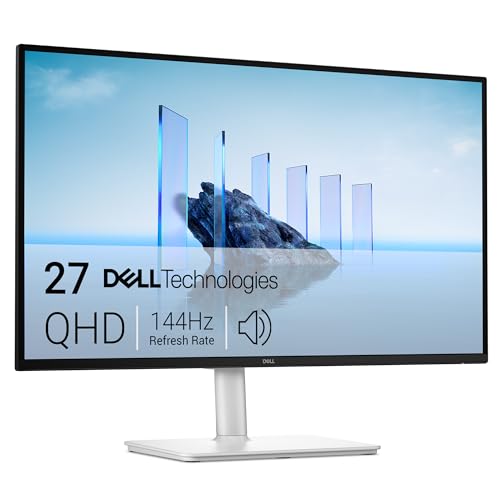
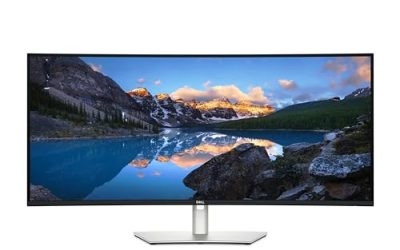
Our Short List of 3

- Best for: Mac mini owners who want the external screen to behave like an Apple display.
- Brand: BenQ
- Model: MA270U
- Screen size: 27 inches
- Resolution: 3840 x 2160 (4K UHD)

- Best for: A tidy single-cable desk setup for office work, study and streaming.
- Brand: LG
- Model: 27UP850K-W
- Screen size: 27 inches
- Resolution: 3840 x 2160 (4K UHD)

- Best for: Photographers and video editors who need verified colour accuracy.
- Brand: ASUS
- Model: PA279CRV
- Screen size: 27 inches
- Resolution: 3840 x 2160 (4K UHD)
All 3 Picks at a Glance
| Product | Specs | Action |
|---|---|---|
| BenQ MA270U 27-inch 4K Monitor for Mac |
| Check price on Amazon |
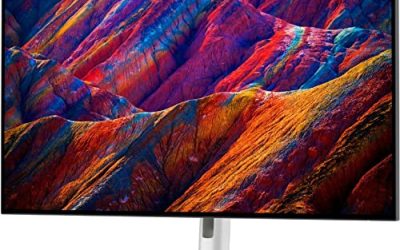
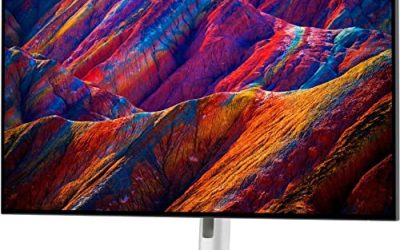
| LG 27UP850K-W 27-inch UltraFine 4K Monitor |
| Check price on Amazon |
| ASUS ProArt PA279CRV 27-inch 4K Monitor |
| Check price on Amazon |
Key takeaways
- Three 4K USB-C monitors that suit the M1 Mac mini, compared on macOS scaling behaviour, single-cable USB-C connection and colour coverage from their Amazon listings.
The M1 Mac mini is pickier about monitors than it first appears. It can drive one display up to 6K over Thunderbolt and a second up to 4K over HDMI, but macOS scaling is where the real decision sits: a 27-inch 4K panel lets you run a sharp 1440p-style workspace with proper HiDPI rendering, while a low-resolution screen leaves text visibly soft no matter how large it is. Connection matters too, because a USB-C monitor gives you the mini’s full resolution and refresh rate over one cable, while the HDMI port has its own limits.
This guide is for M1 Mac mini owners setting up a desk for office work, photo and video editing, or coding, who want the display sorted in one purchase. All three picks are 27-inch 4K IPS monitors with USB-C input, chosen from the resolution, connectivity and colour figures stated on their Amazon listings, and each one suits a slightly different kind of Mac workflow.
Quick Picks
As an Amazon Associate we earn from qualifying purchases
| Product | Best for | Key spec from title |
|---|---|---|
| BenQ MA270U 27-inch 4K Monitor for Mac | Mac owners who want colours that match Apple’s own screens | Dual USB-C, 90W Power Delivery, Mac Color Match |
| LG 27UP850K-W 27-inch UltraFine 4K Monitor | A clean one-cable desk with cables included in the box | 4K UHD IPS, DisplayHDR 400, USB-C |
| ASUS ProArt PA279CRV 27-inch 4K Monitor | Colour-critical photo and video work | 99 percent DCI-P3 and Adobe RGB, Calman Verified |
How to Choose
Get the Resolution and Size Pairing Right for macOS
macOS is designed around Retina pixel density, and it renders most cleanly when a display’s native resolution is exactly double the workspace size you run. A 27-inch 4K panel running a looks-like-1440p setting gives you that doubling, so text stays crisp and interface elements stay a comfortable size. Go much larger at the same resolution, or drop to 1440p native at 27 inches, and macOS either shrinks the workspace or softens the rendering. All three monitors here use the 27-inch 4K pairing because it is the reliable sweet spot for the M1 mini.
Use USB-C as the Primary Connection
The M1 Mac mini’s Thunderbolt ports carry DisplayPort video over a USB-C cable, which is the connection that unlocks each monitor’s full 4K resolution at its full refresh rate with the least fuss. A USB-C monitor also turns the display into a small hub, so a keyboard, mouse or drive plugged into the monitor reaches the mini through the same cable. The HDMI port remains useful for a second screen, but it caps at 4K and 60Hz on this machine and gives you no hub features. Check the listing for USB-C with DisplayPort alternate mode, not just a charging port.
Check Colour Coverage Against Your Work
The M1 mini is often bought for creative work, and the monitor decides whether you actually see the colours you are editing. Listings state their gamut coverage: DCI-P3 figures in the mid-nineties suit general photo and video work, while coverage that also spans Adobe RGB matters for print-oriented photography. Factory calibration claims and verification badges on the listing, such as Calman Verified, tell you how much to trust the panel out of the box before you reach for a calibrator of your own.
Plan the Stand, Ports and Second Screen Early
A height-adjustable stand sounds minor until the screen spends eight hours a day at the wrong eye level, so confirm the adjustment range in the listing rather than assuming it. Count the downstream USB ports if you plan to dock peripherals through the monitor, and decide now whether a second display will join later, because the M1 mini supports exactly two screens in total — one over Thunderbolt and one over HDMI — and both of them have to fit that plan.
The 3 Best Options
BenQ MA270U 27-inch 4K Monitor for Mac
- Best for: Mac mini owners who want the external screen to behave like an Apple display.
- Brand: BenQ
- Model: MA270U
- Screen size: 27 inches
- Resolution: 3840 x 2160 (4K UHD)
Mac mini owners who want the external screen to behave like an Apple display.
The Mac-specific controls are the point of this model; if the desk is shared with a Windows PC, compare how much of that integration you will actually use.
BenQ built the MA series specifically for Apple computers, and the listing shows it: a Mac Color Match mode tuned to sit alongside Apple’s own displays, P3 colour coverage, and brightness and volume control that works from a Mac keyboard, which most third-party monitors cannot do. Dual USB-C inputs carry 90W of power delivery plus a further lower-wattage port, and the built-in USB hub keeps the mini’s limited ports free. For a Mac mini that lives on a tidy desk, this is the most purpose-built option here.
LG 27UP850K-W 27-inch UltraFine 4K Monitor
- Best for: A tidy single-cable desk setup for office work, study and streaming.
- Brand: LG
- Model: 27UP850K-W
- Screen size: 27 inches
- Resolution: 3840 x 2160 (4K UHD)
A tidy single-cable desk setup for office work, study and streaming.
The 90W USB-C figure is about powering laptops on the same desk; the Mac mini itself always uses its own power supply, so judge this monitor on its video and hub features.
LG’s UltraFine line has been the default Mac companion for years, and the 27UP850K-W listing keeps the formula simple: a 27-inch 4K IPS panel with DisplayHDR 400, a USB-C port that carries video, data and up to 90W of power, and a height-adjustable stand. The box includes USB-C, HDMI and DisplayPort cables, which matters more than it sounds — the M1 mini ships with no display cable at all. It is the straightforward one-cable answer for a mixed work and media desk.
ASUS ProArt PA279CRV 27-inch 4K Monitor
- Best for: Photographers and video editors who need verified colour accuracy.
- Brand: ASUS
- Model: PA279CRV
- Screen size: 27 inches
- Resolution: 3840 x 2160 (4K UHD)
Photographers and video editors who need verified colour accuracy.
Daisy-chaining runs through the monitor’s DisplayPort chain, while the M1 mini itself still counts each screen against its two-display limit, so plan the second screen around the HDMI port.
The ProArt is the colour specialist of the three. Its listing states 99 percent coverage of both DCI-P3 and Adobe RGB, a Delta E under 2 and Calman Verified factory calibration, which is the specification set print and photo professionals ask for. USB-C carries 96W of power delivery, DisplayPort supports daisy-chaining a second ProArt, and the ergonomic stand covers height, tilt, swivel and pivot. If the mini is a photo or video workstation first and a general computer second, this is the panel that treats colour as the main event.
Which One Fits Your Situation
Your Mini Is a General Office and Study Machine
Take the LG 27UP850K-W. The included cables solve the mini’s bare-box problem on day one, the USB-C connection keeps the desk to a single lead, and the 4K IPS panel gives sharp text at the scaled workspace size most people settle on. It is the lowest-effort route from unboxing to a finished desk.
You Want the Screen to Match a MacBook or iMac Beside It
Take the BenQ MA270U. Mac Color Match and keyboard brightness control exist precisely for mixed Apple desks, where a standard monitor’s colours and controls feel slightly foreign next to Apple’s own panels. The dual USB-C inputs also make swapping between two Macs painless, with no cable pulled from the back of the mini each time.
You Edit Photos or Video for Clients
Take the ASUS ProArt PA279CRV. Verified sub-2 Delta E accuracy and dual 99 percent gamut coverage are the specifications that decide whether client work leaves your desk looking the way you approved it, and the three-year warranty in the listing backs a professional tool. The pivot-capable stand also suits editing portrait-format photography.
You Plan to Add a Second Screen Later
Any of the three works as the primary Thunderbolt display. Reserve the mini’s HDMI port for the second screen, keep it at 4K or below, and remember the M1 mini stops at two displays total — no hub or adapter changes that hardware limit. Buy the primary screen for colour and scaling first, since it carries your main work all day.
Common Mistakes
- Buying a 1440p or 1080p monitor at 27 inches and discovering macOS text rendering looks soft at that pixel density.
- Connecting over HDMI first and never using the USB-C input that provides the hub ports and cleaner scaling behaviour.
- Running the 4K panel at its native workspace size, which makes interface elements tiny, instead of the scaled HiDPI setting.
- Assuming the monitor’s power delivery figure matters for the Mac mini, which always runs from its own power supply.
- Planning three displays, when the M1 Mac mini supports two in total across its Thunderbolt and HDMI outputs.
Frequently Asked Questions
Can the M1 Mac mini run a 5K or 6K monitor instead?
Yes, over Thunderbolt the M1 mini supports a single display up to 6K at 60Hz, so 5K and 6K panels work at full resolution. The 27-inch 4K monitors in this guide remain the value sweet spot, because macOS scales them to a sharp 1440p-style workspace at a far lower cost than a true 5K panel.
Should I connect with USB-C or HDMI?
Use USB-C for the main display. It carries the full 4K signal, wakes reliably and connects the monitor’s USB hub to the mini through the same cable. Keep HDMI for a second screen, where its 4K 60Hz ceiling on the M1 mini is rarely a problem for a secondary workspace.
Why does text look fuzzy on some monitors with a Mac?
macOS renders text assuming a high pixel density and no longer uses the subpixel smoothing that made low-density screens look acceptable on older systems. A 27-inch 4K panel run at a scaled HiDPI setting gives the density macOS expects, which is why this guide sticks to that pairing.
Do these monitors charge or power the Mac mini?
No monitor powers the Mac mini; it always uses its own mains supply. The power delivery figures in these listings matter if a MacBook also docks at the same desk. For a mini-only setup, judge USB-C on its video signal and hub ports instead.
FAQ
Can the M1 Mac mini run a 5K or 6K monitor instead?
Should I connect with USB-C or HDMI?
Why does text look fuzzy on some monitors with a Mac?
Do these monitors charge or power the Mac mini?
More from Amazon
Programs that pair well with the guide above. Offers and eligibility are set by Amazon and may change.
Free shipping on eligible items, Prime Video and more. Eligible new members can start with a free trial.
Start a Prime free trialAd-free music streaming. Eligible new subscribers can start with a free trial.
Try Music Unlimited freeA Prime membership for ages 18-24 with a trial period. Eligibility is set by Amazon.
See Prime for Young AdultsAudiobooks and podcasts to listen to on the go. Eligible new members can start with a free trial.
Try Audible freeAs an Amazon Associate we earn from qualifying purchases.