Our Short List of 3
All 4 Picks at a Glance
| Product | Specs | Action |
|---|---|---|
 Logitech C920S HD Pro | Check price on Amazon | |
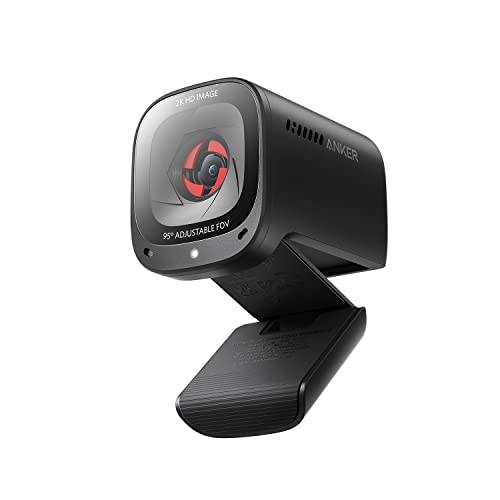 Anker PowerConf C200 | Check price on Amazon | |
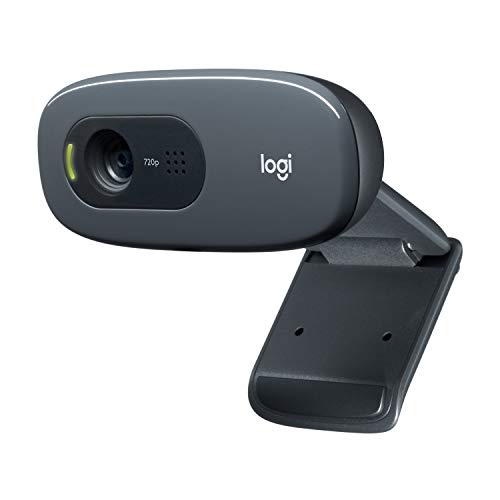 Logitech C270 HD | Check price on Amazon | |
 NexiGo N60 1080P | Check price on Amazon |
Our Top Picks
- Logitech C270 720p Webcam Plug-and-Play Wide Screen Video1 Pack6 x 4 x 8 inches0.16 poundsCheck on Amazon
The best PnP webcams are the ones you forget about. PnP stands for plug and play, and it describes a webcam that works the moment you connect it to a USB port, with no driver download, no installer, and no setup wizard standing between you and your next call. Your computer already carries the standard USB video drivers these cameras need, so the camera appears in your video app within seconds of being plugged in.
That simplicity matters more than it sounds. A webcam that needs a driver can fail on a locked-down work laptop, a school Chromebook, or a borrowed computer where you have no permission to install software.
This guide explains what makes a webcam truly plug and play, what to look for beyond the headline resolution, and then compares four cameras that earn their place.
How to Choose
1. Confirm it is genuinely plug and play
True plug-and-play webcams use the USB Video Class standard, often shortened to UVC, which is built into every major operating system. When a camera is UVC compliant, the operating system recognizes it as a standard video device and loads its own driver automatically. The listing usually says so plainly, with phrases like no drivers required or works with your built-in camera app. Be cautious with cameras that advertise companion software as a requirement, or that only list one operating system, because those may need extra steps. The four cameras in this guide are all UVC devices, so they work with the video apps you already use without any installation.
2. Resolution and frame rate
Resolution decides how sharp you look on the other end of a call. A 720p camera is enough for everyday meetings and classes, where the video window is small and the connection matters more than fine detail. A 1080p camera looks noticeably sharper on a large monitor or a full-screen call, and it is the safer choice if you present, teach, or record. A 2K camera adds extra clarity and gives you room to crop the frame without it turning soft. Frame rate matters too: 30 frames per second is the standard for calls and looks smooth, while 60 frames per second adds fluidity for fast movement but is rarely needed for a meeting. For most buyers, 1080p at 30 frames per second is the sweet spot, with 2K as a welcome step up.
3. Field of view
Field of view decides how much of the room the camera sees. A narrow view of around 55 to 65 degrees frames one person tightly, keeping the background out of the shot and making you look larger in the frame. A medium view of around 78 degrees suits a single person at a normal desk distance with a little room to breathe. A wide view of 90 degrees or more fits two people side by side, a whiteboard, or a group around a table, but it can make a solo speaker look small and reveal more of a messy room. Some cameras let you adjust the field of view in software, which is useful if your setup changes, but the hardware default is what you will live with most of the time.
4. Autofocus or fixed focus
Autofocus keeps you sharp as you lean toward the camera or sit back, which is handy if you move around during a call or hold objects up to show them. Fixed-focus cameras are tuned to stay sharp across a set distance range, typically from an arm’s length to a few feet, and they never hunt for focus or drift at an awkward moment. For a desk setup where you sit in one place, fixed focus is perfectly reliable and often more stable. For presenters who lean in and out, or anyone who shows physical objects to the camera, autofocus is worth having. The picks in this guide include both approaches, so you can match the focus type to how you sit.
5. Microphone quality
Every webcam in this guide has a built-in microphone, and the quality varies more than the camera specs suggest. Dual stereo microphones pick up your voice more clearly than a single microphone, and noise reduction helps separate your voice from keyboard clicks, fans, and household sounds. That said, a webcam microphone is a convenience, not a studio tool: it works well for calls and classes, but anyone recording videos or streaming regularly will eventually want a separate microphone. If your calls are the priority, favor a camera with dual microphones and some form of noise reduction, and sit within a few feet of the camera for the clearest sound.
6. Low-light performance and light correction
Most calls happen in rooms that are not lit like a studio, so low-light handling matters. Cameras with automatic light correction brighten a dim face without washing out the background, and larger lenses gather more light than tiny ones. A camera with a wide aperture lets in more light, which helps in the evening or in a room with a single lamp. No webcam performs miracles in a dark room, so the practical advice is to face a window or a lamp when you can, and let the camera’s light correction handle the rest. If your desk sits in a dim corner, favor a camera known for decent low-light behavior rather than the cheapest option.
7. Privacy and mounting
A physical privacy shutter or a clip-on cover is a small feature with real value: it lets you block the lens with certainty when the call ends, without unplugging the camera. A universal clip mount fits on top of a monitor or a laptop lid, and a tripod thread on the base lets you place the camera on a stand for a better angle. Cable length matters too, especially on a large monitor or a standing desk, because a short cable limits where the camera can sit. Check the mount and the cable before you buy, because a camera that cannot sit where you need it will frustrate you regardless of its image quality.
Top Picks
Logitech C920S HD Pro
The Logitech C920S HD Pro is the long-running benchmark for plug-and-play webcams, and it remains the safest all-round choice. It records in Full HD 1080p at 30 frames per second through a five-element glass lens, with autofocus, a 78-degree field of view, and Logitech RightLight 2 automatic light correction. Dual stereo microphones capture clear voice audio, and a physical privacy shutter slides over the lens when the call ends.
Setup is the definition of plug and play. Connect the camera to a USB-A port and it appears in Zoom, Teams, Meet, Skype, and other video apps without any driver or software installation. It works on Windows, macOS, and ChromeOS, and the familiar clip mount sits securely on a monitor or a laptop lid. The C920S is also a common choice for recording and streaming, where its autofocus and light correction hold up well under changing room light.
Who it is for: anyone who wants one dependable webcam for work calls, classes, and recording, without any setup hassle. It suits a home office desk, a shared family computer, and a laptop that moves between rooms.
Caveats: it records at 1080p rather than 2K or 4K, so buyers who want the sharpest possible image have a reason to look at the Anker pick below. The privacy shutter is a clip-on cover rather than a built-in sliding shutter, so it can be misplaced if removed. It is also one of the heavier cameras in this guide, so a thin laptop lid may feel the extra weight.
Anker PowerConf C200
The Anker PowerConf C200 is the sharpest camera in this guide, recording in 2K resolution with an adjustable field of view that can be set to 65, 78, or 95 degrees. That flexibility is genuinely useful: narrow the view for a solo call so you fill the frame, or widen it when a colleague joins you at the desk. AI noise-canceling microphones filter background sound, and automatic low-light correction brightens your face in a dim room. A built-in privacy cover slides over the lens when the camera is not in use.
Like the other picks, the C200 is a true plug-and-play device over USB. It works with Windows, macOS, and other major platforms without a driver download, and it appears in the usual video apps as soon as it is connected. Optional AnkerWork software can adjust settings such as field of view and image tuning, but the camera works fully without it, which keeps it usable on locked-down work machines where installing software is not an option.
Who it is for: remote workers and presenters who want a sharper image than 1080p, people who share their desk with a second person on calls, and anyone whose room lighting is less than ideal. It is also a strong choice for recording, where the 2K resolution gives extra room to crop.
Caveats: the adjustable field of view is most convenient through the optional software, so buyers who never install it will use the default setting. The camera is a little larger than the budget picks, and its 2K resolution uses more bandwidth, so a weak connection may still deliver a softer image on the other end regardless of the camera.
Logitech C270 HD
The Logitech C270 HD is the budget workhorse of this guide, and the right choice when the job is simple: join the call, look clear, and spend as little as possible. It records in HD 720p at 30 frames per second with a 55-degree field of view, fixed focus, RightLight 2 automatic light correction, and a built-in noise-reducing microphone. The widescreen 16:9 image looks natural in a video call window, and the camera is small and light enough to clip onto almost any laptop lid.
Its plug-and-play credentials are as strong as any camera here. It uses the standard USB video drivers built into Windows, macOS, and ChromeOS, so it works on a school Chromebook, a work laptop, or a family desktop with no installation at all. The fixed focus is tuned to stay sharp across the normal distance of a person sitting at a desk, so there is no focus hunting during a call, and the 5-foot cable gives enough slack for a monitor-mounted setup.
Who it is for: students, casual callers, and anyone adding a camera to a desktop that has none. It is also a sensible second camera for a household with more than one computer, or a travel spare that lives in a bag.
Caveats: 720p is visibly softer than 1080p on a large monitor or a full-screen call, so it is not the pick for presenters or anyone recording video. The 55-degree field of view frames one person tightly, which is fine for solo calls but too narrow for two people. The single microphone is adequate for calls but not a substitute for a dedicated microphone.
NexiGo N60 1080P
The NexiGo N60 1080P is the wide-angle value pick, and the most flexible camera here for the money. It records in Full HD 1080p at 30 frames per second through a 2-megapixel CMOS sensor, with a 110-degree field of view that can be narrowed through software, a built-in privacy cover, and a noise-canceling microphone. The wide default view fits a small group around a table, while the software control lets a solo user tighten the frame for an ordinary call.
Setup is plug and play over USB 2.0 or 3.0, with no drivers required on Windows, macOS, Linux, Android, or ChromeOS. The camera is ready within about a minute of being plugged in, and it works with the standard video apps immediately. The included privacy cover slides over the lens, the mount clips to a monitor or laptop, and the camera ships with a USB cable that suits a normal desk layout.
Who it is for: households and small teams who need one camera that can cover two people or a shared table, and budget buyers who want 1080p without paying for a premium brand. It also suits a classroom or a small meeting room where a narrow camera would miss half the participants.
Caveats: the 110-degree default view is very wide for a solo caller, so it needs the software adjustment or a closer seating position to avoid a small-in-frame look. The lens is fixed focus, tuned for a range from just under two feet to about thirteen feet, so it is less suited to holding objects very close to the camera. Image quality in dim rooms is acceptable rather than outstanding, so facing a light source helps this camera more than the others.
Comparison Table
| Webcam | Resolution | Field of view | Focus | Microphones | Privacy cover |
|---|---|---|---|---|---|
| Logitech C920S HD Pro | 1080p at 30fps | 78 degrees | Autofocus | Dual stereo | Clip-on shutter |
| Anker PowerConf C200 | 2K at 30fps | 65, 78, or 95 degrees | Autofocus | Dual AI noise-canceling | Built-in cover |
| Logitech C270 HD | 720p at 30fps | 55 degrees | Fixed | Single noise-reducing | No |
| NexiGo N60 1080P | 1080p at 30fps | 110 degrees, adjustable | Fixed | Noise-canceling | Built-in cover |
Which One Is Right for You?
Start with how many people the camera needs to see. If it is just you at a desk, the Logitech C920S HD Pro is the most reliable choice: sharp 1080p video, autofocus, good light correction, and a privacy shutter, with nothing to install. If you want a sharper image and the option to widen the frame when someone joins you, the Anker PowerConf C200 is the step up, and its low-light correction and noise-canceling microphones make it the strongest pick for a dim room or a noisy household.
If the budget is tight and the calls are casual, the Logitech C270 HD covers the essentials at the lowest cost in this guide, and its small size and fixed focus make it a set-and-forget camera. If you need to fit two people, a small group, or a shared table in the frame, the NexiGo N60 1080P is the only pick here with a genuinely wide view, and its 1080p resolution keeps it useful for solo calls too once the field of view is narrowed.
One last practical check: confirm the USB connection on your computer before ordering. All four cameras use USB-A, so a laptop with only USB-C ports needs a small adapter. With that settled, any of these four will be working within a minute of being plugged in, which is exactly what plug and play should mean.
Frequently Asked Questions
What does PnP mean for a webcam?
PnP stands for plug and play. It means the webcam uses the standard USB Video Class drivers already built into your operating system, so it works as soon as you plug it into a USB port. You do not need to download a driver, run an installer, or create an account. The camera appears in your video app’s camera list within seconds, on Windows, macOS, ChromeOS, and Linux alike.
Do plug-and-play webcams work on a Chromebook?
Yes. ChromeOS includes the same standard USB video drivers, so a UVC plug-and-play webcam works on a Chromebook without any installation. This is one of the main reasons these cameras are popular in schools: a student or teacher can plug the camera into any Chromebook and join a class immediately. The same applies to locked-down work laptops where installing software is not permitted.
Is 720p enough for video calls?
For everyday calls, yes. A 720p image looks clear in the small video window used by most meeting apps, and it uses less bandwidth than 1080p, which can help on a weak connection. The difference becomes visible on a large monitor, in a full-screen call, or in a recording, where 1080p looks noticeably sharper. If you present, teach, or record regularly, favor a 1080p or 2K camera. If you mostly join short calls, a 720p camera like the Logitech C270 HD is perfectly adequate.
Why does my plug-and-play webcam look dark?
The most common cause is lighting, not the camera. Webcams are small sensors, so they need a reasonable amount of light on your face. Sit facing a window or a lamp rather than with a bright window behind you, which turns you into a silhouette. If your room is dim, use the camera’s automatic light correction and add a desk lamp in front of you. A camera with good low-light correction, like the Anker PowerConf C200 or the Logitech C920S, handles a dim room better than a budget camera, but no webcam can fully replace a light source.
Disclosure: As an Amazon Associate, we may earn from qualifying purchases.
FAQ
Which One Is Right for You?
What does PnP mean for a webcam?
Do plug-and-play webcams work on a Chromebook?
Is 720p enough for video calls?
Why does my plug-and-play webcam look dark?
More from Amazon
Programs that pair well with the guide above. Offers and eligibility are set by Amazon and may change.
Free shipping on eligible items, Prime Video and more. Eligible new members can start with a free trial.
Start a Prime free trialAd-free music streaming. Eligible new subscribers can start with a free trial.
Try Music Unlimited freeA Prime membership for ages 18-24 with a trial period. Eligibility is set by Amazon.
See Prime for Young AdultsAudiobooks and podcasts to listen to on the go. Eligible new members can start with a free trial.
Try Audible freeAs an Amazon Associate we earn from qualifying purchases.