Our Short List of 3

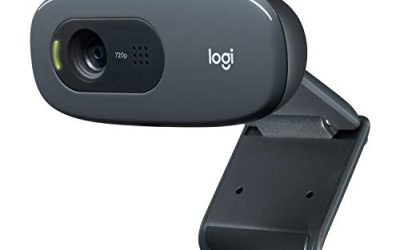
- Best for: Everyday video calls and recording from a Kodi PC or living-room computer.
- Full HD 1080p video at 30 fps
- Dual built-in microphones for stereo audio
- Autofocus with HD light correction
- 78-degree field of view

- Best for: 4K streaming, recording, and calls where image detail matters most.
- 4K video at 30 fps and 1080p video at 60 fps
- 8.5-megapixel sensor with AI-enhanced image quality
- RightLight 3 and HDR for uneven lighting
- Dual beamforming microphones
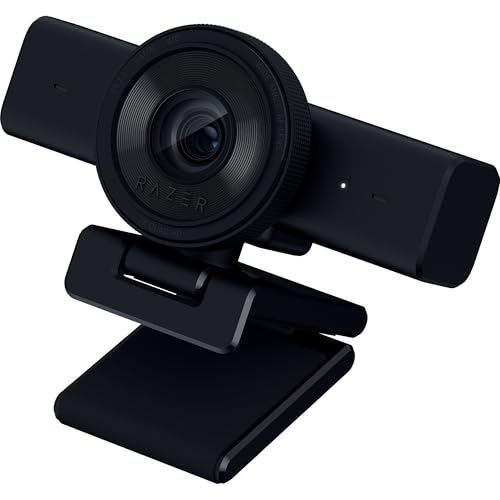
- Best for: Smooth 1440p streams and calls from a gaming or media PC.
- 1440p video at 60 fps, plus 1080p and 720p at 60 fps
- 3.7-megapixel sensor
- 80-degree wide-angle lens
- Auto and manual focus
All 3 Picks at a Glance
| Product | Specs | Action |
|---|---|---|
| Logitech C920x HD Pro Webcam |
| Check price on Amazon |
| Logitech MX Brio Ultra HD 4K Webcam |
| Check price on Amazon |
| Razer Kiyo V2 X Webcam |
| Check price on Amazon |
Our Top Picks
- Logitech C920x HD Pro PC Webcam with Microphone1 Pack2.8 x 1.7 x 3.7 inches0.4 poundsCheck on Amazon
Kodi turns a PC or a small media box into a home theater hub, and a webcam turns that same machine into a video-call and recording station. A camera that fits a Kodi setup needs to be simple: plug it into a USB port, let the operating system recognize it, and use it with the apps that run beside Kodi. The three cameras below all work that way, with no extra driver install on Windows, macOS, or Linux, so they suit living-room PCs, mini PCs, and desktop towers alike.
This guide compares three webcams that cover the main Kodi scenarios: a proven 1080p workhorse for everyday calls, a 4K camera for sharp streaming and recording, and a smooth 1440p option for creators who want high frame rates. Each pick includes a built-in microphone, a standard USB connection, and a clip mount for a monitor or TV, so you can place it on top of the screen your Kodi box feeds.
Quick Picks
As an Amazon Associate we earn from qualifying purchases
| Product | Best for | Key spec from title |
|---|---|---|
| Logitech C920x HD Pro Webcam | Everyday calls on a Kodi PC | Full HD 1080p at 30 fps |
| Logitech MX Brio Ultra HD 4K Webcam | Sharp 4K streaming and recording | 4K at 30 fps, 1080p at 60 fps |
| Razer Kiyo V2 X Webcam | Smooth high-frame-rate video | 1440p at 60 fps |
How to Choose
Pick a camera that works without extra drivers
Kodi runs on Windows, Linux, Android, and other systems, and a webcam that needs a vendor app can leave you stuck on some of them. Look for a camera that works in UVC mode, the standard USB video class that operating systems recognize on their own. All three cameras in this guide connect that way, so the host machine sees them as soon as they are plugged in. Check the listing for UVC support before you buy, and avoid cameras whose main features only unlock inside a Windows-only control panel. A plug-and-play camera also survives a Kodi box rebuild, since there is no software to reinstall after a fresh system image.
Match the resolution to your screen and connection
A 1080p camera is enough for video calls on a living-room TV, where viewers sit far from the screen and fine detail is hard to see. Step up to 1440p or 4K when you record clips, stream gameplay, or sit close to a large monitor, because the extra pixels keep faces and text crisp. Remember that higher resolutions need more from the host: 4K video wants a USB 3 port and a machine with enough processing headroom, and a weak mini PC may cap the camera at 1080p anyway. Pick the resolution your Kodi box can actually carry, not the highest number on the box.
Check the microphone and the field of view
Every camera in this guide has a built-in microphone, which keeps a Kodi setup simple, but microphones are not all equal. Dual microphones with beamforming pick up voices from across a couch better than a single basic mic, so look at the mic layout when the camera will sit far from you. Field of view matters just as much: a narrow lens frames one person well at a desk, while a wide 78 to 90-degree lens fits two or three people on a couch without anyone sitting half out of frame. Think about where the camera will sit and how many people it needs to cover.
Think about mounting, cable length, and light
A webcam for a Kodi setup usually clips to the top of a TV, so the mount needs to grip a thick bezel or a soundbar ledge without slipping. Tripod threads add flexibility when the TV sits inside a cabinet or the camera needs to sit on a shelf instead. Cable length is easy to overlook: a short cable forces the Kodi box to sit right under the TV, while a 1.5-meter cable gives you room to place the box inside a cabinet. Finally, look for light correction or HDR, because living rooms mix bright windows with dark corners, and a camera without it can leave faces in shadow.
The 3 Best Options
Logitech C920x HD Pro Webcam
- Best for: Everyday video calls and recording from a Kodi PC or living-room computer.
- Full HD 1080p video at 30 fps
- Dual built-in microphones for stereo audio
- Autofocus with HD light correction
- 78-degree field of view
Everyday video calls and recording from a Kodi PC or living-room computer.
No privacy shutter, so cover the lens when the camera is not in use.
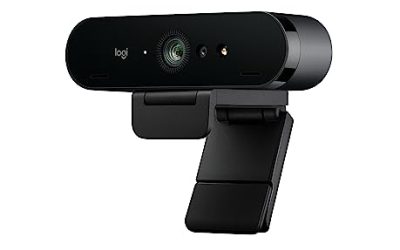
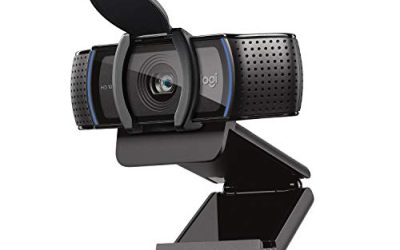
The C920x is the long-running 1080p camera that shows up in more home setups than any other webcam, and it fits a Kodi PC because it asks for nothing special. It connects over USB, works in UVC mode, and is recognized by Windows, macOS, Chrome OS, and Android without a driver download. Video runs at Full HD 1080p and 30 frames per second, with autofocus and HD light correction that keep your face sharp when the room light changes. Two built-in microphones capture clear stereo audio, and the five-element glass lens keeps the picture crisp at typical desk and couch distances.
Logitech MX Brio Ultra HD 4K Webcam
- Best for: 4K streaming, recording, and calls where image detail matters most.
- 4K video at 30 fps and 1080p video at 60 fps
- 8.5-megapixel sensor with AI-enhanced image quality
- RightLight 3 and HDR for uneven lighting
- Dual beamforming microphones
4K streaming, recording, and calls where image detail matters most.
4K video needs a USB 3 port and a capable machine; older Kodi boxes may cap it at 1080p.
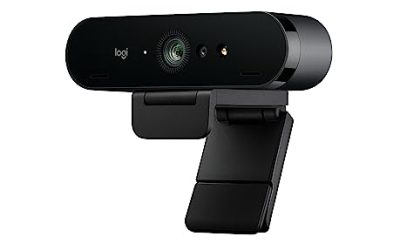
The MX Brio is the sharpest camera in this guide, and the pick when your Kodi box also serves as a streaming or recording rig. It captures 4K video at 30 frames per second and drops to 1080p for smooth 60-frame video, which suits fast movement and gaming clips. An 8.5-megapixel sensor with larger pixels and AI-enhanced image processing keeps detail visible in dim living rooms, while RightLight and HDR balance bright windows behind you. The camera includes dual beamforming microphones, an integrated privacy shutter, a detachable USB-C cable, and a clip mount that grips a monitor or TV bezel.
Razer Kiyo V2 X Webcam
- Best for: Smooth 1440p streams and calls from a gaming or media PC.
- 1440p video at 60 fps, plus 1080p and 720p at 60 fps
- 3.7-megapixel sensor
- 80-degree wide-angle lens
- Auto and manual focus
Smooth 1440p streams and calls from a gaming or media PC.
Advanced settings live in Razer software, which is not available on every operating system Kodi runs on.
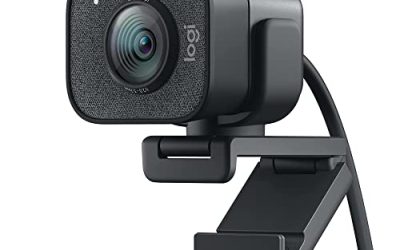
The Kiyo V2 X sits between the other two picks, pairing a higher-than-1080p image with smooth frame rates at a mid-range position. It records at 1440p and 60 frames per second, with 1080p and 720p modes that also run at 60 frames, so motion stays fluid during gameplay streams and calls. Auto and manual focus share the work of keeping you sharp, and an 80-degree wide-angle lens fits more of the room when the camera sits back from the couch. A built-in microphone, an integrated privacy cover, and a USB plug-and-play connection round out a camera that needs no extra software to run.
Which One Fits Your Situation
For a living-room Kodi PC used for calls
The C920x is the natural fit when the Kodi PC mostly handles video calls and the occasional recording. Its 1080p image is plenty on a TV viewed from the couch, the UVC connection works on every system Kodi runs on, and the dual microphones handle voices from a few feet away. It is also the simplest camera here to set up and forget, with no extra software to manage.
For streaming and recording from the same box
The MX Brio suits a Kodi box that doubles as a streaming rig, where the camera records gameplay clips or hosts a live stream. Its 4K mode captures the most detail, and the 1080p 60-frame mode keeps fast movement smooth. The privacy shutter and Show Mode are useful extras when the camera also films a desk or a project in front of the TV.
For smooth motion on a gaming or media PC
The Kiyo V2 X fits a setup where frame rate matters more than maximum resolution. Its 1440p 60-frame mode keeps motion fluid without demanding as much from the host as 4K, and the wide-angle lens covers a couch better than a narrow desk camera. It is a solid middle ground for gamers who stream from the same PC that runs Kodi.
For a dim room with a TV across from the couch
Low light is the hardest test for a living-room camera, and both the MX Brio and the C920x handle it well. The MX Brio leads with its larger sensor and RightLight processing, while the C920x uses HD light correction to brighten faces in shadow. Either one beats a basic camera in a dark room, so pick the MX Brio when detail matters and the C920x when simplicity matters.
Common Mistakes
- Buying a camera that needs Windows-only software, then finding its features locked out on a Linux or Android Kodi box.
- Expecting Kodi itself to make video calls: Kodi is a media center, so calls and recording happen in apps that run beside Kodi on the same machine.
- Mounting the camera below the TV, which films everyone from an unflattering low angle and makes eye contact feel off.
- Picking a 4K camera for a Kodi box with only USB 2 ports, where the connection caps the camera at a lower resolution anyway.
- Forgetting the microphone: a camera with a weak mic leaves callers straining to hear you from across the living room.
Frequently Asked Questions
Does Kodi support webcams directly?
Kodi is a media center for playing local files and streams, and it does not include a built-in video-call client. A webcam connects to the computer or box that runs Kodi, and you use it with video-call, streaming, or recording apps on that same machine. Pick a UVC camera so the operating system recognizes it without extra drivers, and it will be ready whenever those apps need it.
Can I use a webcam with Kodi on a Raspberry Pi?
Yes, with limits. A Raspberry Pi running Kodi can use a UVC webcam for apps that run beside Kodi, but the small board has less processing headroom than a desktop PC. A 1080p camera like the C920x is the safer match, since it needs less bandwidth and processing than a 4K camera. Use a powered USB hub when the camera shares a port with other devices.
Do I need a separate microphone with these webcams?
No, each camera in this guide has a built-in microphone, and that is enough for calls from a desk or a couch a few feet away. The MX Brio has the strongest mic setup of the three, with dual beamforming microphones that focus on voices. Add a separate USB microphone only when callers struggle to hear you, or when you record voice-overs that need studio-grade clarity.
What resolution should I pick for a TV-based Kodi setup?
For a TV viewed from the couch, 1080p is usually enough, because viewers sit far enough away that extra pixels are hard to notice. Pick 1440p when you also stream or record gameplay, and 4K when the camera films close-up detail or the same box serves as a recording rig. Match the choice to your Kodi box too, since a weak machine may cap a 4K camera at 1080p.
FAQ
Does Kodi support webcams directly?
Can I use a webcam with Kodi on a Raspberry Pi?
Do I need a separate microphone with these webcams?
What resolution should I pick for a TV-based Kodi setup?
More from Amazon
Programs that pair well with the guide above. Offers and eligibility are set by Amazon and may change.
Free shipping on eligible items, Prime Video and more. Eligible new members can start with a free trial.
Start a Prime free trialAd-free music streaming. Eligible new subscribers can start with a free trial.
Try Music Unlimited freeA Prime membership for ages 18-24 with a trial period. Eligibility is set by Amazon.
See Prime for Young AdultsAudiobooks and podcasts to listen to on the go. Eligible new members can start with a free trial.
Try Audible freeAs an Amazon Associate we earn from qualifying purchases.