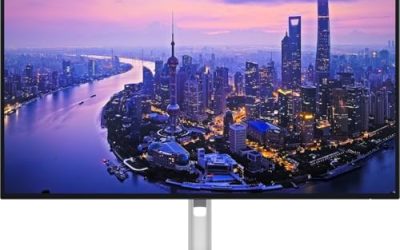
Our Short List of 3

- Best for: A one-cable MacBook Pro desk with wired networking and shared peripherals.
- 27-inch 4K UHD IPS Black display, 3840 x 2160 resolution
- USB-C with power delivery up to 90W
- DisplayHDR 400 with 98 percent DCI-P3 colour coverage
- Built-in KVM switch and RJ45 Ethernet port

- Best for: Everyday colour work and office use where a simple one-cable setup matters most.
- 27-inch 4K UHD IPS display, 3840 x 2160 resolution
- USB-C connection with power delivery
- 95 percent DCI-P3 colour gamut with VESA DisplayHDR 400
- Built-in 5W x 2 stereo speakers with MaxxAudio

- Best for: Colour-critical photo, design, and video work beside a MacBook Pro.
- 27-inch 4K HDR IPS display, 3840 x 2160 resolution
- 99 percent DCI-P3 and 99 percent Adobe RGB colour coverage
- Colour accuracy Delta E under 2, Calman Verified
- USB-C with power delivery up to 96W
All 4 Picks at a Glance
| Product | Specs | Action |
|---|---|---|
| Dell UltraSharp U2723QE |
| Check price on Amazon |
| LG UltraFine 27UP850-W |
| Check price on Amazon |
| ASUS ProArt Display PA279CRV |
| Check price on Amazon |
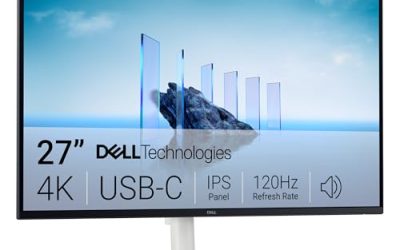
 Dell 27 Plus 4K S2725QC |
| Check price on Amazon |
Our Top Picks
Connecting a MacBook Pro to an external display sounds simple until the cable goes in and nothing happens the way it should. The real decision is not screen size alone but whether the monitor speaks the same language as the laptop: video over USB-C, enough charging wattage to keep the battery topped up, and a panel that renders macOS text sharply instead of leaving it soft around the edges. A monitor that misses any of those points turns a clean desk into a tangle of adapters and compromises.
This guide is for MacBook Pro owners who want one cable between laptop and screen, whether they edit photos, write code, run a home office, or play games after work. Every monitor below was chosen from the name and specifications shown on its Amazon listing, with USB-C or Thunderbolt connectivity and macOS compatibility as the entry requirement, so each pick connects to a MacBook Pro without a separate dock.
Quick Picks
As an Amazon Associate we earn from qualifying purchases
| Product | Best for | Key spec from title |
|---|---|---|
| Dell UltraSharp U2723QE | One-cable docking with Ethernet | 27-inch 4K USB-C hub monitor |
| LG UltraFine 27UP850-W | Colour work on a simpler budget | 27-inch 4K IPS with USB-C |
| ASUS ProArt Display PA279CRV | Photo and design colour accuracy | 27-inch 4K HDR with USB-C PD 96W |
| BenQ PD2705U | Video editing with a Mac-tuned mode | 27-inch 4K IPS designer monitor |
| Dell 27 Plus 4K S2725QC | Smoother everyday motion at 120Hz | 27-inch 4K 120Hz USB-C monitor |
How to Choose
Check the USB-C charging wattage first
A MacBook Pro charges through the same USB-C cable that carries video, but only if the monitor delivers enough wattage for the model in front of it. The 14-inch models ask for less than the 16-inch versions, and a monitor that supplies modest wattage may hold a charge during light work yet lose ground during a long render. Look for the power delivery figure on the Amazon listing before anything else, then match it against the charger that came in the MacBook box. When the numbers fall short, plan on keeping the laptop charger plugged in alongside the display cable.
Match resolution to the panel size
Text sharpness on macOS depends on pixel density, not resolution alone, which is why a 27-inch screen pairs so well with a 4K panel. At that combination, menus and document text stay crisp at the scaling most people use, while a lower resolution stretched across the same width leaves letters visibly fuzzy. Smaller screens can get away with less, and larger ones demand more, so treat 27 inches with 4K as the baseline for a desk monitor. Anyone stepping up to a 32-inch display should expect the same logic to push them toward even denser panels.
Decide how much colour accuracy matters
Not every MacBook Pro owner needs a factory-calibrated panel, and paying for one when the work is email and spreadsheets wastes money that could go toward a better stand or a second screen. Photo editors and designers should look for wide gamut coverage and a stated Delta E figure on the listing, since those numbers describe how faithfully the screen reproduces the colours in a file. Office and coding work runs happily on a standard IPS panel with solid brightness and an anti-glare coating. Buy the accuracy the work demands and nothing more.
Count the ports before the monitor arrives
A monitor with a built-in hub replaces a separate dock only when its ports cover everything already sitting on the desk. Count the keyboard, mouse receiver, external drive, and wired network connection, then compare that total with the USB ports and Ethernet jack listed for the display. Some monitors offer a generous hub with a KVM switch for sharing peripherals between two computers, while others provide a single upstream port and little else. A shortfall here means buying a dock anyway, which defeats the purpose of choosing a USB-C display.
The 5 Best Options
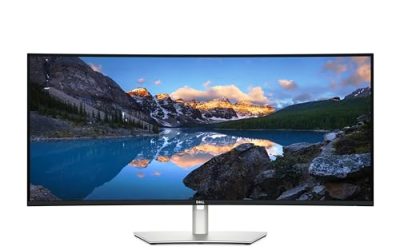
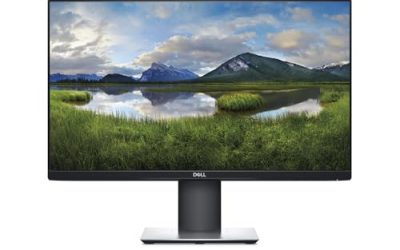
Dell UltraSharp U2723QE
- Best for: A one-cable MacBook Pro desk with wired networking and shared peripherals.
- 27-inch 4K UHD IPS Black display, 3840 x 2160 resolution
- USB-C with power delivery up to 90W
- DisplayHDR 400 with 98 percent DCI-P3 colour coverage
- Built-in KVM switch and RJ45 Ethernet port
A one-cable MacBook Pro desk with wired networking and shared peripherals.
Confirm it is still sold before buying, since recent checks found no clean new-condition buy box at times; verify the exact ASIN and seller on the listing before ordering.
The UltraSharp U2723QE suits a MacBook Pro owner who wants the desk to run on a single cable and nothing else. Its USB-C connection carries video, charges the laptop, and opens up a hub with Ethernet and several USB ports, so the keyboard, drive, and wired network all hang off the monitor instead of the laptop. The IPS Black panel gives dark scenes more depth than a standard IPS screen, which shows up in photo work and late-night editing alike.
Watch out for: Confirm it is still sold before buying, since recent checks found no clean new-condition buy box at times; verify the exact ASIN and seller on the listing before ordering.
LG UltraFine 27UP850-W
- Best for: Everyday colour work and office use where a simple one-cable setup matters most.
- 27-inch 4K UHD IPS display, 3840 x 2160 resolution
- USB-C connection with power delivery
- 95 percent DCI-P3 colour gamut with VESA DisplayHDR 400
- Built-in 5W x 2 stereo speakers with MaxxAudio
Everyday colour work and office use where a simple one-cable setup matters most.
Confirm it is still sold before buying, and check whether the seller is Amazon or a third-party merchant, since the listing has changed hands between them.
The UltraFine 27UP850-W is the straightforward choice for someone who wants a sharp 4K screen and single-cable USB-C charging without paying for a docking hub. Its IPS panel covers a wide colour gamut and carries DisplayHDR 400 certification, which keeps photos and video looking honest straight out of the box. Built-in stereo speakers and a height, pivot, and tilt stand round out a monitor that asks for very little setup beyond plugging in one cable.
Watch out for: Confirm it is still sold before buying, and check whether the seller is Amazon or a third-party merchant, since the listing has changed hands between them.
ASUS ProArt Display PA279CRV
- Best for: Colour-critical photo, design, and video work beside a MacBook Pro.
- 27-inch 4K HDR IPS display, 3840 x 2160 resolution
- 99 percent DCI-P3 and 99 percent Adobe RGB colour coverage
- Colour accuracy Delta E under 2, Calman Verified
- USB-C with power delivery up to 96W
Colour-critical photo, design, and video work beside a MacBook Pro.
Confirm it is still sold before buying; check the listing for the exact PA279CRV model, since similar ProArt model numbers share the same family name.
The ProArt PA279CRV is built for MacBook Pro owners whose work lives or dies on colour: photographers, illustrators, and video editors who need the screen to match the file. Its panel covers nearly the full DCI-P3 and Adobe RGB gamuts with a stated Delta E under 2 and Calman verification, so calibration is a starting point rather than a chore. USB-C with 96W power delivery charges even the larger MacBook Pro models while carrying the picture, and a daisy-chain DisplayPort output leaves room for a second screen later.
Watch out for: Confirm it is still sold before buying; check the listing for the exact PA279CRV model, since similar ProArt model numbers share the same family name.
BenQ PD2705U
The PD2705U earns its place through a feature most monitors skip: a dedicated M-Book mode tuned to match the colour behaviour of a MacBook display. That makes it a natural second screen for video editors and designers who cut between the laptop panel and the external monitor all day. A KVM switch shares one keyboard and mouse between two computers, while the included HotKey Puck puts input switching and colour modes on a physical dial instead of buried menus.
Specs
- 27-inch 4K UHD IPS display, 3840 x 2160 resolution
- 99 percent sRGB and Rec.709 colour coverage, Delta E 3 or under
- USB-C with power delivery up to 65W
- M-Book colour mode for MacBook matching
- KVM switch with HotKey Puck G2 and HDR10 support
Best for: Video editing and design work where the external screen must match a MacBook panel.
Watch out for: Confirm it is still sold before buying, since the listing showed as unavailable during a recent check; the 65W charging suits lighter MacBook Pro models best, so verify it against a 16-inch model before relying on it alone.
Dell 27 Plus 4K S2725QC
- Best for: Everyday MacBook Pro use where smooth scrolling and a brighter desk setup matter.
- 27-inch 4K UHD IPS display, 3840 x 2160 resolution
- 120Hz refresh rate with AMD FreeSync Premium
- USB-C with power delivery up to 65W
- 99 percent sRGB colour coverage, 1500:1 contrast ratio
Everyday MacBook Pro use where smooth scrolling and a brighter desk setup matter.
Confirm it is still sold before buying; note that this model has no DisplayPort input, so a second video source needs HDMI or USB-C.
The S2725QC is the pick for MacBook Pro owners who notice motion. Its 120Hz refresh rate makes scrolling through long documents, timelines, and code feel noticeably smoother than the 60Hz panels that dominate this category, while the 4K IPS screen keeps text sharp. USB-C carries video and charging in one cable, built-in speakers handle calls and casual listening, and the white finish suits bright desks where a black monitor would stand out.
Watch out for: Confirm it is still sold before buying; note that this model has no DisplayPort input, so a second video source needs HDMI or USB-C.
Which One Fits Your Situation
You want the dock to disappear
Choose the Dell UltraSharp U2723QE when the goal is a desk with one cable and no separate dock. Its Ethernet port, USB hub, and KVM switch absorb the peripherals that otherwise need their own box, and the 90W charging covers the MacBook Pro while it works. This is the right call for a permanent home office where the laptop docks every morning and leaves every evening.
Colour accuracy pays the bills
Choose the ASUS ProArt PA279CRV when the work is photo editing, illustration, or video grading and the screen must be trusted. Its wide gamut coverage and verified accuracy mean fewer surprises between screen and final file, and the 96W USB-C charging handles the larger MacBook Pro models. Pair it with the BenQ PD2705U only if matching the MacBook panel itself matters more than the widest gamut.
The budget has a hard ceiling
Choose the LG UltraFine 27UP850-W when a sharp 4K image and one-cable USB-C charging are the priorities and a hub is not. It covers the colour and sharpness most people need at a simpler feature set, and its adjustable stand and built-in speakers keep extra purchases off the list. Spend the difference on a good cable or a monitor arm instead.
Motion smoothness matters every day
Choose the Dell 27 Plus 4K S2725QC when scrolling, timeline scrubbing, and window movement fill the working day. The 120Hz panel is the one feature in this guide that changes how the MacBook Pro feels minute to minute, and the 65W USB-C charging suits the 14-inch models best. Keep the laptop charger handy if the machine runs heavy loads for hours.
Common Mistakes
- Buying a monitor with USB-C video but too little charging wattage, then discovering the MacBook Pro battery drains during heavy work.
- Choosing a low-resolution panel at 27 inches or larger and blaming macOS when text looks soft.
- Assuming every USB-C port on a monitor carries video, when some ports handle data and charging only.
- Skipping the port count and ending up with a separate dock after paying for a hub monitor.
- Picking a display by its gaming refresh rate alone while ignoring colour coverage needed for photo or design work.
Frequently Asked Questions
Can any USB-C monitor connect to a MacBook Pro?
Most monitors with USB-C video input or Thunderbolt connect directly with a single cable, and macOS detects them without extra drivers. The exceptions are displays whose USB-C port only handles data or charging, so the listing should state video support or DisplayPort Alt Mode. A monitor with HDMI or DisplayPort alone still works, but it needs an adapter and a separate charger.
How much charging wattage does a MacBook Pro need from a monitor?
The 14-inch models run well on 65W to 96W charging from a monitor, while the 16-inch versions ask for more under heavy loads. A monitor that supplies less than the laptop draws will still slow the drain, yet the battery may fall during long renders. Check the wattage on the listing and compare it with the charger supplied with the MacBook before choosing.
Does a 4K monitor look better than a lower-resolution screen on macOS?
Yes, at 27 inches a 4K panel renders text and interface elements noticeably sharper because macOS scales the image cleanly at that pixel density. A lower-resolution panel at the same size spreads the same interface over fewer pixels, which softens edges. Smaller screens can look fine at lower resolutions, but 27 inches is where 4K earns its keep.
Is Thunderbolt required for a MacBook Pro monitor?
No, Thunderbolt is not required, since USB-C with DisplayPort Alt Mode carries a 4K signal and charging over one cable. Thunderbolt adds daisy-chaining and higher bandwidth, which matters for dual 5K setups or heavy docking, but a single 4K display runs happily on plain USB-C. Buy Thunderbolt only when the desk plan includes a second high-resolution screen or a Thunderbolt dock.
FAQ
Can any USB-C monitor connect to a MacBook Pro?
How much charging wattage does a MacBook Pro need from a monitor?
Does a 4K monitor look better than a lower-resolution screen on macOS?
Is Thunderbolt required for a MacBook Pro monitor?
More from Amazon
Programs that pair well with the guide above. Offers and eligibility are set by Amazon and may change.
Free shipping on eligible items, Prime Video and more. Eligible new members can start with a free trial.
Start a Prime free trialAd-free music streaming. Eligible new subscribers can start with a free trial.
Try Music Unlimited freeA Prime membership for ages 18-24 with a trial period. Eligibility is set by Amazon.
See Prime for Young AdultsAudiobooks and podcasts to listen to on the go. Eligible new members can start with a free trial.
Try Audible freeAs an Amazon Associate we earn from qualifying purchases.