Key takeaways
- Best curved monitors for Mac, November 2026: Thunderbolt and USB-C ultrawides for MacBook Air, MacBook Pro, Mac mini and Mac Studio, with one-cable docking.
A curved monitor for a Mac differs from one for a Windows desktop, because the connection matters as much as the panel. A MacBook Air or MacBook Pro connects over USB-C or Thunderbolt, a Mac mini or Mac Studio sits permanently on the desk, and macOS renders text its own way at ultrawide resolutions. The right monitor does three jobs at once: it gives you a wide, curved workspace, it connects over a single cable, and it keeps text sharp for long days of reading, writing and code.
The three monitors below cover the main Mac setups: a Thunderbolt hub monitor for a MacBook Pro desk that also needs Ethernet and a second computer, a USB-C monitor with a KVM switch for MacBook Air owners who want one-cable docking without the Thunderbolt premium, and a wide, fast panel for a desktop Mac that connects through HDMI or DisplayPort. All three are 34-inch curved ultrawides at 3440 by 1440, so the comparison stays on connection, colour and ergonomics.
Quick Picks
As an Amazon Associate we earn from qualifying purchases.
| Product | Best for | Key spec from title |
|---|---|---|
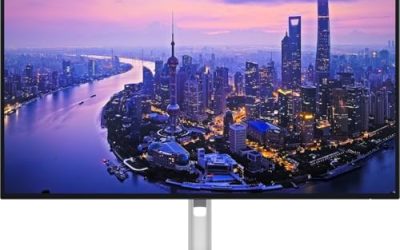
| Dell UltraSharp U3425WE | Replacing a separate dock entirely | Thunderbolt 4 hub monitor with 90W power delivery |
| Samsung ViewFinity S65UC | One-cable USB-C docking with a KVM switch | USB-C curved monitor with 100Hz and HDR10 |
| LG 34WP65C-B | A wide, fast panel for a desktop Mac | 160Hz QHD ultrawide with HDR10 and FreeSync Premium |
How to Choose
Match the connection to your Mac
The single most important line in any listing is the connection, because it decides how many cables live on your desk. A MacBook Air or MacBook Pro with a Thunderbolt or USB-C monitor connects, displays and charges over one lead, and the monitor can also carry a keyboard, a webcam and a wired network. A monitor with only HDMI and DisplayPort still works with every Mac, including a Mac mini or Mac Studio, but a laptop then needs its own charger and an adapter. Before buying, check the listing for USB-C or Thunderbolt with a stated charging wattage, and check that your Mac model supports the resolution over that connection, since older MacBook Air models cap external display support.
Understand what 3440 by 1440 means on macOS
All three monitors here run at 3440 by 1440 across 34 inches, which gives a wide single desktop with room for two documents side by side. On macOS that resolution renders at standard scaling rather than the pixel-doubled Retina mode used by Apple displays, so text is perfectly readable but not quite as fine as on a MacBook screen or a Studio Display. That trade is worth it for timelines, spreadsheets, design canvases and code, where width matters more than the last degree of sharpness. If your day is mostly close reading of small text, sit a little further back and favour the IPS panels here, which hold text edges cleaner at an angle than VA panels do.
Check colour coverage before refresh rate
For most Mac owners, colour accuracy matters more than refresh rate, because these monitors serve photo work, design, video editing and documents far more often than fast gaming. Look in the listing for sRGB and DCI-P3 coverage figures, and for any mention of factory calibration, since those numbers describe how faithfully the panel shows the colours your Mac sends it. A 120Hz or 160Hz panel still helps: scrolling through long documents and timelines feels smoother, and the mouse tracks more cleanly across a wide screen. But a fast panel with weak colour coverage is the wrong priority for a Mac desk, while a colour-accurate panel at 100Hz or 120Hz covers both work and casual play without compromise.
Count the hub, the stand and the second input
A curved ultrawide becomes the centre of the desk, so the hardware around the panel decides how convenient it stays. A built-in USB hub keeps a keyboard receiver, a webcam and a drive plugged in, a LAN port gives wired networking to a laptop that has none, and a KVM switch lets one keyboard and mouse serve a Mac and a second computer. The stand matters just as much: a 34-inch panel on a fixed stand strains the neck, so look for height adjustment if your desk and chair are fixed. Finally, check the second video input, because a spare HDMI or DisplayPort lets a console, a work laptop or a desktop Mac share the screen later.
The 3 Best Options
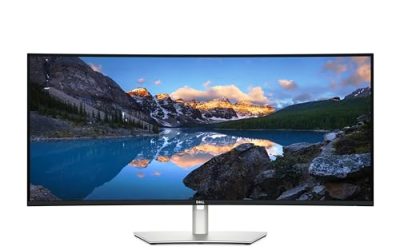
1. Dell UltraSharp U3425WE
The U3425WE is the monitor that replaces the dock, the hub and the charger in one purchase. Its listing describes a 34.1-inch curved IPS Black panel at 3440 by 1440 with a 1900R curve and a 120Hz refresh rate, then adds the hardware a Mac desk needs: Thunderbolt 4 with 90W charging, a downstream Thunderbolt port for a second display, five USB-A ports, three USB-C ports, 2.5GbE networking and a KVM switch. Colour figures in the listing copy run to DCI-P3 98 percent, Display P3 98 percent, sRGB 100 percent and BT.709 100 percent, with an average Delta E under 2 and a factory calibration report included.
Specs
- Panel: 34.1-inch curved IPS Black, 1900R
- Resolution: 3440 x 1440 (Ultra-WQHD), 21:9
- Refresh rate: 120Hz (100Hz over HDMI, as listed)
- Colour as listed: DCI-P3 98 percent, Display P3 98 percent, sRGB 100 percent, BT.709 100 percent
- Calibration as listed: Delta E under 2 average, factory calibration report included
- HDR as listed: DisplayHDR 400
- Connectivity: Thunderbolt 4 with 90W power delivery plus downstream Thunderbolt 4, HDMI, DisplayPort 1.4, USB-C x3, USB-A x5, RJ45 2.5GbE, audio out
- Speakers: Dual 5W
- Model: U3425WE
Best for: Mac owners who want the monitor to be the entire docking station, including Ethernet and a second display.
Watch out for: The 120Hz rate applies to the Thunderbolt and DisplayPort paths as listed, while HDMI is listed at 100Hz, so connect accordingly for the full rate.
2. Samsung ViewFinity S65UC

The S65UC keeps the one-cable idea and drops the Thunderbolt premium, the natural middle pick for a MacBook Air desk. Its listing describes a 34-inch curved monitor at 3440 by 1440 with a 1000R curve and a 100Hz refresh rate, with HDR10 and AMD FreeSync, and the connection is the point: a USB-C port carries the picture and charges the laptop with up to 90W, while a LAN port gives wired networking to a laptop that has none and a built-in KVM switch shares one keyboard and mouse with a second computer. The deep 1000R curve wraps the wide desktop around a single centred viewer.
Specs
- Panel: 34-inch curved, 1000R
- Resolution: 3440 x 1440 (Ultra-WQHD), 21:9
- Refresh rate: 100Hz
- HDR: HDR10
- Connectivity: USB-C with up to 90W charging, HDMI, DisplayPort, LAN
- Extras: Built-in KVM switch, built-in speakers
- Model: LS34C654UANXGO
Best for: MacBook Air owners who want one-cable docking, Ethernet and a KVM switch without paying for Thunderbolt.
Watch out for: The deep 1000R curve is a one-viewer design, so it suits a solo desk better than a screen that two people watch together.
3. LG 34WP65C-B
The LG is the wide, fast panel for a desktop Mac. Its listing describes a 34-inch curved ultrawide at 3440 by 1440 with a 160Hz refresh rate, HDR10, AMD FreeSync Premium, a built-in speaker and a tilt and height adjustable stand, with HDMI and DisplayPort inputs and a virtually borderless design on three sides. There is no USB-C port in the listing, so a MacBook connects through an adapter or a hub and keeps its own charger, while a Mac mini, iMac or Mac Studio connects directly. Listing copy gives colour coverage of 99 percent sRGB, which keeps photo and design work honest at this tier.
Specs
- Panel: 34-inch curved VA
- Resolution: 3440 x 1440 (QHD), 21:9
- Refresh rate: 160Hz
- HDR: HDR10
- Colour as listed: 99 percent sRGB
- Connectivity: HDMI, DisplayPort
- Extras: Built-in speaker, tilt and height adjustable stand, virtually borderless design on three sides
- Model: 34WP65C-B
Best for: A desktop Mac that stays on the desk, where the fastest panel here matters more than one-cable laptop docking.
Watch out for: No USB-C port in the listing, so a MacBook needs an adapter or a hub and its own charger alongside this monitor.
Which One Fits Your Situation
Your desk holds a MacBook Pro and a second computer
Take the Dell U3425WE. The built-in KVM moves one keyboard and mouse between the two machines, Thunderbolt serves the MacBook while the second input serves the other computer, and the downstream Thunderbolt port can chain a second display. It is the only option here designed from the outset for a shared desk rather than adapted to one, and the 90W charging keeps the laptop full through long sessions.
You carry a MacBook Air away every evening
Choose the Samsung S65UC. One USB-C cable at the desk handles display and charging, the KVM switch covers a second machine if one appears, and there is no separate dock to unplug or leave behind. When you return, the whole desk reconnects in a single motion, which is the entire point of this category, and the LAN port covers wired networking that the Air itself lacks.
Your Mac is a Mac mini or Mac Studio that never moves
Choose the LG 34WP65C-B. A desktop Mac connects directly over HDMI or DisplayPort, never needs charging from the monitor, and benefits most from the fastest panel here at 160Hz. The height-adjustable stand sets the screen to your chair once and stays there, and the wide curved desktop holds timelines, code and documents without a second screen.
You edit photos or design on a Mac
Choose the Dell U3425WE. The IPS Black panel and the listing colour figures, including DCI-P3 98 percent and a factory calibration report, suit colour judgement and layout work, and the shallow 1900R curve keeps edges calm across the width. The hub still gives one-cable docking with Ethernet, and the 90W feed keeps a laptop charged through long editing sessions.
Common Mistakes
- Buying a curved ultrawide whose USB-C port carries video but little or no charging, then keeping the laptop charger on the desk anyway.
- Assuming every Thunderbolt monitor includes Ethernet and a hub; those features are model-specific and must appear in the listing.
- Expecting Retina-grade text sharpness from a 3440 by 1440 panel; macOS runs it at standard scaling, which suits width-first work.
- Ignoring the curve radius: a deep 1000R curve is a one-viewer design, while a shallow curve shares better with a second chair.
- Forgetting the stand; a fixed-height 34-inch screen at the wrong height undoes every ergonomic gain the curve gives.
Frequently Asked Questions
Will one cable really charge a MacBook and run the screen?
Yes, on the two monitors here with USB-C or Thunderbolt charging. Their listings state USB-C or Thunderbolt connections with up to 90W power delivery, and a single cable carries the picture, the charge and the hub data together. Keep the laptop adapter in a travel bag, since the desk no longer needs it. Under the heaviest sustained loads, charging may be slower than with the original adapter.
Does macOS work well with a 3440 by 1440 ultrawide?
It works as a wide single desktop with two comfortable document widths side by side and no bezel in the middle. The difference from Apple own displays is scaling: macOS renders this resolution at standard density rather than Retina pixel-doubling, so text is clear but not quite as fine. For productivity, timelines, spreadsheets and code, the extra width is worth more than the last degree of sharpness.
Thunderbolt or plain USB-C, which should a Mac owner choose?
Choose Thunderbolt if you plug anything else into your setup, since the hub, Ethernet and KVM features in the Dell listing need the Thunderbolt model. Choose plain USB-C, like the Samsung here, if the laptop plus a wireless keyboard and mouse is the whole desk. Desktop Macs need neither, and can connect over HDMI or DisplayPort.
Can these monitors also serve a Windows PC or a console?
Yes. All three listings include HDMI and DisplayPort inputs alongside the USB-C or Thunderbolt connection, so a second machine can share the panel. The KVM switches in the Dell and Samsung listings make that switching graceful with one keyboard and mouse. A console uses the screen at its own output resolution, centred on the ultrawide panel, and the higher refresh rates here keep motion smooth.
FAQ
Will one cable really charge a MacBook and run the screen?
Does macOS work well with a 3440 by 1440 ultrawide?
Thunderbolt or plain USB-C, which should a Mac owner choose?
Can these monitors also serve a Windows PC or a console?
More from Amazon
Programs that pair well with the guide above. Offers and eligibility are set by Amazon and may change.
Free shipping on eligible items, Prime Video and more. Eligible new members can start with a free trial.
Start a Prime free trialAd-free music streaming. Eligible new subscribers can start with a free trial.
Try Music Unlimited freeA Prime membership for ages 18-24 with a trial period. Eligibility is set by Amazon.
See Prime for Young AdultsAudiobooks and podcasts to listen to on the go. Eligible new members can start with a free trial.
Try Audible freeAs an Amazon Associate we earn from qualifying purchases.