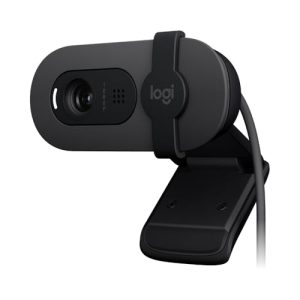
Our Short List of 3
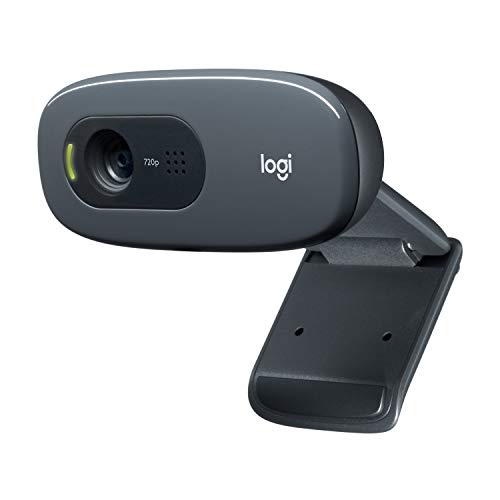
- Best for: Casual streams, video calls, and lessons from a small desk
- HD 720p video at 30 fps
- Diagonal 55 degree field of view
- Auto light correction with RightLight 2
- Built-in noise-reducing mic
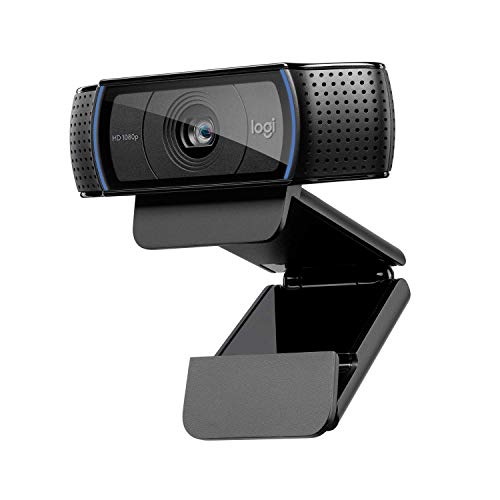
- Best for: Regular 1080p streams that need autofocus and dual mics in one unit
- Full HD 1080p video at 30 fps
- Autofocus with Full HD glass lens
- Built-in dual mics with automatic noise reduction
- Automatic low light correction

- Best for: Fluid 1080p60 streams with DSLR-style image control from a desk
- True Full HD 1080p video at 60 fps
- Uncompressed video without artifacts
- Fixed-focus glass lens with Elgato Prime Lens
- Sony CMOS sensor for indoor use
All 5 Picks at a Glance
| Product | Specs | Action |
|---|---|---|
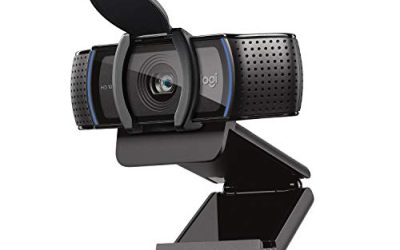
| Logitech C270 HD Webcam, 720p, Widescreen HD Video Calling, Light Correction, Noise-Reducing Mic, Works with Zoom, Nintendo Switch 2’s New GameChat Mode, PC/Mac/Laptop/MacBook/Tablet – Black |
| Check price on Amazon |
| Logitech HD Pro Webcam C920, Widescreen Video Calling and Recording, 1080p Camera, Desktop or Laptop Webcam |
| Check price on Amazon |
| Elgato Facecam – 1080p60 True Full HD Webcam for Live Streaming, Gaming, Video Calls, Sony Sensor, Advanced Light Correction, DSLR Style Control, works with OBS, Zoom, Teams, and more, for PC/Mac |
| Check price on Amazon |
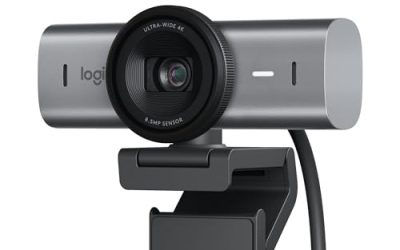
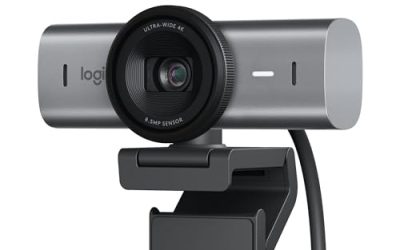
 Logitech MX Brio Ultra HD 4K Webcam for Collaboration and Streaming, 1080p 60 FPS, Show Mode, Works with Microsoft Teams, Zoom, Google Meet, Nintendo Switch 2, Graphite |
| Check price on Amazon |
 Elgato Facecam 4K – 4K60 Studio Webcam, DSLR-Like Control, Cinematic Effects, 49mm Lens Filters, HDR, Uncompressed Video, Optimized Focus Area, USB-C for PC & Mac |
| Check price on Amazon |
Our Top Picks
- Logitech C270 720p Webcam Plug-and-Play Wide Screen Video1 Pack6 x 4 x 8 inches0.16 poundsCheck on Amazon
Choosing a webcam for streaming comes down to one simple question: how much detail does your audience need to see? A 720p camera keeps the image light on upload and easy for modest computers to handle, while 1080p adds clearer facial detail and smoother edges for regular streams. A 4K camera goes further, with fine detail in hair, fabric, and on-screen props, but it asks more of your upload, your software, and your lighting. Resolution alone does not decide the result, so frame rate, focus, microphones, and low-light image quality matter just as much.
This guide compares five webcams across three resolution tiers, from 720p to 4K, for streamers, callers, teachers, and creators who want a clear image without a complex rig. The set covers a basic 720p Logitech model, two 1080p options from Logitech and Elgato, and two 4K options from the same brands, with notes on frame rate, focus, microphones, low-light image quality, and setup ease in each section below.
Quick Picks
As an Amazon Associate we earn from qualifying purchases
| Product | Best for | Key spec from title |
|---|---|---|
| Logitech C270 HD Webcam, 720p, Widescreen HD Video Calling, Light Correction, Noise-Reducing Mic, Works with Zoom, Nintendo Switch 2’s New GameChat Mode, PC/Mac/Laptop/MacBook/Tablet – Black | Casual streams and video calls in a small room | HD 720p |
| Logitech HD Pro Webcam C920, Widescreen Video Calling and Recording, 1080p Camera, Desktop or Laptop Webcam | Regular streams that need autofocus and clear dual mics | 1080p Camera |
| Elgato Facecam – 1080p60 True Full HD Webcam for Live Streaming, Gaming, Video Calls, Sony Sensor, Advanced Light Correction, DSLR Style Control, works with OBS, Zoom, Teams, and more, for PC/Mac | Fluid 1080p60 streams with DSLR-style image control | 1080p60 True Full HD |
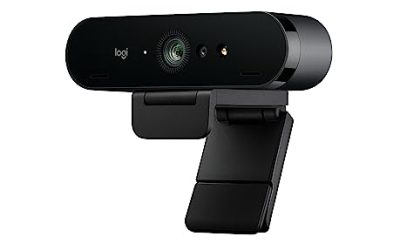
| Logitech MX Brio Ultra HD 4K Webcam for Collaboration and Streaming, 1080p 60 FPS, Show Mode, Works with Microsoft Teams, Zoom, Google Meet, Nintendo Switch 2, Graphite | Polished 4K streams with autofocus and a privacy shutter | Ultra HD 4K |
| Elgato Facecam 4K – 4K60 Studio Webcam, DSLR-Like Control, Cinematic Effects, 49mm Lens Filters, HDR, Uncompressed Video, Optimized Focus Area, USB-C for PC & Mac | High-detail 4K60 streams with lens filter options | 4K60 Studio Webcam |
How to Choose
Match Resolution to Your Upload and Audience Size
Resolution sets how much detail a camera can send, and your upload sets how much of that detail can reach viewers in good shape. A 720p camera suits small audiences and simple scenes, where faces and gestures matter more than fine texture. A 1080p camera suits regular streaming, with clearer eyes, hair, and clothing than 720p. A 4K camera suits creators who crop into the frame or show close detail, yet it needs a strong upload and software that can handle the larger image. Pick the tier that fits your connection and your audience, not the largest number on the box.
Frame Rate Matters as Much as Pixel Count
Frame rate decides how fluid motion looks, and it can matter more than pixel count when you move, gesture, or show objects to the camera. A camera at 30 frames per second looks calm and steady for seated talk, chats, and lessons, where movement stays small. A camera at 60 frames per second looks smoother when you turn your head, lift a prop, or play a game on camera, with less blur on quick motion. If your streams include a lot of movement, put 60 frames per second near the top of your list, even if it means staying at 1080p rather than moving to 4K.
Focus, Field of View, and Low-Light Image Quality
Focus decides whether your face stays clear when you lean in or sit back, so check whether a camera uses autofocus or a fixed focus range. Autofocus follows you as you move, while fixed focus stays sharp only inside a set distance, often about an arm’s length from the lens. Field of view decides how much of your room appears in the frame, with a wide view showing more of your desk and a narrow view keeping attention on your face. Low-light image quality matters when your room has one lamp or a dim corner, so look for a larger sensor and light correction that keeps skin tones natural without harsh grain.
Microphones, Mounting, and Setup Ease
A webcam microphone can carry a casual stream, but it also picks up keyboard clicks, fan hum, and room echo, so think about how much ambient sound your space holds. Dual microphones with noise reduction help in a quiet room, while a separate microphone gives more control when your space stays busy. Mounting matters too: a clip that grips your monitor firmly keeps the frame steady, and a tripod thread opens up angles above a desk or beside a game setup. Setup ease counts when you stream often, so favor a camera that plugs in over USB and works with your streaming software without a long chain of extra steps.
The 5 Best Options
Logitech C270 HD Webcam, 720p, Widescreen HD Video Calling, Light Correction, Noise-Reducing Mic, Works with Zoom, Nintendo Switch 2’s New GameChat Mode, PC/Mac/Laptop/MacBook/Tablet – Black
- Best for: Casual streams, video calls, and lessons from a small desk
- HD 720p video at 30 fps
- Diagonal 55 degree field of view
- Auto light correction with RightLight 2
- Built-in noise-reducing mic
Casual streams, video calls, and lessons from a small desk
Fixed focus and 720p detail can look soft in dim rooms and at longer distances
The Logitech C270 covers the 720p tier with a simple design that suits casual streams, video calls, and online lessons. It records at 720p and 30 frames per second, with a 55 degree field of view that keeps the frame close on one person. RightLight 2 auto light correction adjusts the image when room light shifts, and the built-in noise-reducing mic picks up a clear voice from a normal desk distance. Fixed focus keeps the setup simple, with no focus hunting when you stay in one place. A universal clip fits most monitors and laptops, so the camera moves easily between desks.
Logitech HD Pro Webcam C920, Widescreen Video Calling and Recording, 1080p Camera, Desktop or Laptop Webcam
- Best for: Regular 1080p streams that need autofocus and dual mics in one unit
- Full HD 1080p video at 30 fps
- Autofocus with Full HD glass lens
- Built-in dual mics with automatic noise reduction
- Automatic low light correction
Regular 1080p streams that need autofocus and dual mics in one unit
1080p stays at 30 frames per second, so quick motion can blur
The Logitech C920 has long served as a steady 1080p choice for streamers who want autofocus and clear audio in one unit. It records Full HD 1080p at 30 frames per second, with a glass lens and autofocus that holds a clear image as you lean in or sit back. Dual built-in mics with automatic noise reduction pick up a natural voice in a quiet room, and automatic low light correction helps when evening light fades. H.264 compression eases the load on your computer during long sessions. A tripod-ready clip fits laptops and monitors, and the 6 foot cable gives room to place the camera where it frames you well.
Elgato Facecam – 1080p60 True Full HD Webcam for Live Streaming, Gaming, Video Calls, Sony Sensor, Advanced Light Correction, DSLR Style Control, works with OBS, Zoom, Teams, and more, for PC/Mac
- Best for: Fluid 1080p60 streams with DSLR-style image control from a desk
- True Full HD 1080p video at 60 fps
- Uncompressed video without artifacts
- Fixed-focus glass lens with Elgato Prime Lens
- Sony CMOS sensor for indoor use
Fluid 1080p60 streams with DSLR-style image control from a desk
No built-in microphone, and fixed focus needs a set seating distance
The Elgato Facecam moves the 1080p tier to 60 frames per second, with uncompressed video that keeps edges clean during motion. Its fixed-focus glass lens and Sony CMOS sensor suit indoor desks, with a focus range of 30 to 120 cm that covers a normal seated position. An 84 degree field of view shows more of your desk and shoulders than a narrow camera, which suits streamers who gesture while they talk. Camera Hub software gives DSLR-style control over exposure, white balance, and color, so you can shape the image to match your room light. It has no built-in microphone, so plan on a separate mic for voice.
Logitech MX Brio Ultra HD 4K Webcam for Collaboration and Streaming, 1080p 60 FPS, Show Mode, Works with Microsoft Teams, Zoom, Google Meet, Nintendo Switch 2, Graphite
- Best for: Polished 4K streams with autofocus, dual mics, and a privacy shutter
- Ultra HD 4K video at 30 fps
- 1080p video at 60 fps
- Autofocus with AI-enhanced image quality
- Dual beamforming mics with noise-reducing technology
Polished 4K streams with autofocus, dual mics, and a privacy shutter
4K stays at 30 frames per second, so choose 1080p for smoother motion
The Logitech MX Brio brings 4K detail to a desk camera, recording Ultra HD 4K at 30 frames per second and 1080p at 60 frames per second for smoother motion. Autofocus keeps your face clear as you move, while AI-enhanced image quality lifts face visibility in dim or mixed light. Dual beamforming mics pick up voice clearly in a quiet room, and Show Mode lets you tilt the camera down to show notes or objects on your desk. An integrated privacy shutter covers the lens between streams, and USB-C keeps the connection simple. Three fields of view let you frame a tight headshot or a wider desk scene.
Elgato Facecam 4K – 4K60 Studio Webcam, DSLR-Like Control, Cinematic Effects, 49mm Lens Filters, HDR, Uncompressed Video, Optimized Focus Area, USB-C for PC & Mac
- Best for: High-detail 4K60 streams with cinematic effects and lens filter options
- 4K video at 60 fps
- Sony CMOS sensor with Elgato Prime Lens
- Fixed focus with f/4.0 aperture
- Field of view of 90 degrees
High-detail 4K60 streams with cinematic effects and lens filter options
No built-in microphone, and 4K60 needs a USB 3.0 connection and capable software
The Elgato Facecam 4K pairs 4K resolution with 60 frames per second, the sharpest combination in this set for streamers who want fine detail and fluid motion together. Its Sony CMOS sensor and Elgato Prime Lens hold detail in hair, fabric, and small on-screen objects, while HDR support helps in rooms with bright windows and dark corners. A fixed focus range of 30 to 120 cm suits a seated desk position, and a 90 degree field of view shows a wide desk scene. Camera Hub software adds cinematic effects, manual exposure, and lens filter support through a 49mm thread. It has no built-in microphone, so a separate mic handles voice.
Which One Fits Your Situation
You Stream From a Small Room With Modest Light
Pick the MX Brio or the Facecam for a small room with modest light, since both handle dim scenes well. Add a lamp in front of you rather than behind you, and sit close enough for autofocus or a fixed focus range to hold you clearly. Keep the wall behind you plain and free of bright windows, so light stays balanced on your face. A quiet room also lets the built-in mics on the MX Brio carry your voice.
You Move a Lot on Camera and Want Fluid Motion
Pick a 60 frames per second camera when you move, gesture, or show objects during a stream. The Elgato Facecam gives fluid 1080p60 motion, while the Facecam 4K and the MX Brio at 1080p give the same smooth frame rate with more detail. Keep your movements inside the frame, and place the camera at eye level so quick turns stay in focus. A 30 frames per second camera can still work for seated talk, but motion will look less smooth.
You Want the Sharpest Image for a Polished Channel
Pick a 4K camera when your channel relies on close detail, crisp text on screen, or a polished look for clips and live streams. The Facecam 4K leads on detail at 60 frames per second, while the MX Brio adds autofocus, dual mics, and a privacy shutter. Light your face from the front, keep the lens clean, and frame a tidy desk scene. A 1080p camera can still look clean, but 4K shows more.
Common Mistakes
- Choosing 4K without checking that your upload, software, and computer can handle the larger image.
- Ignoring frame rate, then wondering why quick motion looks blurred on a 30 frames per second camera.
- Sitting outside the focus range, so your face drifts soft while the camera holds the room behind you.
- Relying only on a built-in mic in a noisy room, where keyboard clicks and fan hum reach the audience.
- Facing a bright window, which turns your face dark while the light behind you stays bright.
Frequently Asked Questions
Is 720p enough for streaming?
Yes, for casual streams, small audiences, and simple scenes, 720p can look clear and easy to watch. Faces, gestures, and speech carry well at 720p when light stays even. Move to 1080p when you want clearer facial detail, or to 4K when you crop into the frame or show fine detail. The right tier depends on your audience and your scene, not on chasing the largest number.
Does 4K make a stream look better on every platform?
Not always. A 4K camera records more detail, but many platforms and viewers watch at 1080p or lower, so much of that detail never reaches the audience. A 4K camera still helps when you crop, zoom, or record clips for later use, since the extra detail gives you room to reframe. For live viewing alone, a clean 1080p60 image with good light often looks just as pleasing as 4K.
Is 60 fps better than 30 fps for webcams?
For motion, yes. A 60 frames per second image shows smoother turns, gestures, and object handling than 30 frames per second, with less blur. For seated talk with little movement, 30 frames per second looks calm and steady, and it asks less of your upload. Choose 60 frames per second when you move a lot on camera, and 30 frames per second when you sit still and talk.
Do I need a separate microphone with a webcam?
It depends on your room and your stream. Dual built-in mics can sound clear in a quiet room, and the Logitech models here include them for simple setups. The Elgato models here have no built-in microphone, so they need a separate mic for voice. A separate microphone also helps in a noisy room, since you can place it close to your mouth and away from keyboard clicks and fan hum.
FAQ
Is 720p enough for streaming?
Does 4K make a stream look better on every platform?
Is 60 fps better than 30 fps for webcams?
Do I need a separate microphone with a webcam?
More from Amazon
Programs that pair well with the guide above. Offers and eligibility are set by Amazon and may change.
Free shipping on eligible items, Prime Video and more. Eligible new members can start with a free trial.
Start a Prime free trialAd-free music streaming. Eligible new subscribers can start with a free trial.
Try Music Unlimited freeA Prime membership for ages 18-24 with a trial period. Eligibility is set by Amazon.
See Prime for Young AdultsAudiobooks and podcasts to listen to on the go. Eligible new members can start with a free trial.
Try Audible freeAs an Amazon Associate we earn from qualifying purchases.