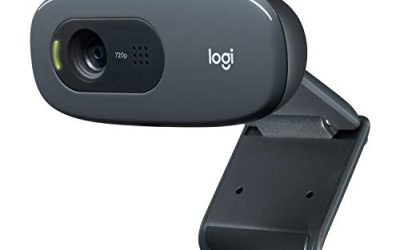
Our Short List of 3

- Best for: Streamers who key against a green screen every day and want the sharpest outline.
- True 4K60 Ultra HD video with supported resolutions up to 2160p60
- Sony sensor with Elgato Premium AF lens, f/2.0 aperture and 21 mm focal length
- Field of view up to 90 degrees
- USB Type C connection with USB Video Class support

- Best for: Live streamers who want fluid 1080p60 motion and a key that holds while they move.
- True Full HD 1080p video at 60 frames per second, uncompressed
- Sony sensor with Elgato Prime Lens, f/2.4 24 mm all-glass optics
- Fixed-focus glass lens with advanced light correction
- DSLR-style manual controls and onboard memory

- Best for: Teachers and creators who record lessons against a green screen and want even light.
- Ultra HD 4K video at 30 frames per second and 1080p at 60 frames per second
- RightLight 3 auto light correction with autofocus and 5x digital zoom
- Three field-of-view settings: 65, 78, and 90 degrees
- Dual omnidirectional microphones with noise-canceling
All 5 Picks at a Glance
| Product | Specs | Action |
|---|---|---|
| Elgato Facecam Pro True 4K60 Webcam |
| Check price on Amazon |
| Elgato Facecam – 1080p60 True Full HD Webcam for Live Streaming, Gaming, Video Calls, Sony Sensor, Advanced Light Correction, DSLR Style Control, works with OBS, Zoom, Teams, and more, for PC/Mac |
| Check price on Amazon |
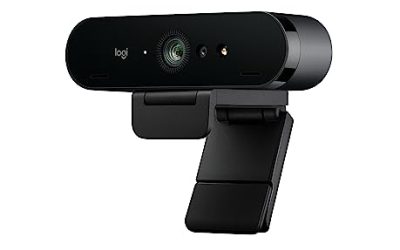
| Logitech Brio 4K Webcam |
| Check price on Amazon |
 Logitech C920s HD Pro Webcam |
| Check price on Amazon |
 Razer Kiyo Pro Streaming Webcam |
| Check price on Amazon |
Our Top Picks
A green screen only works when the camera gives your keying software a clean image to work with. If the edges around your hair and shoulders look soft, if the green shifts across the frame, or if the exposure drifts while you move, the background bleeds through and the outline shimmers. A webcam built for green screen work has to do more than look sharp in a small call window: it needs fine detail, even color, and exposure that holds steady from the first minute of a stream to the last.
The five webcams below suit streamers, teachers, and creators who record in front of a green screen every week. Each one was chosen from its name and listed specs on Amazon, with an eye on the traits that shape a clean key: resolution, sensor quality, light handling, focus, and frame rate. Together they cover a full 4K flagship, two dependable mid-range picks, and two proven 1080p workhorses.
Quick Picks
As an Amazon Associate we earn from qualifying purchases
| Product | Best for | Key spec from title |
|---|---|---|
| Elgato Facecam Pro True 4K60 Webcam | Top 4K keying for daily streams | True 4K60 |
| Elgato Facecam – 1080p60 True Full HD Webcam for Live Streaming, Gaming, Video Calls, Sony Sensor, Advanced Light Correction, DSLR Style Control, works with OBS, Zoom, Teams, and more, for PC/Mac | Smooth 1080p60 keying for regular streams | 1080p60 True Full HD |
| Logitech Brio 4K Webcam | Sharp 4K detail for recorded lessons | 4K UHD |
| Logitech C920s HD Pro Webcam | Reliable 1080p keying on a simple desk | Full HD 1080p |
| Razer Kiyo Pro Streaming Webcam | Clean keying in dim rooms | Full HD 1080p 60FPS |
How to Choose
Resolution and frame rate
Resolution sets the amount of detail your keying software has to work with, and frame rate sets how smooth motion looks when you move in front of the screen. A 4K camera gives the software more edge detail to separate you from the green, which shows up most around hair and glasses. A 1080p camera at 60 frames per second can still key well when the light is even and the sensor is strong, and the extra frames keep fast hand movement from smearing. Pick 4K when you record and crop later, and pick 1080p at 60 frames per second when you stream live and want fluid motion.
Sensor quality and color accuracy
The sensor decides how much noise appears in the picture and how faithfully the green reads across the frame. A larger sensor gathers more light, so the image stays clean when your room is not bright, and the green stays one even shade instead of breaking into blotches. Accurate color matters because the keying software cuts out a narrow band of green: if the camera shifts the green toward yellow or blue in one corner, that corner either leaves a halo or eats into your outline. Look for a webcam with a Sony sensor and manual color controls, then set white balance once and leave it alone for the whole session.
Exposure control and lighting
Even light on the green screen does half the work, but the camera still has to hold exposure steady while you move. Auto exposure that hunts up and down will change the green from frame to frame, and every change forces the key to work harder. A webcam with manual exposure, gain, and white balance lets you lock the picture in place before you go live, so the key stays the same through the whole stream. Light correction that lifts shadows without blowing out highlights also helps, since a green screen that is too dark in one corner keys poorly. Set your lights first, lock exposure second, and check the key before you open your stream.
Field of view and focus
Field of view decides how much of the green screen the camera sees, and focus decides whether your outline stays crisp. A wide view takes in more of the screen and more of the room around it, which can pull in wall edges that confuse the key. A narrower view keeps the frame tight on you and the screen, so the software has less clutter to sort out. Autofocus that keeps hunting will soften your outline at the worst moments, so a camera with a fixed focus range or a focus lock is a safer pick for green screen work. Frame the shot, lock the focus, and leave the camera where it is.
The 5 Best Options
Elgato Facecam Pro True 4K60 Webcam
- Best for: Streamers who key against a green screen every day and want the sharpest outline.
- True 4K60 Ultra HD video with supported resolutions up to 2160p60
- Sony sensor with Elgato Premium AF lens, f/2.0 aperture and 21 mm focal length
- Field of view up to 90 degrees
- USB Type C connection with USB Video Class support
Streamers who key against a green screen every day and want the sharpest outline.
The wide 90-degree view can pull in room edges, so frame the shot tight on the screen.
The Facecam Pro leads this group because it pairs a true 4K60 picture with a large Sony sensor that holds detail in dim rooms. That mix matters for green screen work: the extra resolution gives the keying software fine edges to follow, and the sensor keeps the green even instead of noisy. Manual controls through Elgato software let you set exposure, white balance, and focus, then lock them for a stream. The wide 90-degree view fits a broad screen, and the autofocus lens tracks you as you move. It is the pick for streamers who key every day and want the cleanest outline they can get from a webcam.
Elgato Facecam – 1080p60 True Full HD Webcam for Live Streaming, Gaming, Video Calls, Sony Sensor, Advanced Light Correction, DSLR Style Control, works with OBS, Zoom, Teams, and more, for PC/Mac
- Best for: Live streamers who want fluid 1080p60 motion and a key that holds while they move.
- True Full HD 1080p video at 60 frames per second, uncompressed
- Sony sensor with Elgato Prime Lens, f/2.4 24 mm all-glass optics
- Fixed-focus glass lens with advanced light correction
- DSLR-style manual controls and onboard memory
Live streamers who want fluid 1080p60 motion and a key that holds while they move.
The fixed focus suits a set desk distance, so keep your seat in the same spot each stream.
The standard Facecam trades 4K for smooth 1080p at 60 frames per second, and for live green screen streams that trade is often worth it. The Sony sensor and fixed-focus glass lens deliver uncompressed video with steady color, so the key holds while you move and gesture. Advanced light correction evens out uneven room light, and the DSLR-style controls let you dial in exposure and white balance before you go live. Onboard memory keeps your settings after you unplug the camera. It suits streamers who broadcast live most days and care more about fluid motion than about cropping a 4K frame later.
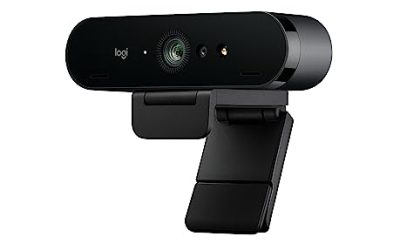
Logitech Brio 4K Webcam
- Best for: Teachers and creators who record lessons against a green screen and want even light.
- Ultra HD 4K video at 30 frames per second and 1080p at 60 frames per second
- RightLight 3 auto light correction with autofocus and 5x digital zoom
- Three field-of-view settings: 65, 78, and 90 degrees
- Dual omnidirectional microphones with noise-canceling
Teachers and creators who record lessons against a green screen and want even light.
The 4K mode runs at 30 frames per second, so use the 1080p mode when you want smoother motion.
The Brio brings 4K detail and a well-tuned auto light system to green screen recording, which makes it a strong pick for teachers and creators who record lessons rather than stream live. RightLight 3 adjusts exposure and contrast when the room light changes, so the green stays even through a long take. Three field-of-view settings let you frame a tight head-and-shoulders shot that keeps wall edges out of the picture. Autofocus and 5x digital zoom help you frame the shot without moving the camera. It is a steady, well-rounded 4K option for recorded green screen work.
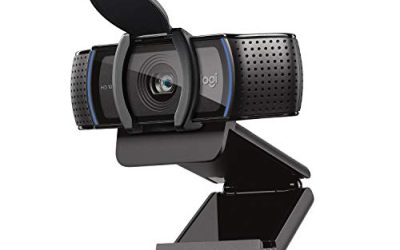
Logitech C920s HD Pro Webcam
- Best for: Anyone who wants a simple, steady green screen setup without extra software.
- Full HD 1080p video at 30 frames per second
- Glass lens with autofocus
- HD light correction with RightLight 2
- Dual stereo microphones
Anyone who wants a simple, steady green screen setup without extra software.
The 30-frame rate can smear fast hand movement, so keep gestures slow and deliberate.
The C920s is the plain, dependable pick in this group: full HD 1080p at 30 frames per second, a glass lens with autofocus, and light correction that keeps the picture usable in an ordinary room. It has been a common choice for video calls for years, and that same steady image keys well when the green screen is lit evenly. The privacy shutter covers the lens between sessions, and the dual stereo microphones handle voice when you record without a separate mic. It suits anyone who wants a simple green screen setup that works the same way every day without extra software.
Razer Kiyo Pro Streaming Webcam
- Best for: Gaming streamers who key in dim rooms and want a clean outline in low light.
- Uncompressed Full HD 1080p video at 60 frames per second
- Sony sensor with adaptive light sensor and HDR mode
- Wide-angle lens with adjustable field of view: 103, 90, and 80 degrees
- USB 3.0 connection with a 1.5 meter braided cable
Gaming streamers who key in dim rooms and want a clean outline in low light.
The HDR mode runs at 30 frames per second, so switch it off when you want the smoothest motion.
The Kiyo Pro is built for streamers who sit in dim rooms, and that is exactly where green screen keys often fall apart. Its adaptive light sensor and Sony sensor lift the picture in low light without washing out the green, and the HDR mode at 30 frames per second widens the range between bright and dark areas. Uncompressed 1080p at 60 frames per second keeps motion smooth, and the wide-angle lens offers three field-of-view settings so you can frame the screen tightly. It suits gaming streamers who key every night in a room where the light is never ideal.
Which One Fits Your Situation
You stream live from a green screen every day
Daily live streams need a camera that keys cleanly for hours without drifting. The Facecam Pro leads here with 4K60 detail and manual controls you can lock, while the standard Facecam gives you smooth 1080p60 motion at a lower tier. Either way, set exposure and white balance by hand before you go live and leave them alone.
You record lessons or courses in front of a green screen
Recorded lessons give you time to check the key before you publish, so detail and even light matter more than frame rate. The Brio suits this work with 4K detail and RightLight 3, and its three field-of-view settings help you frame a tight shot. Record a short sample, check the edges around your hair, and adjust the lights before the full take.
You want the simplest setup that just works
If you would rather spend time on your content than on camera settings, pick a webcam that works straight out of the box. The C920s needs no extra software: plug it in, light the screen evenly, and record. Its fixed habits suit a desk that never moves, and the privacy shutter covers the lens when you finish.
You stream in a dim room with uneven light
Dim rooms punish ordinary webcams, because noise in the dark areas breaks the key first. The Kiyo Pro suits this setting with its adaptive light sensor and HDR mode, which lift shadow detail while holding the green steady. Keep a lamp on the screen itself, not only on your face, and let the camera settle before you open your stream.
Common Mistakes
- Lighting the green screen unevenly, so one side keys cleanly and the other leaves a halo.
- Leaving auto exposure on, which shifts the green from frame to frame during a stream.
- Sitting too close to the screen, so green light spills onto your hair and shoulders.
- Using a wide field of view that pulls wall edges and clutter into the frame.
- Skipping a short sample recording, so a bad key only shows up after a full session.
Frequently Asked Questions
Do I need a 4K webcam for green screen work?
No. A 4K camera gives the keying software more edge detail, which helps around hair and glasses, but a good 1080p camera with a strong sensor and even light can key cleanly. Pick 4K when you record and crop later, and pick 1080p at 60 frames per second when you stream live and want fluid motion.
Why does my green screen look blotchy on camera?
Blotches usually come from uneven light on the screen or noise from a small sensor in a dim room. Light the screen evenly from both sides, add light on yourself separately, and lock exposure and white balance by hand. If one corner still looks off, move the lamp closer to that corner and check the key again.
Should I use autofocus or manual focus for green screen?
Manual focus or a focus lock is the safer choice, because autofocus can hunt while you move and soften your outline at the worst moment. Set the focus on your face at your normal seat distance, lock it, and leave it alone for the whole session. Fixed-focus cameras suit a desk where your seat never moves.
Can I use these webcams with OBS?
Yes. All five webcams work with OBS and other common streaming tools, and they connect over USB with no extra capture hardware. Add the camera as a video capture source, set the resolution and frame rate to match the camera, then add a chroma key filter and tune it while you watch the outline. Save the filter settings once the key looks clean.
FAQ
Do I need a 4K webcam for green screen work?
Why does my green screen look blotchy on camera?
Should I use autofocus or manual focus for green screen?
Can I use these webcams with OBS?
More from Amazon
Programs that pair well with the guide above. Offers and eligibility are set by Amazon and may change.
Free shipping on eligible items, Prime Video and more. Eligible new members can start with a free trial.
Start a Prime free trialAd-free music streaming. Eligible new subscribers can start with a free trial.
Try Music Unlimited freeA Prime membership for ages 18-24 with a trial period. Eligibility is set by Amazon.
See Prime for Young AdultsAudiobooks and podcasts to listen to on the go. Eligible new members can start with a free trial.
Try Audible freeAs an Amazon Associate we earn from qualifying purchases.