Key takeaways
- Our guide to the best wide monitors for work compares ultrawide displays for spreadsheets, documents and multitasking, with USB-C docking and desk fit covered.
As an Amazon Associate I earn from qualifying purchases.
The Short Answer
If you want one screen that replaces two, a 34-inch ultrawide at 3440 x 1440 is the sweet spot for most desks. It holds a spreadsheet, a document and a chat window side by side without a bezel cutting through the middle, and it fits on a standard desk where a 49-inch super ultrawide often does not. The Dell UltraSharp U3425WE is our leading pick for people who dock a laptop, because its Thunderbolt 4 hub charges the laptop, runs the network and connects peripherals through a single cable. The LG 34WN80C-B is the simpler choice for a desktop or a laptop that only needs USB-C charging at 60W, with a clean IPS panel and a 99 percent sRGB gamut. The Samsung ViewFinity S65UA suits people who want a stronger curve and a 100Hz refresh rate for smoother scrolling, with 90W USB-C charging and HDR10 support. Any of the three covers the core job of wide monitors for work: more horizontal room for the apps you keep open all day. The rest of this guide explains how they differ, so you can match the monitor to your desk, your laptop and the way you work.
Our Top Picks

Best overall for laptop docking: Dell UltraSharp U3425WE — a 34.1-inch curved IPS Black ultrawide with a Thunderbolt 4 hub, 90W power delivery and a 2.5GbE network port. Check the Dell UltraSharp U3425WE on Amazon
Best simple USB-C ultrawide: LG 34WN80C-B — a 34-inch IPS ultrawide with USB-C charging at 60W, a 99 percent sRGB gamut and a height-adjustable stand. Check the LG 34WN80C-B on Amazon
Best curved screen for smooth scrolling: Samsung ViewFinity S65UA — a 34-inch ultrawide with a 1000R curve, a 100Hz refresh rate, 90W USB-C charging and HDR10 support. Check the Samsung ViewFinity S65UA on Amazon
Quick Comparison
| Monitor | Size and resolution | Refresh rate | USB-C charging | Best for |
|---|---|---|---|---|
| Dell UltraSharp U3425WE | 34.1 inches, 3440 x 1440 | 120Hz | 90W via Thunderbolt 4 | Laptop docking and one-cable desks |
| LG 34WN80C-B | 34 inches, 3440 x 1440 | Confirm on the listing | 60W via USB-C | Simple setups and colour-consistent documents |
| Samsung ViewFinity S65UA | 34 inches, 3440 x 1440 | 100Hz | 90W via USB-C | Curved immersion and smooth scrolling |
How to Choose
Size and resolution
A 34-inch screen at 3440 x 1440 is the practical default for wide monitors for work. The 21:9 aspect ratio gives roughly a third more horizontal room than a 27-inch 16:9 screen, which is enough for two full windows plus a narrow third pane. Text stays readable at normal scaling, and the monitor fits desks that are at least 60 centimetres deep. Larger 38-inch and 49-inch ultrawides give more room again, but they demand a deeper desk, a wider field of view and a stronger graphics output, and they cost more for space many office workflows never fill. A 29-inch ultrawide is cheaper, but its 2560 x 1080 resolution makes text noticeably softer, so it is a weaker choice for reading documents all day.
Panel type
IPS panels are the safe choice for office work because colours and brightness stay consistent when you view the screen from an angle, which matters on a very wide panel where the edges sit far from the centre of your view. IPS Black, used in the Dell pick below, adds deeper contrast than standard IPS, so dark text on a light background looks crisper. VA panels can show deeper blacks and stronger curves, but viewing angles vary more, so check the listing for the panel type and confirm it matches your priorities before buying.
USB-C power delivery
If you dock a laptop, the wattage of the monitor USB-C port decides whether one cable is enough. A 90W port charges most 13-inch and 14-inch laptops while they run, and it keeps up with many 15-inch and 16-inch models during office work. A 60W port is enough for smaller ultrabooks but may charge a larger laptop slowly or not at all under load. Check your laptop charger wattage, then match or exceed it with the monitor port. Thunderbolt 4 hubs add a downstream port for daisy-chaining a second display and a wired network connection, which removes the separate dock from the desk entirely.
KVM and picture-by-picture
A built-in KVM switch lets one keyboard and mouse control two computers connected to the same monitor, which suits people who split the day between a work laptop and a personal desktop. Picture-by-picture shows both computers side by side on one screen. Both features save desk hardware, but only some monitors include them, so confirm on the listing if you need them rather than assuming every ultrawide has them.
Curve
Curved ultrawides wrap the edges of the screen toward you, which shortens the distance your eyes travel across a wide panel and keeps the far corners at a more even viewing distance. A gentle 1900R curve, as on the Dell, feels close to flat for documents and spreadsheets. A tighter 1000R curve, as on the Samsung, feels more immersive and suits people who sit close to the screen. Neither curve is right or wrong for office work; it comes down to how close you sit and whether you share the screen with a colleague beside you, since a strong curve is harder for a second viewer to read.
Ergonomics and eye comfort
You will look at this screen for hours, so the stand matters as much as the panel. Height adjustment, tilt and a VESA mount option let you place the top of the screen at or just below eye level, which keeps your neck neutral. Low blue light modes and flicker-free backlights reduce eye fatigue during long sessions, and a matte finish handles bright rooms better than a glossy one. Check the listed stand adjustments and confirm on the listing whether the monitor supports a monitor arm if your desk uses one.
Ports and desk fit
Count your inputs before buying. A monitor with HDMI, DisplayPort and USB-C covers a desktop, a laptop and a spare device at once, while a built-in USB hub keeps a keyboard, mouse and headset plugged into the screen rather than the computer. Measure your desk width too: a 34-inch ultrawide is roughly 82 centimetres wide with its stand, so it needs a desk that leaves room for speakers or notebooks at the sides.
The Picks in Detail
1. Dell UltraSharp U3425WE — Best Overall for Laptop Docking
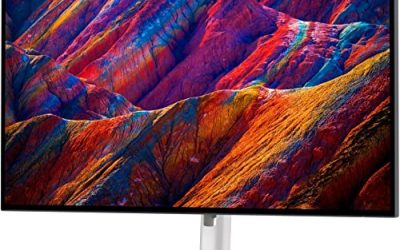
The Dell UltraSharp U3425WE is a 34.1-inch curved ultrawide built around its Thunderbolt 4 hub, and that hub is the reason it leads this guide. One upstream Thunderbolt 4 port charges a laptop at 90W, while a downstream Thunderbolt port supports a second display, five USB-A ports and three USB-C ports connect peripherals, and a 2.5GbE network port brings wired networking to the desk. The panel is a 34.1-inch IPS Black screen at 3440 x 1440 with a 1900R curve and a 120Hz refresh rate, a 2000:1 contrast ratio and brightness of 300 nits, with colour coverage listed at 98 percent DCI-P3 and 100 percent sRGB, an average Delta E under 2 and a factory calibration report included in the box. Dual 5W speakers handle quick audio without separate speakers, and HDMI 2.1 and DisplayPort 1.4 cover desktops and consoles alongside the Thunderbolt inputs. For spreadsheet work the extra contrast of IPS Black shows up as cleaner text edges, and for a laptop-first desk the hub removes the separate dock, its power brick and several cables.
Pros:
- Thunderbolt 4 hub with 90W charging, downstream Thunderbolt, USB ports and 2.5GbE networking
- IPS Black panel with 2000:1 contrast, 98 percent DCI-P3 and a factory calibration report
- 120Hz refresh rate and a gentle 1900R curve that suits documents and spreadsheets
- Dual 5W speakers and a full set of HDMI, DisplayPort and Thunderbolt inputs
Cons:
- Thunderbolt features add cost over a plain USB-C ultrawide
- HDR support is listed inconsistently across sources, so confirm on the listing before buying for HDR video work
- At 34.1 inches it still needs a desk with enough depth for comfortable viewing
Check the Dell UltraSharp U3425WE on Amazon
2. LG 34WN80C-B — Best Simple USB-C Ultrawide

The LG 34WN80C-B is the straightforward pick in this guide: a 34-inch IPS ultrawide at 3440 x 1440 with a 21:9 aspect ratio, USB-C with 60W power delivery, a 99 percent sRGB colour gamut and a three-side virtually borderless design. Its inputs cover a DisplayPort port, two HDMI ports, two USB ports and a headphone jack, and the stand adjusts for tilt and height. The IPS panel keeps colours and brightness steady across the full width of the screen, which matters when a spreadsheet stretches from one edge to the other, and the 99 percent sRGB coverage keeps document colours consistent with what colleagues see on their own screens. The USB-C port carries video, data and 60W charging in one cable, which suits ultrabooks and smaller laptops that charge at 60W or less. It has no Thunderbolt hub and no KVM switch in its listing, so it suits a single-computer desk better than a two-computer setup, and its refresh rate is not named in the listing excerpt, so confirm on the listing if refresh rate matters to your work.
Pros:
- 34-inch IPS panel at 3440 x 1440 with steady colours across a wide screen
- USB-C with 60W charging, DisplayPort, two HDMI ports and a USB hub
- 99 percent sRGB gamut for consistent document and web colours
- Tilt and height adjustable stand with a slim three-side borderless design
Cons:
- 60W charging may be light for larger laptops under load
- No Thunderbolt hub or KVM switch for multi-computer desks
- Refresh rate is not named in the listing excerpt, so confirm on the listing
Check the LG 34WN80C-B on Amazon
3. Samsung ViewFinity S65UA — Best Curved Screen for Smooth Scrolling
The Samsung ViewFinity S65UA, model LS34A654UBNXGO, is a 34-inch ultrawide at 3440 x 1440 with a 1000R curve and a 100Hz refresh rate, which makes long documents and timelines scroll more smoothly than a 60Hz screen. Its USB-C port charges a laptop at 90W while carrying video and data, so a single cable covers most laptop desks, and HDR10 support with one billion colours gives video and photo work more depth than a standard dynamic range panel. The height-adjustable stand lets you set the screen at eye level, and TUV-certified Intelligent Eye Care covers the low blue light and flicker-free features that matter during long sessions. AMD FreeSync support is listed, which keeps motion smooth when the screen is used for casual gaming after work. The 1000R curve is the tightest in this guide, so it suits people who sit close and work alone at the screen, while the panel type is not named in the listing excerpt, so confirm on the listing if you need a specific panel technology.
Pros:
- 1000R curve and 100Hz refresh rate for smooth scrolling and a wrapped field of view
- USB-C with 90W charging for one-cable laptop desks
- HDR10 support with one billion colours for video and photo work
- Height-adjustable stand and TUV-certified Intelligent Eye Care
Cons:
- The tight 1000R curve is less comfortable for a second viewer beside you
- Panel type is not named in the listing excerpt, so confirm on the listing
- No Thunderbolt hub, so a second display needs its own connection
Check the Samsung ViewFinity S65UA on Amazon
Who Should Choose What
Choose the Dell UltraSharp U3425WE if your laptop is the centre of your desk and you want the dock to disappear. Its Thunderbolt 4 hub, 90W charging and wired networking cover the whole setup through one cable, and the IPS Black panel gives the cleanest text of the three picks. Choose the LG 34WN80C-B if your setup is simple: one computer, one cable, and a screen that shows documents and spreadsheets with steady, accurate colour. Its 60W USB-C charging suits ultrabooks, and its price tier sits below Thunderbolt models. Choose the Samsung ViewFinity S65UA if you sit close to your screen, scroll through long documents and timelines all day, and want the smoothest motion and the most immersive curve of the three. If your laptop charges above 90W or you run two computers daily, check the Dell first, since its hub and KVM-friendly design handle those cases best.
Common Mistakes
The most common mistake is buying an ultrawide for the size and forgetting the charging wattage. A monitor with 60W USB-C charging will not keep a large laptop charged during heavy work, and the fix is either a monitor with 90W delivery or a separate charger, which defeats the one-cable desk. Another mistake is placing a 34-inch screen on a shallow desk: at less than 60 centimetres of depth the screen fills too much of your view and forces constant head movement, so measure first. People also assume every ultrawide includes a KVM switch or picture-by-picture, then find their two-computer setup still needs a separate switch; confirm those features on the listing before buying. Finally, do not judge an ultrawide by its refresh rate alone for office work. A high refresh rate makes scrolling smoother, but resolution, panel consistency and stand adjustment affect comfort far more over a full working day.
FAQ
Is a 34-inch ultrawide enough to replace two monitors?
For most office work, yes. A 34-inch screen at 3440 x 1440 holds two full windows side by side plus a narrow third pane, which covers a spreadsheet beside a document or a browser beside a chat app. It removes the bezel gap between two screens and uses one stand and one power cable. People who need three full-size windows at once or who keep many apps visible simultaneously may still prefer a 49-inch super ultrawide or two separate screens.
What resolution should a wide monitor for work have?
3440 x 1440 is the right resolution for a 34-inch ultrawide used for office work. It keeps text sharp at normal scaling and gives enough horizontal room for real multitasking. A 29-inch ultrawide at 2560 x 1080 makes text softer, while a 38-inch or 49-inch screen at higher resolutions costs more and needs a deeper desk and a stronger graphics output.
Does USB-C charging wattage matter for office monitors?
Yes, because it decides whether one cable can both drive the screen and charge your laptop. A 90W port covers most 13-inch, 14-inch and many 15-inch laptops during office work, while a 60W port suits smaller ultrabooks. Check the wattage of your laptop charger, then choose a monitor whose USB-C port matches or exceeds it.
Is a curved monitor good for spreadsheets?
A gentle curve works well for spreadsheets because it keeps the far columns at a more even distance from your eyes, which reduces the need to turn your head. A 1900R curve feels close to flat, while a 1000R curve wraps more noticeably. Either works for office tasks; the choice comes down to how close you sit and whether anyone else reads the screen beside you.
Do I need Thunderbolt 4 on a work monitor?
Only if your laptop supports Thunderbolt and you want the monitor to act as your dock. Thunderbolt 4 adds a downstream port for a second display, faster data and wired networking through the monitor. If you use a desktop, or your laptop connects over plain USB-C, a standard USB-C ultrawide such as the LG pick covers the same screen with fewer unused features.
What should I check before buying a wide monitor for work?
Check four things: the resolution and size against your desk depth, the USB-C charging wattage against your laptop charger, whether you need a KVM switch or picture-by-picture for a second computer, and whether the stand adjusts for height and tilt or supports a monitor arm. Confirm each point on the listing, since features vary between models that look similar.
Conclusion
The best wide monitors for work give you room for the apps you actually keep open, without forcing a second screen onto your desk. A 34-inch ultrawide at 3440 x 1440 is the right size for most people, and the choice between our three picks comes down to how you connect: the Dell UltraSharp U3425WE for a Thunderbolt laptop dock, the LG 34WN80C-B for a simple one-cable USB-C desk, and the Samsung ViewFinity S65UA for a tighter curve and smoother scrolling. Measure your desk, check your laptop charger wattage, confirm the ports and features on the listing, and you will end up with a screen that makes the working day easier rather than just wider.
FAQ
Is a 34-inch ultrawide enough to replace two monitors?
What resolution should a wide monitor for work have?
Does USB-C charging wattage matter for office monitors?
Is a curved monitor good for spreadsheets?
Do I need Thunderbolt 4 on a work monitor?
What should I check before buying a wide monitor for work?
More from Amazon
Programs that pair well with the guide above. Offers and eligibility are set by Amazon and may change.
Free shipping on eligible items, Prime Video and more. Eligible new members can start with a free trial.
Start a Prime free trialAd-free music streaming. Eligible new subscribers can start with a free trial.
Try Music Unlimited freeA Prime membership for ages 18-24 with a trial period. Eligibility is set by Amazon.
See Prime for Young AdultsAudiobooks and podcasts to listen to on the go. Eligible new members can start with a free trial.
Try Audible freeAs an Amazon Associate we earn from qualifying purchases.