Key takeaways
- TVs and large monitors that work as PC displays: 42 and 43 inch 4K panels with HDMI 2.1, 144Hz gaming modes and smart features, verified on Amazon.
Past 40 inches, the line between television and monitor stops meaning much — what matters is whether the panel behaves properly when a PC is feeding it. That means true 4K without the blur of TV processing, a refresh rate the graphics card can use, an HDMI 2.1 or DisplayPort input with the bandwidth for it, and input lag low enough that the mouse feels attached to your hand. Many TVs fail it quietly. The decision is which hybrid you want: a genuine TV with gaming-grade inputs, or a genuine monitor at TV size.
This guide is for PC gamers moving to a big display, home-office users wanting one screen for work and streaming, and anyone replacing separate TV and monitor with one panel. The four picks come from their Amazon listings: two 42–43 inch televisions with 144Hz gaming support, one smart monitor with built-in TV apps, and one 43-inch monitor with DisplayPort and a USB hub. Panel type, ports and refresh figures come from the listings, compromises included.
Quick Picks
As an Amazon Associate we earn from qualifying purchases.
| Product | Best for | Key spec from title |
|---|---|---|
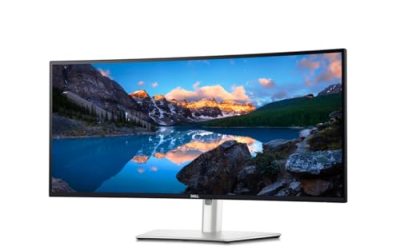
| LG C4 42-inch OLED evo (OLED42C4PUA) | Best picture for PC gaming and film | OLED evo 4K, 144Hz, four HDMI 2.1 ports |
| Samsung QN90D 43-inch (QN43QN90DAFXZA) | Bright rooms and mixed TV/PC use | Neo QLED Mini LED, Motion Xcelerator 144Hz |
| Samsung Smart Monitor M7 43-inch (M70F) | A work desk that streams without the PC | 4K smart monitor with USB-C and TV apps |
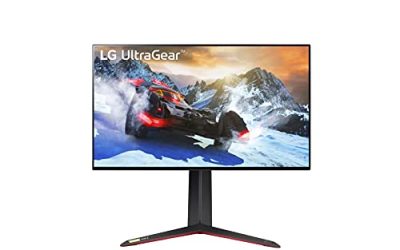
| Gigabyte AORUS FV43U | A true monitor at TV size | 43-inch 4K 144Hz, DisplayPort 1.4, HDR1000 |
How to Choose
Decide Whether You Want a TV That Games or a Monitor That Entertains
The two families differ in daily behaviour. A television brings a tuner, streaming apps, a remote and speakers, and it expects to be the centre of the room — but it has no DisplayPort, usually no USB-C video input, and it may not wake and sleep in step with your PC. A large monitor brings DisplayPort, a USB hub and proper PC power behaviour, but no tuner or smart platform. Neither is wrong; the mistake is buying one while expecting the other’s habits. Check the listing’s port list against everything you plan to plug in, including a console.
Confirm the Refresh Rate Path From GPU to Panel
A 144Hz badge only helps if the whole chain supports it. At 4K, high refresh rates need HDMI 2.1 or DisplayPort 1.4 with enough bandwidth, and the listing should say which ports carry the full rate — on TVs, sometimes only some HDMI ports are the fast ones. For PC use, also look for variable refresh support that matches your graphics card: G-Sync compatibility for NVIDIA, FreeSync for AMD, ideally both. A 60Hz panel is fine for office work and video, but gamers paying for a fast GPU should not bottleneck it at the display.
Weigh Panel Type Against Your Room and Content
OLED gives perfect blacks and the fastest pixel response, and it suits dim rooms and cinematic content, though a static desktop shown all day deserves the usual OLED care. Mini LED LCD gets much brighter, shrugs off glare in sunny rooms, and asks for no such caution, at the cost of some blooming around bright objects. Large VA panels, used by the two monitor-style picks here, offer strong contrast at a lower price but narrower viewing angles. Read which panel the listing specifies and match it to your lighting and what you actually display.
Measure the Desk Before Falling for the Diagonal
A 43-inch screen is roughly a metre wide, and television feet often spread nearly that full width, while monitor stands concentrate the weight in the middle. You need enough desk depth to sit at a sensible distance — most people land somewhere around arm’s length or a bit more — and a wall or desk mount rated for the weight if the stand does not suit. Check the listing’s dimensions and VESA pattern before ordering. Also count inputs with your whole setup in mind: PC, console, soundbar over eARC and a streaming stick can fill four ports quickly.
The 4 Best Options
LG C4 42-inch OLED evo (OLED42C4PUA)
The 42-inch C4 is the pick that made this category popular: a television whose gaming specification reads like a monitor’s. Its self-lit OLED panel delivers 4K with a 144Hz refresh rate, four HDMI 2.1 ports, and support for G-Sync, FreeSync Premium and VRR, driven by LG’s α9 AI Processor Gen7. For PC use that means one HDMI cable from the graphics card carries the full signal, and the same screen runs webOS for streaming when the PC is off. There is no DisplayPort or USB-C video input, so the PC connection is HDMI-only, and, as with any OLED desktop, static taskbars shown for years deserve some care in settings.
Specs
- Panel: 42-inch OLED evo, self-lit pixels
- Resolution: 4K UHD (3840 x 2160)
- Refresh rate: 144Hz
- Inputs: four HDMI 2.1 ports
- Sync support: NVIDIA G-Sync, AMD FreeSync Premium, VRR
- Processor and platform: α9 AI Processor Gen7, webOS 24
- Audio and HDR: Dolby Vision, Dolby Atmos
- Included: Magic Remote
Best for: PC gamers and film fans who want the best contrast and motion at a desk-friendly TV size.
Watch out for: No DisplayPort or USB-C input, and OLED panels call for sensible habits — auto-hide the taskbar and vary static content during all-day desktop use.
ASIN: B0CVRXN6XZ
Samsung QN90D 43-inch Neo QLED (QN43QN90DAFXZA)
Samsung’s 43-inch QN90D takes the opposite route to the same job: a Mini LED Neo QLED panel that gets very bright, with Motion Xcelerator 144Hz for gaming, the NQ4 AI Gen2 processor, and FreeSync Premium Pro support. Brightness is its argument — in a sunlit room where an OLED can look washed out, this panel keeps games and spreadsheets punchy, and Samsung’s Gaming Hub plus the full smart TV platform cover entertainment after hours. Like the LG it connects to a PC over HDMI 2.1 rather than DisplayPort. The VA-type panel’s viewing angles are narrower than OLED’s, which matters if the screen doubles for group viewing from the sides.
Specs
- Panel: 43-inch Neo QLED with Mini LED backlight
- Resolution: 4K UHD (3840 x 2160)
- Refresh rate: Motion Xcelerator 144Hz
- HDR: Neo Quantum HDR+
- Sync support: FreeSync Premium Pro
- Processor and platform: NQ4 AI Gen2, Tizen smart TV with Gaming Hub
- Inputs: HDMI 2.1 ports with eARC
- Audio: Dolby Atmos, Alexa built in
Best for: Bright rooms and shared spaces where one screen splits time between a gaming PC and regular television.
Watch out for: Viewing angles narrow off-centre, and there is no DisplayPort, so multi-monitor PC features that rely on it are off the table.
ASIN: B0CV9RV77Z
Samsung Smart Monitor M7 43-inch (M70F, LS43FM702UNXZA)
The M70F is a monitor that borrowed the TV’s best trick: it runs streaming apps on its own, so the screen works for evening viewing with the PC switched off. As a monitor it offers a 43-inch 4K VA panel, USB-C connectivity for a laptop alongside HDMI and USB-A ports, built-in speakers and a remote in the box. Samsung’s Gaming Hub is included for cloud gaming. The honest limit is speed: the panel refreshes at 60Hz, so this is a productivity and entertainment display, not a high-refresh gaming one. For a desk in a studio flat or spare room, that trade buys a genuinely dual-purpose screen.
Specs
- Panel: 43-inch VA, flat
- Resolution: 4K UHD (3840 x 2160)
- Refresh rate: 60Hz; response time 4ms GTG per the listing family specs
- HDR: HDR10
- Inputs: USB-C, HDMI, USB-A hub ports
- Platform: Smart TV apps and Gaming Hub built in
- Audio: built-in speakers
- Included: remote control
Best for: Home-office desks in small spaces, where one screen must handle work all day and streaming all evening.
Watch out for: The 60Hz refresh rate caps gaming smoothness, so competitive players should pick one of the 144Hz models instead.
ASIN: B0F5VLWQY6
Gigabyte AORUS FV43U
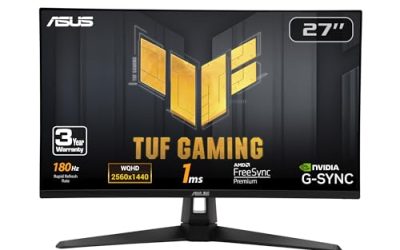
The FV43U is the monitor family’s representative: a 43-inch Quantum Dot VA panel built for a PC first, with 144Hz at 4K, a listed 1ms response time, VESA DisplayHDR 1000 and wide DCI-P3 colour coverage. Crucially, it keeps the connections TVs drop — DisplayPort 1.4 alongside two HDMI 2.1 ports, USB 3.0 ports and USB-C — plus G-SYNC compatibility and built-in speakers with a noise-cancelling feature for headsets. What it does not have is any television in it: no tuner, no smart apps, no remote-driven platform. If the screen’s only job is serving a PC and consoles at a desk, that focus is the point.
Specs
- Panel: 43-inch VA with Quantum Dot
- Resolution: 4K UHD (3840 x 2160)
- Refresh rate: 144Hz; response time 1ms per the listing
- HDR: VESA DisplayHDR 1000; colour coverage listed at 96 percent of DCI-P3
- Inputs: DisplayPort 1.4, two HDMI 2.1, USB-C, two USB 3.0
- Sync support: NVIDIA G-SYNC Compatible
- Audio: built-in speakers, built-in ANC feature for headsets
Best for: Desk setups that want TV size with true monitor behaviour — DisplayPort, a USB hub and PC-style power management.
Watch out for: No smart TV features or tuner at all, and VA viewing angles are tighter than the OLED’s if friends crowd around.
ASIN: B0947K1VRX
Which One Fits Your Situation
Gaming Comes First, Films a Close Second
Buy the LG C4. The OLED panel’s contrast and pixel response flatter both, the 144Hz rate and dual sync support suit either graphics card brand, and webOS covers streaming when the PC sleeps. Just connect over HDMI 2.1 and set the TV’s input to its PC or game mode as the manual directs.
The Screen Faces Windows All Day
Choose the Samsung QN90D. Mini LED brightness is the practical answer to glare, the 144Hz gaming support keeps the PC side honest, and the full TV platform means the same screen handles broadcast and streaming without extra boxes. It is the easiest single-screen answer overall for a bright living space.
One Screen for a Studio Flat
The Smart Monitor M7 earns its place here. Work on the 4K panel over USB-C or HDMI during the working day, then use its own apps and remote in the evening — no separate TV, no streaming stick, no PC left running at all. Accept the 60Hz panel as the price of that simplicity.
Your Setup Is a PC, Two Consoles and Peripherals
Take the AORUS FV43U. DisplayPort serves the PC at full rate, the pair of HDMI 2.1 ports take both consoles, and the USB ports tidy up desk peripherals. You give up smart TV features entirely, which a setup like this never used anyway. It is the purist’s option, and proud of it.
Common Mistakes
- Buying a TV for PC use without checking that its HDMI ports support the full refresh rate at 4K.
- Forgetting there is no DisplayPort on televisions, then discovering the PC setup depended on it.
- Sitting too close: a 43-inch screen on a shallow desk forces constant head movement.
- Leaving TV image processing and sharpening on for desktop text instead of using the PC or game mode.
- Assuming a big monitor includes speakers, a remote or smart apps just because it is TV-sized.
Frequently Asked Questions
Can a 43-Inch TV Really Replace a Monitor for Full-Time PC Work?
Yes, provided it accepts a proper 4K signal at 60Hz or above and offers a game or PC mode that disables heavy processing, as the televisions here do. Text stays sharp because the resolution is genuinely 4K. The practical adjustments are ergonomic: sit a little farther back than with a 27-inch monitor, and consider a VESA mount to reclaim desk depth from wide TV feet.
Do I Need HDMI 2.1 to Run 4K at 144Hz?
For these displays, yes on the TV side: 4K at high refresh rates exceeds what older HDMI versions carry, so the graphics card, the cable and the port all need to be HDMI 2.1, or you use DisplayPort 1.4 on a monitor like the FV43U. Drop any link in that chain to an older standard and the refresh rate falls back, usually to 60Hz at 4K.
Will Text Look Soft on a Screen This Big?
At 4K, a 42–43 inch panel lands near the pixel density of a smaller 1440p monitor, so text is respectably sharp at a normal desk distance, especially with display scaling set to taste. What makes text look poor is processing, not size: run the input in PC or game mode, and avoid extra sharpening. VA and OLED panels here both render desktop text cleanly when set up that way.
Should OLED Owners Worry About Desktop Burn-In?
Modern OLED TVs include pixel-refresh routines and panel care features, and varied content is low risk. A desktop is the demanding case because taskbars and window frames sit still for hours. Sensible habits — auto-hiding the taskbar, using a screen saver, lowering brightness for office work — reduce the risk substantially. If your screen shows one static spreadsheet twelve hours a day, a Mini LED model is the calmer choice.
FAQ
Can a 43-Inch TV Really Replace a Monitor for Full-Time PC Work?
Do I Need HDMI 2.1 to Run 4K at 144Hz?
Will Text Look Soft on a Screen This Big?
Should OLED Owners Worry About Desktop Burn-In?
More from Amazon
Programs that pair well with the guide above. Offers and eligibility are set by Amazon and may change.
Free shipping on eligible items, Prime Video and more. Eligible new members can start with a free trial.
Start a Prime free trialAd-free music streaming. Eligible new subscribers can start with a free trial.
Try Music Unlimited freeA Prime membership for ages 18-24 with a trial period. Eligibility is set by Amazon.
See Prime for Young AdultsAudiobooks and podcasts to listen to on the go. Eligible new members can start with a free trial.
Try Audible freeAs an Amazon Associate we earn from qualifying purchases.